
Discord voice chat is already a lively place. Someone is explaining a strategy, someone else is chewing directly into the microphone like they are reviewing gravel, and thenperfect timinga tiny “airhorn” sound turns the whole channel into controlled chaos. That is the magic of the Discord Soundboard. It lets server members play short audio clips in voice channels, making reactions faster, funnier, and sometimes dramatically unnecessary in the best possible way.
If you want to add sounds to a Discord Soundboard, the process is simple once you know where Discord hides the buttons. The real trick is not just uploading an MP3. It is choosing a clean clip, trimming it to the right length, setting permissions correctly, and making sure your server does not become a nonstop honk factory. This easy guide walks you through how to add custom sounds to Discord Soundboard, how to manage permissions, how to fix common upload problems, and how to create sound clips people will actually enjoy.
What Is the Discord Soundboard?
The Discord Soundboard is a built-in voice channel feature that lets users play short sound effects during a call. Think of it as an audio reaction button. Instead of typing “LOL,” you can play a laugh track. Instead of saying “awkward,” you can drop a cricket sound. Instead of politely leaving a conversation, you can play a sad trombone and question your life choices later.
Soundboard sounds are tied to servers. That means each Discord server can have its own collection of custom sound effects, just like it can have custom emojis and stickers. Server owners and people with the right permissions can upload, edit, and remove those sounds. Regular members may only be able to use the sounds, depending on how the server roles are configured.
Discord Soundboard Upload Requirements
Before you try to upload your future masterpiece, make sure your audio file meets Discord’s basic soundboard requirements. Discord is strict about sound size and length because Soundboard clips are meant to be quick reactions, not a three-act musical.
Basic requirements for custom Discord Soundboard sounds
- File type: MP3
- Maximum file size: 512 KB
- Maximum sound length: Up to 5 seconds
- Sound name: Short, clear, and easy to recognize
- Related emoji: Optional, but useful for quick visual identification
- Volume: Adjustable during upload or editing
If your sound is longer than five seconds, Discord may reject it. If the file is too large, it will also fail. If your clip is in WAV, M4A, OGG, or another format, convert it to MP3 first. Keep it short, punchy, and clean. A good Discord soundboard clip should land quickly, like a joke with good timingnot like a voicemail from someone explaining where they parked.
How to Add Sounds to a Discord Soundboard
Here is the straightforward method for adding sounds to your Discord server’s Soundboard using the desktop app or web version.
Step 1: Open your Discord server
Launch Discord and choose the server where you want to add a custom sound. You must either own the server or have the proper permissions. If you do not see the settings described below, your role probably does not allow you to upload Soundboard sounds.
Step 2: Go to Server Settings
Click the server name in the upper-left corner of Discord. From the dropdown menu, select Server Settings. This is the control room for your server’s roles, emojis, stickers, soundboard clips, moderation settings, and other important buttons you should not randomly press while tired.
Step 3: Open the Soundboard section
Inside Server Settings, look for Soundboard. This page shows the sounds currently available in your server. It is also where you can upload new sounds, edit existing ones, or remove sounds that seemed funny at 2 a.m. but now feel like evidence.
Step 4: Click Upload Sound
Select Upload Sound. Discord will prompt you to choose an audio file from your computer. Pick your MP3 file and wait for Discord to load the upload menu.
Step 5: Name your sound
Give your sound a clear name. This name should tell members what the sound does without making them solve a puzzle. Good examples include “Airhorn,” “Fail,” “Victory,” “Bruh,” “Door Knock,” “Crowd Cheer,” and “Sad Trombone.” Avoid vague names like “Sound 1,” “New Clip,” or “Definitely Not Annoying.” That last one is suspicious immediately.
Step 6: Add a related emoji
Discord lets you assign a related emoji to each sound. This is helpful because the emoji appears as a visual cue when someone uses the sound. For example, a car horn sound could use 🚗, a laugh sound could use 😂, and a dramatic gasp could use 😱. A good emoji makes your soundboard easier to scan during fast-moving conversations.
Step 7: Adjust the sound volume
Set the default volume before uploading. If your clip is already loud, lower the volume so it does not blast everyone into another dimension. If the sound is too quiet, increase it carefully. The goal is to make the clip noticeable without turning your voice channel into a jump scare simulator.
Step 8: Upload and test the sound
Click Upload. After the sound appears in your Soundboard list, join a voice channel and test it. Listen for timing, volume, clarity, and whether it is actually funny in context. Some sounds are hilarious in your head but land in voice chat like a wet sock. Testing saves lives, or at least ears.
How to Use a Soundboard Sound in Discord
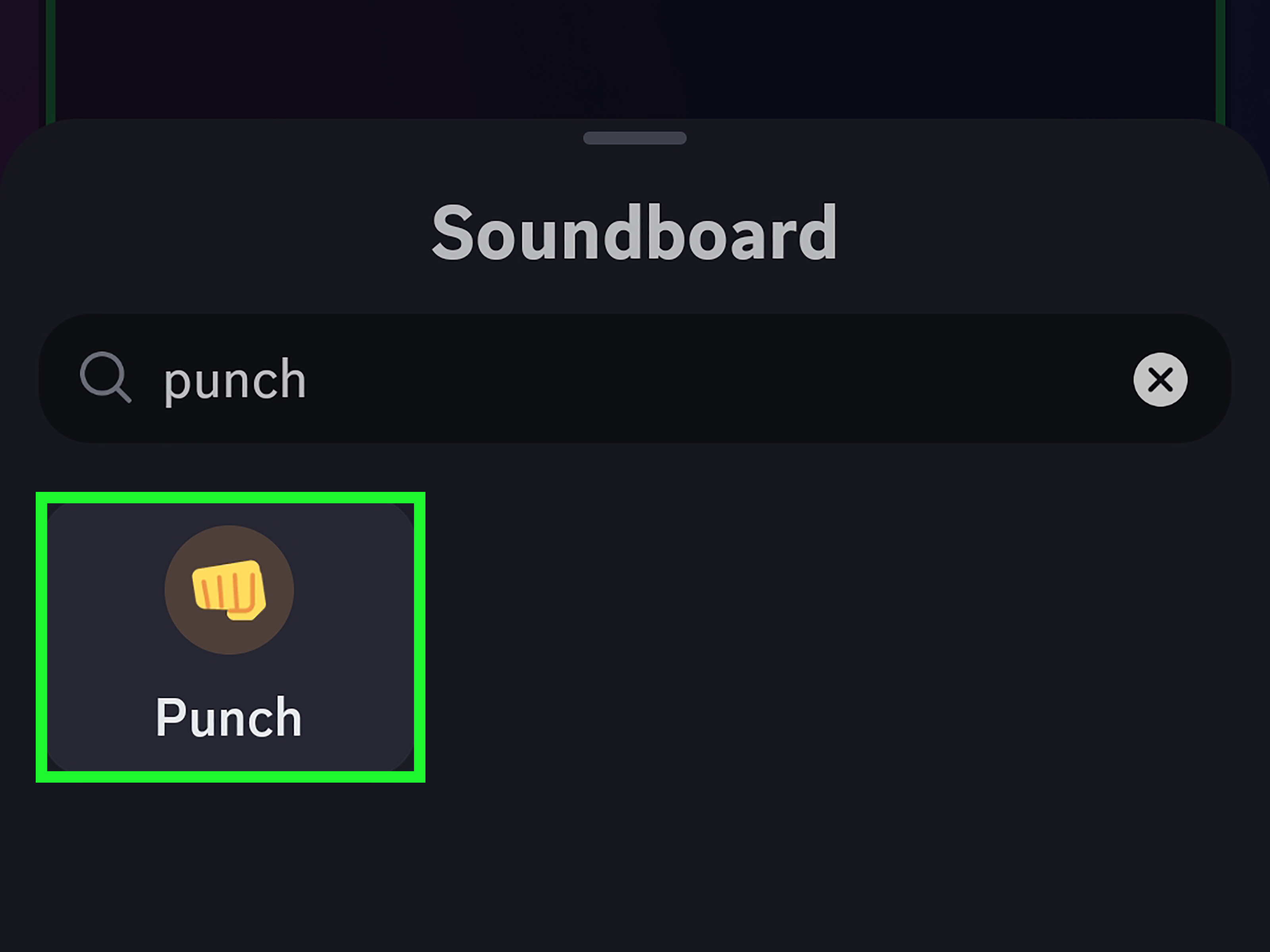
Once sounds are uploaded, using them is simple. Join a voice channel, open the Soundboard panel, and click the sound you want to play. Everyone in the same voice channel should hear it unless their personal Soundboard volume is muted or reduced.
On desktop, Discord also supports quick access to Soundboard through the voice interface. Some users may also see Soundboard options in the game overlay. On mobile, the layout may look different, but the basic idea is the same: join voice, open the soundboard, choose the sound, and enjoy your five seconds of comedic power.
Discord Soundboard Permissions Explained
If you manage a server, permissions matter. Without the right setup, either nobody can add sounds, or everybody can add sounds, which is how you wake up to 37 versions of the same goat scream.
Create Expressions
The Create Expressions permission allows a role to upload custom expressions, including soundboard sounds. If you want moderators or trusted members to add new Soundboard clips, give them this permission. Be selective. This permission can also relate to other expressive server features, such as emojis and stickers.
Manage Expressions
The Manage Expressions permission allows users to edit or remove existing sounds. This should usually be reserved for admins, moderators, or a trusted creative team. Give it to people who understand your server’s tone and will not delete the victory sound during a heated Mario Kart tournament.
Use Soundboard
The Use Soundboard permission controls whether members can play sounds in voice channels. You can enable or disable it for roles across the whole server or customize it for specific voice channels.
Use External Sounds
The Use External Sounds permission allows members to use soundboard sounds from other servers when available. For small friend groups, this can be fun. For larger public communities, it may be better to restrict external sounds to trusted members so moderation stays manageable.
How to Edit or Remove Discord Soundboard Sounds
To edit or delete a Soundboard sound, go back to Server Settings > Soundboard. From there, you can select an existing sound, update its name, change the emoji, adjust the volume, or remove it completely.
Editing is useful when a clip is good but too loud, too quiet, or poorly named. Removing is useful when a clip is outdated, overused, annoying, inappropriate, or responsible for three separate members typing “please stop.”
How to Prepare a Good Soundboard Clip
A technically valid MP3 is not always a good Soundboard sound. The best clips are short, clean, recognizable, and timed well. Since Discord only gives you up to five seconds, every millisecond counts. This is sound design, but with more memes.
Trim the clip tightly
Remove dead air at the beginning and end. If your sound takes two seconds to become funny, it is probably too slow. A good clip starts almost immediately. For reaction sounds, aim for one to three seconds when possible.
Use fade-in and fade-out carefully
A tiny fade-in can prevent clicks at the beginning of a clip. A short fade-out can make the ending smoother. Do not overdo it. If your five-second clip spends two seconds fading away like a dramatic movie ending, it may lose its punch.
Normalize the volume
Normalize or adjust the clip so sounds across your server feel consistent. If one clip whispers and the next clip screams, members will start treating the Soundboard like a haunted volume knob. Audio editors such as Audacity, Adobe tools, browser-based editors, and other audio apps can help trim, normalize, fade, and export clips as MP3 files.
Compress the file if needed
If your MP3 is larger than 512 KB, reduce the bitrate or shorten the clip. Because Discord Soundboard clips are only five seconds long, you do not need ultra-high audio quality. A clean, compact MP3 is usually better than a massive file Discord refuses to accept.
Best Sound Ideas for a Discord Soundboard
Not sure what to add? Start with sounds that match your server’s personality. A gaming server may want victory music, fail sounds, countdown beeps, “mission complete” effects, and dramatic alerts. A study server may prefer gentle chimes, applause, focus bells, and short motivational clips. A friend group might want inside jokes, pet noises, iconic phrases, and the one weird sound everyone laughs at for reasons no outsider will ever understand.
Good custom sound categories
- Reaction sounds: gasp, laugh, wow, bruh, applause
- Gaming sounds: victory, defeat, level up, alert, countdown
- Comedy sounds: cricket, sad trombone, rimshot, cartoon slip
- Community sounds: inside jokes, mascot noises, event cues
- Utility sounds: meeting start, time warning, break reminder
The best Discord Soundboard sounds become part of your server culture. Members will start using them like punctuation. That is when you know the clip works.
What Sounds Should You Avoid?
A Soundboard should make voice chat better, not unbearable. Avoid sounds that are painfully loud, hateful, harassing, sexually explicit in mixed-age spaces, intentionally disruptive, or copied from copyrighted material without permission. Also avoid long clips of music, private recordings of people who did not consent, and anything designed to embarrass or target a member.
For public servers, create a simple soundboard rule: sounds should be short, safe, relevant, and not spammed. If your server has moderators, give them permission to remove clips that cross the line. Funny is good. “Everyone muted and left” is less good.
Common Problems When Adding Sounds to Discord Soundboard
The Upload Sound button is missing
You probably do not have permission to add sounds. Ask the server owner or an admin to give your role the Create Expressions permission, or ask them to upload the sound for you.
Discord says the file is too large
Your MP3 is over 512 KB. Trim the clip shorter, export at a lower bitrate, or compress the file. Since the clip must be very short anyway, reducing file size is usually easy.
Discord says the sound is too long
Trim the clip to five seconds or less. If your editor shows the clip as five seconds exactly and Discord still rejects it, shave off a little extra time. Export it at 4.8 or 4.9 seconds to give yourself a small safety margin.
The sound is too loud or distorted
Lower the clip volume before uploading, or adjust the default Soundboard volume after upload. If the audio is distorted in the original file, reducing volume will not fully fix it. Go back to the source clip, reduce gain, normalize carefully, and export again.
Members cannot hear the sound
They may have their Soundboard volume turned down in Discord’s Voice & Video settings. They may also lack permission to use soundboard features in that channel. Check both personal settings and server permissions.
External sounds are not working
The server may have disabled Use External Sounds for your role or channel. Nitro-related access can also affect how sounds are used across servers. If external sounds matter to your community, review the role permissions and test with a trusted member account.
Tips for Managing a Server Soundboard
A great Soundboard feels curated. A messy Soundboard feels like someone dropped a keyboard into a meme blender. Keep your collection organized by removing duplicates, naming sounds clearly, and setting a consistent volume standard.
Create a sound request channel
Instead of letting everyone upload directly, make a text channel where members can suggest new sounds. Moderators can review the file, check whether it fits the rules, and upload only the best clips.
Limit upload permissions
For most servers, only owners, admins, moderators, or trusted members should have Create Expressions. This keeps the Soundboard fun without turning it into an audio junk drawer.
Review sounds regularly
Every few weeks, remove sounds nobody uses. If a sound was funny once but now causes spiritual fatigue, retire it with honor. Your members deserve fresh audio seasoning.
Balance funny and functional sounds
Comedy sounds are great, but practical cues can be helpful too. A quick “ready check,” “break time,” or “meeting start” sound can help communities, study groups, and gaming teams stay coordinated.
Practical Experience: What Actually Works When Adding Discord Soundboard Sounds
In real use, the easiest part of adding sounds to a Discord Soundboard is clicking Upload. The harder part is making a sound that does not become annoying after three plays. A clip can be technically perfect and still fail the “will people enjoy hearing this during a conversation?” test. The best approach is to think like a DJ, a moderator, and a slightly mischievous raccoon at the same time.
One useful habit is to test every sound in an actual voice channel before announcing it. A sound that seems clear in your audio editor may feel too sharp through Discord, especially if it has a sudden high-frequency burst like a whistle, beep, scream, or horn. Lowering the default volume is often better than trusting everyone’s speakers to survive. If members immediately say “what was that?” the clip may be too quiet or unclear. If they say “MY EARS,” congratulations, you have discovered the volume slider.
Shorter clips usually perform better. A one-second “ding,” a two-second laugh, or a quick “mission failed” effect is easier to use naturally than a full five-second quote. Five seconds sounds short until everyone in voice chat has to sit through it during a serious clutch moment. In gaming servers, timing matters a lot. Sounds that support the momentvictory, defeat, surprise, warningget used more often than random clips with no purpose.
Another lesson: inside jokes are powerful, but they age quickly. A clip from last night’s hilarious moment may become a server classic, or it may confuse everyone who joins next week. When adding inside-joke sounds, use clear names and emojis so new members can understand the vibe. For example, “Bean Panic” with a shocked emoji is better than “audio_final_3.mp3,” which sounds like a file found in a cursed downloads folder.
Permissions also matter more than people expect. In small friend servers, giving trusted members upload access can be fine. In larger communities, it is smarter to create a request-and-review process. This prevents copyrighted songs, offensive clips, ear-splitting noises, and duplicates from piling up. A clean Soundboard makes members more likely to use it because they can find the right sound quickly.
Finally, treat the Soundboard as part of your server’s personality. A cozy community might use soft chimes, tiny applause, and wholesome reactions. A competitive gaming server might prefer alerts, countdowns, and dramatic failure sounds. A chaotic friend group may survive entirely on duck noises and emotional damage. There is no single perfect Soundboard. The best one is the one your members actually enjoy using without making everyone reach for the mute button.
Conclusion
Adding sounds to a Discord Soundboard is easy once you know the path: open Server Settings, go to Soundboard, upload an MP3, name it, assign an emoji, adjust the volume, and test it in voice chat. The most important details are Discord’s upload limits: MP3 format, up to 512 KB, and up to five seconds long. If your clip meets those requirements and your role has the right permissions, you can build a custom soundboard in minutes.
For the best results, do not just upload random audio and hope for comedy lightning. Trim clips tightly, normalize volume, use clear names, choose helpful emojis, and manage permissions carefully. A well-built Discord Soundboard can make gaming nights, community events, study calls, and casual hangouts more expressive. A poorly managed one can become an airhorn-based public health issue. Choose wisely, upload responsibly, and may your sound effects always land at exactly the right moment.
SEO Tags
Note: Discord menus, permissions, and Soundboard options may vary slightly depending on your app version, server role, device, region, and account features. Always follow Discord’s current community, copyright, and server rules when uploading or using custom sounds.













