Installing a Nest Learning Thermostat is one of those home projects that looks suspiciously easy in the promotional video. Remove the old thermostat, connect a few wires, snap on the shiny new display, and celebrate your transformation into a smart-home genius. In many homes, it really is that straightforwardbut HVAC wiring has enough exceptions to keep your screwdriver humble.
This guide explains how to install a Nest Learning Thermostat safely, identify common thermostat wires, complete setup in the correct app, and test your heating and cooling equipment. It focuses primarily on the fourth-generation Nest Learning Thermostat sold in the United States, while noting important differences for earlier models.
Can You Install a Nest Learning Thermostat Yourself?
Many homeowners can complete a standard Nest thermostat installation in approximately 30 to 60 minutes. A conventional 24-volt forced-air system with clearly labeled solid-core wires is usually the friendliest DIY candidate.
The fourth-generation Nest Learning Thermostat works with many 24-volt gas, electric, oil, forced-air, radiant, and heat-pump systems. It can support multiple heating and cooling stages, fans, and certain indoor-air-quality accessories. Compatibility, however, depends on the exact wires and equipmentnot simply the color of the old thermostat or your furnace’s impressive collection of warning stickers.
Use a professional installer when you have:
- A dual-fuel system combining a heat pump with a gas or oil furnace
- A communicating or proprietary HVAC control system
- Electric baseboard heat controlled by 120- or 240-volt wiring
- A millivolt heating system, such as certain wall heaters or fireplaces
- Stranded thermostat wires instead of solid-core copper conductors
- A complicated zoned, multi-speed, humidifier, or dehumidifier configuration
- Unlabeled wires or terminals that do not match the installation app
- An HVAC system that was already malfunctioning before the project began
Check Compatibility Before Removing Anything
Run your existing wire configuration through Google’s Nest compatibility checker before purchasing or installing the thermostat. For the fourth-generation model, begin the installation process in the Google Home app. The app asks which wires are connected to the old thermostat and generates a wiring diagram specifically for your system.
Third-generation and earlier Nest Learning Thermostats may use the Nest app and have a different terminal arrangement. Do not assume that a diagram for one generation applies to another. The instructions supplied for your exact model always take priority over a generic thermostat wiring guide.
Watch for incompatible high-voltage wiring
Most compatible HVAC controls use thin 18- to 22-gauge thermostat wires carrying approximately 24 volts AC. Stop if the old thermostat has thick wires, wire nuts, or terminals marked L1, L2, 120V, or 240V. Those signs commonly indicate line-voltage heating controls, which should not be connected directly to a Nest Learning Thermostat.
Do you need a C-wire?
A C-wire, or common wire, provides a continuous power return path between the HVAC transformer and thermostat. The fourth-generation Nest Learning Thermostat is designed to operate without one in most compatible homes. Nevertheless, certain systems cannot supply enough stable power through the other conductors.
If the thermostat repeatedly loses power, disconnects from Wi-Fi, reports a low-battery condition, or causes unusual equipment behavior, a connected C-wire or an official Nest Power Connector may be required. Avoid improvising with an unverified third-party adapter. It is cheaper to call a professional than to introduce your furnace control board to experimental electronics.
Tools and Materials You May Need
- Your Nest Learning Thermostat, base, labels, screws, and optional trim plate
- A compatible smartphone with Bluetooth and Wi-Fi enabled
- The Google Home app for the fourth-generation model
- A Phillips screwdriver
- A small flat-head screwdriver, depending on the old thermostat
- A drill and suitable bits if new mounting holes are necessary
- A small level
- Painter’s tape
- A pencil
- A wire stripper for correcting damaged or overly short wire ends
- A phone camera for documenting the original connections
A multimeter can help a qualified person verify electrical conditions, but it is not required for a simple, clearly documented replacement. A non-contact voltage detector may not reliably detect low-voltage thermostat wiring, so do not treat silence from the tester as absolute proof that every circuit is safe.
How To Install a Nest Learning Thermostat Step by Step
1. Start the installation in the correct app
Install or open the Google Home app, sign in to your Google Account, and create or select the correct home. Choose the option to add a device, select the Nest Learning Thermostat, and scan the QR code when prompted.
The app may ask about your HVAC equipment, fuel type, existing thermostat terminals, and available accessories. Answer carefully. Selecting “heat pump” when you actually have a conventional furnace is not a harmless personality quiz; it changes how the thermostat operates the equipment.
2. Shut off power to the HVAC system
Turn off the breaker or breakers serving the furnace, air handler, heat pump, and air conditioner. Some homes have separate breakers for indoor and outdoor equipment. There may also be a service switch near the furnace that resembles an ordinary light switch.
Before removing any wires, try to activate heating, cooling, and the fan from the old thermostat. Nothing should start. If the system still runs, locate the additional power source and turn it off.
3. Remove the old thermostat cover
Carefully pull or unscrew the old thermostat’s faceplate while leaving its wired base attached to the wall. Check for a glass ampule containing mercury. If one is present, keep the thermostat upright and arrange proper hazardous-waste recycling instead of dropping it into the household trash.
4. Photograph and label every connection
Take a sharp, well-lit photograph showing the terminal letters and connected wires. Then attach the supplied wire labels according to terminal names, not wire colors. A blue conductor might be connected to Y, while a white one might be used as C. HVAC installers occasionally treat color conventions as friendly suggestions.
Record only the terminal to which each wire is actually connected. Do not count an unused wire tucked behind the wall, and do not treat a short metal jumper between R and Rc as a separate system wire. Nest thermostats generally manage the equivalent internal connection without the old jumper.
5. Understand the common thermostat terminals
- R, Rh, or Rc: 24-volt power from the HVAC transformer
- C: Common wire that provides a continuous power path
- W1, W2, or W3: Heating stages on conventional systems
- Y1 or Y2: Compressor or cooling stages
- G: Indoor fan control
- O/B: Heat-pump reversing valve
- AUX or E: Auxiliary or emergency heat
- HUM, DEHUM, or VENT: Indoor-air-quality accessories on supported configurations
This list explains typical functions, but it is not a universal wiring diagram. Follow the customized diagram in the app, particularly for heat pumps, separate heating and cooling transformers, accessories, and multi-stage equipment.
6. Disconnect the wires and secure the cable
Release one wire at a time from the old base. Bend the wires outward or tape them temporarily to the wall so the cable cannot fall into the opening. If the conductors disappear into the wall, the installation can quickly change from “easy Saturday project” to “why am I holding a flashlight with my teeth?”
Inspect each exposed end. It should be straight, clean, and long enough to enter the Nest connector fully. Trim and re-strip a damaged end only if sufficient wire remains. Do not splice, extend, or modify uncertain wiring without appropriate knowledge.
7. Remove the old base and prepare the wall
Unscrew the old mounting plate and gently pull it away. Pass the labeled conductors through the center opening of the Nest base. If the previous thermostat left unpainted areas or oversized holes, install the included trim plate behind the base.
Use the steel plate only when mounting to a compatible electrical box as directed by the product instructions. Avoid placing the thermostat over a large drafty wall cavity. Seal excessive openings with an appropriate removable material without burying or damaging the cable; air leaking from the wall can distort temperature readings.
8. Mount the Nest base
Position the base so the display will be upright and the wires remain relaxed. Mark the mounting holes, drill pilot holes when appropriate, and secure the base with the supplied hardware. Use a level before tightening the screws.
The base should sit flat without flexing. Tightening the screws as if you are attaching a suspension bridge can warp plastic components or damage drywall. Snug is enough.
9. Connect the labeled wires
Press the appropriate connector button, insert the matching wire as far as it will go, and release the button. The button should remain depressed when the conductor is properly seated. No bare copper should extend far enough to touch another terminal.
Give each wire a very gentle tug to confirm that it is secure. Do not push excess cable behind the base so aggressively that it forces the thermostat away from the wall. If the app’s diagram conflicts with your assumptions, trust the model-specific instructions or stop and contact a professional.
10. Attach the thermostat display
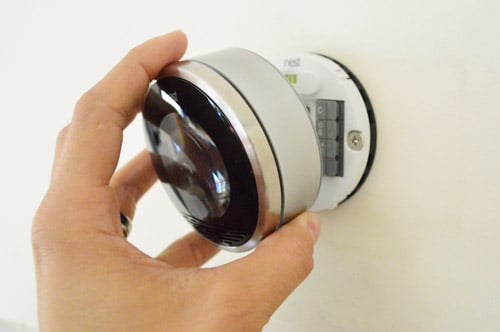
Align the Nest display with the base and press it evenly into place until it seats securely. Never twist or force the display. If it does not fit easily, remove it and check for protruding wires, uneven mounting, or a misaligned connector.
11. Restore power and finish setup
Turn the HVAC breakers and service switches back on. The fourth-generation Nest Learning Thermostat should start automatically. Allow it time to boot, update, and connect; smart thermostats are small computers, and small computers occasionally need a thoughtful minute.
Continue through the Google Home app to confirm the detected wiring, fuel type, heating and cooling stages, Wi-Fi network, location, safety temperatures, and preferred comfort settings. If you are installing a third-generation model, follow its Nest app instructions instead.
Test Heating, Cooling, and Fan Operation
Do not declare victory merely because the display lights up. Test every connected function before putting away the tools.
- Raise the target temperature above the room temperature and confirm that heating starts.
- Lower the target temperature below the room temperature and confirm that cooling starts.
- Test the independent fan control if your system has a G wire.
- Listen for normal operation and check that conditioned air reaches the vents.
- Confirm that the thermostat reports the correct operating mode.
Air-conditioning compressors often have a built-in delay of several minutes to prevent rapid cycling. Wait at least five minutes before assuming the cooling test failed. Never switch repeatedly between heating and cooling in quick succession.
For a heat pump, make sure it produces warm air in heating mode and cool air in cooling mode. If the modes appear reversed, the O/B reversing-valve configuration may be wrong. Return to the app’s equipment settings or call an HVAC technician rather than randomly moving wires.
Common Nest Installation Problems
The thermostat does not turn on
Check that every breaker and service switch has been restored. Many furnaces also have a cabinet safety switch that cuts power when the access panel is not installed correctly. With power off again, confirm that R and other required wires are fully seated and that their connector buttons remain down.
A wire is not detected
Turn off power and inspect the conductor. Nest thermostats work best with clean, straight solid-core copper wire. Approximately one-third to one-half inch of copper generally needs to be exposed, depending on the model instructions. A crooked, corroded, undersized, or partially inserted conductor may not be recognized.
The battery drains or Wi-Fi disconnects
The HVAC system may not be supplying stable power. A properly connected C-wire or Nest Power Connector can resolve many persistent low-power symptoms. Have a professional inspect the transformer and control board if the problem continues.
The thermostat activates the wrong equipment
Review the app’s equipment configuration and compare it with the original wiring photograph. Heat-pump settings, fuel selection, and auxiliary-heat configuration are common trouble spots. Restore the old thermostat if necessary to determine whether the problem comes from the Nest installation or the HVAC equipment itself.
The screen changes color, but nothing runs
A colored heating or cooling display means the thermostat is requesting operation; it does not prove the equipment responded. Check system power, the furnace door switch, condensate safety switches, and HVAC maintenance status. If the old thermostat produces the same failure, the heating or cooling system likely needs service.
Practical Installation Experiences and Lessons
Real-world Nest thermostat installations tend to be less about difficult wiring and more about avoiding small mistakes. The most valuable habit is taking more photographs than you think you need. Capture one full view, one close-up of the terminals, and another showing any unused conductors. A single blurry photo taken in a dark hallway is rarely as helpful as it seemed at the time.
One common scenario involves a four-wire conventional system with R, W, Y, and G but no connected C-wire. The Nest may install and operate normally because many Learning Thermostat models can draw power without a dedicated common conductor. The useful lesson is not to panic over a missing C-wirebut also not to ignore later symptoms. If Wi-Fi drops repeatedly, the battery remains low, or the furnace behaves strangely, stable power is the first thing to investigate.
Another frequent surprise is discovering a spare conductor folded behind the old thermostat. That spare wire may become a C-wire, but connecting it at the thermostat is only half the job. Its other end must be connected to the C terminal on the HVAC control board. Opening an air handler or furnace introduces high-voltage components and stored electrical energy, so this is where many sensible DIY installers decide that professional help is an excellent feature.
Wall condition also affects the finished result. Older rectangular thermostats often conceal unpainted drywall, extra screw holes, or wallpaper fossils from a previous geological era. Checking the wall before mounting the new base allows time to patch or use the included trim plate. Mounting the thermostat first and discovering the ugly outline afterward creates unnecessary work.
Heat-pump installations provide the strongest argument for slowing down during setup. A correctly connected O/B wire can still produce reversed operation if the thermostat is configured for the wrong reversing-valve behavior. During testing, allow the system to stabilize and check the actual air temperature rather than judging by the sound of the equipment. A compressor and fan may run convincingly while delivering the opposite of what you requested.
Wi-Fi setup can also create false alarms. If the thermostat controls the HVAC system locally but refuses to join the network, the problem may be router distance, Bluetooth permissions, account selection, or an incomplete app setupnot thermostat wiring. Restarting the app or router is more appropriate than immediately reopening electrical connections.
Finally, keep the old thermostat, screws, and wiring photograph for at least several weeks. If unexpected behavior appears, reinstalling the original thermostat can be a valuable diagnostic test. If the old thermostat also fails, the HVAC equipment probably needs service. If it works perfectly, recheck the Nest wiring, power requirements, and system configuration. The humble old thermostat may not be clever, but it can still serve as an excellent witness.
Final Thoughts
Learning how to install a Nest Learning Thermostat is manageable when the home has a compatible 24-volt HVAC system and clearly labeled solid-core wiring. The essential sequence is simple: verify compatibility, begin with the correct app, shut off power, photograph and label the original connections, follow the customized wiring diagram, mount the base, restore power, and test every HVAC function.
The smartest part of a smart thermostat installation is knowing when to stop. High-voltage controls, proprietary equipment, dual-fuel systems, complex accessories, and unidentified wiring deserve professional attention. Once the installation is verified, give the thermostat time to learn your routine, review its schedule, and adjust energy-saving settings gradually. Comfort should become more convenientnot an ongoing negotiation with a glowing circle on the wall.