
Changing the language on Google Home sounds like it should take about three seconds: ask nicely, tap one button, and watch your smart speaker suddenly become bilingual. In real life, it is usually easy, but the setting can hide inside the Google Home app like it is participating in a tiny digital game of hide-and-seek.
The good news? Whether you use a Google Nest Mini, Nest Audio, Nest Hub, Nest Hub Max, or another Google Assistant-enabled smart speaker, you can update the voice assistant language from your phone or tablet. Depending on your setup, your Google Home device may use Google Assistant or the newer Gemini for Home voice assistant. The menu names may look slightly different, but the basic idea is the same: open the Google Home app, go to your home assistant settings, choose Languages, and select the language you want.
This guide explains how to change the language on Google Home in 9 clear steps, what to do if the setting does not appear, how multilingual homes can use Voice Match, and why your device may answer in a language you did not expect. No tech wizard hat required, although wearing one may improve morale.
What Happens When You Change the Language on Google Home?
When you change the Google Home language, you are changing the language your voice assistant understands and uses for spoken responses. This affects how your speaker or display reacts when you say “Hey Google,” ask questions, control smart home devices, set timers, play music, or request information.
It is important to understand that Google Home language is not always the same as your phone’s display language. Your phone may be set to English, but your Google Assistant or Gemini for Home voice assistant can be set to Spanish, French, German, Japanese, or another available language, depending on your country, device, and Google account settings.
Also, not every feature is available in every language. Some smart home commands, routines, media controls, voices, or display features may work better in one language than another. That is not your speaker being dramatic; it is simply how language support works across different Google services.
Before You Start: Check These Quick Requirements
Before changing the language on Google Home, make sure your phone or tablet has the latest version of the Google Home app. Your device should be connected to Wi-Fi, signed in to the correct Google account, and linked to the same home where your Google speaker or display is located.
If several people use the same Google Home device, each person may need to set up Voice Match. Voice Match helps Google recognize who is speaking and respond with that person’s preferences, including language settings where supported. This is especially helpful in households where one person speaks English, another speaks Spanish, and someone else just yells “stop timer” from three rooms away.
How to Change the Language on Google Home: 9 Steps
Step 1: Open the Google Home App
On your Android phone, iPhone, iPad, or tablet, open the Google Home app. This is the main control center for your Google Nest speakers, displays, smart lights, cameras, thermostats, and other connected devices.
Make sure you are using the Google account connected to your Google Home device. If you have more than one Google account on your phone, tap your profile picture in the app and confirm you are in the right account. Many language-setting mysteries begin with the wrong account. It is the smart home version of looking for your glasses while wearing them.
Step 2: Tap Your Profile Picture or Initial
In the top-right corner of the Google Home app, tap your profile picture or initial. This opens account and app settings. Depending on your app version, you may see options such as Home settings, Assistant settings, or Google Assistant.
Google updates its app layout from time to time, so do not panic if your screen does not look exactly like a tutorial from two years ago. The setting still exists, but it may have moved into a slightly different menu.
Step 3: Go to Home Settings
Tap Home settings. This section controls important settings for the home you selected in the Google Home app. If you manage multiple homes, such as “Apartment,” “Parents’ House,” or “Vacation Cabin I Totally Use Enough to Justify,” confirm that you are editing the correct home.
Language settings may apply broadly to devices in that home, especially if your speakers or displays use the same assistant service. If you recently switched to Gemini for Home, you may see menus related to Gemini instead of the older Google Assistant layout.
Step 4: Choose Gemini for Home Voice Assistant or Google Assistant
Inside Home settings, look for Gemini for Home voice assistant or Google Assistant. The name depends on whether your home still uses Google Assistant or has access to Gemini for Home.
If your app shows Google Assistant, tap it. If your app shows Gemini for Home voice assistant, tap that instead. Both paths are used to manage the voice assistant experience for your home, including language options.
Step 5: Tap Languages
Next, tap Languages. This is where you can see the current language used by your Google Home voice assistant. You may see one language already selected, or you may see an option to add another language.
If you are using an older version of the app, the path may look more like this: Google Home app > Settings > Google Assistant > Manage all Assistant settings > Languages. If your screen uses this older route, follow it. The destination is still the same: the Languages menu.
Step 6: Tap the Current Language
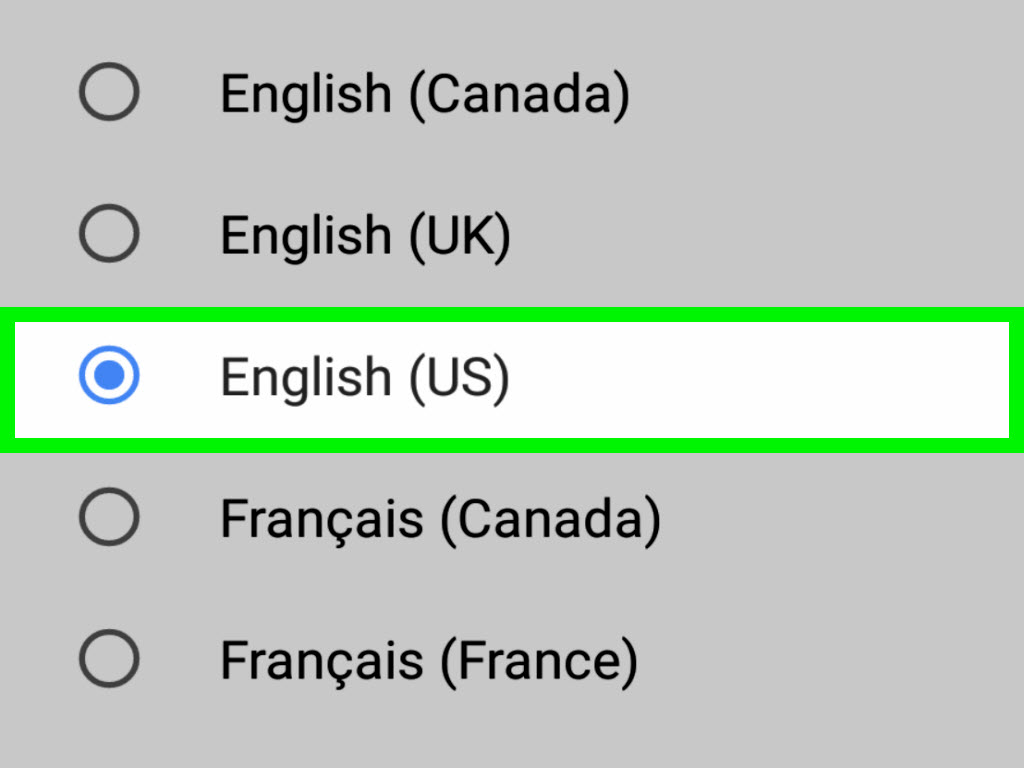
To replace your current Google Home language, tap the language currently listed. For example, if your speaker is using English (United States), tap that option to choose a different language or regional version.
Regional language choices matter. English (United States), English (United Kingdom), English (Australia), Spanish (United States), Spanish (Mexico), and Spanish (Spain) may not behave exactly the same. Accents, supported features, local results, units, and pronunciation can vary. Choosing the right regional language can make your Google Home feel less like a confused tourist reading from a phrasebook.
Step 7: Select Your Preferred Language
Choose your preferred language from the available list. The exact list depends on your device, country, Google account, and whether your home uses Google Assistant or Gemini for Home. If you do not see the language you want, it may not be supported for your specific device or region yet.
Some users can add an additional language instead of fully replacing the current one. This lets you speak to your Google Assistant in more than one language. For example, a household might use English and Spanish so family members can ask questions, set reminders, or control devices in either language.
Step 8: Test Your Google Home Device
After selecting the new language, test your speaker or display. Say “Hey Google” followed by a simple command in the new language. Try basic requests first, such as asking for the weather, setting a timer, or turning on a smart light.
If your Google Home responds correctly, congratulations: your smart speaker now speaks your preferred language, and you may enjoy the small but satisfying feeling of winning a settings-menu battle. If it still responds in the old language, give it a minute, restart the device, and check that the app saved your changes.
Step 9: Fix Problems If the Language Does Not Change
If your Google Home language does not update, try these fixes:
- Restart the speaker or display: Unplug it, wait about 10 seconds, and plug it back in.
- Update the Google Home app: Install the latest version from the App Store or Google Play Store.
- Check your Google account: Make sure the app is signed in to the account linked to your Google Home device.
- Confirm the home location: If you have multiple homes in the app, verify that you changed settings for the correct one.
- Review Voice Match: In multi-user homes, each person may need Voice Match for personalized language behavior.
- Check supported languages: Some languages or features may not be available on every Google Nest device.
- Try removing and re-adding a language: If the setting seems stuck, switch temporarily to another supported language, save it, then switch back.
How to Add a Second Language on Google Home
In many setups, you can add another language instead of replacing the first one. This is useful for bilingual homes, language learners, international families, or anyone who likes asking for the weather in one language and setting pasta timers in another.
To add another language, open the Google Home app, tap your profile picture, go to Home settings, choose Gemini for Home voice assistant or Google Assistant, then tap Languages. Look for Add a language. Select the second language you want to use.
Once added, you can speak to your assistant in either selected language. However, avoid mixing two languages in the same command. For example, a full command in English or a full command in Spanish is more likely to work than a sentence that switches languages halfway through like a GPS with stage fright.
Can Each Family Member Use a Different Language?
Yes, in many cases, different people in the same home can use different language preferences by setting up Voice Match. Voice Match helps Google recognize individual voices and connect them to personal Google accounts. This matters because language preferences, calendars, reminders, music services, and personal results may be linked to the person speaking.
For example, one family member might prefer English (United States), while another prefers Spanish (United States). If both have Voice Match enabled and their language settings are supported, Google Home has a better chance of responding correctly to each person.
To set it up, open the Google Home app, go to the account or assistant settings, find Voice Match, and follow the prompts. Each person should complete the setup with their own Google account. This step is worth doing because shared smart speakers can otherwise behave like they are trying to guess everyone’s preferences from across the room.
Why Is Google Home Still Speaking the Wrong Language?
If Google Home keeps answering in the wrong language, several things could be happening. The most common cause is that the wrong Google account is active in the app. Another possibility is that your device has not synced the new settings yet. A quick restart often solves this.
Another reason is regional support. A language may be available on your phone but not fully supported on your smart speaker, smart display, or Gemini for Home setup. Phones, tablets, speakers, displays, TVs, and headphones do not always share the same language support list.
It is also possible that the command itself is confusing the assistant. If your device is set to understand two languages, speak clearly and keep the entire request in one language. Smart assistants are impressive, but they are not always great at decoding “kitchen Spanglish plus background blender noise.”
Google Assistant vs. Gemini for Home: What Language Settings Mean Now
Google has been expanding Gemini for Home as a newer voice assistant experience for smart home devices. Some users still see Google Assistant settings, while others may see Gemini for Home voice assistant settings. That is why modern tutorials should mention both.
If your device uses Google Assistant, language changes may follow the traditional Assistant menu. If your home has Gemini for Home, language settings may appear under the newer Gemini for Home voice assistant section. The available languages may differ between the two systems, and some Gemini for Home features may roll out gradually by country, app version, and device compatibility.
The practical advice is simple: follow the menu labels shown in your Google Home app. If it says Google Assistant, use that path. If it says Gemini for Home voice assistant, use that path. Either way, the Languages section is the setting you want.
Best Practices for Choosing a Google Home Language
Choose the Language You Actually Use at Home
It may be tempting to set your Google Home to a language you are learning, and that can be useful. But for daily commands like alarms, lights, thermostats, reminders, and shopping lists, choose a language your household can use comfortably. Nobody wants to miss a morning alarm because they forgot the correct phrase before coffee.
Pick the Right Regional Version
If available, choose the regional version that matches your location or accent. This can improve local search results, pronunciation, and voice recognition. For example, Spanish (United States) may be more useful for a U.S.-based bilingual household than Spanish (Spain), depending on the family’s speech patterns and preferred services.
Keep Smart Device Names Simple
Language settings work better when your smart home device names are easy to pronounce. Names like “Living Room Lamp,” “Kitchen Lights,” and “Bedroom Speaker” are usually more reliable than “Sir Glowington III” or “Lampy McLampface.” Funny? Absolutely. Voice-command friendly? Not always.
Common Questions About Changing Language on Google Home
Does changing the language affect all Google Home devices?
It can affect multiple assistant-enabled devices connected to the same home or account settings. However, behavior may vary depending on your Google Home app version, device type, and whether you use Google Assistant or Gemini for Home.
Can Google Home understand two languages?
In supported setups, Google Assistant can understand more than one selected language. This is helpful for bilingual households. However, it works best when each command is spoken fully in one language rather than mixing languages in a single sentence.
Why is my preferred language missing?
Your preferred language may not be supported for your specific country, device, or assistant type. Language support changes over time, so keep the Google Home app updated and check again later.
Does changing the phone language change Google Home?
Not always. Your phone language and Google Home assistant language can be related, especially on Android, but they are not always the same setting. For Google Home speakers and displays, the safest method is to use the Google Home app’s language settings.
Can I change only one speaker’s language?
Google Home language settings are often tied to the assistant or home settings rather than one individual speaker. If you need different people to use different languages, Voice Match is usually the better option.
Extra Experience: What It Is Really Like to Change Google Home Language
In everyday use, changing the language on Google Home is usually quick, but the experience can feel different depending on the household. A single-person home is simple: open the app, change the language, test a command, and move on with life. The speaker responds in the new language, the owner feels powerful, and the kitchen timer continues its important work.
Multilingual homes are more interesting. Imagine a family where one person speaks English most of the time, another speaks Spanish, and a child is learning French at school and wants to test the assistant for homework help. Google Home can be useful in that environment, but it needs clean settings. The best approach is to decide which language should be the primary household language, add a second language if supported, and set up Voice Match for each regular user.
One common experience is that the language change works for simple commands first. Weather, timers, alarms, and smart lights usually make good test commands. More complex requests, such as playing a specific playlist, controlling a third-party device, or asking for local business information, may reveal limitations. This does not always mean the language setting failed. It may mean that a feature, app integration, or service behaves differently in that language.
Another real-world lesson: regional accents matter. A user may choose English (United Kingdom) because it sounds elegant, then wonder why certain local results or pronunciations feel slightly off in the United States. Likewise, Spanish speakers may get better results by choosing the regional Spanish variant closest to how they speak. The language name is only half the story; the region in parentheses is doing quiet but important work.
Households with smart displays may notice that spoken responses change faster than on-screen text. Sometimes a Nest Hub may answer in the new language while parts of the interface still appear in another language. Restarting the display can help. If the issue continues, check the Google Home app, the device settings, and the phone’s system language. Smart displays combine voice, screen, account, and regional settings, which means there are more places for one stubborn setting to hide.
For language learners, Google Home can be surprisingly helpful. Setting the assistant to a language you are studying creates tiny practice moments throughout the day. Asking for the weather, setting a timer, or requesting a translation becomes low-pressure practice. However, beginners may want to keep a familiar language as the main option until they are comfortable. Otherwise, even turning off the lights can become a mini oral exam.
The biggest tip from practical experience is to change one setting at a time. Do not change the Google Home language, phone language, country settings, Voice Match, and device names all at once. If something breaks, you will not know which change caused the problem. Update the language first, test it, restart if needed, then adjust Voice Match or regional settings afterward.
Finally, be patient with rollout differences. Google Home, Google Assistant, and Gemini for Home do not update identically for everyone at the same time. Two people may own the same Nest Mini but see different menus because of app version, country, account eligibility, or early access status. That is annoying, yes, but it is normal. Follow the setting names in your own app, keep everything updated, and use the troubleshooting steps above when your speaker decides to behave like it has a passport full of stamps.
Conclusion
Changing the language on Google Home is mostly a matter of finding the right menu in the Google Home app. Open the app, tap your profile, go to Home settings, choose Gemini for Home voice assistant or Google Assistant, then open Languages and select your preferred option. After that, test your speaker with a simple command and restart the device if the new setting does not apply right away.
The key is understanding that language support depends on your device, country, account, app version, and assistant type. Google Assistant and Gemini for Home may not offer identical language options, and some features may work differently across languages. For families, Voice Match can make the experience smoother by letting different people use their own preferences.
Once everything is set correctly, Google Home becomes much more natural to use. Whether you are switching to English, adding Spanish, helping a bilingual household, or practicing a new language, the right setting can make your smart speaker feel less like a gadget and more like a helpful roommate who finally learned how to pronounce your lamp names.
Note: Menu names can change as Google updates the Google Home app. If you do not see the exact labels described here, look for similar options such as Assistant settings, Manage all Assistant settings, Gemini for Home voice assistant, Google Assistant, or Languages.














