
Running out of storage has a special way of announcing itself. Windows starts complaining that updates need more room, your Mac insists its startup disk is full, and suddenly deleting three screenshots feels like major property development. Fortunately, adding an extra hard drive can give your computer breathing room without forcing you to replace the entire machine.
The process may involve installing an internal SATA hard disk, adding an M.2 NVMe solid-state drive, or connecting an external USB-C or Thunderbolt drive. The best method depends on your computer, your budget, and whether you are comfortable opening a case without accidentally treating every screw as a collectible.
This guide explains how to add an extra hard drive to a Windows PC or Mac, choose the right hardware, format the new drive, troubleshoot common problems, and avoid the mistakes that turn a simple upgrade into an afternoon of creative vocabulary.
First, Decide What Kind of Drive You Need
People often use the term “hard drive” for any storage device, but there are several distinct options. Choosing the right one before opening your computer is far easier than discovering afterward that your shiny new drive fits nowhere.
Traditional SATA Hard Disk Drive
A 3.5-inch SATA hard disk drive, or HDD, is common in desktop PCs. It stores data on spinning magnetic platters and offers plenty of capacity for the money. An HDD is a sensible choice for photos, videos, archived projects, backups, and files that do not need lightning-fast access.
The disadvantages are slower performance, audible operation, higher power consumption, and greater sensitivity to physical shocks. It is excellent for bulk storage but less impressive as a primary drive for applications.
2.5-Inch SATA Solid-State Drive
A 2.5-inch SATA SSD uses the same general data interface as a SATA hard drive but contains no moving parts. It is quieter, faster, and more resistant to bumps. Desktop PCs may require a 2.5-to-3.5-inch mounting bracket, while some laptops include a dedicated 2.5-inch bay.
SATA SSDs are ideal for frequently used files, games, applications, and media libraries. They are also a practical upgrade for older computers that cannot accept an NVMe drive.
M.2 NVMe Solid-State Drive
An M.2 NVMe SSD is a slim circuit-board-style drive that connects directly to a compatible motherboard slot. It can deliver significantly higher transfer speeds than a SATA drive, making it useful for large creative projects, virtual machines, demanding games, and other storage-heavy workloads.
Compatibility requires careful checking. M.2 drives come in different lengths, such as 2230, 2242, and 2280. Some M.2 slots support PCI Express NVMe drives, some support SATA M.2 drives, and some support both. A drive that physically resembles the correct part may still be electrically incompatible.
External USB or Thunderbolt Drive
An external hard drive or SSD is the easiest solution because it does not require opening the computer. It is often the most practical way to add storage to a MacBook, iMac, Mac mini, compact Windows PC, or laptop with no empty internal bay.
External HDDs are affordable for backups and archives. External SSDs cost more per gigabyte but provide better speed, portability, and shock resistance. For top performance, connect the drive directly to a fast USB-C, USB 3.x, USB4, or Thunderbolt port rather than using a slow or unreliable hub.
Check Compatibility Before Buying Anything
Before ordering a drive, identify your exact computer or motherboard model and consult its official service manual or specifications. Do not rely only on photographs from an online listing. Computer components are very good at looking compatible from a distance.
For a desktop Windows PC, check for:
- An available 3.5-inch or 2.5-inch drive bay
- An unused SATA data port on the motherboard
- An available SATA power connector from the power supply
- An open M.2 slot that supports the selected drive type and length
- Any restrictions involving shared PCI Express lanes or disabled SATA ports
- Enough physical clearance around the graphics card and cooling system
For a Windows laptop, verify whether it has a second storage slot. Some models include an empty M.2 slot, while others provide only one storage connector. Opening certain laptops may also affect warranty service, so review the manufacturer’s terms before reaching for a screwdriver.
Many modern Macs do not provide a user-accessible internal storage bay. For those systems, an external SSD or HDD is normally the safest and simplest expansion method. Some older Mac mini, iMac, Mac Pro, and MacBook models may support internal replacement or expansion, but the procedure is highly model-specific and can involve adhesives, delicate display cables, or specialized tools.
Prepare for the Installation
Back up important files before modifying storage hardware. Adding a secondary drive should not erase the existing drive, but mistakes happen. Selecting the wrong disk during formatting can transform a calm Saturday into an unscheduled lesson about data recovery.
For an internal installation, gather:
- The compatible HDD or SSD
- The correct screwdriver
- A SATA data cable when installing a SATA drive
- A mounting bracket, tray, rails, or screws if required
- An M.2 mounting screw or retention mechanism for an NVMe SSD
- An antistatic wrist strap or another way to discharge static electricity
- The computer’s service manual
Shut down the computer completely. Disconnect its power cable and attached accessories. On a desktop, press the power button for several seconds after unplugging the system to help discharge remaining electrical energy. Work on a clean, stable surface rather than a carpet, blanket, or other static-friendly environment.
How to Install an Extra SATA Drive in a Windows Desktop
-
Open the case.
Remove the appropriate side panel according to the computer or case manual. Place the panel and screws somewhere safe, preferably somewhere more organized than “roughly near the keyboard.”
-
Locate an empty drive bay.
Install a 3.5-inch HDD in a compatible 3.5-inch bay. A 2.5-inch SSD may fit a dedicated tray or require an adapter bracket. Secure the drive with the case’s screws, rails, or tool-free mounting system.
-
Connect the SATA data cable.
Attach one end to the drive and the other to an available SATA port on the motherboard. The connector is keyed, so do not force it or attempt to improve compatibility through enthusiasm.
-
Connect SATA power.
Attach an available SATA power connector from the power supply to the drive. Avoid questionable adapters, particularly cheaply made power adapters that can overheat or create electrical problems.
-
Check the cable routing.
Make sure cables are firmly seated and kept away from fans. Poor cable routing can restrict airflow or produce the unpleasant sound of a fan repeatedly slapping a wire.
-
Close and restart the computer.
Reinstall the side panel, reconnect the power cable, and start Windows. The new drive may be detected by the system but remain invisible in File Explorer until it is initialized and formatted.
How to Install an M.2 NVMe SSD in a Windows PC
- Shut down and unplug the PC or laptop.
- Locate the compatible M.2 slot using the motherboard or computer manual.
- Remove the M.2 screw, heatsink, or retention latch.
- Insert the SSD into the connector at a slight angle.
- Lower the free end of the SSD until it rests on the mounting point.
- Secure it gently with the screw or tool-free retention system.
- Reinstall the heatsink if the motherboard provides one, including any required thermal pad.
- Close the computer and start Windows.
Do not overtighten the tiny M.2 screw. Its job is to hold the drive flat, not prove that you possess heroic wrist strength. Also check the motherboard manual for lane-sharing rules. On some systems, installing an M.2 SSD disables a particular SATA port or changes the bandwidth available to another expansion slot.
Initialize and Format the New Drive in Windows
A newly installed internal drive usually needs a partition table, a volume, and a file system before it appears in File Explorer.
- Right-click the Start button and select Disk Management. You can also press Windows + R, enter diskmgmt.msc, and press Enter.
- Locate the new disk by checking its capacity carefully. Do not assume that disk numbers correspond to physical connector numbers.
- If prompted, choose Initialize Disk.
- Select GPT for a modern Windows PC unless you have a specific legacy requirement for MBR.
- Right-click the drive’s unallocated space and select New Simple Volume.
- Choose the volume size. Using the maximum creates one large partition.
- Assign an available drive letter.
- Choose a file system and volume label.
- Complete the wizard and wait for formatting to finish.
Which Windows File System Should You Use?
NTFS is usually the best choice for a drive used primarily with Windows. It supports large files, permissions, reliability features, and other Windows capabilities.
exFAT is useful when the drive must regularly move between Windows and macOS. Both systems can read and write exFAT without extra software, and it supports files larger than 4 GB.
FAT32 offers broad compatibility with older devices but imposes a 4 GB maximum size for an individual file. That limitation becomes inconvenient as soon as someone hands you a large video and your drive responds with bureaucratic disapproval.
How to Add an Extra Drive to a Mac
For most current Mac users, adding external storage is straightforward:
- Connect the external HDD or SSD directly to a compatible USB, USB-C, or Thunderbolt port.
- Connect the drive’s power adapter if it is a powered desktop model.
- Open Finder and look for the drive in the sidebar under Locations.
- If macOS cannot use the existing format, open Disk Utility and reformat the drive.
A high-quality external NVMe SSD connected through a suitable enclosure can provide excellent performance for photo libraries, video projects, audio production, games, and large working files. For permanent desktop use, a short, certified cable and a direct connection are generally more dependable than a chain of adapters resembling a small electronic centipede.
Format a New Drive with Disk Utility
- Open Disk Utility from Applications > Utilities or through Spotlight.
- Select View > Show All Devices.
- Select the physical external drive at the top of its hierarchy, not merely an existing volume beneath it.
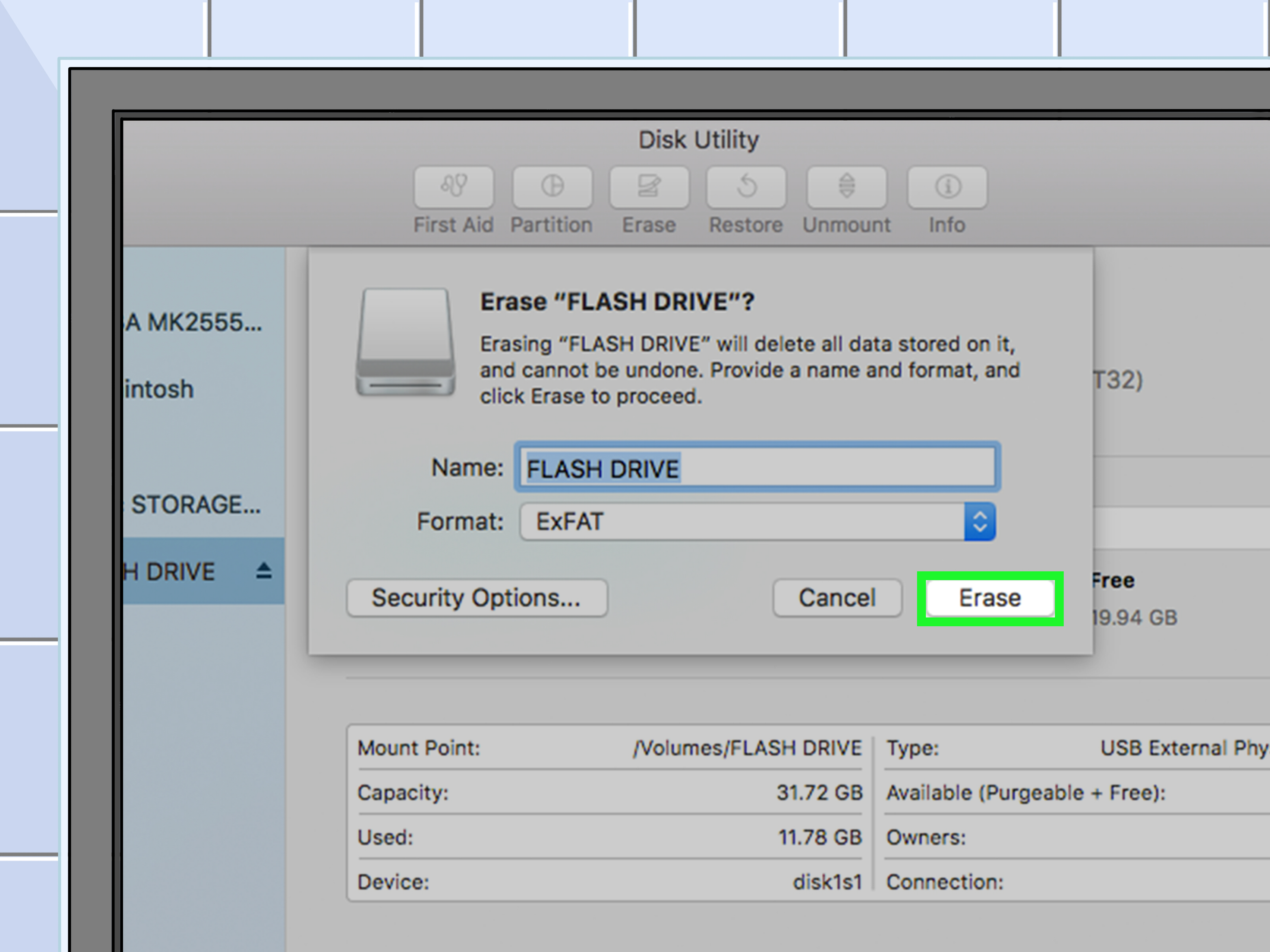
- Click Erase.
- Enter a descriptive name.
- Choose the required file system.
- Select GUID Partition Map as the scheme for modern use.
- Click Erase and allow the process to complete.
Erasing or reformatting a drive deletes its existing contents. Double-check the drive name and capacity before confirming.
Which Mac File System Should You Choose?
APFS is the normal choice for an SSD used only with modern Macs. It supports Mac-focused features such as snapshots, encryption options, and efficient space management.
Mac OS Extended (Journaled), also called HFS+, may still be appropriate for certain older Macs, legacy software, or older workflows.
exFAT is the practical choice for a portable drive shared between Mac and Windows. It provides convenient cross-platform access, but it lacks the journaling and permission features of native Mac and Windows file systems. Safe ejection is particularly important.
NTFS is native to Windows. macOS can normally read an NTFS drive but does not provide full native write support in standard configurations. Likewise, Windows does not natively provide ordinary access to APFS-formatted drives.
Put the Extra Storage to Work
Once the drive is available, give it a clear purpose. A drive labeled “New Volume” has a mysterious charm for about two days, after which nobody remembers what it contains.
On Windows, you can create folders for games, videos, photographs, downloads, and project files. Windows also provides storage settings that let you choose where certain categories of new content are saved. Many game launchers and creative applications allow you to create additional libraries on another drive.
On a Mac, an external drive can store large media folders or application libraries. Apple provides supported procedures for moving resources such as a Photos library to a properly formatted external device. A separate external drive can also be designated for Time Machine backups.
Remember that additional storage is not automatically a backup. If the only copy of a file exists on the new drive, losing that drive still means losing the file. Important data should exist in at least two locations, preferably with one copy stored separately from the computer.
Troubleshooting a New Drive That Does Not Appear
Check BIOS or UEFI Detection
If Windows does not see an internal drive, restart the computer and enter its BIOS or UEFI setup. Check whether the storage device appears there. A drive missing from firmware is more likely to have a connection, power, slot compatibility, or hardware problem.
Reseat the Connections
Turn off and unplug the computer before checking internal hardware. Reseat the SATA data cable, SATA power connector, or M.2 SSD. Try another SATA cable or motherboard port when available.
Confirm M.2 Compatibility
Verify that the slot supports the drive’s protocol and physical length. An NVMe-only slot may not accept a SATA M.2 SSD, and a SATA-only slot will not operate an NVMe drive. Review any motherboard settings and lane-sharing restrictions.
Look in Disk Management or Disk Utility
A drive can be detected without appearing in File Explorer or Finder. In Windows, it may be offline, uninitialized, unallocated, or missing a drive letter. On macOS, choose View > Show All Devices in Disk Utility and check whether the physical device appears.
Test External Power, Ports, and Cables
Connect an external drive directly to the computer. Try another compatible port and cable. Desktop external drives usually require their original power adapter, while portable drives may fail when connected through an underpowered hub.
Check the Drive’s Health
If a drive disconnects, clicks, reports errors, or performs far below expectations, stop trusting it with important data. Run the manufacturer’s diagnostic utility or the computer maker’s hardware tests. On a Mac, Disk Utility’s First Aid feature can check and repair certain file-system problems, although it cannot repair physical damage.
Common Mistakes to Avoid
- Formatting the wrong disk: Identify drives by capacity, model, and existing partitions before erasing anything.
- Buying an incompatible M.2 drive: Match the interface, keying, supported length, and motherboard specifications.
- Forcing a connector: Storage connectors are keyed and should fit without excessive pressure.
- Leaving an HDD loose: A spinning hard drive should be mounted securely to reduce vibration and physical damage.
- Using poor-quality cables or adapters: An inexpensive cable can cause intermittent disconnects that resemble drive failure.
- Disconnecting an external drive during a transfer: Eject it through Windows or Finder and wait for confirmation.
- Treating extra storage as a backup: Keep another copy of anything you cannot afford to lose.
Conclusion
Adding an extra hard drive to a Windows PC or Mac can be one of the most useful computer upgrades. A desktop PC may accept an internal SATA HDD, SATA SSD, or M.2 NVMe SSD, while a laptop or modern Mac may be better served by a fast external drive.
The successful approach is simple: confirm compatibility, protect existing data, install the hardware carefully, initialize the correct disk, choose an appropriate file system, and verify that the drive behaves normally before trusting it with important files.
Once everything is configured, your computer gains room for applications, games, media libraries, backups, and projects. More importantly, you can stop deciding which family photographs to delete every time the operating system wants another update.
Practical Experiences and Lessons from Real-World Drive Upgrades
Real-world storage upgrades often reveal that the physical installation is not the hardest part. The challenge is usually compatibility. A SATA drive may arrive without a SATA data cable because many retail drives assume the computer already has one. An M.2 SSD may fit into the slot but use the wrong protocol. A desktop case may contain an empty bay while the power supply has no convenient unused connector. Checking these details before purchasing prevents most frustrating surprises.
Another frequent lesson involves disk identification. A new drive may not appear in File Explorer even though Windows detected it perfectly. The owner assumes the hardware is defective, removes it, reconnects it, updates drivers, and begins negotiating with the universe. In reality, the disk simply needs to be initialized and assigned a formatted volume in Disk Management. On a Mac, a similar situation can occur when the physical device is visible only after selecting Show All Devices in Disk Utility.
Capacity labels can also create confusion. A drive advertised with a particular decimal capacity may appear smaller when the operating system reports storage using a different measurement convention. Formatting structures and system data also consume some space. A modest difference between advertised and displayed capacity is therefore normal and does not mean several hundred gigabytes escaped during shipping.
External drives teach their own lessons. The cable matters more than many people expect. Two USB-C cables may look nearly identical while supporting dramatically different transfer speeds. One may also be intended mainly for charging. When a fast external SSD performs like an elderly flash drive, testing a certified high-speed cable and a direct computer connection is often more productive than blaming the SSD.
Power is equally important. A portable drive may work reliably when connected directly but disconnect through an unpowered hub. A desktop external HDD may spin up, click, and disappear when its power adapter is loose or connected to an overloaded power strip. These symptoms can imitate drive failure, so power and connection tests should come before drastic formatting attempts.
Formatting decisions should be based on how the drive will actually be used. NTFS is a strong default for Windows-only storage, while APFS is generally suitable for a modern Mac-only SSD. exFAT is convenient for exchanging large files between the two systems, but convenience does not make it indestructible. Because exFAT lacks journaling, abruptly disconnecting the drive during a write operation can damage its file system. Safe ejection may feel ceremonial until the day it prevents a corrupted project folder.
Noise and heat provide additional clues. A traditional HDD naturally produces some vibration and mechanical sound, but repeated clicking, scraping, disappearing volumes, or extremely slow transfers deserve immediate attention. An NVMe SSD can become warm during sustained transfers, particularly inside a compact enclosure. Proper airflow, a suitable thermal pad, or an enclosure designed for the drive’s performance level can reduce throttling.
The most valuable lesson is that storage expansion and data protection are separate goals. A second drive creates more capacity, but it does not protect files unless another copy exists elsewhere. Important photographs, financial records, business data, and creative projects should be backed up to another physical device or a trusted cloud service. A large drive gives you more room; a thoughtful backup plan lets you sleep after filling it.













