
Windows XP feels like a time capsule from the era of flip phones, chunky monitors, and startup sounds that could wake the whole house. But if you still have an old XP machine humming along in a garage, workshop, school lab, or “I swear I only use this for one printer” corner, you may eventually need a rescue button. That is where System Restore in Windows XP comes in.
System Restore is designed to roll your computer’s system files and settings back to an earlier working state. In plain English, it is the “let’s pretend that sketchy driver installation never happened” tool. It can help when XP becomes unstable after a bad update, a troublesome program install, or an unlucky settings change. Better yet, it generally does not target your personal documents, photos, or emails. That said, it is not a magic wand, not a full backup, and definitely not a substitute for common sense.
In this guide, you will learn exactly how to use System Restore in Windows XP, what it can and cannot fix, how to choose the right restore point, and what to do if Windows refuses to behave like a civilized operating system. We will also walk through eight clear steps, plus real-world experiences and troubleshooting tips for those moments when XP acts like it has a grudge.
What Is System Restore in Windows XP?
System Restore is a built-in recovery feature that lets you return Windows XP system files, drivers, registry settings, and certain installed programs to a previous state. Windows XP creates restore points automatically in many situations, and users can also create them manually before making risky changes.
This is important because not every computer problem requires a full reinstall. Sometimes the issue starts right after you install a driver, tweak a system setting, add a utility you found on a long-forgotten CD, or let your cousin “optimize” the machine. In those cases, restoring the system to a point from before the trouble began can save a lot of frustration.
What System Restore can help with
- Driver problems after hardware installation
- System instability after software installs
- Registry-related issues caused by bad changes
- Errors that began after updates or configuration tweaks
- Some startup problems, especially if Windows can still reach Safe Mode
What System Restore does not do
- It does not replace a full backup
- It does not wipe malware in every case
- It does not fix failing hardware
- It does not guarantee that every broken app will behave afterward
- It does not modernize Windows XP into a safe, supported operating system
That last point matters. Windows XP reached end of support years ago, so even if you restore it successfully, you are still using an outdated operating system. Think of it as getting an antique car to start again. Charming? Absolutely. Secure for daily highway use? Not exactly.
Before You Start: A Few Smart Precautions
Before using Windows XP System Restore, save open files and close programs. Even though personal documents are not the main target of the restore process, you should never tempt fate. Old computers have a special talent for crashing only when you say, “This will take two minutes.”
It also helps to answer one question: When did the problem begin? If your computer was working fine on Tuesday and acting cursed by Wednesday afternoon, choose a restore point from before Wednesday. Picking the right date is half the battle.
Finally, if the machine contains anything important, copy your files to an external drive before you do anything dramatic. System Restore is safer than reinstalling Windows XP, but “safer” is not the same thing as “invincible.”
How to Use System Restore in Windows XP: 8 Steps
-
Step 1: Save your work and close all open programs
Start by saving documents, closing browser windows, and exiting software. System Restore usually restarts the computer, so anything left open may vanish into the digital abyss. This is the easiest step, and also the one people skip right before saying words not suitable for a family blog.
-
Step 2: Open the System Restore tool
Click Start, then go to All Programs, Accessories, System Tools, and then System Restore. On some XP setups, you may also reach it through Help and Support and launch the System Restore Wizard from there.
If you are using the Classic Start Menu, the wording may look slightly different, but the tool is still there. Windows XP loved menus the way a diner loves laminated options.
-
Step 3: Choose “Restore my computer to an earlier time”
When the System Restore Wizard opens, you will usually see options such as Restore my computer to an earlier time and Create a restore point. Select the restore option, then click Next.
This tells XP that you want to roll back the system, not create a new checkpoint. Creating a new restore point while the machine is already broken is like taking a photo of your bad haircut for archival purposes. Memorable, yes. Helpful, no.
-
Step 4: Pick a date on the calendar
You should now see a calendar with bold dates that contain available restore points. Choose a date from before the problem began. If you started getting errors after installing a printer driver on Friday, do not pick Saturday just because it feels fresh and optimistic. Go earlier.
Look for restore points that match meaningful events such as software installs, updates, or manual checkpoints. The more specific the restore point, the better your odds of a clean recovery.
-
Step 5: Select a restore point from the list
After choosing a date, select one restore point from the list on the right. You may see labels created by Windows automatically, or names you entered yourself if you made a manual restore point. Pick the one that makes the most sense based on timing.
For example, a restore point named “Before installing scanner software” is a beautiful gift from your past self. Treasure that version of you.
-
Step 6: Review the confirmation screen carefully
Click Next and review the restore details. Double-check the date and restore point name. This is your chance to make sure you are not traveling back to the wrong moment in XP history.
Remember that programs, drivers, and system changes made after that restore point may be removed or reversed. If you installed something important after that date, plan to reinstall it later if needed.
-
Step 7: Start the restore and let the PC restart
Confirm the restore. Windows XP will begin the process and usually restart the computer automatically. Do not interrupt it. Do not mash buttons. Do not unplug the machine because it seems “stuck.” Old PCs are dramatic, but sometimes they just need a minute.
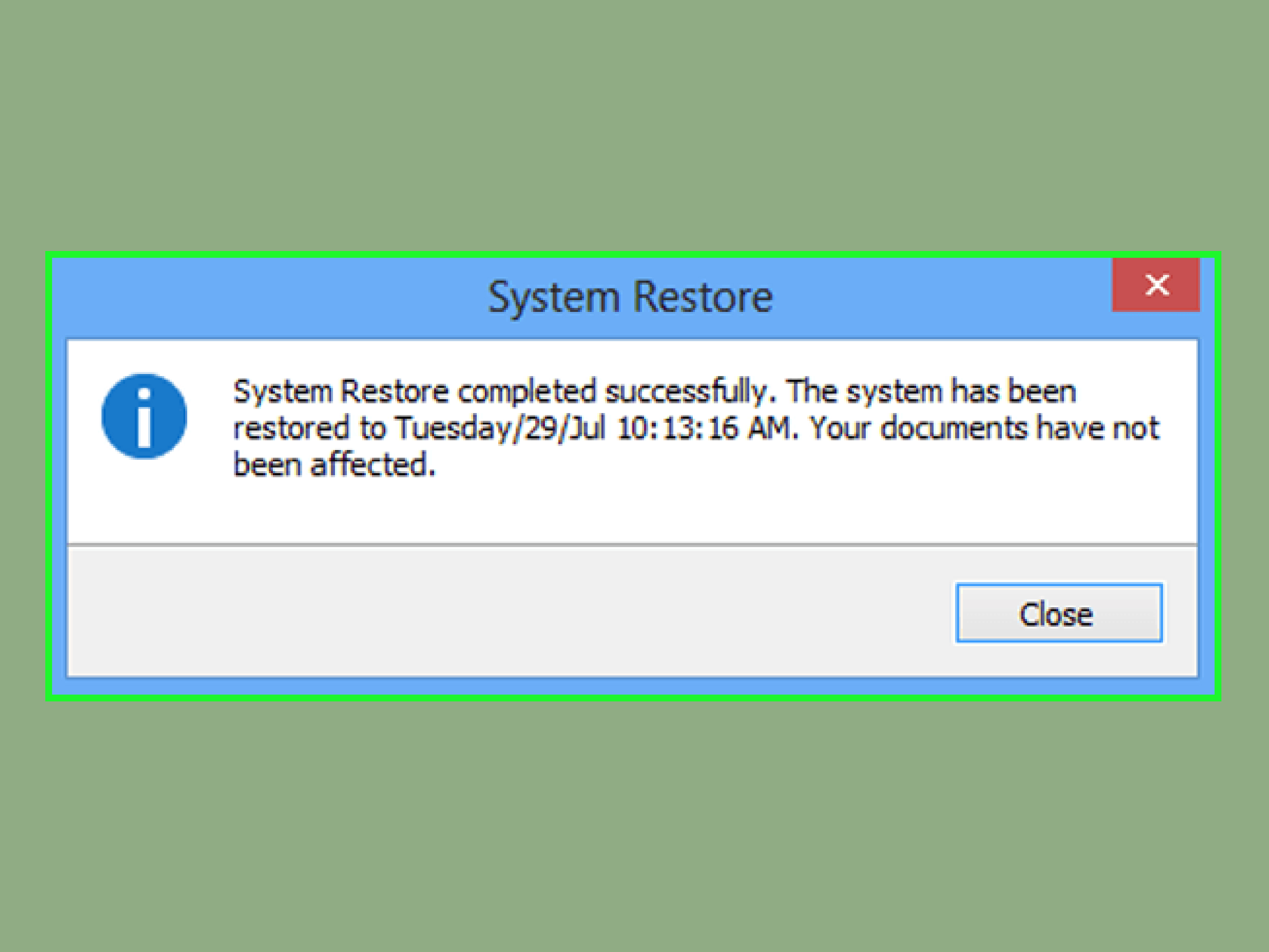
After rebooting, XP should display a message saying the restoration was completed successfully. If it says the restore was unsuccessful, you may need to try another restore point.
-
Step 8: Test the computer and undo the restore if needed
Once Windows loads again, test the issue that sent you here in the first place. Open the troublesome program, check the driver, or see whether startup errors are gone. If the problem is fixed, congratulations: you and XP have achieved a temporary truce.
If the problem remains or something important stopped working, you can run System Restore again and either choose a different restore point or use the option to undo the restoration.
What Happens After a System Restore?
After the restore, Windows XP may feel slightly different because the system is now using an older set of settings and drivers. A few things might happen:
- A recently installed app may disappear or stop working properly
- A driver update may be rolled back
- Registry-based settings may return to their earlier state
- The original problem may be fixed immediately
- You may need one more restart for everything to settle down
This is normal. System Restore is not a time machine for your personal files, but it is absolutely a time machine for many system-level changes. That is why it can be so useful when XP starts acting weird after a clear trigger.
What If Windows XP Will Not Start Normally?
If Windows XP is too unstable to start normally, try Safe Mode. Restart the computer and tap F8 as it boots, then choose Safe Mode or Safe Mode with Networking. From there, you can often run System Restore.
This can be especially useful after a broken driver install, startup conflict, or malware-related mess. Safe Mode loads fewer drivers and services, which gives you a better chance of reaching the restore tool without the system face-planting again.
Common Problems and Simple Fixes
No restore points available
If there are no restore points, System Restore may have been turned off, disk space may have been limited, or old restore points may have been deleted. In that case, System Restore cannot help with past problems, but you can enable it for future ones.
The restore fails
Try another restore point. Some restore snapshots are simply better than others. If all of them fail, test the hard drive, scan for malware, and consider a repair installation or full reinstall.
The problem is still there
That usually means one of three things happened: you chose a restore point from after the issue started, the issue is hardware-related, or the damage goes beyond what System Restore can fix.
You are worried about documents disappearing
System Restore is generally aimed at system files and settings, not your personal documents. Even so, back up anything important first. Computers are like toddlers with juice boxes: mostly fine, occasionally catastrophic.
System Restore vs. Reinstalling Windows XP
A lot of people confuse System Restore with reinstalling the operating system. They are not the same thing.
- System Restore rolls back system settings and installed components to an earlier state
- Repair installation reinstalls core Windows files while trying to preserve data and settings
- Factory restore or clean install is much more drastic and may erase programs, settings, and possibly files
So if your problem started yesterday after a bad driver update, System Restore is the lightweight move. If XP is corrupt beyond recognition, refuses to boot, and sounds like it is emotionally done with this relationship, a repair or reinstall may be necessary.
Best Practices for Using System Restore in Windows XP
- Create a manual restore point before installing old software or hardware drivers
- Keep backups of documents on external media
- Use clear names for manual restore points
- Do not rely on XP for sensitive online activity
- Use the oldest machine for specific offline tasks whenever possible
If your XP computer still serves a purpose, treat it like a vintage appliance: useful, but not something you trust with your entire modern life.
Real-World Experiences With System Restore in Windows XP
One of the most common experiences people have with Windows XP System Restore is discovering it only after trying everything else first. The usual story goes something like this: the computer was running fine, then someone installed a driver from an unlabeled CD, downloaded a mysterious “system booster,” or changed network settings because a forum post from 2006 sounded confident. Suddenly the PC boots slower than a sleepy turtle, icons look confused, and error messages begin appearing like pop-up whack-a-moles. That is often the moment when System Restore becomes the hero of the day.
In many cases, the tool works best when the problem has a clear starting point. For example, a user installs old printer software on Monday, and by Monday afternoon the PC freezes every time it opens Control Panel. Restoring to Sunday evening often solves the issue in one shot. It feels almost suspiciously easy, which is rare in XP repair land. The lesson there is simple: when you know roughly when things went wrong, System Restore is much more useful.
Another common experience is picking the wrong restore point the first time. Maybe the computer started acting up on Wednesday, but the user chooses a restore point from Thursday because it “looked newer.” That usually changes very little. Then they try again with a restore point from Tuesday, and suddenly the system behaves. In other words, System Restore is not about choosing the freshest point. It is about choosing the right point.
Some people are surprised that personal files usually stay put. That often makes the tool feel less scary than a reinstall. Users who are terrified of losing family photos, school papers, or old accounting records tend to appreciate that System Restore targets system changes rather than acting like a wrecking ball. Still, experienced techs nearly always make a backup first, because old hard drives are not famous for their emotional stability.
There are also frustrating experiences. Sometimes System Restore fails, reports that no changes were made, or boots back into the same mess. When that happens, the issue may be tied to disk problems, malware, damaged restore points, or hardware failure. That is the moment when seasoned users stop expecting miracles and start planning for Safe Mode, diagnostics, or a repair install.
Probably the biggest real-world takeaway is that System Restore in Windows XP is most helpful as a fast recovery tool, not a full disaster recovery strategy. People who used it successfully often had one good habit in common: they created restore points before making risky changes. That small step turned panic into a manageable inconvenience. On an operating system as old as XP, that is practically wizardry.
Conclusion
Learning how to use System Restore in Windows XP is one of the most useful skills for keeping an older PC functional. It is quick, built in, and often effective when a bad software install, driver, or settings change knocks the system off balance. The key is choosing a restore point from before the trouble started, letting the process finish without interruption, and checking the computer carefully afterward.
Just remember: System Restore is a repair tool, not a backup strategy, not a security upgrade, and definitely not a license to install every random utility your old XP machine can still physically download. Use it wisely, keep backups, and treat Windows XP like the aging legend it is.













