Your iPhone may know more about your walking habits than you do. While you are counting errands, coffee runs, and mysterious trips back to the kitchen, the phone in your pocket is quietly estimating your steps and distance traveled.
You do not need an Apple Watch, a paid fitness subscription, or an advanced degree in button tapping. The built-in Health and Fitness apps can show how many miles you have walked today and provide charts covering previous weeks, months, and years.
This guide explains where to find that information, how to change kilometers to miles, what the numbers actually mean, and how to fix missing or suspiciously inaccurate results.
The Fastest Way to Check Miles Walked on an iPhone
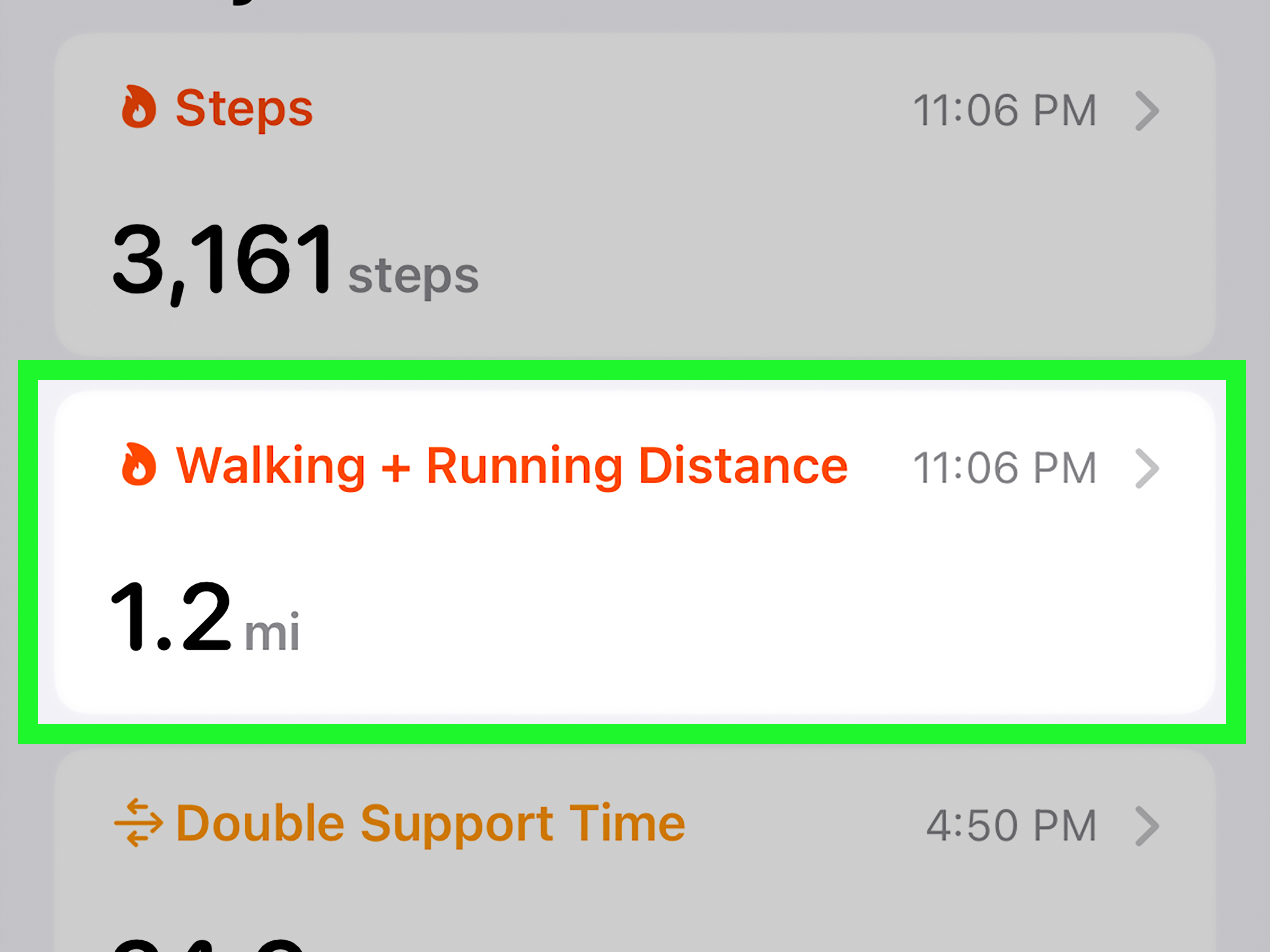
For a quick answer, open the Health app and locate Walking + Running Distance. That category displays the distance your iPhone, Apple Watch, and approved fitness apps have recorded.
- Open the Health app on your iPhone.
- Tap Search at the bottom of the screen. On an older iOS version, this button may be labeled Browse.
- Tap Activity.
- Select Walking + Running Distance.
- Review the chart and the current distance displayed in miles.
You can also type “walking distance” into the Health app’s search field instead of navigating through the Activity category. This is usually faster, especially if your Health dashboard contains enough information to qualify as a small medical library.
Ask Siri for Today’s Walking Distance
On supported iPhones, Siri can provide an even quicker answer. Activate Siri and ask:
- “How far have I walked today?”
- “How many miles have I walked today?”
- “How are my Activity rings?”
Siri availability for Health information can vary by device, language, and region. If Siri cannot answer, the Health app remains the most reliable place to check the underlying data.
How to View Your Daily, Weekly, Monthly, or Yearly Mileage
The Walking + Running Distance page is more than a single daily counter. Its chart lets you examine how your activity changes over time.
Depending on your iOS version, you may see time-range options such as:
- D: One day
- W: One week
- M: One month
- 6M: Six months
- Y: One year
Tap a time range and then touch or drag across the chart to inspect a particular day or period. Longer views are useful for identifying patterns that a single day’s number cannot reveal. Perhaps you walk five miles every Saturday but transform into decorative furniture on Sundays. The monthly chart will notice.
How to Check a Previous Day
Choose the daily or weekly chart, then move backward through the timeline. Tap the bar corresponding to the date you want to inspect. The app will display the recorded distance for that period.
How to Estimate Your Total Miles for a Longer Period
Health may emphasize averages when displaying longer ranges rather than presenting one giant lifetime total. To calculate a total for a specific week or month, inspect the daily bars and add the values together. A Health-compatible statistics app can also provide custom date ranges and cumulative totals if you need more detailed reporting.
How to See Walking Distance in the Fitness App
The Health app is the detailed database, while the Fitness app offers a more visual daily summary. It can show your steps, distance traveled, active calories, workouts, trends, and Activity rings.
- Open the Fitness app.
- Tap Summary.
- Look for your daily activity information.
- Review the displayed step count and distance.
- Tap the activity area for additional details.
If distance is not visible in your Summary, scroll down and tap Edit Summary. Add or rearrange the metrics you want to see regularly.
The Fitness app is convenient for a quick daily check. The Health app is better when you want historical charts, individual data entries, measurement units, and information about which device recorded each mile.
Does the iPhone Show Walking Miles or Walking and Running Miles?
This distinction matters: the main Health category is called Walking + Running Distance. It combines estimated distance from both activities.
If you spend the morning walking two miles and the evening running three miles, the category may report roughly five miles. It does not necessarily separate the two based only on passive movement.
For walking-only distance, record an Outdoor Walk or Indoor Walk workout with an Apple Watch or a compatible workout app. The completed workout can then show its own distance, duration, pace, calories, andin the case of many outdoor workoutsa route map.
This is the best approach when you need to know the distance of one particular walk rather than your combined movement for the entire day.
How Your iPhone Calculates Walking Distance
An iPhone contains motion sensors that detect movement while you carry the device. It uses sensor readings and movement patterns to estimate steps, distance, flights climbed, and active calories.
For ordinary daily activity, you generally do not need to start a workout. Carrying the iPhone in a pocket, waistband, bag, or hand allows it to collect movement information automatically. However, placement affects the result. A phone resting on a desk cannot count the laps you take around the office, no matter how supportive it feels emotionally.
Tracking with an Apple Watch
When an Apple Watch is paired with the iPhone, the watch can contribute activity and workout data to Health. This often creates a more complete record because the watch remains on your wrist when your phone is charging, sitting in a locker, or abandoned on the couch.
Outdoor walking workouts can use additional location and motion information to estimate route distance and pace. Indoor walks rely more heavily on motion patterns and calibration, so treadmill distance may not perfectly match the number printed on the machine.
Steps and Miles Are Not the Same Measurement
Your step count is not converted into miles using one universal formula. Two people can take the same number of steps but travel different distances because of differences in height, stride length, walking speed, terrain, and movement style.
That is why the Health app maintains separate categories for Steps and Walking + Running Distance. A viral “2,000 steps equals one mile” rule can be a convenient estimate, but it is not an exact law of human locomotion.
How to Change Kilometers to Miles on an iPhone
If the Health app displays kilometers and you want miles, change the unit from the distance category itself.
- Open Health.
- Tap Search or Browse.
- Select Activity.
- Tap Walking + Running Distance.
- Scroll down to the Options area.
- Tap Unit.
- Select mi for miles.
The app converts the displayed historical measurements. Changing the unit does not erase your previous records or suddenly make your walk longer; it simply expresses the same distance in another measurement system.
Apple Watch workout units may also be adjustable directly on the watch under Settings > Workout > Units of Measure.
How to Add Walking Miles Manually
You may occasionally complete a walk without carrying your iPhone or wearing your Apple Watch. Health allows manual entries, although they should be added carefully to avoid double counting.
- Open the Health app.
- Tap Search.
- Choose Activity.
- Tap Walking + Running Distance.
- Tap Add Data in the upper corner.
- Enter the distance, date, and time.
- Tap Done.
Before adding a missing walk, check whether a third-party fitness app has already synchronized it. Entering the same activity twice can produce a heroic mileage total that your legs may not remember earning.
How to Remove an Incorrect Entry
Open the relevant Health category, scroll to Show All Data, and locate the incorrect record. Depending on your iOS version, swipe left on the entry or tap Edit to delete it.
Why Your iPhone Is Not Showing Walking Miles
A blank chart or an unexpectedly low number usually has a simple explanation. Work through the following checks before accusing your iPhone of sabotaging your fitness journey.
1. Carry the iPhone While Walking
The iPhone cannot record your movement if you leave it behind. Keep it in a pocket or another location where its motion sensors can detect your steps consistently.
2. Check Motion and Fitness Permissions
Go to Settings > Privacy & Security > Motion & Fitness. Make sure fitness tracking is allowed and review access for relevant apps.
Also open Health, tap your profile picture, and review the apps and devices allowed to read or write activity data.
3. Inspect the Data Sources
Open Walking + Running Distance, scroll down, and tap Data Sources & Access. You can see whether the measurement came from your iPhone, Apple Watch, or another app.
If several devices or apps provide the same type of information, Health organizes the records according to source priority. You can edit the order when one source should take precedence.
4. Check Apple Watch Fitness Tracking
In Health, tap your profile, choose Devices, select your Apple Watch, and open its privacy settings. Confirm that Fitness Tracking is enabled.
5. Restart and Update the iPhone
A restart can resolve temporary synchronization or display problems. It is also wise to install the latest stable iOS update available for your device, particularly when activity figures changed after a software update.
6. Allow Time for Synchronization
Workout information from an Apple Watch or third-party app may not appear instantly. Keep the devices connected and give Health a little time to process the records before manually adding a replacement.
Why the Mileage May Look Inaccurate
Consumer fitness measurements are estimates, not certified course measurements. Small differences are normal, especially when comparing the iPhone with a treadmill, car odometer, map, smartwatch, or another fitness app.
Common causes of differences include:
- Leaving the iPhone behind for part of the day
- Carrying the phone loosely in a bag
- Walking with an unusual or changing stride
- Using multiple apps that write overlapping data
- Comparing passive activity with a GPS-recorded workout
- Walking indoors, underground, or in areas with weak location reception
- Using an Apple Watch that needs workout calibration
- Holding a stroller, shopping cart, or treadmill rail
Instead of worrying about a tiny difference on one walk, look for consistent trends. If the same setup records similar routes similarly over time, the information can still be useful for measuring progress.
Ways to Make iPhone Walking Data More Useful
Add Distance to Your Health Favorites
Open the Walking + Running Distance category and add it to your favorites if that option is available. This places the metric closer to the top of your Health Summary, reducing the number of taps required to find it.
Use the Fitness Summary
Customize the Fitness app’s Summary tab so distance and steps remain visible. A convenient dashboard makes it easier to notice whether your activity is increasing or quietly entering hibernation.
Record Important Walks as Workouts
Passive daily tracking is excellent for general movement. For a planned hike, training walk, or measured route, start an Outdoor Walk workout on an Apple Watch or use a reputable GPS walking app.
Compare Weeks, Not Just Days
Weather, schedules, illness, travel, and work can make one day unusually active or inactive. Weekly and monthly averages provide a more balanced picture of your habits.
Use Third-Party Apps Selectively
Pedometer and walking apps can offer widgets, streaks, goals, maps, social challenges, and custom date totals. Before granting access, review the app’s privacy practices and choose exactly which Health categories it can read or update.
Frequently Asked Questions
Can an iPhone count walking miles without an Apple Watch?
Yes. When you carry the iPhone, its built-in motion sensors can estimate steps and distance. An Apple Watch is optional, although it can provide a more continuous record when you do not always carry your phone.
Does the Health app track walking automatically?
Yes. The iPhone can automatically record steps and walking and running distance when fitness tracking is enabled and the device is carried during movement.
Can I see exactly how many miles I walked yesterday?
Yes. Open Walking + Running Distance in Health, select the daily or weekly chart, move to yesterday’s date, and tap the relevant bar.
Can I see my route in the Health app?
Passive daily mileage does not automatically produce a map of every place you walked. A route may be available for a recorded outdoor workout if the workout device or app collected location data.
Why do Health and another walking app show different distances?
The apps may use different sensors, algorithms, GPS settings, time periods, or data sources. One may display a recorded workout while the other displays total daily movement.
Does walking while carrying an iPhone drain the battery?
Routine motion tracking is designed to operate efficiently. A continuously recorded GPS workout generally uses more power than passive step and distance tracking.
Real-World Experience: What Tracking iPhone Walking Miles Is Actually Like
Consider an illustrative week in which an iPhone user decides to pay attention to distance rather than steps. On Monday, the Health app reports 2.1 miles. The number initially feels low because the day seemed busy. Then comes the realization that the phone spent two hours charging while its owner cleaned the house, carried laundry upstairs, and paced during a long call. The activity happened, but the iPhone was enjoying a luxurious spa day on the nightstand.
On Tuesday, the phone stays in a front pocket. The Health total reaches 3.8 miles even though there was no formal workout. Trips through a grocery store, a walk across a parking lot, office movement, and an evening stroll all contribute. This is the first useful lesson: daily mileage is not limited to exercise. Ordinary movement can add up surprisingly quickly.
Wednesday includes a two-mile walking workout recorded with an Apple Watch. The workout details show distance, elapsed time, average pace, and a route map. The Health app displays a higher total because it includes the workout plus movement during the rest of the day. At first, the two numbers appear inconsistent. In reality, they answer different questions. The workout reports one intentional walk; Health reports overall walking and running distance.
Thursday brings a treadmill experiment. The treadmill says 2.00 miles, while the Apple device records 1.86 miles. Neither machine is necessarily staging a conspiracy. The treadmill calculates distance from belt movement, while the wearable estimates movement from stride patterns and calibration. The sensible response is to use the same tracking method consistently rather than editing every small disagreement.
On Friday, a pedometer app is installed for a more colorful dashboard. The app requests permission to read steps and distance from Health. Because it reads existing data rather than creating a second copy, the totals remain reasonable. This permission check matters: allowing several apps to write the same workout can produce duplicate records and turn a modest neighborhood walk into an accidental ultramarathon.
The weekend reveals the motivational value of longer charts. Saturday reaches 6.4 miles after sightseeing and errands. Sunday barely crosses one mile. Viewed separately, Sunday looks like failure. Viewed across the week, it looks like recovery after the most active day. Weekly patterns provide context that a daily goal cannot.
After several weeks, the most helpful habit is not obsessing over whether a route measured 2.91 or 3.02 miles. It is checking whether the average is gradually rising. A person who moves from roughly 12 miles per week to 16 miles has useful evidence of increased activity, even if individual measurements contain minor estimation errors.
The iPhone also changes behavior in small ways. Seeing that only a quarter-mile remains before reaching a personal daily target can encourage an extra loop around the block. Reviewing a low monthly average may reveal how much a new remote-work routine reduced incidental movement. Conversely, a sudden spike may explain why someone’s feet are requesting a formal meeting with management.
The practical takeaway is that iPhone mileage works best as a trend-tracking tool. Carry the phone consistently, record important walks as workouts, review data sources occasionally, and compare similar periods. Used that way, the Health app turns ordinary movement into understandable information without requiring specialized equipment or a complicated training plan.
Conclusion
To see how many miles you have walked on an iPhone, open Health > Search > Activity > Walking + Running Distance. Use the chart to review previous days and longer trends, or open the Fitness app for a convenient daily summary. For an immediate answer, ask Siri how far you have walked today.
Remember that the default distance category combines walking and running. Record a dedicated walking workout when you need the mileage, pace, and route for one specific outing. Keep the iPhone with you, review Motion and Fitness permissions, and inspect data sources if the results appear incomplete or duplicated.
Most importantly, treat the mileage as a practical estimate and a trendnot a verdict delivered by the Supreme Court of Steps. Consistency matters more than a tiny difference between devices.