There are two types of 3D printer owners: people who admit they check their prints too often, and people whose phones are suspiciously full of webcam screenshots of half-finished Benchies. If you use OctoPrint, the urge to peek at a print while you are away from home is almost impossible to resist. Is the first layer behaving? Did the filament run out? Has your printer created modern art out of spaghetti? These are important questions, and OctoPrint makes answering them much easier.
OctoPrint is one of the most popular ways to control, monitor, and manage a 3D printer from a browser. Running on a Raspberry Pi, mini PC, or another host connected to your printer, it gives you a clean web interface for uploading G-code, starting jobs, checking temperatures, viewing webcam feeds, managing files, and using plugins. But the real magic starts when you want to control OctoPrint on the go.
Remote OctoPrint control can be incredibly convenient, but it also deserves respect. A 3D printer is not a harmless lamp. It has heaters, motors, firmware, moving parts, and sometimes a talent for turning small mistakes into dramatic plastic noodles. This guide explains how to use OctoPrint remotely in a practical, secure, and user-friendly way without making your printer the internet’s newest unattended toy.
What “Controlling OctoPrint On The Go” Really Means
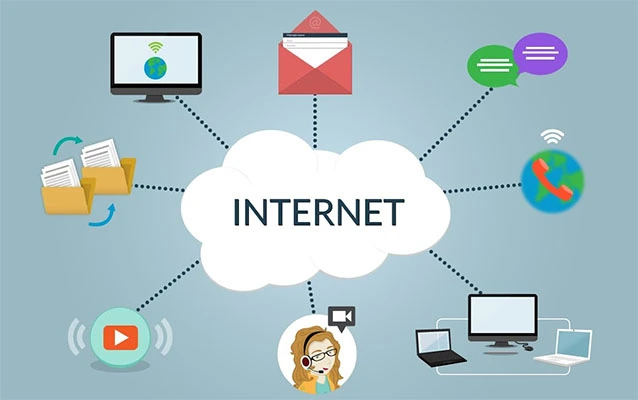
Controlling OctoPrint on the go means accessing your printer when you are not connected to the same local Wi-Fi network. That might mean checking a print from work, pausing a job from the grocery store, getting a push notification while walking the dog, or confirming that your printer finished before you drive home.
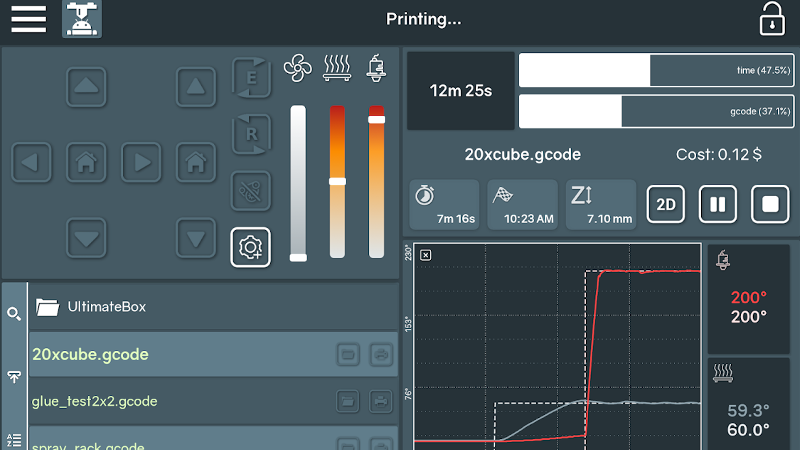
In everyday use, mobile OctoPrint control usually includes several core tasks:
- Monitoring print progress and estimated completion time
- Watching a live webcam stream or snapshot
- Checking hotend, bed, and chamber temperatures
- Pausing, resuming, or canceling a print
- Uploading or selecting G-code files
- Receiving alerts for completed prints, filament changes, or failures
- Managing multiple printers from a single dashboard or app
The best setup depends on how much control you need. Some users only want notifications and webcam snapshots. Others want full browser access, power control, file uploads, and multi-printer management. Before you install every plugin with a shiny icon, decide what “on the go” actually means for your workflow.
First, Build a Reliable Local OctoPrint Setup
Remote access is only as good as the local setup underneath it. If OctoPrint drops connection at home, it will not become magically more reliable because you are checking it from a coffee shop. Start with the basics: a stable host device, a quality power supply, a dependable USB cable, and a printer profile that matches your machine.
Use a Stable Host Device
Many users run OctoPrint on a Raspberry Pi with OctoPi because it is simple, well documented, and widely supported. A Raspberry Pi 3B+, Pi 4, or similar single-board computer can work well for a typical single-printer setup. Mini PCs can also be excellent if you want more performance, especially for webcams, plugins, or multiple printers.
Whatever device you choose, avoid weak power supplies and unreliable microSD cards. Random disconnects are not charming. They are gremlins wearing tiny tool belts. Use good storage, keep the system updated, and make OctoPrint backups before major changes.
Add a Camera Before You Go Remote
A webcam is not mandatory, but it changes everything. Without a camera, remote control is mostly numbers: temperatures, percentages, and time estimates. With a camera, you can actually see whether the print is attached, clean, and not attempting to become a plastic bird’s nest.
A USB webcam, Raspberry Pi Camera Module, or compatible camera stack can provide a live stream and snapshots. Position the camera so it shows the nozzle area and the print surface clearly. Add lighting if your printer lives in a dim corner. A camera pointed at darkness is not monitoring; it is suspense.
The Big Security Rule: Do Not Blindly Port Forward OctoPrint
The most important rule of remote OctoPrint access is simple: do not expose OctoPrint directly to the open internet with basic port forwarding unless you truly understand the risks and have added serious protection. It may seem convenient to open a router port and type your home IP address into a browser, but convenience is not the same as safety.
OctoPrint was built as a powerful local printer-control interface, not as a hardened public internet service. If an exposed instance is misconfigured, attackers could view your webcam, access files, manipulate printer controls, or cause other problems. Even if your setup has a password, placing printer control directly on the internet is not a great idea. The internet contains bots, scanners, bored people, and enough bad decisions to fill a filament dryer.
Use safer approaches instead: VPN access, secure tunneling services, trusted OctoPrint remote-access plugins, or mobile apps that integrate with secure remote services. The goal is to reach your printer without leaving the front door wide open and a neon sign saying, “Please jiggle the handle.”
Best Ways to Access OctoPrint Remotely
There is no single best remote-control method for every user. The right choice depends on your comfort level, security needs, device ecosystem, and whether you want browser access, mobile-app control, notifications, AI monitoring, or all of the above.
1. VPN Access: Private, Flexible, and Powerful
A VPN-style setup lets your phone, tablet, or laptop connect to your home network securely. Once connected, OctoPrint behaves almost as if you were sitting at home. You can open the normal OctoPrint web interface, use compatible apps, and keep access limited to your own trusted devices.
Modern mesh VPN tools such as Tailscale are popular because they simplify setup compared with traditional VPNs. Instead of manually wrestling with router rules, you install the client on your OctoPrint host and your mobile device, sign in, and use the private network address assigned to the device. This approach is excellent for users who want full OctoPrint access without relying entirely on a 3D-printing cloud service.
The downside is that VPN access may require a little technical comfort. You must install and maintain the VPN client, understand which device address to use, and make sure access is limited to the right people. For many makers, that trade-off is worth it.
2. Secure Remote Access Plugins
Remote-access plugins and cloud-connected services are attractive because they are usually easier to set up. Many are designed specifically for OctoPrint and understand what 3D printer users need: webcam viewing, notifications, print controls, file access, and sometimes AI failure detection.
OctoEverywhere, for example, focuses on remote OctoPrint access, live streaming, notifications, and AI print failure detection. Obico offers remote control, webcam streaming, mobile apps, notification channels, multi-printer management, and AI-based failure monitoring. These services are popular because they reduce the networking headache and give users a polished mobile experience.
The main trade-off is that you are using a third-party service. That may be perfectly fine, especially if the service has a strong reputation and clear security practices, but it is still worth reading the documentation, understanding the free and paid tiers, and using strong account security. Your printer may be small, but your account should not be protected like a sticky note password under a keyboard.
3. Mobile Apps for OctoPrint
Mobile apps can make OctoPrint feel much better on a phone than the full desktop-style web interface. Apps such as OctoApp, OctoPod, and Printoid are designed around mobile screens, notifications, quick checks, and touch-friendly controls.
OctoApp supports mobile-focused OctoPrint and Klipper workflows and can pair with a companion plugin for features like progress notifications. OctoPod is a strong option for iPhone, iPad, Apple Watch, Apple TV, and Siri users. Printoid is a long-running Android-focused OctoPrint app with deep feature support. Depending on your setup, these apps may connect locally, through a VPN, or through compatible remote-access services.
For many users, a mobile app is the most pleasant daily experience. The browser interface is still useful for setup and detailed configuration, but apps are faster for quick tasks like “Is the print alive?” and “Should I pause this before it becomes abstract sculpture?”
4. Notification-First Control
Not everyone needs full remote control. Sometimes the best mobile setup is simple notifications. Telegram, Discord, email, push notifications, and app alerts can tell you when a print starts, reaches a certain layer, needs attention, completes, or fails.
Notification-first setups are especially useful if you do not want to start prints remotely but do want to know what is happening. For example, you can receive an alert when the hotend cools, when a filament change is required, or when a print finishes. This can be safer and less distracting than constantly opening a live stream. Your phone battery will also quietly thank you.
What You Can Control Remotely in OctoPrint
OctoPrint offers a wide range of controls through its web interface and API. The exact features available remotely depend on your plugins, permissions, app, and printer firmware, but most users can perform the following tasks.
Start, Pause, Resume, and Cancel Prints
OctoPrint can start a selected file, pause an active job, resume a paused job, and cancel a failed or unwanted print. These controls are powerful, so use them carefully. Starting a print remotely should only happen when you know the printer is physically ready: clean bed, correct filament, safe surroundings, no loose tools, and no cat sleeping on the build plate. The cat may disagree, but safety wins.
Monitor Temperatures
Temperature monitoring is one of the most useful remote features. You can check whether the hotend and bed are heating, stable, cooling, or doing something suspicious. A sudden temperature drop may indicate a failed heater, loose connection, or firmware safety response. A temperature that climbs unexpectedly deserves attention.
Upload and Manage G-code
OctoPrint can store and manage G-code files, making it easier to send sliced models to your printer without swapping SD cards. Some remote solutions also allow file upload on the go. However, uploading a file remotely is not the same as printing it blindly. Always verify slicer settings, material, nozzle size, bed surface, and printer readiness before hitting start.
Watch the Webcam Feed
The webcam is your remote reality check. Use it to inspect adhesion, spot spaghetti, confirm completion, and see whether the print looks normal. For best results, keep the camera close enough to show details but far enough to capture the whole build area. If you use AI failure detection, a clear camera view improves the odds of useful alerts.
Control Lights, Fans, and Power
With the right plugins and hardware, OctoPrint can control enclosure lights, fans, smart plugs, relays, and power supplies. This is convenient, but it raises the safety bar. Power-control plugins should be configured carefully, and any relay or mains-voltage wiring should be done properly. If you are not comfortable with electrical work, choose certified smart plugs or ask someone qualified. “It probably works” is not an electrical safety standard.
Safety Checklist Before Remote Printing
Remote control should make 3D printing easier, not riskier. Before you rely on OctoPrint away from home, build a safety routine.
Secure Your Account
Use strong passwords for OctoPrint and any connected remote-access service. Create separate user accounts when appropriate and avoid sharing admin credentials. OctoPrint’s access control system can assign permissions to users and groups, which is helpful when multiple people use the same printer.
Protect the Webcam
Remember that webcam streams may not always be protected by OctoPrint’s user permissions in the same way as the main interface. Make sure your camera endpoint is not exposed publicly. If you use a reverse proxy, VPN, or plugin, test access from outside your network and confirm that unauthorized users cannot view the stream.
Keep Software Updated
Update OctoPrint, plugins, the host operating system, and remote-access tools. Old plugins can break features or introduce security issues. Before major updates, create a backup. After updates, test local access, camera streaming, notifications, and emergency controls before trusting the system remotely again.
Use Thermal Runaway Protection
Modern printer firmware should include thermal runaway protection. Confirm that your printer firmware supports it and that it is enabled. OctoPrint is a control and monitoring layer, not a replacement for firmware-level safety features.
Do Not Print Unsupervised Without Limits
Remote monitoring is not the same as physical supervision. Long prints are common, but you should still reduce risk: keep the printer on a stable surface, remove flammable clutter, check wiring, maintain the machine, and consider smoke detection nearby. Remote access gives you eyes and controls, not teleportation.
How to Choose the Right Remote OctoPrint Setup
The best option depends on your personality as much as your hardware. Are you a “give me a button that works” person, or do you enjoy configuring networks for fun? No judgment. Some people relax with tea; others relax by debugging DNS.
Choose a VPN If You Want Maximum Control
A VPN-style solution is ideal if you want private access to the full OctoPrint interface and prefer to control your own setup. It is also great for users who already use VPN tools for home servers, NAS devices, or smart home dashboards.
Choose OctoEverywhere or Obico If You Want Convenience
Cloud-connected remote access is a good fit if you want easy setup, polished mobile access, webcam streaming, notifications, and failure detection without learning advanced networking. These services are especially helpful for beginners and busy users who want reliable check-ins from anywhere.
Choose a Mobile App If You Want Daily Comfort
If you check prints often, a dedicated mobile app can be the difference between a smooth workflow and endless pinch-zooming in a browser. Apps are also great for widgets, watches, live activities, and push notifications.
Choose Notifications If You Want Less Screen Time
If you do not want to babysit a webcam feed, configure notifications. A well-timed alert is better than obsessively refreshing the stream every three minutes like the printer owes you money.
Common Mistakes When Controlling OctoPrint Remotely
The biggest mistake is direct port forwarding without proper security. The second biggest mistake is assuming that seeing a print remotely means everything is safe. Cameras have blind spots, network connections fail, and plastic can misbehave in ways that deserve their own wildlife documentary.
Another mistake is installing too many plugins too quickly. Plugins are one of OctoPrint’s greatest strengths, but each one adds complexity. Install what you need, test it, and keep notes. If something breaks, OctoPrint’s safe mode can help identify whether a third-party plugin is causing problems.
Users also forget about power loss. If your printer and OctoPrint host lose power, your remote dashboard may become useless until the system returns. A small UPS for the OctoPrint host or network gear can make monitoring more reliable, especially during brief outages.
Practical Examples of Mobile OctoPrint Workflows
The Quick Check Workflow
You start a print at home, leave for errands, and get a progress notification at 25 percent. You open your mobile app, check the webcam, confirm the print is still attached, and go back to your day. This workflow is simple and low-risk because you started the print in person and only monitor remotely.
The Remote Pause Workflow
You receive an AI failure alert or notice the model lifting from the bed. You open the stream, confirm the problem, and pause or cancel the print. You save filament, avoid a messy cleanup, and feel like a responsible adult for approximately seven minutes.
The Multi-Printer Workflow
If you run several printers, a cloud dashboard or mobile app can help you monitor them from one place. This is useful for small print farms, Etsy sellers, prototyping labs, schools, and hobbyists who somehow began with one printer and now own “just a few more.”
Experienced-Based Tips for Controlling OctoPrint On The Go
After using OctoPrint remotely for real printing workflows, one lesson becomes clear: the best setup is not the fanciest one. It is the one you trust when you are tired, busy, or distracted. Remote control should reduce anxiety, not create a new hobby called “checking seven dashboards while standing in line for coffee.”
Start with monitoring before remote starting. In practical use, it is much safer to begin prints while standing next to the printer, verify the first layer, and then rely on OctoPrint for progress checks. The first layer is where many failures are born. If it looks smooth, evenly squished, and attached, remote monitoring becomes much more useful. If the first layer looks like a toddler drew with molten linguine, fix it before leaving.
Camera placement matters more than many beginners expect. A wide view is nice, but the most important area is often the nozzle and the front edge of the print. Position the camera where you can see adhesion, stringing, layer shifts, and growing blobs. Add a small LED light or enclosure light so the image remains useful at night. If your AI detection system or your own eyes cannot see the print clearly, the camera becomes decoration.
Notifications are also best when they are specific. Too many alerts turn into noise. Too few alerts make the system easy to ignore. A balanced setup might include notifications for print start, first few progress milestones, filament change, error state, completion, and potential failure. If every one percent progress update buzzes your phone, you will eventually mute the app, and then the important alert will arrive wearing an invisibility cloak.
For remote access, a VPN or trusted tunnel usually feels better than exposing ports. Once configured, a private access method becomes part of the routine. Bookmark the OctoPrint address, save the app configuration, and test it from mobile data rather than home Wi-Fi. Testing from outside the network is important because many setups appear to work locally but fail the moment you leave the driveway.
Keep emergency actions simple. You should know exactly how to pause, cancel, or cut power if something looks wrong. If you use smart plugs or power-control plugins, test them carefully when you are physically present. Do not wait for a real failure to discover that your “off” button controls the desk lamp instead of the printer. That is how you get a well-lit disaster.
Finally, treat remote OctoPrint control as a workflow, not a magic shield. Maintain the printer, tighten loose hardware, clean the bed, dry filament when needed, update software, and review plugins occasionally. The better your printer behaves locally, the less dramatic your remote monitoring will be. And in 3D printing, boring is wonderful. Boring means the print finishes, the camera shows a clean model, and your phone does not buzz with a message that sounds suspiciously like “spaghetti dinner is served.”
Conclusion
Controlling OctoPrint on the go is one of the best quality-of-life upgrades for 3D printing. It lets you monitor progress, check temperatures, view webcam feeds, receive alerts, and respond quickly when something goes wrong. Used wisely, it saves time, filament, and frustration.
The key is choosing a secure and practical setup. Avoid blind port forwarding, use strong access control, protect your webcam, keep software updated, and choose remote tools that match your comfort level. A VPN gives private full access. Services like OctoEverywhere and Obico simplify remote control and monitoring. Mobile apps make daily check-ins easier. Notifications help you stay informed without staring at a stream all day.
OctoPrint does not remove the need for common sense, but it does give you a smarter way to manage your printer when you are away. Set it up carefully, test everything before relying on it, and enjoy the sweet freedom of checking your print from anywhere without sprinting back to the printer every time your imagination whispers, “What if it failed?”