Twitch ads have a special talent for showing up at the exact worst moment. Final circle in Warzone? Ad. Boss fight in Elden Ring? Ad. Streamer finally spills the tea? Ad. It is almost impressive in a deeply annoying way.
So let’s start with the truth nobody wants to hear but everybody needs: there is no universal forever-free switch that removes every Twitch ad on every device for every channel. If there were, Twitch would squash it faster than chat can type “LUL.”
That said, there are still real ways to get a no-ads Twitch experience for free, at least in specific situations. As of 2026, the best options fall into two buckets: official subscriber-based methods and free browser-based workarounds. Two are stable and fully legit. Two are more “works today, may get cranky tomorrow.”
This guide breaks down the four methods that work, who each one is best for, what the catch is, and how to choose the smartest route without turning your browser into a science project held together by digital duct tape.
Editor’s note: This article is based on real, current information and written for web publishing convenience without source links. Official Twitch methods are the most reliable. Free ad-blocking workarounds can stop working when Twitch updates how ads are delivered.
Why Twitch Ads Are So Hard to Block
Twitch is not like a random blog stuffed with banner ads from 2007. Many Twitch ads are tied closely to the stream delivery itself, which makes them tougher to block cleanly. That is why a regular ad blocker that demolishes half the internet can still look at Twitch and go, “Well, this is awkward.”
It also explains why so many people think their ad blocker is broken when the real issue is that Twitch changed something behind the scenes. Browser tools still help, but success on Twitch is usually a moving target, not a permanent trophy.
Another important detail: Amazon Prime does not give sitewide ad-free Twitch viewing anymore. That perk disappeared years ago. However, Prime Gaming still matters because it can give you a free monthly channel subscription, and some channels still offer ad-free viewing as a subscriber benefit. That distinction matters a lot.
The short version:
- If you watch one favorite streamer, subscriber-based methods are your best bet.
- If you watch lots of channels on desktop, a browser workaround may help more.
- If you watch on mobile, TV apps, or consoles, official subscription-based methods are far more dependable than browser tricks.
Method 1: Use Prime Gaming’s Free Monthly Channel Sub
Why This Method Works
This is the best official free method for a lot of people. If you have Amazon Prime, Prime Gaming includes one free Twitch channel subscription every month. That subscription can unlock the same perks as a paid sub, and on channels where the creator has enabled it, that can include ad-free viewing.
In plain English: if you mainly watch one streamer, this method can wipe out ads on that channel without costing you extra money. That is about as close to a legal, stable, free win as Twitch gets.
How to Set It Up
- Link your Amazon account and Twitch account.
- Go to the channel you watch most.
- Click the Subscribe button or drop-down.
- Select the option to use your Prime sub.
- Before you confirm, check the listed subscriber perks and make sure the channel includes ad-free viewing.
If the streamer has not enabled ad-free viewing for subscribers, your free Prime sub still gets you other perks, but it will not magically vaporize ads. This is where many viewers get tripped up. The free sub is real. The ad-free benefit is channel-specific.
Who Should Use It
This method is perfect if you are loyal to one main streamer. Maybe you spend most of your Twitch life watching the same speedrunner, the same Just Chatting host, or the same creator who somehow makes grocery-store simulator content weirdly gripping. If that is your setup, this is the most painless method on the list.
The Catch
- It only works on the channel you subscribe to.
- You have to renew the Prime sub manually each month.
- Not every channel offers ad-free viewing to subscribers.
Still, for one-channel viewers, this is the cleanest free answer in the room.
Method 2: Get a Gifted Sub or Community Giveaway Sub
Why This Method Works
A gifted sub is exactly what it sounds like: someone else pays, and you receive the subscription perks. From the viewer’s perspective, that means free access to subscriber benefits. If the streamer has enabled ad-free viewing for subs, a gifted subscription can also give you a no-ads experience on that channel.
This method works because Twitch treats a gifted sub like a real subscription benefit, not some bargain-bin imitation. You get the perks. The only difference is that your wallet gets to remain blissfully unbothered.
How to Improve Your Chances Without Becoming “That Person”
No, the strategy is not to spam chat with “gift me pls.” That is less a method and more a speedrun to looking embarrassing.
Smarter ways to increase your odds include:
- Following communities that regularly do sub giveaways.
- Being active in chat in a normal, not painfully desperate way.
- Entering official channel giveaways when they happen.
- Watching during community gift events, anniversaries, or special streams.
Some communities are generous. Others gift subs like they are handing out Halloween candy. If you are in the right channel at the right time, you can absolutely land a free sub and enjoy ad-free viewing on that creator’s stream.
Who Should Use It
This method is best for regular viewers who are already part of a creator’s community. If you hang around a channel often, there is a decent chance you will eventually pick up a gifted sub, especially during celebrations or big streams.
The Catch
- It is unpredictable.
- It is temporary unless you get gifted again.
- It only applies to that specific channel.
- It still depends on the creator offering ad-free viewing to subscribers.
It is free, real, and it works. It is just not something you can schedule with military precision.
Method 3: Use Brave for the Easiest Free Desktop Workaround
Why This Method Works
If you want a browser-based option, Brave is one of the simplest starting points. It has built-in ad blocking, privacy protections, and it is still friendlier than many Chromium-based browsers when it comes to supporting stronger ad-block setups.
Independent testing in 2026 has found Brave to be one of the more consistent free options for Twitch ad blocking on desktop. That does not mean perfection. It means “better odds than showing up with a random extension named UltraMegaAdDestroyer9000.”
How to Use It
- Install the latest version of Brave.
- Make sure Shields are enabled.
- Use aggressive blocking settings if needed.
- Keep the browser updated, because Twitch changes fast and stale tools age like milk.
- If ads still get through, test one supported extension setup rather than stacking five different blockers at once.
The big advantage here is convenience. Brave is a lighter lift than building a custom Twitch blocking setup from scratch, and for many desktop viewers that is exactly the appeal. You install one browser, tweak a few settings, and see if it gets the job done.
Who Should Use It
This method is best for people who watch Twitch in a desktop browser and want the easiest free workaround with the least fiddling. If your personality type is “I will tolerate one settings menu, but if this turns into a weekend project, I’m out,” Brave is probably your lane.
The Catch
- It is not officially guaranteed by Twitch.
- It can stop working when Twitch changes ad delivery.
- Some viewers report occasional weirdness like blank screens, delays, or playback hiccups.
- It is much more useful on desktop than on TV or console apps.
Think of Brave as the practical middle ground: easier than a custom setup, less stable than an official subscriber perk.
Method 4: Use Firefox With uBlock Origin
Why This Method Works
Firefox plus uBlock Origin is the classic power-user combo. uBlock Origin is free, open-source, lightweight, and still one of the most respected ad-block tools on the internet. Its own documentation says it can work on Twitch, though effectiveness varies as Twitch keeps changing how ads are served.
This setup is especially appealing because Firefox remains a strong home for full-featured extensions, while Chrome users increasingly run into the more limited uBlock Origin Lite situation. In other words, if you want better control, Firefox is still the more comfortable workshop.
How to Use It
- Install Firefox.
- Add uBlock Origin from the official browser add-on source.
- Keep filter lists updated.
- Test Twitch before piling on extra Twitch-specific add-ons.
- If something breaks, disable conflicting extensions before blaming your laptop, your router, or Mercury being in retrograde.
For advanced users, custom filters and community tweaks can sometimes improve results. But if your goal is a stable everyday setup, start simple. A clean Firefox plus uBlock Origin setup is usually smarter than turning your browser into a museum of overlapping ad-block experiments.
Who Should Use It
This is the best free option for viewers who like a little control and do most of their Twitch watching on desktop. If you already use Firefox, this method feels natural. If you like tweaking settings just enough to feel clever, this one scratches that itch nicely.
The Catch
- Twitch can break the setup at any time.
- You may need to refresh filters or troubleshoot after Twitch changes.
- On Chrome, the lighter version of uBlock is generally less effective.
- Some old community workarounds are now archived or less reliable than they used to be.
So yes, it works. Just do not expect it to sign a lifelong contract.
What Does Not Work Reliably Anymore
If you want to save time, avoid these common myths:
- “Amazon Prime removes all Twitch ads.” It does not. That old sitewide perk is gone.
- “Every subscription is automatically ad-free.” Nope. The creator has to offer ad-free viewing as a subscriber benefit.
- “Any ad blocker on any browser will do it.” Twitch is far more stubborn than that.
- “If I install three blockers, I get triple protection.” More often, you get triple confusion and a broken player.
- “A random DNS tweak fixes everything.” Not on Twitch, not reliably.
In other words, the no-ads Twitch game in 2026 rewards precision, not chaos.
Which Method Is Best for You?
If You Mostly Watch One Streamer
Use Prime Gaming’s free monthly sub first. If that channel offers subscriber ad-free viewing, you are done. Easy win. Gifted subs are your nice bonus route.
If You Watch a Bunch of Different Channels on Desktop
Start with Brave. It is the simplest free browser-based workaround. If that does not get you where you want to go, move to Firefox with uBlock Origin.
If You Watch Mostly on Mobile, TV, or Console
Browser tricks matter less. Your best free chances come from Prime subs or gifted subs on individual channels. That is not as exciting as a magic app, but it is far more realistic.
If You Want a Guaranteed Sitewide No-Ads Experience
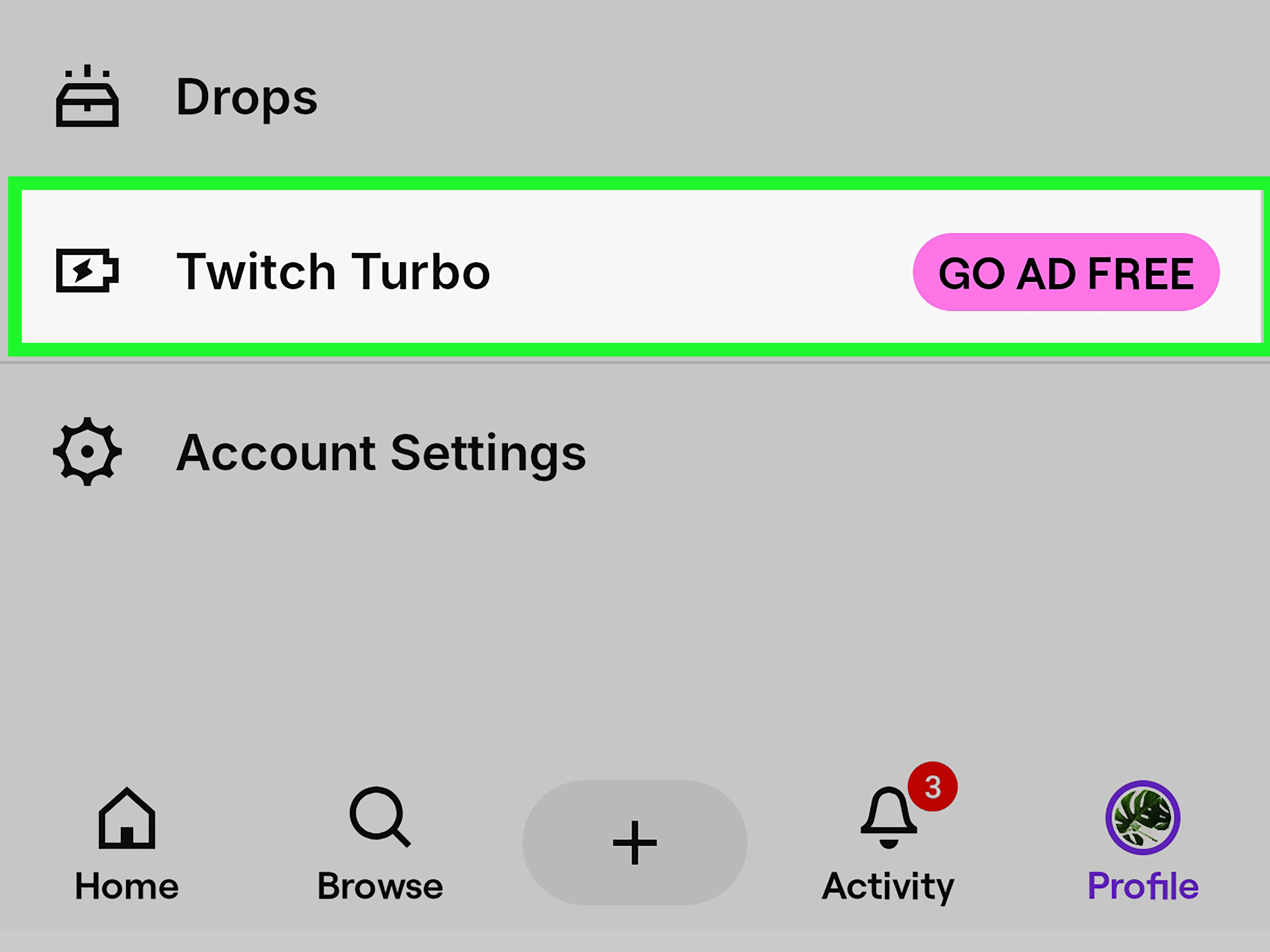
There is only one real answer: Twitch Turbo. That is not free, so it does not belong in the main list, but it is worth mentioning because some people spend so much time wrestling with “free” fixes that they accidentally turn ad-blocking into a part-time job.
Real-World Example Scenarios
Example 1: You only watch one streamer every night. Use your Prime Gaming sub. If that channel offers ad-free subscriber viewing, congratulations, you just solved the problem with the least amount of drama.
Example 2: You jump between ten channels during esports events. A browser-based method like Brave makes more sense because channel-specific subs will not cover your whole viewing habit.
Example 3: You hang out in a mid-size community that gifts a lot of subs. Stay active, enter official giveaways, and you may end up with a free channel sub more often than you expect.
Example 4: You are a Firefox loyalist and already use uBlock Origin everywhere else. Great. Start there. Just keep expectations realistic and filters updated.
What the No-Ads Hunt Actually Feels Like: A Real-World Experience
Let’s talk about the part most articles skip: the experience of trying to get no ads on Twitch for free is a little bit like trying to pick the fastest line at the grocery store. You think you have made a brilliant decision, and then suddenly the cashier needs a price check, someone is paying in pennies, and your confidence evaporates.
At first, most viewers start with optimism. You install an ad blocker, open Twitch, and think, “That was easy. I am a genius.” Then the next day, a pre-roll ad appears anyway, and now you are staring at your browser like it personally betrayed you. Welcome to the modern Twitch experience.
For one-streamer viewers, the Prime Gaming route feels refreshingly civilized. You connect your accounts, use your free monthly sub, and if the creator offers ad-free viewing, the problem just disappears on that channel. No weird tinkering. No browser gymnastics. No fifty-tab rabbit hole about scripts written by people named things like PixelWizard77. It feels grown-up, stable, and suspiciously normal.
Gifted subs are a different vibe entirely. They feel like a tiny internet lottery ticket. One day you are just watching chat argue about whether pineapple belongs on pizza, and the next second somebody drops fifty community gift subs like a digital confetti cannon. Suddenly you are ad-free, you have a shiny badge, and chat is moving so fast nobody can type “congrats” without it being swallowed whole. It is chaotic, delightful, and absolutely not something you can plan your life around.
The browser methods are where things get more adventurous. Brave is the setup for people who want results without earning a minor degree in browser troubleshooting. When it works, it feels wonderfully boring, which is exactly what you want. You open a stream, the ads do not show, and life goes on. Beautiful. But because Twitch changes things all the time, there is always that tiny suspicion in the back of your head that tomorrow’s stream might break the spell.
Firefox with uBlock Origin feels more like the method for viewers who enjoy being just a little smarter than the average app store recommendation. It is satisfying, flexible, and often effective, but it also asks for a bit more patience. Sometimes you update filters and everything is fine. Sometimes Twitch changes something and suddenly you are troubleshooting like a volunteer member of the internet’s unofficial ad-defense league.
The funniest part is that every viewer eventually discovers the same truth: “free” is not always free in the emotional sense. You may save money, but you might spend that savings in effort, trial and error, and the occasional moment of wondering why a website designed to show people video games has become a chess match between giant companies and annoyed viewers.
Still, when you land on the method that fits your habits, the experience gets dramatically better. The casual single-channel fan is happiest with Prime Gaming. The community regular quietly hopes for a gifted sub. The desktop multitasker leans toward Brave. The tinkerer opens Firefox, installs uBlock Origin, and gets to work like a person seasoning a cast-iron pan.
And that is really the secret: the best Twitch no-ads method is not the one that sounds coolest on Reddit. It is the one that matches how you watch. If you pick the right setup, Twitch becomes fun again instead of feeling like a live stream interrupted by a parade of commercials dressed as progress.
Final Take
If you want no ads on Twitch for free, the most honest answer is this: yes, it is possible in some situations, but there is no single universal hack that works forever.
The best official free method is Prime Gaming’s monthly free channel sub, followed by gifted subs if you are active in a generous community. On desktop, the two strongest free workaround paths are Brave and Firefox with uBlock Origin. Those browser methods can absolutely work, but they live in a constant cat-and-mouse game with Twitch.
So if your goal is “no ads on my favorite channel,” use subscriber-based perks. If your goal is “fewer ads while I channel-hop on desktop,” use a browser workaround. And if your goal is “I want zero nonsense and zero surprises,” that is where Twitch Turbo quietly clears its throat from the paid section of the room.
Bottom line: pick the method that matches your viewing style, keep expectations realistic, and never trust a random ad-block extension with a logo that looks like it was designed during a sugar rush.
Note: This draft removes unnecessary publishing clutter and avoids raw citation artifacts for cleaner web posting.