
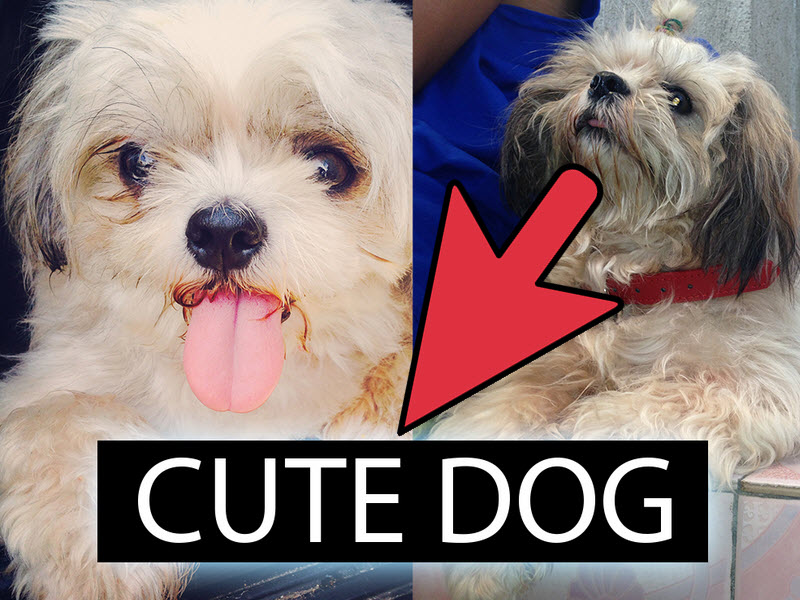
Putting two pictures together sounds like one of those tiny digital chores that should take twelve seconds. Then you open your phone, your laptop, or a photo editor, and suddenly you are choosing between “canvas size,” “layers,” “collage templates,” “aspect ratio,” and a mysterious export setting that looks like it belongs on a spaceship. Good news: combining two photos is much easier than it looks once you know the basic workflow.
Whether you want to place two images side by side, create a before-and-after comparison, overlay one picture on top of another, make a birthday collage, design a social media post, or blend two photos into a creative composite, the process follows the same general idea: choose your images, decide on a layout, adjust the size and position, polish the result, and export the final file.
This guide explains how to put two pictures together in 7 clear steps. You can use these steps in Photoshop, Canva, Adobe Express, Microsoft Paint, Apple Preview, Google Photos, GIMP, Pixlr, Kapwing, Fotor, Picsart, or almost any modern photo editor. The buttons may wear different outfits, but the job is the same: turn two separate images into one clean, shareable picture.
What Does It Mean to Put Two Pictures Together?
To put two pictures together means to combine two image files into a single finished design. That finished design might be a simple side-by-side photo, a top-and-bottom comparison, a collage, an overlay, or a blended composite where one image fades into another. The best method depends on your goal.
For example, if you are showing a room makeover, a side-by-side layout is usually best because viewers can compare the “before” and “after” instantly. If you are making a dreamy travel poster, an overlay with transparency or a layer mask may look more artistic. If you are posting family photos, a collage template may save time and keep the design tidy. No need to reinvent the wheel when a grid layout is sitting there politely waiting to help.
How to Put Two Pictures Together in 7 Steps
Step 1: Choose the Two Pictures You Want to Combine
Start by selecting the two images you want to use. This sounds obvious, but choosing the right pair is half the battle. Pictures work best together when they share something in common: similar lighting, related colors, matching orientation, or a clear story. A sunny beach photo and a dark restaurant photo can still be combined, but they may need extra editing so they do not look like strangers forced to sit together at a wedding.
Before opening an editor, check the image quality. Use the highest-resolution versions available, especially if you plan to print the final picture. A tiny screenshot may look fine on a phone, but it can become blurry when stretched across a larger canvas. Also consider the shape of each image. Two vertical portraits are easy to place side by side. One vertical photo and one wide landscape photo may require cropping, padding, or a creative layout.
If the final image is for Instagram, Facebook, a blog post, a YouTube thumbnail, or a printed invitation, decide where it will appear before you begin. A social media square, a website banner, and a printable 5-by-7 design all need different canvas dimensions. Planning this early helps you avoid the classic “why did half my dog disappear after uploading?” problem.
Step 2: Pick the Right Tool for the Job
You do not need expensive software to put two pictures together. The best tool depends on how much control you want. For a quick side-by-side image, online tools like Canva, Adobe Express, Pixlr, Kapwing, Fotor, and Picsart are beginner-friendly. They usually provide templates, drag-and-drop placement, spacing controls, backgrounds, text, and easy export options.
If you are using a phone, Google Photos can create collages from selected images, and many mobile editors offer similar layouts. On an iPhone, the built-in Photos app is excellent for cropping, rotating, and marking up images, though you may prefer a dedicated collage app for placing two images into one frame. On a Mac, Preview can crop, resize, and adjust images quickly. On Windows, Microsoft Paint can handle basic cropping, resizing, and simple image placement.
For more advanced work, Photoshop and GIMP give you layers, masks, opacity controls, blending modes, and precise canvas adjustments. These are best when you want to overlay one picture on another, erase part of an image, blend edges, or create a polished composite. Think of layers like transparent sheets stacked on top of each other. You can move one sheet without ruining the others, which is much better than editing everything as one flat pancake.
Step 3: Create a New Canvas or Collage Layout
Once you choose your editor, create a new project. In template-based tools, this may mean selecting a collage layout, a blank design, or a social media size. In Photoshop, GIMP, Pixlr, or similar editors, you may need to create a new canvas manually. Choose a size that fits your final use.
For a side-by-side comparison, a wide canvas works well. A 2000-by-1000 pixel canvas, for example, gives both images equal space. For a square social post, try 1080-by-1080 pixels. For a blog feature image, a horizontal layout such as 1200-by-675 pixels is often more useful. The exact size is less important than choosing a shape that matches where the picture will be displayed.
If you are using a collage template, pick one with two equal frames if both photos are equally important. Choose an asymmetrical layout if one image should be the star and the other should support it. For example, a wedding announcement might use one large portrait with a smaller detail shot. A product comparison should usually keep both pictures the same size so the comparison feels fair.
Step 4: Add Both Pictures to the Project
Now import your two pictures. In most online editors, you can upload both files and drag them onto the canvas or into a template frame. In Photoshop or GIMP, open the images as separate layers or drag one image into the document containing the other. In simpler tools like Paint, you may copy and paste one image onto a larger canvas next to the first image.
When you add your images, keep them separate until you are finished editing. This is why layers are useful. If each picture stays on its own layer, you can resize, move, crop, or adjust one image without damaging the other. If you flatten or merge them too early, editing becomes harder. It is like gluing furniture to the floor before deciding where the couch should go.
If the images appear too large, too small, or off the edge of the canvas, do not panic. That is normal. Use the transform, resize, or crop controls to bring each image into place. Hold the shift key in many desktop editors to preserve proportions, or use the corner handles in online tools. Avoid stretching a photo sideways or vertically unless you are trying to make your cousin look like a funhouse mirror.
Step 5: Arrange the Pictures Side by Side, Stacked, or Overlaid
The arrangement is where your final design starts to take shape. The most common layout is side by side. Place the first picture on the left and the second on the right, then align their edges. This is ideal for comparisons, transformations, recipe steps, fitness progress, home renovations, and “then vs. now” posts.
A stacked layout places one photo above the other. This works well for Pinterest graphics, mobile-first images, vertical blog visuals, and story-style content. Because many people view images on phones, vertical designs can feel natural and easy to read.
An overlay places one image on top of the other. You might reduce the opacity of the top image so both pictures show through, or use a mask to hide part of the top layer. This is great for artistic edits, double-exposure effects, posters, mood boards, and dramatic social graphics. If your editor has blending modes, try options such as multiply, screen, overlay, or soft light. Use them gently. Blending modes are like hot sauce: wonderful in the right amount, alarming when poured everywhere.
Pay attention to the space between images. A thin border can make a collage look clean and intentional. No border can make two images feel connected. A wide margin can create a modern editorial look. The choice depends on the mood you want.
Step 6: Edit for Balance, Color, and Clarity
After arranging the images, polish the design. Start with cropping. Remove distracting edges, empty space, or awkward background details. If one picture has a lot of unused space and the other is tightly framed, crop them so they feel more balanced.
Next, adjust brightness, contrast, warmth, and saturation. Two pictures taken in different lighting can look mismatched when placed together. One may be cool and blue; the other may be warm and golden. Small adjustments help them feel like they belong in the same visual family. You do not need to make them identical, but they should not look like one was photographed on Earth and the other on a suspiciously moody planet.
If the image is for a tutorial, label the pictures with text such as “Before” and “After,” “Step 1” and “Step 2,” or “Original” and “Edited.” Keep text readable by using high contrast and enough spacing. Avoid placing text over busy backgrounds unless you add a semi-transparent shape behind it.
If you are creating a professional graphic, consider adding a subtle background color, a small border, or a consistent frame. For brand content, use your brand colors and fonts. For personal projects, keep it simple. The photos should do most of the talking; the design should not interrupt like an overexcited game show host.
Step 7: Save, Export, and Share the Final Image
When your two pictures look good together, export the final image. Choose the right file format. JPEG is excellent for regular photos and smaller file sizes. PNG is better when you need transparency, crisp graphics, or text-heavy designs. PDF can work for documents, print layouts, or multi-page projects. If your editor has a quality slider, choose a high-quality setting for printing or a balanced setting for web use.
Before exporting, zoom in and check the details. Are both pictures aligned? Is anything cut off? Is the text readable on a phone? Are faces, products, or important objects placed safely away from the edges? Many social platforms crop previews, so leave a little breathing room around the most important parts.
If you are using advanced software, save an editable version before exporting. In Photoshop, that may be a PSD file. In GIMP, it may be an XCF file. This preserves layers, masks, and editable elements. Then export a flattened JPEG or PNG for sharing. Keeping an editable copy is the digital version of keeping leftovers. You may not need it today, but tomorrow you might be very grateful.
Best Layout Ideas for Combining Two Pictures
Before-and-After Comparison
This is the most practical layout. Put the “before” image on the left and the “after” image on the right. Use matching sizes, a clean divider, and simple labels. This works well for home improvement, makeup, fitness, photo editing examples, landscaping, organization projects, and repairs.
Split-Screen Storytelling
A split-screen layout shows two related moments at once. For example, you might place a wide shot of a vacation destination next to a close-up of food, architecture, or a smiling travel buddy. The two images work together to tell a bigger story.
Overlay or Double Exposure
An overlay blends one picture into another. You can place a skyline inside a portrait, fade a texture over a product photo, or blend a sunset into a landscape. This technique works best when one image has strong shapes and the other has interesting texture, color, or atmosphere.
Photo Collage With Text
Add a headline, date, quote, or caption to turn two pictures into a complete design. This is useful for invitations, announcements, blog graphics, Pinterest pins, recipe cards, and social media posts. Keep the words short and let the images remain the main attraction.
Common Mistakes to Avoid
Using Images With Very Different Quality
If one photo is sharp and the other is blurry, the final result may feel uneven. Use the best available versions of both images. If necessary, reduce the size of the sharper image slightly rather than enlarging the weaker one too much.
Forgetting the Final Platform
A beautiful wide image may look strange in a vertical story format. A tall collage may not work well as a website banner. Always design for the place where the final picture will live.
Overediting the Photos
Filters, stickers, shadows, borders, gradients, and text can be useful, but too many effects can make the result feel cluttered. When in doubt, simplify. Your future self will thank you, and so will everyone’s eyeballs.
Exporting Too Small
If you export a tiny file, the final image may look pixelated. For web use, choose a size large enough to remain sharp on modern screens. For print, use a high-resolution file and check the recommended dimensions from your printer or design platform.
Which Tool Should You Use?
Use Canva or Adobe Express if you want a quick, polished collage with templates. Use Google Photos if you are on mobile and want a fast collage from images already in your library. Use Microsoft Paint or Apple Preview for basic cropping, resizing, and simple placement. Use Pixlr, Kapwing, Fotor, or Picsart if you want online editing with templates and creative extras. Use Photoshop or GIMP if you want full control with layers, masks, transparency, and precise editing.
The best tool is not always the most powerful one. If your goal is a simple side-by-side picture, a template-based editor may be faster than a professional program. If your goal is a seamless composite, layers and masks are worth learning. Choose the tool that matches the job, not the one with the longest menu bar.
Extra Experience: What I’ve Learned From Putting Two Pictures Together
The biggest lesson from combining pictures is that the technical steps are only part of the process. The real magic happens when the two images feel like they belong together. I have seen simple side-by-side photos look more professional than complicated edits because the creator made smart choices: same crop, same lighting, clear labels, and no unnecessary decoration. Clean beats chaotic almost every time.
One useful experience is to start with the story, not the software. Ask yourself what the viewer should understand in three seconds. If the answer is “this kitchen looked old and now it looks modern,” use a before-and-after layout. If the answer is “these two moments belong to the same memory,” use a collage. If the answer is “this image should feel artistic and emotional,” try an overlay or blend. When the purpose is clear, the layout becomes much easier to choose.
Another practical tip is to duplicate your images before editing. This is especially important when working on personal photos, client files, or anything you cannot easily replace. Keep the originals untouched and create an edited copy. Many apps save non-destructive edits, but not all workflows are equally forgiving. A backup copy is boring until the moment it saves your project. Then it becomes a tiny digital superhero.
Spacing also matters more than beginners expect. When two pictures touch directly, the result can feel bold and modern. When there is a small gap, each image gets room to breathe. When the gap is too large, the design may feel disconnected. I usually start with a narrow border, preview the image at phone size, and then adjust. If it looks good small, it usually looks good large. The reverse is not always true.
Color matching is another detail that can dramatically improve the final image. If one picture is much brighter than the other, the viewer’s eye will jump to it immediately. That may be fine if it is the main photo, but it can hurt a balanced comparison. Adjust exposure, contrast, and warmth until the two images feel compatible. You do not need perfection; you need harmony.
Text should be treated like seasoning. A simple “Before” and “After” label can make a comparison instantly understandable. A short date, place, or caption can add context. But too much text turns a picture into homework. Use large, readable fonts and avoid placing words on top of detailed backgrounds. If needed, add a soft rectangle behind the text so it remains clear.
Finally, always preview the final image where it will be used. Open it on your phone. View it at thumbnail size. Upload a test if the platform allows drafts. Many mistakes only appear after export: a label too close to the edge, a face cropped awkwardly, a border that looks uneven, or a file that becomes blurry after compression. A thirty-second preview can prevent a very public “oops.”
Putting two pictures together is not just a technical trick. It is a small act of visual storytelling. You are asking two separate images to share one stage. Give them the right size, space, color, and purpose, and they will usually behave beautifully. If they do not, crop again, adjust the layout, and remind them that this is a team project.
Conclusion
Learning how to put two pictures together is useful for everyday projects, creative designs, work presentations, social posts, blog graphics, invitations, tutorials, and personal memories. The process is simple: choose strong images, pick the right tool, create a canvas, add both pictures, arrange them clearly, polish the design, and export the final file. Once you understand these 7 steps, you can use almost any photo editor with confidence.
Start with a simple side-by-side layout if you are new. Then experiment with borders, text, overlays, transparency, and layer masks as your skills grow. You do not need to become a professional designer overnight. You just need a clear goal, decent images, and the patience to move things around until your layout stops looking like it assembled itself during an earthquake.













