
Linking sheets in Excel is one of those skills that sounds tiny until you need it. Then suddenly it becomes the difference between a clean, professional workbook and a spreadsheet jungle where numbers hide behind tabs like shy raccoons. Whether you are building a monthly budget, tracking sales by region, combining project updates, or creating a dashboard that pulls data from several tabs, knowing how to link sheets in Excel can save time, reduce errors, and make your workbook much easier to update.
The good news is that Excel makes this surprisingly simple. You can link one sheet to another with a basic formula, connect entire ranges, create clickable hyperlinks, reference another workbook, or build a summary sheet that updates automatically when the original data changes. The slightly less good news is that Excel can be picky about sheet names, file locations, broken links, and formulas copied into the wrong place. Excel is powerful, but it does enjoy the occasional dramatic sigh.
In this guide, you will learn how to link sheets in Excel in 10 practical steps. We will cover cell references, formulas, hyperlinks, linked workbooks, troubleshooting tips, and real-world examples so you can use this skill confidently instead of clicking around and hoping the spreadsheet gods approve.
What Does It Mean to Link Sheets in Excel?
To link sheets in Excel means to create a connection between data on one worksheet and another worksheet. For example, you might have a sheet named Sales that contains daily revenue and another sheet named Summary that displays the total. Instead of typing the sales number again, you can link the Summary sheet to the Sales sheet. When the original number changes, the linked result updates automatically.
There are several ways to connect sheets in Excel:
- Cell references: Pull a value from another worksheet with a formula such as
=Sales!B2. - Range references: Use a range from another sheet in formulas like
=SUM(Sales!B2:B20). - Hyperlinks: Create a clickable shortcut to another sheet, cell, file, or web page.
- Workbook links: Reference data from a sheet in a different Excel file.
- Named ranges: Give important cells or ranges friendly names, then link to them more easily.
Each method has a different purpose. If you want a value to update automatically, use a formula link. If you want users to jump quickly from one tab to another, use a hyperlink. If you want to build a reporting workbook from multiple files, use workbook links carefully and keep the source files organized.
How to Link Sheets in Excel: 10 Steps
Step 1: Open the Workbook That Contains Your Sheets
Start by opening the Excel workbook where your worksheets live. For this example, imagine you have two sheets: January Sales and Summary. The January Sales sheet contains raw sales numbers, and the Summary sheet needs to display totals, averages, or key figures from that data.
Before linking anything, make sure your sheet names are clear. Names like Data, Sheet2, and Final_FINAL_v3 may work technically, but they are not friendly to humans. Use simple names such as Sales, Expenses, Inventory, or Dashboard. Your future self will thank you, probably while drinking coffee and fixing fewer mistakes.
Step 2: Choose the Destination Cell
The destination cell is where you want the linked result to appear. Click the cell on your target sheet. For example, go to the Summary sheet and select cell B2. This is the cell that will display information pulled from another worksheet.
Think of the destination cell as the window. It does not store the original data; it looks at the original data and shows the result. If the original value changes, the destination cell updates because it is connected by a formula.
Step 3: Type an Equal Sign
In the destination cell, type an equal sign: =. This tells Excel that you are creating a formula. Do not press Enter yet. Excel is now waiting for you to choose what the formula should reference.
This step is the gateway to many types of sheet linking. You can type a reference manually, click a cell on another sheet, or build a larger formula using functions such as SUM, AVERAGE, COUNT, or XLOOKUP.
Step 4: Click the Source Sheet
After typing =, click the sheet tab that contains the original data. In our example, you would click January Sales. Then click the cell you want to link, such as B2.
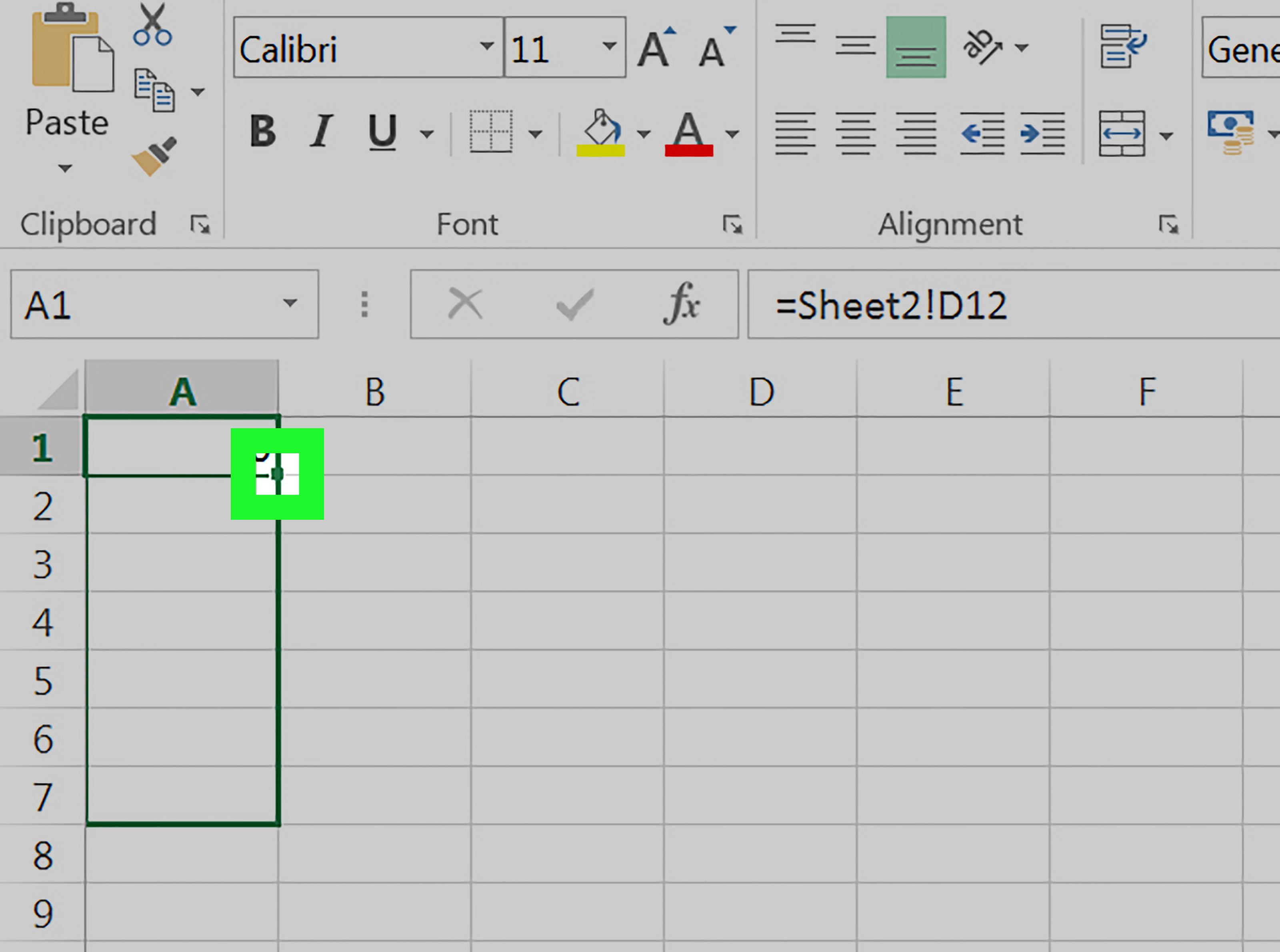
Excel will automatically build a reference that looks something like this:
The sheet name appears first, followed by an exclamation point, then the cell address. If the sheet name has spaces, Excel wraps it in single quotation marks. That is normal. Excel is not being dramatic; it is just being precise.
Step 5: Press Enter to Complete the Link
Press Enter, and the destination cell will display the value from the source cell. If January Sales!B2 contains 1250, then Summary!B2 will also show 1250.
Now try changing the number in the original source cell. When you return to the Summary sheet, the linked cell should update automatically. This is the magic of linked worksheets: you enter data once and reuse it wherever you need it.
Step 6: Link a Range of Cells
You do not have to link one cell at a time. You can also link ranges. Suppose your January Sales sheet has revenue numbers in cells B2:B31. On the Summary sheet, you can calculate the total with this formula:
This formula adds all the values from the range on the January Sales sheet. You can also use:
=AVERAGE('January Sales'!B2:B31)to calculate the average.=MAX('January Sales'!B2:B31)to find the highest value.=MIN('January Sales'!B2:B31)to find the lowest value.=COUNT('January Sales'!B2:B31)to count numeric entries.
This is especially helpful for dashboards and reports because one sheet can contain raw data while another sheet presents the polished version.
Step 7: Use Absolute References When Needed
When you copy formulas in Excel, cell references may shift. Sometimes that is helpful. Other times it turns your neat report into a number salad. To prevent a reference from moving, use an absolute reference with dollar signs.
For example:
The dollar signs lock the column and row. If you copy this formula to another cell, it will still point to B2 on the January Sales sheet.
You can also lock only the column or only the row:
$B2locks the column.B$2locks the row.$B$2locks both column and row.
This is useful when building templates, comparison tables, and multi-sheet reports where formulas need to stay aligned.
Step 8: Create a Clickable Link to Another Sheet
Sometimes you do not need to pull a value. You just want a clickable shortcut to another sheet. This is where hyperlinks shine. Hyperlinks are great for dashboards, table-of-contents pages, and workbooks with many tabs.
To create a clickable link:
- Select the cell where you want the link.
- Press Ctrl + K or right-click and choose Link.
- Select Place in This Document.
- Choose the sheet and cell destination.
- Enter friendly display text, such as Go to Sales Sheet.
- Click OK.
You can also use the HYPERLINK function. For example:
The hash symbol tells Excel the link points to a location inside the current workbook. The second part of the formula is the friendly text users will see.
Step 9: Link Sheets Between Different Workbooks
You can also link to a sheet in another Excel file. This is called a workbook link or external reference. It is useful when one file contains source data and another file contains reports.
The easiest method is:
- Open both workbooks.
- Go to the destination workbook.
- Select the cell where the linked value should appear.
- Type
=. - Switch to the source workbook.
- Click the source sheet and cell.
- Press Enter.
Excel may create a formula that looks similar to this:
If the source workbook is closed, Excel may show the full file path. This is where organization matters. If you move or rename the source file, the link may break. For best results, keep linked files in stable folders, use clear file names, and avoid moving source workbooks unless you plan to update the links afterward.
Step 10: Check, Update, and Fix Broken Links
Once your workbook contains links, review them regularly. Broken links can happen when a sheet is renamed, a workbook is moved, a file path changes, or a linked cell is deleted. Excel usually warns you when a workbook contains external links, especially if it needs to update values from another file.
To manage workbook links in Excel, look under the Data tab for workbook link options such as Edit Links or Workbook Links, depending on your Excel version. From there, you can update values, change the source, open the source file, or break a link if it is no longer needed.
If a formula returns #REF!, Excel is telling you that the reference is no longer valid. Check whether the source sheet still exists, whether the cell was deleted, or whether the workbook link points to the correct location. Think of #REF! as Excel waving a tiny red flag and saying, “I used to know where this was, but now I am emotionally unavailable.”
Common Examples of Linking Sheets in Excel
Example 1: Pull a Total From Another Sheet
If your Sales sheet has a total in cell D20, you can show that total on your Dashboard sheet with:
This is one of the simplest and most useful ways to link sheets in Excel.
Example 2: Add Values Across Multiple Sheets
If you have monthly sheets named January, February, and March, and each has a total in cell B10, you can add them like this:
This works well for quarterly reports, budget summaries, and performance reviews.
Example 3: Use a 3D Reference
If several sheets use the same layout, you can use a 3D reference. For example:
This formula adds cell B10 across every sheet from January through March. The sheets must be arranged next to each other in the workbook. This method is excellent for monthly reporting, but be careful when inserting or moving sheets because the formula depends on sheet order.
Best Practices for Linking Sheets in Excel
Use Clear Sheet Names
Clear sheet names make formulas easier to read. A formula like =Sales!B2 is much easier to understand than =Sheet7!B2. Use names that describe the sheet’s purpose.
Keep Layouts Consistent
If you link the same cell across several sheets, keep the layout identical. For example, if total revenue is in B10 on January, it should also be in B10 on February and March. Consistency prevents formula mistakes.
Avoid Unnecessary External Links
External workbook links are useful, but they can become fragile if files move. Use them when needed, but do not create a complicated chain of workbooks unless there is a clear reason. A workbook that depends on six other files can become a spreadsheet soap opera.
Create a Table of Contents Sheet
For large workbooks, create a first sheet called Index or Contents. Add hyperlinks to important sheets. This makes navigation faster for users and reduces the chance that someone gets lost in a tab maze.
Document Important Links
If your workbook supports a business process, add a notes section explaining where linked data comes from. This is especially helpful when sharing files with coworkers or updating reports months later.
Troubleshooting Problems When Linking Sheets
The Formula Shows Text Instead of a Result
If your formula appears as text, the cell may be formatted as Text. Change the format to General, then re-enter the formula. Also check that the formula begins with an equal sign.
The Link Returns #REF!
This usually means the referenced cell, sheet, or workbook cannot be found. Check whether a sheet was renamed, a row or column was deleted, or an external file was moved.
The Values Do Not Update
Make sure automatic calculation is enabled. Go to Formulas, then Calculation Options, and choose Automatic. If you are using external workbook links, open the source workbook or update links when prompted.
The Hyperlink Goes to the Wrong Place
Edit the hyperlink and confirm the destination sheet and cell. If the sheet name contains spaces, make sure the reference is properly formatted with single quotation marks when using the HYPERLINK function.
of Real-World Experience: What Linking Sheets in Excel Teaches You
After working with linked sheets in Excel for a while, you start to notice a pattern: the formula itself is usually easy, but the workbook structure determines whether everything stays smooth. Linking sheets is not just a technical trick. It is a small act of spreadsheet architecture. When the foundation is clean, the formulas behave. When the workbook is messy, Excel begins sending cryptic error messages like a haunted calculator.
One of the most useful lessons is to plan before linking. Many users create links as they go, which works for a quick file but becomes risky in a report used every week. Before building links, decide which sheet will hold raw data, which sheet will process calculations, and which sheet will present final results. A common structure is Data, Calculations, and Dashboard. This separation keeps your workbook organized and makes troubleshooting much easier.
Another practical lesson is to avoid linking to random cells that might move later. If your source number is in the middle of a worksheet where rows are frequently inserted or deleted, your link may eventually point to the wrong place. Using Excel Tables can help because structured references adjust as the table expands. Named ranges can also make formulas easier to understand. A formula that references MonthlyRevenue is friendlier than one that references a mysterious cell hiding on another tab.
It is also smart to test your links before sharing the workbook. Change a source value and confirm that the destination sheet updates correctly. Click every navigation hyperlink. Open and close linked workbooks to see whether external references behave as expected. This takes a few minutes, but it can prevent awkward moments later, such as presenting a dashboard that still thinks last month’s sales are current.
For team files, simplicity wins. If coworkers will use the workbook, make links obvious. Add labels, notes, and a clear index page. Color coding can help, but do not rely on color alone because not every user sees or prints colors the same way. A short instruction note such as “Update the Sales sheet only; Summary updates automatically” can save everyone from spreadsheet chaos.
Finally, treat external workbook links with respect. They are powerful, but they depend on file paths and access permissions. If a linked file lives on someone’s desktop, the link may fail for everyone else. Shared cloud folders, OneDrive, SharePoint, or a controlled network location are usually better choices. The more stable the source location, the more reliable the workbook.
In everyday Excel work, linking sheets is one of the fastest ways to build smarter files. It reduces duplicate typing, improves consistency, and helps create reports that update with less manual effort. Once you understand the difference between formula links, hyperlinks, and workbook links, you can build workbooks that feel less like scattered sticky notes and more like a well-organized command center.
Conclusion
Learning how to link sheets in Excel is a practical skill that can make your workbooks cleaner, faster, and more reliable. You can link cells with simple formulas, summarize data across worksheets, create clickable navigation links, and even connect separate workbooks. The key is to use the right type of link for the job. Formula links are best for live data, hyperlinks are best for navigation, and external workbook links are best when information must come from another file.
Keep your sheet names clear, your layouts consistent, and your source files organized. Check links before sharing important reports, and do not ignore errors like #REF!. Excel is usually telling you exactly where the problem is; it just prefers to do so in spreadsheet dialect.
Once you master these 10 steps, you can turn a collection of separate tabs into a connected, efficient workbook that updates automatically and makes sense to everyone who opens it. That is not just an Excel trick. That is spreadsheet adulthood.














