
So, you have decided it is time to delete your Discord account. Maybe your server list looks like a digital junk drawer. Maybe you are tired of notifications popping up at the exact moment you sit down with coffee. Or maybe you simply want a cleaner online life without one more app asking, “Are you still there?”
Whatever your reason, permanently deleting a Discord account is not complicated, but there are a few important details you should understand before clicking the big red button. Discord does not instantly erase your account the second you confirm deletion. Instead, your account enters a pending deletion period. During that time, you can still restore it if you change your mind. After the waiting period ends, the deletion becomes irreversible.
This guide explains how to permanently delete a Discord account using three easy methods: desktop or browser, mobile app, and Discord Support. You will also learn what happens to your servers, messages, subscriptions, data, and account access before and after deletion.
Before You Delete Your Discord Account, Read This First
Deleting Discord is a little like moving out of an apartment. You can absolutely leave, but you probably should not sprint out while your furniture, spare keys, and unpaid bills are still inside. Before you delete your account, take a few minutes to clean up the important stuff.
1. Download Your Discord Data If You Need It
If you want a copy of your Discord data, request it before deleting your account. Discord allows users to request a data package through the Data & Privacy settings. The process can take up to 30 days, and the download link is sent to the email address connected to your account at the time of the request.
Here is the key detail: if you disable or delete your Discord account before receiving your data download link, the request may be canceled. So if you need records of account activity, messages, servers, or other information, request your data first and wait until you receive it.
2. Transfer or Delete Servers You Own
If you own any Discord servers, you cannot simply delete your account and vanish into the fog like a dramatic movie character. Discord requires you to transfer ownership of servers you own or delete those servers before your account deletion can proceed.
If the server is active, transferring ownership is usually the kinder option. Pick a trusted admin or moderator who understands the community. If the server is inactive, private, or no longer useful, deleting the server may make more sense.
3. Delete Sensitive Messages Manually
Deleting your account does not mean every message you ever sent will disappear from every server and direct message thread instantly. Discord says deleted accounts are anonymized across servers and messages, but if there are specific messages you do not want visible, delete them manually while you still have access.
Focus on messages that include personal details, old attachments, private photos, addresses, phone numbers, school information, payment details, or anything else your future self would prefer not to see floating around like a digital ghost.
4. Check Subscriptions and Purchases
Discord states that subscriptions such as Nitro and Server Boosts are canceled when your account is deleted. Still, it is smart to check your billing settings before deletion, especially if you subscribed through a mobile app store or another payment method. The last thing you want is to leave Discord and keep paying for the privilege, like tipping a restaurant after walking out the door.
How to Permanently Delete a Discord Account: 3 Easy Ways
There are three practical ways to delete your Discord account. The first is through the desktop app or browser. The second is through the mobile app. The third is by contacting Discord Support if you cannot access your account or the normal deletion process does not work.
Way 1: Delete Your Discord Account on Desktop or Browser
This is usually the easiest and cleanest method. It works through the Discord desktop app and the browser version of Discord.
Step-by-Step Instructions
- Open Discord on your desktop app or go to Discord in your web browser.
- Log in to the account you want to delete.
- Click the User Settings gear icon near the bottom-left corner.
- Make sure you are on the My Account tab.
- Scroll to the bottom of the page.
- Under Account Removal, click Delete Account.
- If you own servers, transfer ownership or delete those servers first.
- Return to User Settings > My Account and click Delete Account again.
- Enter your password.
- If multi-factor authentication is enabled, enter the required authentication code.
- Confirm by clicking Delete Account.
After confirmation, Discord logs you out and places the account into a pending deletion state. The account is not fully gone immediately, which is actually helpful if you experience sudden deletion regret five minutes later. We have all made dramatic decisions after a long day.
Best For
This method is best if you still know your password, can access your account, and want the most reliable path to permanent account deletion.
Way 2: Delete Your Discord Account on Mobile
If you mainly use Discord on your phone, you can delete your account from the mobile app. The layout may change slightly depending on app updates, iOS, or Android, but the general path is straightforward.
Step-by-Step Instructions
- Open the Discord mobile app.
- Tap your profile avatar in the bottom-right corner.
- Tap your avatar again or tap the gear icon to open settings.
- Select Account.
- Scroll down and tap Delete Account.
- If you own servers, transfer ownership before continuing.
- Return to Settings > Account and select Delete Account again.
- Enter your password.
- Enter your multi-factor authentication code if Discord asks for it.
- Tap Okay or the final confirmation button.
The mobile method is convenient, but it can feel a bit cramped if you need to manage several servers first. If you own multiple communities, using a desktop or browser may be faster because it is easier to review server settings, members, roles, and ownership transfers on a larger screen.
Best For
This method is best if you are already logged in on your phone, do not own many servers, and want to delete your Discord account quickly without opening a computer.
Way 3: Contact Discord Support If You Cannot Delete the Account Yourself
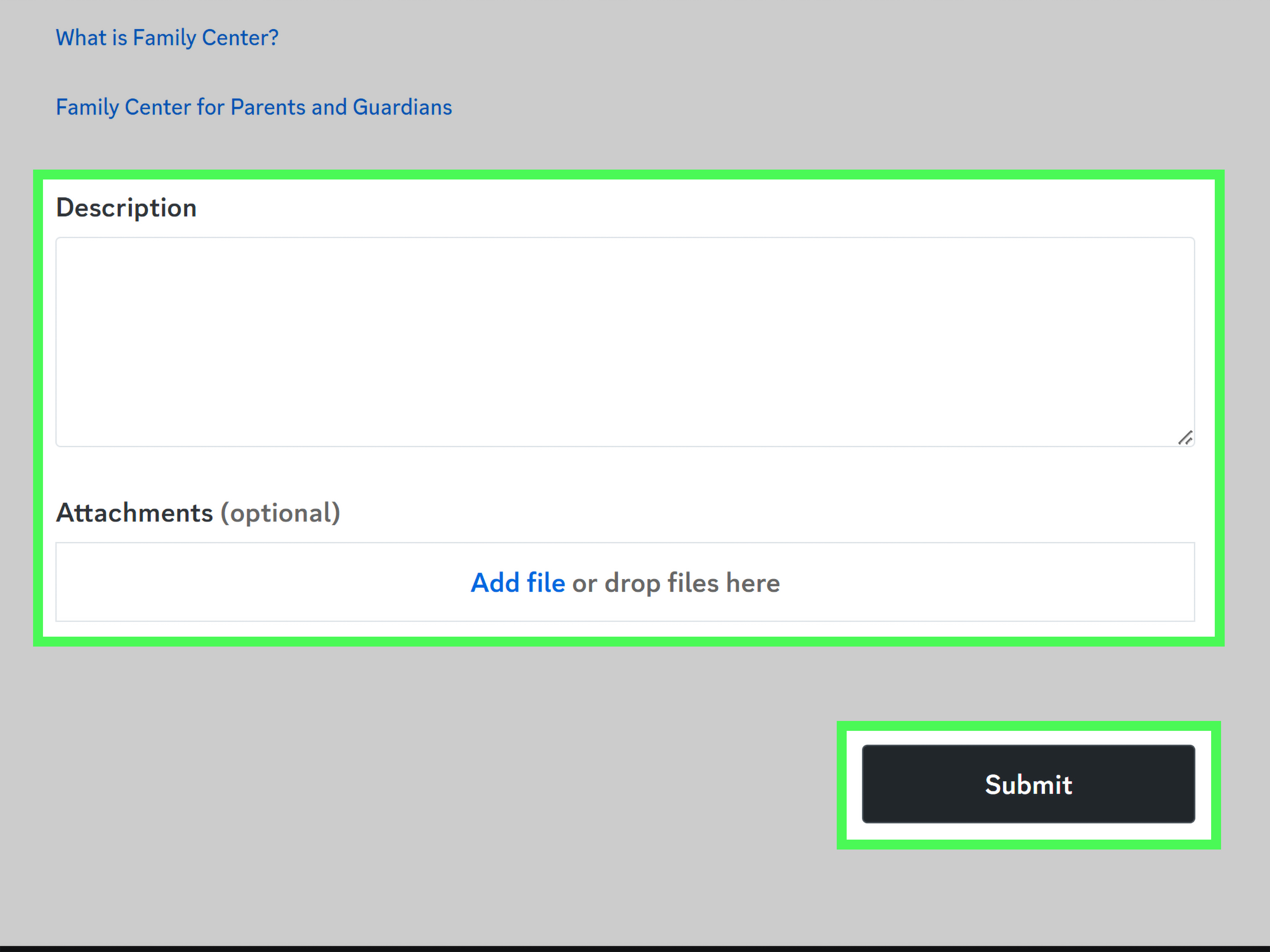
If you cannot log in, lost access to your account, suspect your account was compromised, or cannot complete the deletion flow inside the app, Discord recommends contacting its Support Team for help.
When to Use This Method
Use Discord Support if:
- You forgot your password and cannot recover the account.
- Your account was hacked or compromised.
- You no longer have access to your authentication method.
- The delete button is not working.
- Your account is restricted, disabled, or otherwise inaccessible.
What to Include in Your Request
When contacting support, be clear and specific. Include the email address linked to the account, your username if you remember it, and a short explanation of the problem. For example:
Hello Discord Support, I would like to permanently delete my Discord account, but I cannot access the account because I no longer have access to my authentication method. The email associated with the account is [your email]. Please help me with the account deletion process.
Do not include unnecessary personal information. Support teams need enough detail to verify the request, not your life story, your favorite sandwich, and the emotional arc of why you joined twelve gaming servers in 2020.
Best For
This method is best if normal account deletion is impossible because of login problems, account compromise, or access issues.
What Happens After You Delete a Discord Account?
After you confirm deletion, Discord immediately logs you out. Your account enters a pending deletion state for 15 days. During that period, you can restore your account by logging back in and choosing to cancel deletion. Once the 15-day period ends, the account is deleted from Discord’s system and cannot be restored.
During and after deletion, you lose access to your servers, direct messages, group messages, purchases, and account features. Friend requests and notifications stop. Servers you owned continue to exist only if you transferred ownership to another user. Your account is anonymized across servers and messages.
Can You Restore a Deleted Discord Account?
You can restore a Discord account only while it is still in the pending deletion period. To do that, open Discord, log in with the account credentials, and choose Restore Account when Discord tells you the account is pending deletion.
Once the deletion period ends, the account cannot be restored. At that point, “Oops, never mind” is no longer a recovery strategy.
Deleting vs. Disabling a Discord Account
Before you delete your account, make sure deletion is really what you want. Discord also offers account disabling, which is different.
Disable Account
Disabling your account is temporary. It puts the account on hold until you return. You will no longer receive email notifications for mentions, but friend requests can wait for you until you reactivate the account. To reactivate, you log in and follow Discord’s prompts.
Delete Account
Deleting your account is permanent after the pending deletion period ends. Once the account is fully deleted, it cannot be restored. Choose this option only if you are sure you want to leave Discord permanently.
If you are simply overwhelmed by notifications, server drama, or the mysterious urge to check Discord every six minutes, disabling may be enough. If you want a clean break, deletion is the better choice.
Important Checklist Before Permanent Discord Deletion
Use this checklist before confirming account deletion:
- Request and download your Discord data if you need a copy.
- Delete sensitive messages, files, or attachments manually.
- Transfer ownership of active servers.
- Delete servers you no longer want to keep.
- Review billing, Nitro, boosts, and app store subscriptions.
- Tell close friends or communities how to contact you elsewhere.
- Remove connected apps or integrations if needed.
- Save important usernames, links, screenshots, or community information.
Common Problems When Deleting a Discord Account
You Own a Server
If Discord blocks deletion because you own a server, transfer ownership or delete the server. For active communities, transferring ownership is usually better. For old test servers with three bots and one confused friend, deletion is probably fine.
You Forgot Your Password
Reset your password before trying again. If you cannot access the email address connected to your account, contact Discord Support.
You Lost Access to 2FA
If multi-factor authentication is enabled, Discord may require your authentication code. Look for backup codes first. If you do not have them, support may be your only option.
Your Account Was Disabled or Banned
If Discord disabled, banned, or actioned your account, you may not be able to restore it through the normal deletion recovery process. In that case, submit an appeal or contact Discord’s Trust & Safety team through the proper support channel.
Privacy Tips Before You Leave Discord
If privacy is your main reason for leaving, do a small cleanup before deletion. Remove personal details from your profile, delete unnecessary messages, clear old attachments, and leave servers where you no longer want your profile visible. You may also want to remove connected accounts, such as gaming platforms or social profiles, from your Discord settings.
Remember: deleting an account is not the same thing as manually removing every piece of content you ever posted. Discord gives users tools to delete certain messages and content directly when they still have access to the places where that content was posted. If there is something specific you care about, clean it up before pressing delete.
Experience Section: What It Is Actually Like to Delete a Discord Account
Deleting a Discord account sounds simple until you realize how many tiny digital strings are attached to it. For many users, Discord is not just an app. It is a friend list, a gaming lobby, a study group, a workplace side channel, a meme warehouse, and occasionally a mysterious server you joined three years ago for one download link and never left.
The first real experience most people have during account deletion is surprise. The Delete Account button is easy to find, but the process may stop if you own a server. This is where people usually mutter, “Oh right, I made that server.” Maybe it was a private server for friends. Maybe it was a community project. Maybe it was called “Test Server Please Ignore,” which, naturally, nobody ignored. Before deleting the account, you have to decide whether that server should live on or disappear.
The second experience is the emotional inventory. You scroll through direct messages and remember old conversations, gaming nights, school projects, inside jokes, group plans, and maybe a few arguments that aged like unrefrigerated milk. This is a good moment to save anything meaningful and delete anything sensitive. Account deletion is easier when you know you have already handled the content that matters.
The third experience is notification silence. Once the account is pending deletion, you are logged out. There are no pings. No unread badges. No server announcements about someone changing a channel name for the fourth time this week. For some people, that silence feels strange. For others, it feels like finally closing 47 browser tabs in your brain.
A smart approach is to treat deletion like a planned exit rather than a rage-click. Start by making a small list: data, servers, subscriptions, messages, contacts. Request your data if you want it. Tell close friends where to reach you. Transfer community ownership to someone reliable. Delete sensitive messages manually. Then wait a day before confirming deletion. This pause helps you avoid deleting the account just because one server had a chaotic argument about pizza toppings, game balance, or whether pineapple belongs anywhere near civilization.
Many people also find that deleting Discord teaches them which online spaces were genuinely useful and which were just noisy. Maybe one study server helped you stay organized. Maybe five other servers existed only to produce endless notification confetti. If you ever return to Discord with a new account, you can rebuild more intentionally: fewer servers, tighter privacy settings, better notification controls, and no guilt about leaving communities you no longer use.
The biggest lesson is this: permanent deletion is not difficult, but thoughtful deletion is better. Take care of your data, your communities, and your subscriptions first. Then, when you finally confirm the deletion, it feels less like slamming a door and more like turning off a light in a room you no longer need.
Final Thoughts
Deleting a Discord account permanently is easy when you know the right path. Use desktop or browser if you want the most comfortable process, use mobile if you want convenience, and contact Discord Support if you cannot access your account or deletion does not work normally.
The most important part is preparation. Download your data before deleting, transfer or delete servers you own, remove sensitive content manually, and make sure you understand the difference between disabling and deleting. Once the pending deletion period ends, your Discord account is gone for good.
In other words, delete boldlybut maybe check your servers first. Future you will appreciate not accidentally abandoning a community named “Definitely Temporary Group Chat” that somehow has 800 members.













