Your Safari Reading List is supposed to be a tidy little shelf for “I’ll read this later” articles. But after a few months, it can start looking like a digital attic: old recipes, half-read tech guides, vacation ideas from 2019, and that one article you saved because the headline sounded important while you were eating cereal.
The good news? Learning how to delete a Reading List on Mac is fast, simple, and wonderfully satisfying. Whether you want to remove one stubborn article or clear the entire Safari Reading List in one clean sweep, you can do it in just a few clicks. This guide walks you through six fast and easy steps, explains what happens when iCloud syncing is turned on, and helps you avoid confusing Reading List with bookmarks, browser history, or cached website data.
By the end, Safari will feel cleaner, lighter, and less like it is silently judging your abandoned “read later” pile.
What Is Safari Reading List on Mac?
Safari Reading List is a built-in feature that lets you save webpages and articles to read later. Unlike regular bookmarks, Reading List is designed for temporary reading rather than permanent organizing. Think of bookmarks as your carefully labeled filing cabinet and Reading List as the chair where you toss things “for now.” We all have that chair.
On a Mac, your Reading List appears in Safari’s sidebar. If you use iCloud for Safari, the same Reading List can sync across your Apple devices, including your Mac, iPhone, and iPad. That means deleting an item on your Mac may also remove it from other devices using the same Apple Account and Safari sync settings.
Safari can also save Reading List articles for offline reading. This is helpful when you want to read during travel, on weak Wi-Fi, or while pretending airplane mode is a personality. However, offline Reading List items can take up storage over time, especially if you save lots of image-heavy pages.
Before You Delete: Reading List vs. Bookmarks vs. History
Before you start clicking, it helps to know what you are actually deleting. Safari has several features that sound similar but behave differently.
Reading List
The Reading List stores webpages you saved to read later. Deleting from Reading List removes saved article entries from that list. It does not delete your browsing history, saved passwords, bookmarks, or Safari itself.
Bookmarks
Bookmarks are saved links you want to keep long-term. Deleting a Reading List item does not delete your bookmarks unless the same page was separately saved as a bookmark and you manually remove it there too.
Browsing History
History is a record of pages you visited. Clearing Safari history is different from clearing Reading List. If you clear history, your Reading List can still remain intact. So if your goal is to clean up saved articles, go directly to Reading List instead of the History menu.
How to Delete a Reading List on Mac in 6 Fast & Easy Steps
Ready to clean house? Here is the simplest method for deleting Safari Reading List items on a Mac.
Step 1: Open Safari on Your Mac
Start by opening the Safari app. You can find Safari in the Dock, Launchpad, Applications folder, or Spotlight Search. If Safari is already open, greatyou are one step ahead and may reward yourself with a tiny nod of productivity.
Make sure you are using Safari, not Chrome, Firefox, or another browser. Reading List is a Safari feature, so the steps below apply specifically to Apple’s browser on macOS.
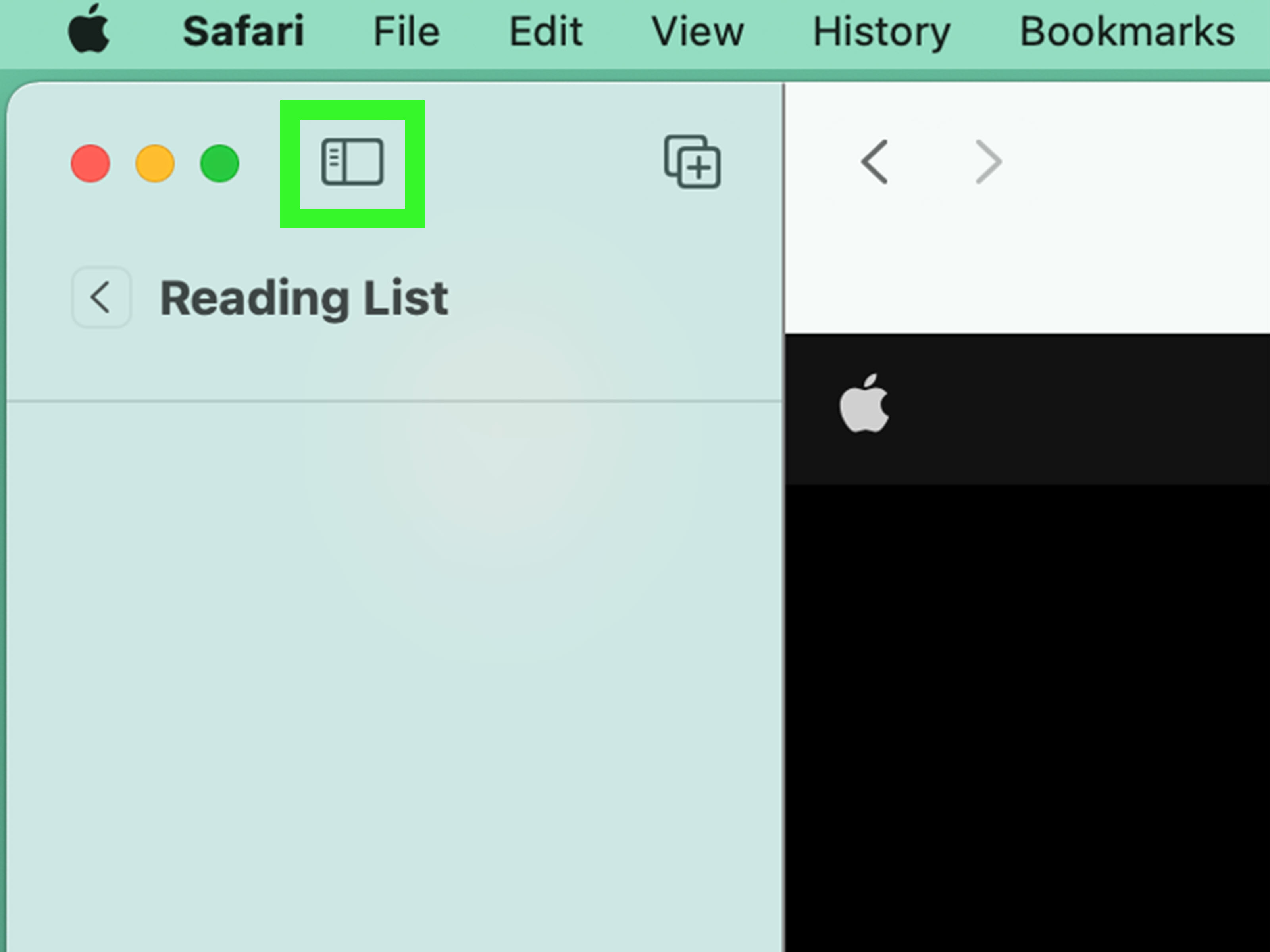
Step 2: Show the Safari Sidebar
Next, open the sidebar where Safari keeps bookmarks, Reading List, and other saved browsing items. You can do this in a few ways:
- Click the sidebar button near the top-left corner of Safari.
- Go to the menu bar and choose View, then select the Reading List sidebar option.
- Use the keyboard shortcut Control + Command + 2 to show or hide the Reading List sidebar.
The keyboard shortcut is especially useful if you clean your list often. It feels like a secret Mac handshake, but with fewer awkward social consequences.
Step 3: Click the Reading List Icon
Inside the sidebar, look for the Reading List section. It is commonly represented by an eyeglasses icon. Click it, and Safari will display your saved Reading List items.
You may see unread items, old saved pages, or articles that are no longer relevant. If your list is massive, do not panic. Safari gives you options for removing individual entries or clearing everything at once.
Step 4: Delete One Reading List Item
To delete a single Reading List item, Control-click the article summary in the sidebar. You can also right-click if you use a mouse or two-finger click if you use a trackpad. Then choose Delete or Remove Item, depending on your Safari version.
Another fast method is to swipe left over the Reading List item using a trackpad or compatible mouse. Safari may show a remove option, or the item may disappear if you swipe far enough. This is the digital equivalent of tossing junk mail into the recycling bin. Very therapeutic.
Step 5: Clear All Reading List Items
If your goal is to delete the entire Reading List on Mac, open the Reading List sidebar, then Control-click or right-click inside the list. Choose Clear All Items if the option appears. Safari may ask you to confirm before clearing the list.
This is the fastest way to remove everything instead of deleting items one by one. Use it when you are sure you no longer need the saved articles. Once removed, they may also disappear from other Apple devices if Safari is syncing through iCloud.
Step 6: Check iCloud Sync and Other Devices
If you use iCloud for Safari, your Reading List can stay updated across your Mac, iPhone, and iPad. That is convenient, but it also means deleted items may vanish across devices. Before clearing everything, consider whether you need any articles on another device.
To check Safari syncing on a modern Mac, go to Apple menu > System Settings > your name > iCloud. Then look for Safari under iCloud apps and confirm whether it is turned on. If Safari sync is enabled, Reading List changes can update across your Apple devices.
How to Remove Reading List Items Without Deleting Everything
Sometimes you do not want to bulldoze the whole list. Maybe you saved a few useful guides, travel ideas, or work references that still deserve a place in your digital life. In that case, remove items selectively.
Open Safari, show the Reading List sidebar, and scan the list. Delete articles that are outdated, duplicated, already read, or no longer useful. Keep the pages you genuinely plan to revisit. A good rule: if you cannot remember why you saved it, it probably does not need to live rent-free in Safari anymore.
This selective cleanup method is best for users who use Reading List as part of their workflow. Students, writers, researchers, marketers, and serial article collectors can benefit from pruning the list without wiping out useful references.
How to Delete the Entire Safari Reading List Quickly
For a full reset, use the Clear All Items option. This method is ideal when your Reading List has become too cluttered to manage manually. It is also useful if Safari feels messy, if you are preparing a Mac for someone else, or if you simply want a clean browsing setup.
- Open Safari.
- Show the Reading List sidebar.
- Control-click or right-click inside the Reading List area.
- Select Clear All Items.
- Confirm the action if Safari asks.
After clearing the list, reopen the sidebar to confirm that the items are gone. If they reappear, iCloud sync may still be updating, or another device may be pushing old Reading List data back into Safari.
Why Deleted Reading List Items May Come Back
If you delete Reading List items and they mysteriously return, you are not being haunted by the ghost of articles past. The most common explanation is syncing. When iCloud for Safari is enabled, your Mac communicates with other Apple devices. If one device has outdated Reading List data, the list may take time to update correctly.
Try these fixes:
- Make sure your Mac is connected to the internet.
- Check that your iPhone, iPad, and Mac are using the same Apple Account.
- Restart Safari and wait a few minutes for iCloud to sync.
- Restart your Mac if Safari behaves strangely.
- Check iCloud settings to confirm Safari syncing is turned on or intentionally turned off.
If you do not want Reading List changes to sync across devices, you can turn off Safari syncing in iCloud settings. Just remember that this affects more than Reading List; Safari syncing may also include bookmarks, tabs, and related Safari data.
Does Deleting Reading List Free Up Space on Mac?
Deleting Reading List items can help reduce clutter and may free some storage if Safari saved articles for offline reading. The impact depends on how many pages you saved and whether those pages included large images or media-heavy content.
To manage offline Reading List behavior, open Safari and go to Safari > Settings > Advanced. Look for the option related to automatically saving articles for offline reading. If you save many articles and rarely read them offline, turning off automatic offline saving can help keep things cleaner going forward.
That said, deleting Reading List is not the same as running a full storage cleanup. If your Mac is low on space, also review downloads, large files, applications, iCloud Drive storage, photos, and other browser data.
Common Mistakes When Deleting Safari Reading List
Mistake 1: Clearing History Instead of Reading List
Many users go to History > Clear History and expect Reading List to disappear. It usually will not. History and Reading List are separate Safari features.
Mistake 2: Deleting Bookmarks by Accident
Because bookmarks and Reading List both live in Safari’s sidebar, it is easy to click the wrong section. Check that you are viewing the eyeglasses-style Reading List area before deleting anything.
Mistake 3: Forgetting About iCloud Sync
If Safari sync is enabled, changes can affect your other Apple devices. Before you clear everything, make sure you are comfortable losing those Reading List items on your iPhone or iPad too.
Mistake 4: Saving Everything Again
Deleting the list is only half the battle. If you immediately start saving every mildly interesting article again, the clutter returns. Be selective. Your future self has limited reading energy and probably does not need 47 productivity articles explaining how to stop procrastinating.
Best Practices for Keeping Safari Reading List Organized
Once your Reading List is clean, keep it that way with a few simple habits.
- Review weekly: Spend five minutes deleting articles you no longer need.
- Use bookmarks for permanent links: Save long-term resources as bookmarks instead of Reading List items.
- Read or remove: If an item sits untouched for months, delete it or move it somewhere more appropriate.
- Avoid saving duplicates: Search your list before adding the same topic repeatedly.
- Turn off offline saving if unnecessary: This can reduce extra stored webpage data.
The best Reading List is not the longest one. It is the one you actually use.
Troubleshooting: What If You Cannot Delete Reading List on Mac?
If Safari does not let you delete a Reading List item, try closing and reopening Safari. If that does not work, restart your Mac. Temporary Safari glitches are usually not dramatic; they just enjoy wasting your time for character development.
You can also check for macOS updates. Safari updates are often tied to macOS updates, and keeping your system current can resolve browser bugs, syncing issues, and interface problems.
If iCloud syncing seems stuck, check your internet connection and iCloud status. You can temporarily turn Safari syncing off and back on, but do this carefully because it can affect bookmarks and other Safari data across your Apple devices.
500-Word Experience Section: Real-World Tips for Deleting Reading List on Mac
In everyday use, deleting a Reading List on Mac is less about technical difficulty and more about digital housekeeping. Most people do not build a messy Reading List on purpose. It happens quietly. One day you save a recipe, then a troubleshooting guide, then a news article, then a 4,000-word essay you absolutely swear you will read after lunch. Suddenly, your Reading List looks like a library run by a raccoon with Wi-Fi.
From a practical user experience perspective, the fastest approach is to decide first whether you want a full reset or a careful cleanup. If your Reading List contains only random old pages, clearing all items is the cleanest move. It takes seconds and gives Safari a fresh start. But if you use Reading List for work or research, deleting everything can be risky. In that case, skim the list before removing items. Look for pages that are clearly outdated, such as old product announcements, expired deals, broken links, or articles you already used.
One useful habit is to treat Reading List like a temporary inbox. Every saved article should eventually become one of three things: read, deleted, or moved to bookmarks. If a page is useful long-term, bookmark it in a properly named folder. If it was only interesting for the moment, delete it after reading. This keeps Reading List from becoming a second, messier bookmark system.
Another experience-based tip is to clean Reading List from your Mac instead of your iPhone when you have many items. The Mac sidebar gives you more room to scan titles, right-click, and clear entries quickly. On a trackpad, the swipe-left gesture is especially fast for removing individual items. It feels natural after a few tries, and it is much less annoying than tapping through a long list on a small screen.
Users who rely on iCloud should also be patient after deleting items. Sometimes the list updates on one device before another. If you clear Reading List on your Mac and still see old items on your iPhone, give iCloud a little time to sync. Make sure both devices are online and signed in to the same Apple Account. If the items keep returning, restart Safari or restart the device that seems out of sync.
Finally, do not confuse a clean Reading List with a complete privacy cleanup. Removing Reading List items clears saved reading entries, but it does not erase every trace of browsing activity. If privacy is your goal, you may also need to clear history, manage website data, review downloads, and check saved autofill information. Reading List cleanup is one part of Safari maintenance, not the whole toolbox.
The best part of deleting a Reading List on Mac is the immediate sense of order. Safari feels calmer. The sidebar becomes useful again. And instead of scrolling through digital leftovers, you can save only the articles that truly matter. That is the real win: not just deleting old links, but making your browser easier to use tomorrow.
Conclusion
Deleting a Reading List on Mac is quick once you know where Safari keeps the controls. Open Safari, show the Reading List sidebar, remove individual items with Control-click or swipe gestures, or clear the entire list with the Clear All Items option. Before deleting everything, check whether iCloud Safari sync is turned on, because your changes may apply across your iPhone, iPad, and other Macs.
A clean Reading List helps Safari feel more organized, reduces visual clutter, and makes it easier to focus on articles you actually want to read. Use Reading List for temporary saves, bookmarks for permanent resources, and regular cleanup sessions to keep your browser from turning into a museum of forgotten intentions.
Note: This article is written in standard American English and based on current Safari and macOS Reading List behavior, including Safari sidebar controls, item deletion, Clear All Items, offline reading, and iCloud sync considerations.