Apple’s Magic Keyboard is one of those accessories that feels almost suspiciously simpleuntil it does not connect, at which point it becomes a tiny aluminum rectangle of mystery. The good news: connecting a Magic Keyboard to a Mac, Apple TV, iPad, iPhone, or even a Windows PC is usually quick once you know which kind of Magic Keyboard you have and whether it pairs by Bluetooth, cable, or Smart Connector.
This guide walks you through the process step by step, explains common connection problems, and gives you practical fixes that do not require you to whisper encouragement to Bluetooth settings. Whether you have the newer USB-C Magic Keyboard, an older Lightning model, a Magic Keyboard with Touch ID, or the iPad Magic Keyboard case, here is how to get typing.
Before You Start: Know Which Magic Keyboard You Have
The phrase “Magic Keyboard” can refer to a few Apple products. The standard Magic Keyboard for Mac is a slim wireless keyboard that connects by Bluetooth and charges with either USB-C or Lightning, depending on the model. The Magic Keyboard with Touch ID adds a fingerprint sensor for compatible Apple silicon Macs. The Magic Keyboard for iPad is a case-style keyboard that attaches magnetically and uses the Smart Connector instead of Bluetooth.
That distinction matters because the setup method changes. A Mac Magic Keyboard usually pairs through Bluetooth or by plugging it into your Mac with the correct cable. An iPad Magic Keyboard case normally does not need pairing at all. Apple TV uses the Bluetooth menu. iPhone and iPad can pair with the standalone Magic Keyboard through Bluetooth, but Touch ID will not work there.
Quick compatibility notes
Magic Keyboard with Touch ID works as a keyboard with many devices, but Touch ID is designed for Mac models with Apple silicon. Newer USB-C Touch ID models require a compatible Apple silicon Mac and a recent version of macOS. If you connect that same keyboard to Apple TV, iPhone, iPad, or Windows, you can type, but you should not expect the Touch ID button to unlock anything. It is a keyboard in those cases, not a tiny biometric passport office.
How to Connect a Magic Keyboard to a Mac
Connecting a Magic Keyboard to a Mac is the smoothest setup because Apple designed these devices to recognize each other quickly. If the keyboard came in the box with a new Mac, it may already be paired. Turn the keyboard on, wait a moment, and try typing. If it works, congratulations: you have experienced the rare joy of technology behaving itself.
Method 1: Pair with a cable
This is the best method for a new keyboard, a keyboard that is not showing up in Bluetooth, or a Mac mini, Mac Studio, or desktop setup where you do not have another keyboard handy.
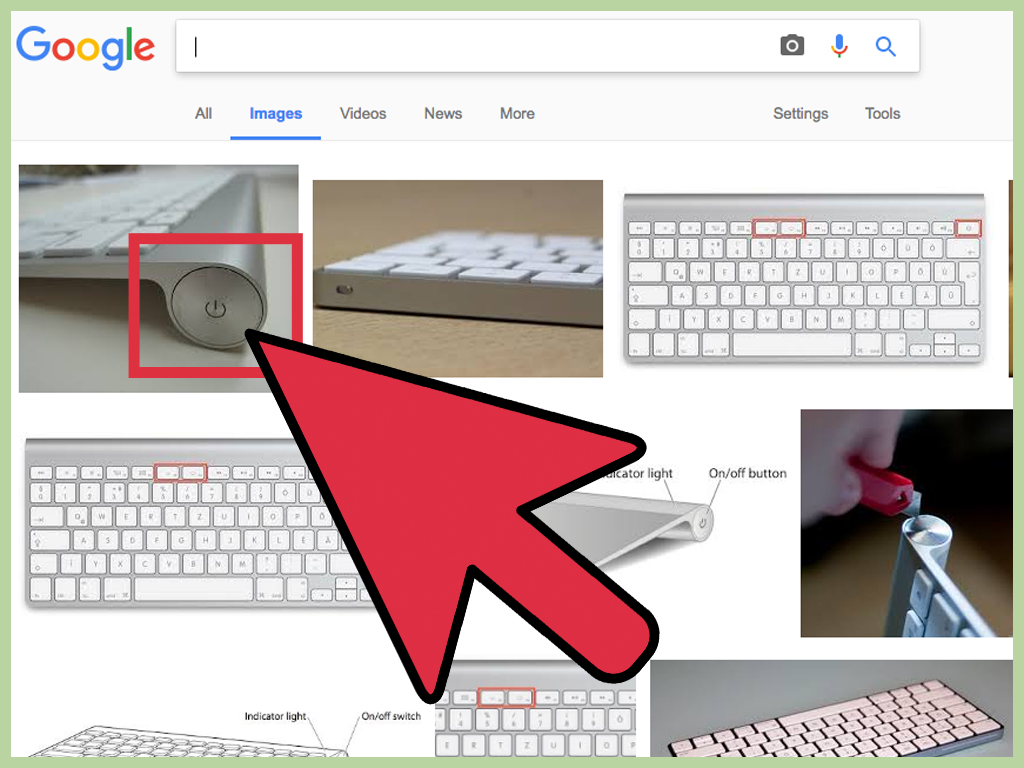
- Turn on the Magic Keyboard using the switch on the back edge. Green should be visible.
- Connect the keyboard to your Mac with the correct cable: USB-C to USB-C for newer models, or USB-C to Lightning / Lightning to USB for older models.
- Wait a few seconds while macOS recognizes and pairs the keyboard.
- Disconnect the cable and use the keyboard wirelessly.
The cable does two useful things at once: it charges the keyboard and helps the Mac pair with it. If you are setting up a new Mac desktop and cannot type your login password yet, plugging in the keyboard is often the fastest rescue plan.
Method 2: Pair through Bluetooth settings
If the keyboard is charged and turned on, you can connect it manually through macOS.
- Open the Apple menu.
- Select System Settings on newer macOS versions, or System Preferences on older versions.
- Click Bluetooth.
- Wait for the Magic Keyboard to appear in the nearby devices list.
- Click Connect.
- If macOS asks for a passcode, type the code on the Magic Keyboard and press Return.
Once paired, the keyboard should reconnect automatically whenever it is turned on and near the Mac. If you use multiple Macs, remember that a Magic Keyboard typically connects to one active device at a time. If it keeps running back to your old Mac like a loyal golden retriever, unpair it from the old device first.
How to Connect a Magic Keyboard with Touch ID
The Magic Keyboard with Touch ID connects like the regular Magic Keyboard: plug it in or use Bluetooth. The difference is the Touch ID feature. For Touch ID to work, you need a compatible Mac with Apple silicon, such as an M-series MacBook, iMac, Mac mini, Mac Studio, or Mac desktop. You also need a supported version of macOS.
To set it up, connect the keyboard to the Mac with the proper cable, turn it on, and let macOS pair it. Then go to System Settings > Touch ID & Password. From there, you can add fingerprints, choose whether Touch ID can unlock your Mac, authorize Apple Pay, autofill passwords, or approve purchases.
If Touch ID is not working, turn the keyboard off and on, connect it directly to the Mac with a USB cable, wait at least 10 seconds, and try again. Avoid plugging through a questionable hub during setup. Hubs are wonderful until they decide to become tiny chaos machines.
How to Connect a Magic Keyboard to Apple TV
A Bluetooth keyboard can make Apple TV much easier to use, especially when signing into apps, searching for movies, typing passwords, or entering Wi-Fi details. The Siri Remote is fine for many things, but typing a 16-character password with it can feel like carving a novel into stone.
Steps to pair with Apple TV
- Turn on the Magic Keyboard and make sure it is charged.
- If it is already paired with another device nearby, disconnect or unpair it from that device first.
- On Apple TV, open Settings.
- Go to Remotes and Devices.
- Select Bluetooth.
- Wait for the Magic Keyboard to appear under nearby devices.
- Select it.
- If Apple TV displays a code, type that code on the Magic Keyboard and press Return.
After pairing, the keyboard should appear under My Devices. You can use it to type in search fields, login boxes, and other text areas. Depending on the app, not every keyboard shortcut will behave like it does on a Mac. Apple TV is still a TV interface, not a secret Mac hiding under your entertainment center.
Using iPhone or iPad as an Apple TV keyboard
If you do not want to pair a physical keyboard, Apple TV can also use a nearby iPhone or iPad for text entry. Make sure your iPhone or iPad and Apple TV are signed in with the same Apple Account, with Bluetooth and Wi-Fi turned on. When a text field appears on Apple TV, your iPhone or iPad may offer a keyboard notification. This is often the fastest way to type a password without adding another accessory.
How to Connect a Magic Keyboard to iPad
There are two different scenarios here: connecting the standalone Mac-style Magic Keyboard to an iPad, and using Apple’s Magic Keyboard case for iPad. They sound almost identical, because apparently Apple enjoys naming things like a minimalist poetry exercise.
Connect the standalone Magic Keyboard to iPad by Bluetooth
- Turn on the Magic Keyboard and make sure it is charged.
- On iPad, open Settings.
- Tap Bluetooth and turn Bluetooth on.
- Look under Other Devices.
- Tap the Magic Keyboard when it appears.
- If prompted, enter the pairing code on the keyboard and press Return.
Once connected, you can type in apps, use common keyboard shortcuts, search with Spotlight, and navigate more quickly. The Command key becomes especially useful on iPadOS. Hold Command in many apps to see available keyboard shortcuts.
Connect the Magic Keyboard case for iPad
The iPad Magic Keyboard case does not pair through Bluetooth. It connects through the Smart Connector. To use it, place the iPad onto the magnetic back panel so the Smart Connector contacts line up. Open the keyboard, adjust the viewing angle, and press any key to wake the iPad.
If the iPad Magic Keyboard case does not respond, remove the iPad, clean the Smart Connector contacts gently with a soft lint-free cloth, remove any extra case or cover that may interfere, reconnect the iPad, and restart it if needed.
How to Connect a Magic Keyboard to iPhone
Yes, you can pair a standalone Magic Keyboard with an iPhone. Is it something everyone needs? Not necessarily. But if you are writing long emails, editing notes, replying to messages, or turning your iPhone into a tiny productivity station, it can be surprisingly useful.
- Turn on and charge the Magic Keyboard.
- On iPhone, open Settings.
- Tap Bluetooth and turn it on.
- Select the Magic Keyboard when it appears under Other Devices.
- If asked for a code, type it on the Magic Keyboard and press Return.
If the keyboard does not appear, it may still be connected to your Mac or iPad. Disconnect it from that device or choose “Forget This Device” in Bluetooth settings, then try again. A Magic Keyboard can be friendly, but it is not great at dating multiple devices at once.
How to Connect a Magic Keyboard to Windows
A Magic Keyboard can work with a Windows PC through Bluetooth or USB, though some Apple-specific features will not carry over. Touch ID will not work as Windows Hello. The Command key usually behaves like the Windows key, and the Option key works like Alt. The layout may feel odd at first, like shaking hands with someone who uses the wrong hand, but it is manageable.
Pair Magic Keyboard with Windows 11
- Turn on the Magic Keyboard.
- On Windows, open Settings.
- Go to Bluetooth & devices.
- Turn Bluetooth on.
- Select Add device.
- Choose Bluetooth.
- Select the Magic Keyboard when it appears.
- If Windows shows a code, type it on the Magic Keyboard and press Enter.
If the keys feel backwards for your workflow, Microsoft PowerToys includes Keyboard Manager, a utility that can remap keys and shortcuts. For example, you can adjust modifier keys so the layout feels closer to a traditional Windows keyboard.
Troubleshooting: Why Your Magic Keyboard Will Not Connect
If your Magic Keyboard refuses to connect, start with the simple fixes. Bluetooth problems often look dramatic but have boring solutions, which is both comforting and mildly insulting.
1. Check power and charge
Make sure the keyboard is turned on. On Apple’s standalone Magic Keyboard, the switch is on the back edge. If you see green, it is on. If the battery is low, connect it to power for a few minutes. A nearly dead keyboard may appear briefly, disconnect, and generally behave like it has lost interest in the project.
2. Disconnect from other devices
If the Magic Keyboard was previously paired with another Mac, iPad, iPhone, or Apple TV, it may still be trying to connect there. Open Bluetooth settings on the old device and choose Forget This Device, then try pairing again on the new device.
3. Toggle Bluetooth
Turn Bluetooth off and back on. On a Mac, use System Settings > Bluetooth. On iPhone and iPad, use Settings > Bluetooth. On Apple TV, use Settings > Remotes and Devices > Bluetooth. On Windows, use Settings > Bluetooth & devices.
4. Restart the device
Restart the Mac, Apple TV, iPad, iPhone, or Windows PC. This clears temporary connection issues and gives Bluetooth a fresh chance to be the hero of the story.
5. Use a direct cable connection on Mac
If you are pairing with a Mac, connect the Magic Keyboard directly with the appropriate cable. Avoid hubs and adapters during troubleshooting unless absolutely necessary. Once paired, disconnect the cable and test wireless typing.
6. Clean the Smart Connector on iPad keyboards
If you are using the Magic Keyboard case for iPad, clean the Smart Connector contacts on both the iPad and keyboard with a soft lint-free cloth. Remove any case or cover that blocks the magnetic connection.
Best Practices for Using Magic Keyboard Across Devices
If you move one Magic Keyboard between several devices, create a routine. Before pairing it with a new device, disconnect it from the old one. Keep the correct charging cable nearby. Rename the keyboard in Bluetooth settings if you have multiple keyboards in the house. “Magic Keyboard” is fine until three of them appear in the list and suddenly your desk becomes a guessing game.
For Mac users, keep macOS updated, especially if you use a newer USB-C Magic Keyboard with Touch ID. For Apple TV users, remember that keyboard support is mainly for text entry and some navigation. For iPad users, learn a few shortcuts, especially Command-Tab for switching apps and Command-Space for search. For Windows users, use PowerToys if the modifier keys slow you down.
Common Questions About Connecting Magic Keyboard
Can one Magic Keyboard connect to multiple devices at the same time?
No, not in the same seamless multi-device way as some third-party keyboards. You can pair it with different devices, but switching often requires disconnecting or forgetting it on one device and pairing it with another.
Does Magic Keyboard work while plugged in?
On a Mac, connecting the keyboard with a cable can pair and charge it. In many setups, it can also function while connected. For regular daily use, most people pair once and then use it wirelessly.
Does Touch ID work on iPad, iPhone, Apple TV, or Windows?
No. Touch ID on the Magic Keyboard is for compatible Apple silicon Macs. On other devices, the keyboard can still type, but the fingerprint sensor will not unlock the device or approve purchases.
Why is my Magic Keyboard not showing in Bluetooth?
It may be off, out of battery, connected to another device, too far away, or stuck in a temporary Bluetooth glitch. Charge it, turn it off and back on, forget it from old devices, restart the device you want to pair with, and try again.
Experience Notes: Real-World Lessons from Connecting a Magic Keyboard
In everyday use, the biggest lesson with the Magic Keyboard is that the setup feels easy only when you respect Apple’s ecosystem logic. With a Mac, the fastest path is almost always cable first, Bluetooth second. Plugging the keyboard directly into the Mac removes uncertainty. You do not have to wonder whether the keyboard is discoverable, paired somewhere else, or low on battery. The Mac sees it, pairs it, charges it, and usually sends you on your way before your coffee gets cold.
Apple TV is different. A Magic Keyboard makes Apple TV feel much less annoying when entering passwords or searching across apps, but it is not a full desktop keyboard experience. Think of it as a text-entry upgrade, not a complete remote replacement. The arrow keys and Return key can help in many places, but app behavior varies. Some streaming apps treat keyboard input beautifully; others act like they have never met a keyboard before. Still, for typing login credentials, it is a huge improvement over clicking across an onscreen alphabet one letter at a time.
On iPad, the standalone Magic Keyboard is great for writing, but the iPad Magic Keyboard case feels more integrated. The case-style keyboard wakes the iPad, supports a laptop-like posture, and avoids Bluetooth pairing entirely. That said, the Smart Connector must be clean and aligned. If the iPad keyboard case suddenly stops working, do not panic. Detach the iPad, wipe the connector contacts gently, remove any extra case, and reconnect. Many “broken keyboard” moments are really “something tiny is blocking the connector” moments.
Using a Magic Keyboard with iPhone is more niche, but it can be surprisingly productive. It is useful for travel, journaling, long emails, or emergency edits when your laptop is not nearby. The screen is small, of course, so it will not replace a MacBook. But if you prop up the iPhone and pair the keyboard, you can write much faster than tapping glass. It is the kind of setup that looks silly for five seconds and then becomes oddly practical.
Windows is the wild card. The Magic Keyboard can work well, especially for typing, but the modifier keys require mental adjustment. Command becomes the Windows key, Option behaves like Alt, and some media or function keys may not match your expectations. If you frequently switch between Mac and Windows, remapping keys with PowerToys can save your muscle memory from filing a complaint. The keyboard hardware is excellent, but Windows does not treat it as magically as macOS does.
The best overall advice is simple: keep the keyboard charged, keep the cable nearby, and unpair it from devices you no longer use. Most connection problems come from the keyboard already being attached to something else. Bluetooth is convenient, but it can be clingy. Once you understand that, the Magic Keyboard becomes what it should be: a quiet, comfortable, reliable tool that disappears into your workflow instead of becoming the main character.
Conclusion
Connecting a Magic Keyboard to a Mac, Apple TV, iPad, iPhone, or Windows PC is usually straightforward once you choose the right setup method. For Mac, plug it in or pair through Bluetooth. For Apple TV, use the Bluetooth menu under Remotes and Devices. For iPad and iPhone, use Bluetooth for the standalone keyboard, but remember that the iPad Magic Keyboard case uses the Smart Connector instead. For Windows, pair through Bluetooth settings and consider remapping keys if the layout feels unfamiliar.
The Magic Keyboard is at its best when it is charged, updated, and paired with the device you actually want to use. When in doubt, disconnect it from old devices, restart Bluetooth, and use a direct cable connection on Mac. A few simple steps can turn a stubborn keyboard back into the sleek typing machine Apple intended.