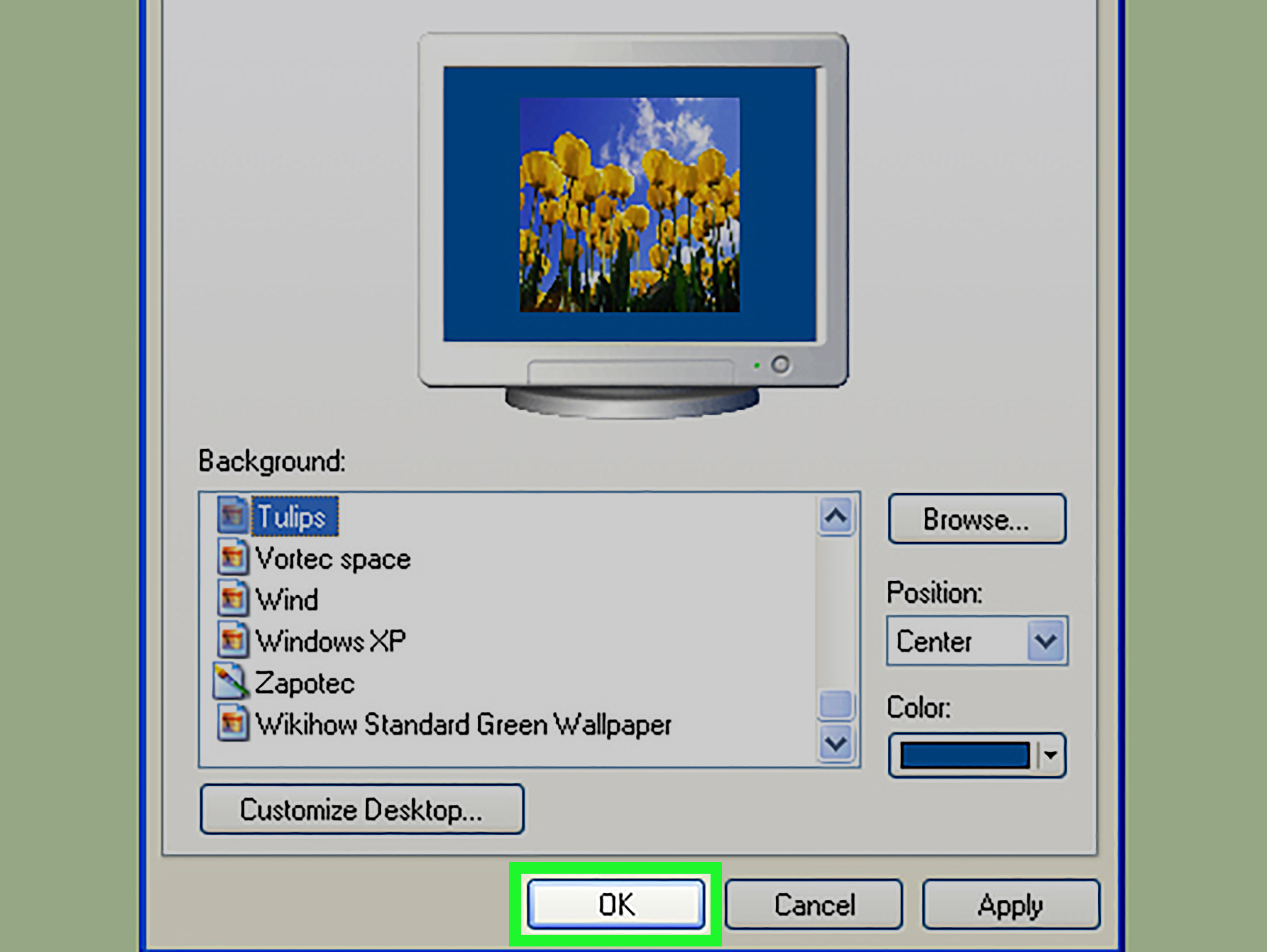
Your desktop background is the digital equivalent of your room’s wall color. It may not make your computer faster, but it absolutely changes how your workspace feels. A clean landscape can make your screen feel calm. A family photo can make Monday morning slightly less Monday-ish. A minimalist solid color can help you find your icons without playing “Where’s Waldo?” every time you open your laptop.
The good news: changing your desktop background in Windows is easy. Whether you use Windows 11 or Windows 10, you can switch to a picture, solid color, slideshow, or in many cases Windows Spotlight with just a few clicks. This guide walks you through every practical method, explains what each background option does, and shares troubleshooting tips when Windows decides to be dramatic.
What Is a Desktop Background in Windows?
A desktop background, often called wallpaper, is the image or color displayed behind your desktop icons, taskbar, and open windows. In Windows, you can personalize this background using the Settings app, the right-click menu, File Explorer, the Photos app, or theme settings.
For most people, changing wallpaper is a quick style upgrade. For students, remote workers, gamers, designers, and anyone who spends hours in front of a screen, it can also improve focus. A busy image may look amazing but make desktop icons harder to read. A calm background can reduce visual clutter. A slideshow can keep things fresh without requiring you to manually change wallpapers every few days.
Quick Answer: The Easiest Way to Change Your Desktop Background
The fastest method is simple:
- Right-click an empty area on your desktop.
- Select Personalize.
- Choose Background.
- Open the Personalize your background menu.
- Select Picture, Solid color, Slideshow, or Windows Spotlight.
- Choose your image, color, folder, or Spotlight option.
That’s it. Your desktop gets a makeover, and no tiny screwdriver is required.
How to Change Your Desktop Background in Windows 11
Windows 11 makes personalization clean and beginner-friendly. The most reliable route is through Settings.
Step 1: Open Personalization Settings
Right-click an empty space on your desktop and choose Personalize. You can also open it by clicking Start, then Settings, then Personalization.
The right-click method is faster, especially if your desktop is already visible. Just avoid right-clicking on an icon, because Windows will think you want options for that file instead of your wallpaper.
Step 2: Select Background
In the Personalization menu, click Background. This area controls the main desktop wallpaper, not the lock screen. That distinction matters because your lock screen and desktop background can be different.
Step 3: Choose a Background Type
Under Personalize your background, choose one of the available options:
- Picture: Use one image as your wallpaper.
- Solid color: Use a single color as your background.
- Slideshow: Rotate through images from a selected folder.
- Windows Spotlight: Let Windows show changing scenic or featured images.
For most users, Picture is the best starting point. It is simple, stable, and perfect for using a favorite photo, digital artwork, brand image, or clean wallpaper.
Step 4: Pick or Browse for an Image
If you select Picture, Windows will show recent or default images. Choose one, or click Browse photos to select an image from your computer.
Good wallpaper file types include JPG, JPEG, PNG, BMP, and other common image formats supported by Windows. For the best result, use an image that matches your screen resolution. A 1920 x 1080 image works well on many Full HD displays. A 2560 x 1440 image is better for 1440p monitors. A 3840 x 2160 image is ideal for 4K screens. Using a tiny image on a large monitor can make your wallpaper look blurrier than a mysterious UFO photo.
Step 5: Choose a Fit
After selecting a picture, use the Choose a fit for your desktop image option. Common fit choices include:
- Fill: Expands the image to cover the screen. Some edges may be cropped.
- Fit: Shows the full image without cropping, but may leave blank space.
- Stretch: Forces the image to match the screen, which can distort it.
- Tile: Repeats a small image across the desktop.
- Center: Places the image in the middle without resizing.
- Span: Spreads one image across multiple monitors.
For everyday use, Fill usually looks best. If your image keeps losing important details at the edges, switch to Fit.
How to Change Your Desktop Background in Windows 10
Windows 10 uses a similar process, with slightly different visual styling.
- Right-click an empty area of the desktop.
- Click Personalize.
- Select Background from the left side menu.
- Open the background drop-down menu.
- Choose Picture, Solid color, or Slideshow.
- Select your image, color, or folder.
If you want a single photo, choose Picture. Click Browse, find the image you want, and select it. Windows will apply the new wallpaper immediately.
Windows 10 may not show every Windows 11 option in the same way, depending on your version, updates, and device settings. However, the main wallpaper controls are still easy to find through Settings > Personalization > Background.
Method 2: Set a Wallpaper Directly from an Image File
This is the “I already found the perfect image, let’s not make this complicated” method.
- Open File Explorer.
- Find the image you want to use.
- Right-click the image file.
- Select Set as desktop background.
Windows will immediately apply the selected image as your wallpaper. This works well when you have downloaded a wallpaper, saved a photo, or created your own background in a design app.
The downside is that this method gives you fewer adjustment options at first. If the image looks cropped, stretched, or awkward, go back to Settings > Personalization > Background and change the fit.
Method 3: Change the Background from the Photos App
If you are viewing an image in the Windows Photos app, you can often set it as your background from there.
- Open the image in the Photos app.
- Select the menu button, usually shown as three dots.
- Choose Set as.
- Select Background.
This is useful when you are browsing photos and suddenly find one that deserves the honor of living behind your icons. Congratulations to that photo. It has been promoted.
How to Use a Solid Color Desktop Background
A solid color background is underrated. It is clean, fast, and distraction-free. It also makes desktop icons easier to see, especially if you choose a darker or softer shade.
To set a solid color:
- Right-click your desktop and choose Personalize.
- Click Background.
- Select Solid color under Personalize your background.
- Pick one of the available colors or create a custom color.
Solid colors are a smart choice for productivity setups, shared computers, office devices, and older PCs where simplicity is preferred. They are also great if you want a minimalist desktop that says, “I have my life together,” even if your Downloads folder strongly disagrees.
How to Create a Desktop Background Slideshow
A slideshow automatically rotates through multiple images. This is perfect for vacation photos, design inspiration, nature scenes, family pictures, or a folder of wallpapers you cannot choose between because they are all “the one.”
Step-by-Step Slideshow Setup
- Create a folder for your wallpaper images.
- Move or copy the images you want into that folder.
- Right-click the desktop and choose Personalize.
- Go to Background.
- Select Slideshow.
- Click Browse and choose your wallpaper folder.
- Choose how often the picture changes.
- Turn shuffle on or off, depending on your preference.
For a polished slideshow, use images with similar dimensions and quality. Mixing vertical phone photos with wide desktop wallpapers can lead to odd cropping. Your desktop may suddenly feature half a mountain, one-third of your dog, or the left ear of Uncle Mike.
Best Slideshow Settings
For most people, changing the image every 30 minutes, 1 hour, or 1 day feels comfortable. Changing every minute may sound fun, but it can become distracting. It is hard to focus on spreadsheets when your desktop is running its own tiny art exhibition.
If you use a laptop on battery power, consider whether a slideshow is necessary. Static wallpapers are usually simpler, while frequent background changes can be less ideal for battery-conscious setups.
How to Use Windows Spotlight as Your Desktop Background
Windows Spotlight can display changing images chosen by Windows, often featuring landscapes, architecture, and scenic photography. It is a good option if you like surprise wallpapers and do not want to manually search for new images.
To enable it:
- Open Settings.
- Go to Personalization.
- Select Background.
- Choose Windows Spotlight from the background menu if available.
Availability can vary depending on Windows version, edition, update status, and organization policies. If you do not see Windows Spotlight for desktop backgrounds, update Windows and check again. On some work or school computers, administrators may disable personalization features.
How to Change Wallpaper on Multiple Monitors
If you use more than one monitor, Windows gives you a few useful choices. You can use the same wallpaper on all screens, span one wide image across displays, or set different pictures for different monitors.
Set a Different Picture on Each Monitor
- Open Settings > Personalization > Background.
- Choose Picture.
- Right-click a recent image or selected picture.
- Choose the monitor where you want to apply it.
This works best with picture backgrounds. Slideshow, solid color, and Spotlight options may apply more broadly across displays rather than giving every monitor its own unique personality.
Use Span for a Wide Wallpaper
If you have a panoramic wallpaper, choose Span under image fit. This stretches one wide image across multiple monitors. The result can look impressive, especially with landscape photos, city skylines, or abstract designs.
Just make sure your monitors are arranged correctly in Settings > System > Display. Otherwise, your beautiful mountain panorama may look like it was assembled by a confused raccoon.
How to Change the Background for Virtual Desktops
Windows 11 supports multiple desktops, also called virtual desktops. These are separate workspaces that help you organize tasks. For example, you might have one desktop for school or work, one for personal browsing, and one for creative projects.
To customize a virtual desktop background:
- Open Task View.
- Right-click the desktop you want to customize.
- Select Choose background.
- Pick a picture background.
Custom backgrounds for virtual desktops are most useful when you use different pictures. That way, you can instantly tell which workspace you are using. A calm forest image for writing, a city skyline for business tasks, and a gaming image for entertainment can create quick visual separation.
How to Choose the Best Wallpaper Size
The best wallpaper size depends on your screen resolution. To check your resolution, go to Settings > System > Display and look for Display resolution.
Common wallpaper sizes include:
- 1920 x 1080: Best for Full HD screens.
- 2560 x 1440: Best for QHD or 1440p monitors.
- 3840 x 2160: Best for 4K displays.
- 3440 x 1440: Common for ultrawide monitors.
If your wallpaper looks blurry, the image is probably too small. If it looks cropped, change the fit from Fill to Fit. If it looks stretched, avoid the Stretch option unless you enjoy turning circles into eggs.
Where to Save Your Wallpaper Images
For best results, create a dedicated folder for wallpapers. You can place it in your Pictures folder and name it something obvious, such as Wallpapers or Desktop Backgrounds.
This helps because Windows needs access to the image file. If you set a wallpaper from a temporary folder, external drive, or cloud folder that later becomes unavailable, the background may disappear or revert. A stable local folder keeps things neat and prevents your wallpaper from going on an unexpected vacation.
Common Problems and Easy Fixes
Problem: The Wallpaper Looks Blurry
Use a higher-resolution image. A small image may look fine in a browser preview but terrible when stretched across a large monitor. Choose a wallpaper that matches or exceeds your display resolution.
Problem: The Image Is Cropped
Change the fit setting. Go to Settings > Personalization > Background and try Fit instead of Fill. Fill covers the screen but may cut off edges.
Problem: The Background Keeps Changing
Check whether you selected Slideshow or Windows Spotlight. If you want one permanent image, choose Picture. Also check whether a theme, wallpaper app, or organization policy is overriding your setting.
Problem: Personalization Settings Are Disabled
If you use a work or school computer, the administrator may restrict wallpaper changes. On personal devices, make sure Windows is activated and updated. Some personalization features may be limited if the system is not properly activated.
Problem: Slideshow Is Not Working
Make sure your slideshow folder still exists and contains images. If the folder was moved, renamed, deleted, or stored on a disconnected drive, Windows cannot rotate through the pictures. Re-select the folder in Background settings.
Tips for a Better-Looking Windows Desktop
A good wallpaper does more than look pretty. It should work with your icons, taskbar, and screen layout. Here are practical tips:
- Use darker or simpler images if you keep many icons on your desktop.
- Avoid wallpapers with text behind icon labels.
- Choose high-resolution images for large monitors.
- Use solid colors for a clean productivity setup.
- Create separate folders for seasonal wallpapers, work backgrounds, and personal photos.
- Try matching your wallpaper with Windows accent colors for a more polished look.
If your desktop is messy, a beautiful wallpaper will not fully save it. It is like putting a designer rug in a room full of laundry. Still better? Yes. A miracle? Not quite.
Should You Use Third-Party Wallpaper Apps?
Third-party wallpaper apps can add animated wallpapers, live effects, automatic wallpaper collections, and advanced multi-monitor controls. They can be fun, but they are not necessary for basic background changes.
Before installing any wallpaper app, consider performance, privacy, ads, and battery life. Download apps only from trusted sources, read permissions carefully, and avoid tools that seem suspicious or overloaded with pop-ups. For most users, Windows built-in personalization tools are enough.
Desktop Background vs. Lock Screen Background
Your desktop background is what you see after signing in. Your lock screen background is what appears before you sign in or when the PC is locked.
To change the lock screen:
- Open Settings.
- Go to Personalization.
- Select Lock screen.
- Choose a picture, slideshow, or Windows Spotlight option if available.
Changing one does not always change the other. So if you set a beautiful desktop background and still see a different image before signing in, do not panic. Windows is not ignoring you; it is just using separate settings.
Practical Experience: What Actually Works Best When Changing Windows Backgrounds
In real everyday use, the best desktop background is not always the most dramatic one. A stunning galaxy wallpaper may look incredible for five minutes, but if the bright stars sit directly behind your desktop icons, you will spend the rest of the day squinting at file names like you are decoding ancient treasure maps. The background that works best is the one that fits how you use your computer.
For a work laptop, simple backgrounds usually win. A soft gradient, a muted landscape, or a clean solid color makes it easier to focus during long sessions. If you regularly share your screen in meetings, choose something professional and not too personal. Your vacation photo may be lovely, but your coworkers do not necessarily need to see you holding a giant smoothie every Tuesday at 9 a.m.
For a home PC, personality matters more. This is where you can use family photos, favorite game art, sports images, nature photography, or a rotating slideshow. A slideshow folder is especially useful if you like variety but do not want to manually update your wallpaper. The trick is to curate the folder. Do not dump 800 random images into it and hope for elegance. One minute you may get a peaceful beach; the next, a blurry receipt photo from 2021. Windows will not judge you, but your desktop might.
One of the most practical habits is creating a dedicated wallpaper folder. This small step prevents future confusion. If you save wallpapers in Downloads, they may eventually get deleted during cleanup. If you use an image from a USB drive, Windows may lose access when the drive is removed. A local folder inside Pictures keeps your backgrounds safe and easy to find.
Another useful lesson: always check the image fit. Many people change their wallpaper and immediately think the picture is “bad” because someone’s face is cropped or the design looks stretched. Usually, the image is fine; the fit setting is the problem. Fill is great for covering the whole screen, but it may cut off edges. Fit preserves the full image but may show empty bars. Stretch should be used carefully because it can distort the image. When in doubt, test Fill and Fit first.
Multi-monitor users should be extra thoughtful. A wallpaper that looks great on one screen may look awkward across two displays with different resolutions. If the monitors are not the same size, spanning one image can create strange alignment. In that case, using separate wallpapers for each monitor often looks cleaner. Choose images with similar color tones so your setup feels intentional instead of chaotic.
For students, a desktop background can even become a light productivity tool. A calm wallpaper with minimal detail can reduce distractions. Some people use a simple monthly calendar wallpaper, while others choose motivational designs. Just avoid backgrounds packed with tiny text. Your desktop should not require reading glasses and emotional commitment.
For older PCs or laptops, simple is better. A solid color or static image is less distracting and easier to manage than animated backgrounds from third-party apps. Live wallpapers can be fun, but they may use extra system resources. If your laptop fan already sounds like a tiny airplane, do not give it more reasons to take off.
The biggest takeaway from using Windows personalization features is this: changing your desktop background is easy, but choosing the right one is a small design decision. Pick something clear, high-quality, and appropriate for your environment. Your wallpaper should support your workflow, not fight it. When your screen looks good and feels organized, sitting down at your computer feels a little more pleasant. And honestly, in the world of software updates, password prompts, and mystery notifications, we should take every tiny win we can get.
Conclusion
Changing your desktop background in Windows is one of the easiest ways to personalize your computer. You can use a favorite picture, a clean solid color, a rotating slideshow, or Windows Spotlight if the option is available. The main path is simple: right-click the desktop, choose Personalize, open Background, and select the style you want.
For the best result, use a high-resolution image, choose the right fit, keep wallpaper files in a stable folder, and avoid backgrounds that make your icons hard to read. Whether you prefer peaceful landscapes, family photos, minimalist colors, or a rotating gallery of wallpapers, Windows gives you enough flexibility to make your desktop feel like yours.
Note: This article is written for web publication and is based on current Windows 10 and Windows 11 personalization features, including practical desktop background options such as Picture, Solid color, Slideshow, Windows Spotlight, multi-monitor settings, and virtual desktop background customization.