Note: LinkedIn menus can shift a little between desktop, mobile, free accounts, and Premium accounts, so some labels may look slightly different on your screen.
You know the feeling. You open LinkedIn, spot a familiar name, and suddenly your brain starts buffering. When did I add this person? Was it after that conference in Chicago? After a job interview? During your “I should really network more” phase that lasted exactly nine days?
The good news is that LinkedIn gives you several practical ways to figure it out. Some are fast, some are gloriously nerdy, and one involves exporting your data like the organized professional you always swore you would become. Whether you are cleaning up your network, tracking outreach, preparing for a follow-up message, or just satisfying your curiosity, there are easy ways to uncover your LinkedIn connection date.
This guide walks you through 11 simple steps to know when you added a contact on LinkedIn, plus a few backup methods when LinkedIn decides to play hide-and-seek with the answer. Along the way, you will also learn how to stay organized, avoid sketchy shortcuts, and use your connections more strategically.
Why Knowing Your LinkedIn Connection Date Actually Matters
At first glance, this may sound like tiny internet trivia. But the date you connected with someone can be surprisingly useful. Maybe you want to send a smart follow-up to a recruiter, remember how you met a client, organize leads from a networking event, or clean up a long list of mystery connections. Timing gives context, and context makes your outreach feel human instead of robotic.
It also helps you avoid awkward messages. Reaching out with “Great to connect recently” to someone you added two years ago is not ideal. That is how innocent networking turns into accidental comedy. When you know the timeline, your messages become more specific, warmer, and more credible.
How to Know When You Added a Contact on LinkedIn: 11 Steps
Step 1: Start with Your Connections Page
Begin at the most obvious place: your Connections page. On desktop, click My Network, then open your list of connections. On mobile, go to My Network, then Manage my network, and tap Connections.
This page is your command center. If you are trying to trace when you added someone, do not wander around your feed like a lost tourist. Start where LinkedIn keeps your first-degree contacts all in one place.
Step 2: Sort by “Recently Added”
Once you are on the Connections page, use the Sort by option and choose Recently added. This is often the fastest way to estimate when a connection was made, especially if the person was added fairly recently.
If the name appears near the top, congratulations: your memory was not completely failing you. If the person is buried far down the list, that connection is probably older than you thought. This method works especially well when you are trying to identify contacts added in the last few days or weeks.
Step 3: Use the Search Bar to Find the Exact Person
If you have thousands of connections, scrolling is a hobby, not a solution. Use the Search by name box inside your connections list to find the person quickly. This narrows the hunt and keeps you from accidentally clicking on twenty people with the same first name.
Once you pull up the right profile, you can use the next few steps to dig deeper. Think of this as moving from “general suspicion” to “professional investigation.” Very classy.
Step 4: Open the Person’s Profile from Your Connections List
After locating the contact, click into their profile directly from your connections list. This helps confirm you are reviewing the right person and gives you more clues about why you connected in the first place.
Maybe you notice they worked at the same company during a certain year. Maybe they were part of a conference panel you attended. Maybe they are that person who added you after one perfectly pleasant conversation near the snack table. Profiles often jog your memory even before you find the actual date.
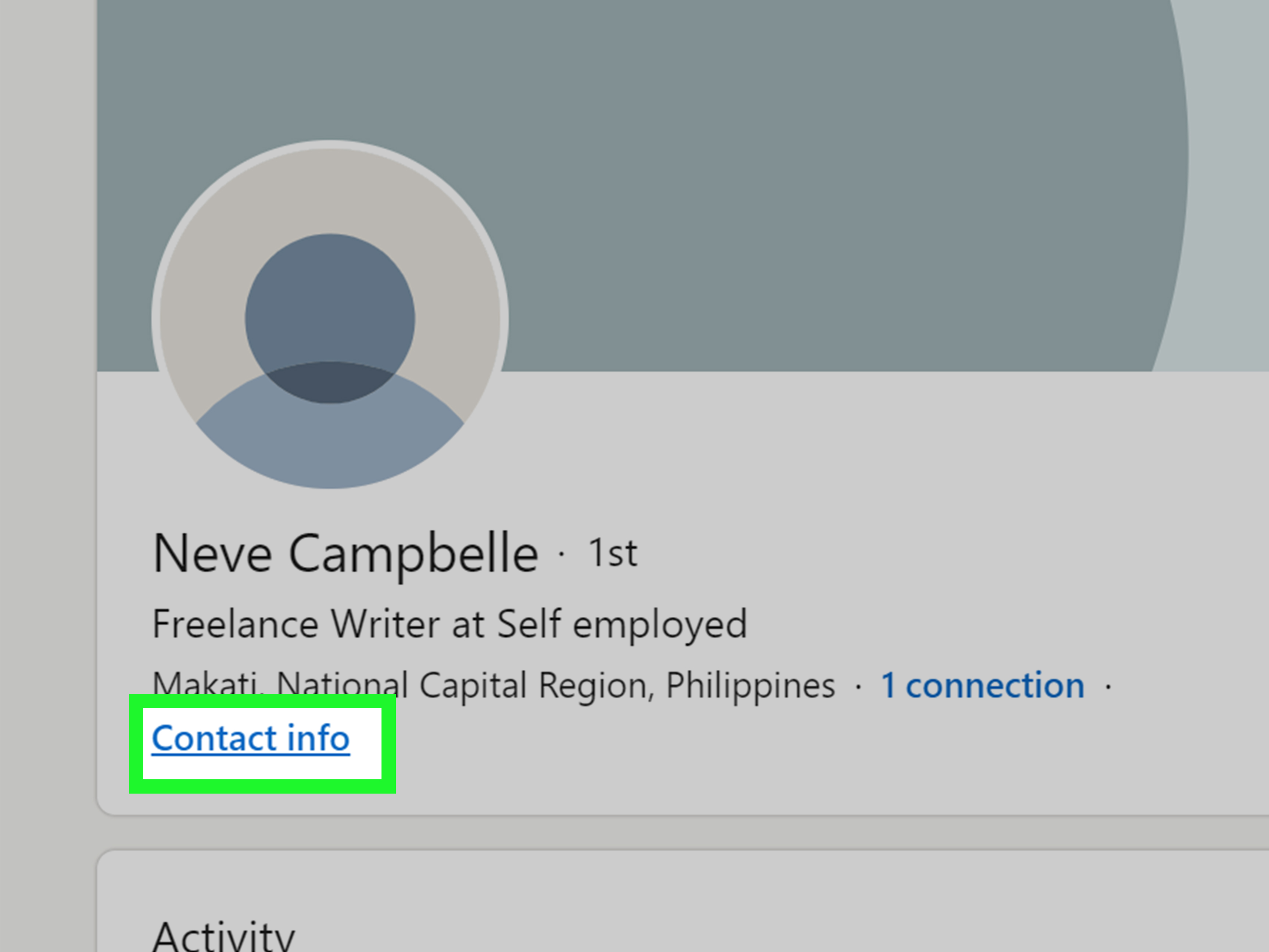
Step 5: Check “See Contact Info” for a Possible Connected Date
On many LinkedIn interfaces, opening a connection’s Contact info can reveal useful details, and for some users it may also show when you connected. Even when the exact date does not appear, this section is still worth checking because it confirms you are viewing a first-degree connection and sometimes gives extra context like websites, email visibility, and profile details.
If you get lucky, you may see the connection date right there and save yourself extra detective work. If not, no panic. LinkedIn enjoys being helpful in slightly inconsistent ways, so keep going.
Step 6: Review Your LinkedIn Notifications
LinkedIn notifications can be another clue. The platform can send alerts through the site itself, email, and mobile push notifications. If you tend to leave notification emails sitting in your inbox like unopened holiday cards, search your email for the person’s name plus LinkedIn.
You may find an old alert tied to the invitation, an acceptance, or your early interaction. This is not always perfect, but it can help you narrow the time window. If you connected after a conference, webinar, or job fair, notifications often line up nicely with that event.
Step 7: Check Your Sent Invitations if the Request Is Still Pending
If the connection never accepted your request, LinkedIn lets you review your Sent invitations under Manage invitations. This is useful when you are not sure whether you actually added the person or just invited them and forgot about it.
This step solves one of the most common LinkedIn mysteries: “Did we connect, or did I just send a request three months ago and then move on with my life?” If the person is in your sent invitations, you have your answer. If not, and they are in your connections list, the request was accepted.
Step 8: Look at Your Message History
If you messaged the contact around the time you connected, your LinkedIn messages can help reconstruct the timeline. LinkedIn’s downloadable account data includes message dates, and your live inbox or archived conversations may show when the first exchange happened.
Even if the first message was not sent the exact day you connected, it still gives you a useful marker. For example, if your first message says, “Great meeting you at the marketing summit today,” then you have a solid clue about when the connection happened. Suddenly your inbox becomes less of a digital junk drawer and more of a time machine.
Step 9: Export Your LinkedIn Connections Data
If you want the most reliable method, export your connections. Go to Settings & Privacy, open Data privacy, and choose Get a copy of your data. LinkedIn offers a larger archive that includes connection information.
This method is excellent when you need more than a rough estimate. It is especially useful for recruiters, sales professionals, founders, and anyone who treats LinkedIn like a working relationship database rather than a place to admire job title upgrades.
Step 10: Open the File and Find the “Connected On” Field
Once LinkedIn emails you the archive link, download the file and open the connections data. This is where the magic usually happens. The exported connection data can include a Connected On field, which gives you the date tied to each first-degree connection.
If you need precision, this is the gold standard. You can sort the spreadsheet by date, search by name, and instantly see when the connection began. It is neat, practical, and just nerdy enough to feel satisfying.
Step 11: Create Your Own Future-Proof Tracking Habit
Once you recover the date, do your future self a favor: build a simple system. Add a note in your CRM, spreadsheet, or contacts tool after important new LinkedIn connections. Jot down where you met, what you discussed, and why the relationship matters.
This sounds small, but it pays off. Six months from now, instead of thinking, “Who is this person and why are we connected?” you will know, “Met at SaaS Growth Summit, discussed partnerships, follow up in Q3.” That is the difference between random networking and intentional relationship-building.
What If You Still Cannot Find the Exact Date?
If LinkedIn does not show the date directly on the profile and your notifications are a mess, do not assume the information is gone forever. Usually, the best backup route is the exported data archive. It is the most dependable way to find a LinkedIn connection date without guessing.
If the export does not solve it immediately, combine clues. Look at the first message, the person’s job role at the time, the event where you met, and the order of your recently added connections. You may not always get the exact hour and minute, but you can often narrow it down to a very believable window.
Smart Tips While You Are Digging Through LinkedIn
First, be careful about random browser extensions, third-party scrapers, or “magic LinkedIn tools” that promise to reveal everything instantly. If a shortcut sounds too slick, it probably comes with privacy or security risk. Use LinkedIn’s own tools first.
Second, be selective about who you accept and who you keep. A big network looks impressive until it becomes a storage unit full of strangers. Quality beats quantity. Personalized notes, thoughtful follow-ups, and real context make your connections far more useful than a giant pile of “professional acquaintances” you cannot identify.
Third, do not ignore safety. Fake profiles and suspicious connection requests exist on LinkedIn too. If a request feels off, verify the person before engaging. Professional does not automatically mean trustworthy. Unfortunately, scammers also own blazers.
Real-World Experiences and Lessons from Tracking LinkedIn Contacts
In real life, people usually start searching for a LinkedIn connection date for one of three reasons: career opportunity, sales follow-up, or pure confusion. The career version is common. Imagine you connected with a recruiter after a promising interview and now, months later, you want to follow up about a new opening. If you know you connected right after the interview, your message becomes much stronger. Instead of sending a generic note, you can say, “We connected after our conversation last spring about product marketing roles.” That one line adds credibility, warmth, and memory cues.
The sales and business-development version is just as practical. A founder might export connection data before reviewing a quarter’s outreach and realize that a cluster of valuable leads came in right after a trade show. Suddenly LinkedIn is not just a social platform; it becomes a pattern tracker. That helps you understand which events, referrals, or content actually create meaningful relationships. In other words, the date is not just trivia. It is evidence.
Then there is the human version, which is honestly the most entertaining. Lots of professionals reconnect with someone and only then realize they cannot remember where the relationship started. Was it a webinar? A mutual friend? A former client? A college alum? When they sort by recently added, check contact info, or review message history, the answer often comes back fast. And once the memory clicks, the next message sounds much more natural.
Another common experience is discovering that your network is far less random than it looked. People often assume their connections list is a chaotic museum of old coworkers, strangers, and accidental clicks. But once they sort by date or export their data, patterns appear. You may notice a hiring spree of connections during one job search, a burst of industry contacts after a conference, or a handful of strong networking months when you were actively publishing content. That can be surprisingly motivating. It shows that relationship-building usually follows seasons, not constant perfect discipline.
There is also a useful lesson in what people do after they find the date. The best networkers do not stop at “Mystery solved.” They use that information to re-engage thoughtfully. Maybe they send a quick check-in note. Maybe they tag the contact in their own system. Maybe they clean out cold or irrelevant connections and focus on people they genuinely want to know better. The date becomes a trigger for better habits.
On the flip side, many people learn that LinkedIn memory is no substitute for personal organization. They realize they had been relying on the platform to remember everything for them. That works until it does not. A better system is simple: after meaningful new connections, write one sentence about the interaction. “Met after fintech panel.” “Former coworker from Austin office.” “Investor intro via Dana.” Tiny notes create massive clarity later.
Perhaps the biggest takeaway from real user experiences is this: the strongest LinkedIn relationships rarely begin with a perfect feature or a fancy tool. They start with a meaningful interaction and improve when you keep track of context. The date matters because it helps restore that context. And once you have it, your follow-up becomes smarter, your networking becomes more intentional, and your connections stop feeling like a giant bowl of professional alphabet soup.
Final Thoughts
If you are trying to figure out when you added a contact on LinkedIn, start simple: open your connections, sort by recently added, search for the person, and check their profile. If that does not give you the full story, review notifications, invitations, and message history. And if you want the most dependable answer, export your LinkedIn data and look for the Connected On field.
The real win is not just finding a date. It is using that information to make your networking more thoughtful, organized, and effective. LinkedIn works best when your connections are more than names on a screen. A little context turns a stale contact list into a living professional network. And that is a lot more useful than guessing your way through old connections with the confidence of a game show contestant.