Windows Notepad is the digital equivalent of a clean kitchen counter: simple, fast, and oddly comforting. It opens quickly, saves plain text without drama, and does not try to turn your grocery list into a corporate memo. But even the most minimalist tool deserves a little personalization. If the default Notepad font feels too tiny, too stiff, too wide, or just visually boring, changing it can make writing, coding, note-taking, and editing plain text much more comfortable.
The good news is that learning how to change the default font on Windows Notepad is easy. On newer Windows 11 versions, the font controls live inside Notepad settings. On Windows 10 and older classic versions, the option usually appears under the Format menu. The process changes how text appears inside Notepad, but it does not change the actual plain text file. In other words, your .txt file stays clean and format-free, while your eyes get a nicer view. Everybody wins, especially your eyeballs.
This guide walks you through the process in 9 clear steps, explains what each font setting does, helps you choose a readable font, and covers common issues such as missing fonts, tiny text, and the difference between Notepad display settings and Windows system text size.
Before You Start: What Does Changing the Notepad Font Actually Do?
When you change the default font in Notepad, you are changing the way text appears in the Notepad app on your computer. You are not adding formatting to the text file itself. Plain text files do not store font family, color, bold styling, paragraph spacing, or page layout. That is why a .txt file can be opened almost anywhere, from Windows Notepad to code editors, email tools, browser windows, and command-line utilities.
This is important because some users expect the selected font to travel with the file. It will not. If you choose Cascadia Mono, Consolas, Courier New, or Arial in Notepad, the text may look different on your screen, but someone else opening the same file on another computer will see it using their own editor settings. Notepad font settings are personal viewing preferences, not document formatting instructions.
If you need rich formatting that stays with the document, such as headings, bold text, custom fonts, page margins, and embedded images, use a word processor like Microsoft Word or a markdown editor. If you want lightweight plain text with a better viewing experience, Notepad is perfect.
How to Change the Default Font on Windows Notepad: 9 Steps
Step 1: Open Windows Notepad
Click the Start button and type Notepad. Select the Notepad app from the search results. You can also press Windows + R, type notepad, and press Enter. If you use Notepad often, right-click it in the Start menu and pin it to Start or the taskbar. Future-you will appreciate the tiny productivity gift.
On Windows 11, Notepad may open with tabs, a modern toolbar, and a settings gear icon. On Windows 10, it may look more traditional, with a menu bar at the top. Both versions allow font changes, but the path is slightly different.
Step 2: Find the Font Settings
On Windows 11, look for the Settings gear icon, usually near the upper-right area of the Notepad window. Click it, then look for the Font or Text formatting section. Depending on your Notepad version, you may also find font options from the menu bar under Edit or a similar menu.
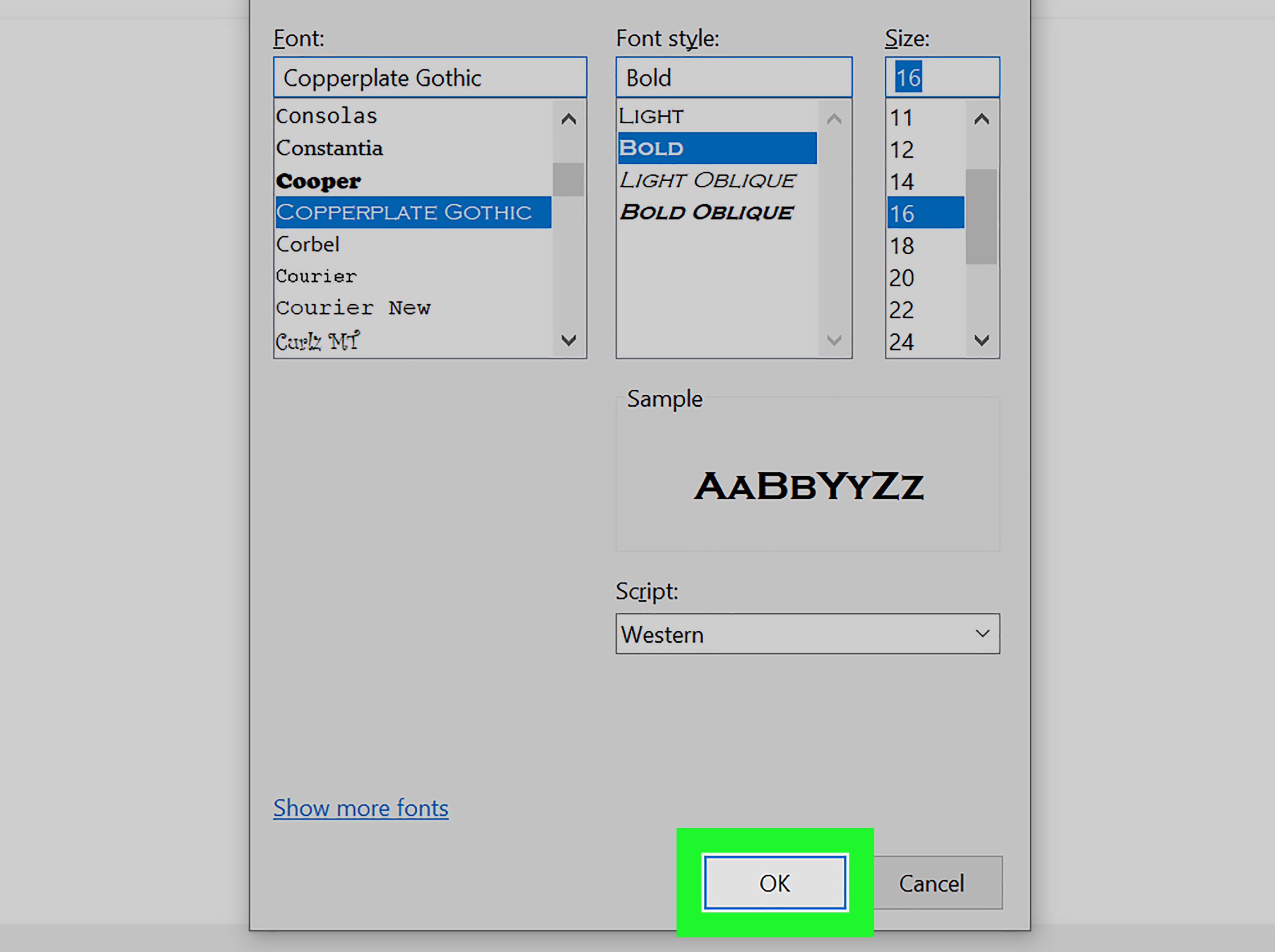
On Windows 10 and classic Notepad, click Format in the menu bar, then choose Font. This opens the familiar font dialog box where you can select the font family, style, and size.
Step 3: Choose a Font Family
The font family is the typeface itself. Common choices include Consolas, Courier New, Lucida Console, Cascadia Mono, Segoe UI, and Arial. For general notes, almost any readable font works. For coding, log files, CSV editing, or anything where spacing matters, a monospaced font is usually better.
A monospaced font gives every character the same width. That means the letter “i” takes up the same horizontal space as the letter “W.” This looks a little old-school, but it keeps columns, indentation, and code blocks easier to scan. Consolas and Cascadia Mono are popular choices because they are clean, modern, and friendly to numbers, punctuation, and programming symbols.
Step 4: Select the Font Style
The font style controls whether the text appears regular, italic, bold, or bold italic. For most Notepad users, Regular is the safest option. It is easy to read, predictable, and less likely to make long notes feel visually heavy.
Bold can be useful if you have vision challenges or prefer stronger text contrast. Italic may look stylish for about six seconds, then become tiring when you are reading a long configuration file at 1:00 a.m. Choose comfort over decoration. Notepad is not judging your design taste, but your eyes might.
Step 5: Pick a Comfortable Font Size
Font size is where most people feel the biggest improvement. If Notepad text looks cramped, try increasing the size to 12, 13, 14, or 16. If you work on a high-resolution monitor, a slightly larger font can make a huge difference. If you use Notepad beside another app, a smaller font may help fit more text on the screen.
There is no universal best size. A laptop screen, 27-inch monitor, projector, and remote desktop session all behave differently. Start with 12 or 14, then adjust from there. The best Notepad font size is the one that lets you read without squinting, leaning forward, or making that mysterious “computer face” we all pretend we do not make.
Step 6: Preview the Result
Most font selection windows show a preview area. Use it. Type or view a sample that includes uppercase letters, lowercase letters, numbers, punctuation, and symbols. For example:
If you edit code or technical notes, also check characters that are easy to confuse, such as zero and capital O, lowercase l and number 1, braces, brackets, commas, periods, and quotation marks. A great Notepad font should make these differences obvious.
Step 7: Apply the Font Change
After choosing the font family, style, and size, click OK, Apply, or simply return to your document if the modern settings panel updates automatically. Your Notepad text should immediately appear in the new font.
Open a new Notepad tab or window to confirm that the change behaves as the default. In most modern versions, Notepad remembers your chosen font for future sessions. If it does not, make sure the app is updated and that you are using the official Windows Notepad app rather than a third-party replacement with a similar name.
Step 8: Adjust Word Wrap If Needed
Changing the font may affect how lines fit inside the Notepad window. If long lines run off the side of the screen, turn on Word Wrap. Word Wrap makes long lines continue on the next visible line instead of forcing you to scroll horizontally like you are reading a secret government spreadsheet.
For normal writing, lists, and quick notes, Word Wrap is usually helpful. For code, logs, and data files where line structure matters, you may prefer to keep Word Wrap off. The choice depends on what you edit most often.
Step 9: Test Your New Default Font in Real Use
Finally, use Notepad normally for a few minutes. Open an old note, create a new file, paste a paragraph, or edit a list. A font can look wonderful in a preview box and slightly annoying during real work. If it feels too wide, too narrow, too faint, or too large, go back and adjust it.
The goal is not to find the fanciest font. The goal is to create a Notepad setup that feels invisible. When the font is right, you stop noticing it and simply get your work done.
Best Fonts for Windows Notepad
Choosing the best font for Notepad depends on what you use the app for. Here are practical recommendations:
For Everyday Notes
Segoe UI, Arial, and Calibri are comfortable for casual writing. They feel more like standard app text and less like a coding terminal. These fonts are good for to-do lists, reminders, drafts, and quick thoughts.
For Coding and Technical Files
Consolas, Cascadia Mono, Courier New, and Lucida Console are better for code, scripts, configuration files, and structured text. They keep spacing consistent and make symbols easier to identify.
For Better Readability
Try a slightly larger size before changing the font completely. Many users think they dislike a font when the real problem is that the size is too small. Increasing Notepad text from 10 or 11 to 13 or 14 can instantly make writing feel less cramped.
How to Install More Fonts for Notepad
If the font you want does not appear in Notepad, it may not be installed on your computer. In Windows 11 or Windows 10, open Settings, go to Personalization, and select Fonts. From there, you can view installed fonts, drag and drop compatible font files, or get more fonts from the Microsoft Store.
After installing a new font, close and reopen Notepad. Some apps need to restart before newly installed fonts appear in the list. If the font still does not show up, confirm that the font file is valid and installed for your user account or for all users on the device.
Troubleshooting: Why Can’t I Change the Font in Notepad?
The Font Option Is Missing
If you cannot find the font option, check your Notepad version. Modern Windows 11 Notepad places many preferences in the settings panel. Classic Notepad uses Format > Font. If neither option appears, update Notepad through the Microsoft Store or check Windows Update.
The Font Changes, But My Saved File Looks the Same Elsewhere
That is normal. Notepad saves plain text. The font is not stored inside the .txt file. Another app or computer will display the file using its own settings.
The Text Is Still Too Small
Increase the Notepad font size first. If menus, buttons, and other Windows text are also too small, adjust Windows text size through Settings > Accessibility > Text size. For overall scaling, go to Settings > System > Display and review the scale setting.
The Font Looks Blurry
Blurry text can be caused by display scaling, remote desktop sessions, monitor resolution, or the font itself. Try a different font, use a standard scaling percentage, and make sure your monitor is set to its recommended resolution.
Does Notepad Support Rich Text Formatting?
Traditionally, Notepad has been a plain text editor. That means it is designed for simple text without embedded formatting. Newer Windows 11 versions have introduced more modern editing features in some release channels, including formatting-related tools and Markdown-style workflows, but the core identity of Notepad remains lightweight text editing.
For most users, changing the default font is still best understood as a display preference. It helps you read and write more comfortably, but it does not turn a .txt file into a rich document. If you need a polished report, resume, flyer, or formatted article, use a document editor. If you need a fast place to write clean text, Notepad remains delightfully uncluttered.
Practical Examples of Good Notepad Font Setups
Setup 1: Comfortable Writing
Font: Segoe UI
Style: Regular
Size: 14
This setup works well for daily notes, drafts, and simple lists. It looks familiar because Segoe UI is widely used across the Windows interface.
Setup 2: Coding and Configuration Files
Font: Consolas
Style: Regular
Size: 12 or 13
This is a reliable technical setup. It keeps spacing aligned and makes punctuation easier to read.
Setup 3: Large, Easy Reading
Font: Cascadia Mono or Arial
Style: Regular
Size: 16
This is helpful for presentations, screen sharing, accessibility, or long writing sessions. It may show fewer words on screen, but comfort matters more than cramming text into every pixel.
Extra Experience: What It Feels Like to Customize Notepad for Real Work
Changing the default font on Windows Notepad sounds like a tiny adjustment, but in daily use it can feel surprisingly powerful. Many people use Notepad as a temporary scratchpad. They paste tracking numbers, draft emails, clean copied text, save quick ideas, remove formatting, write code snippets, or store reminders that say things like “cancel subscription” and then mysteriously ignore them for six weeks. Because Notepad is so simple, the font becomes a major part of the experience.
One of the most common improvements is moving from a small default size to something easier to read. A font size of 11 may be fine on one monitor and painfully small on another. When you increase it to 13 or 14, the entire app can feel calmer. Lines are easier to scan, mistakes are easier to catch, and you no longer have to lean toward the screen like you are trying to hear the text whisper.
For people who write lists, outlines, or quick article drafts, a proportional font such as Segoe UI or Arial can make Notepad feel less technical and more natural. The text flows like everyday writing. It is not fancy, but it is pleasant. This is especially useful when you are drafting paragraphs before moving them into a content management system, email platform, or document editor.
For developers, students, data workers, and anyone who touches structured text, monospaced fonts are usually the better experience. Consolas and Cascadia Mono help keep indentation neat. They also make it easier to spot missing brackets, extra spaces, and suspicious punctuation. When editing a configuration line, one misplaced character can cause a headache. A readable monospaced font is like having a tiny flashlight in a messy drawer.
Another real-world lesson: do not judge a font only by how stylish it looks. Some fonts are beautiful in a headline and exhausting in a plain text editor. A decorative font might make your grocery list look like a wedding invitation, but it will not help when you are comparing file paths or cleaning a CSV export. Notepad rewards practicality. The best font is usually simple, steady, and slightly boring in the most useful way.
It also helps to match your font choice to your work environment. If you often screen-share, choose a larger size. If you work on a laptop, choose a font that stays clear at smaller sizes. If you switch between dark mode and light mode, test the font in both. Some thin fonts look crisp on a white background but weak in dark mode. Others look great in dark mode but bulky in light mode.
Finally, remember that changing the Notepad font is reversible. You are not making a dangerous system-level modification. You are simply changing a preference inside a text editor. Try a few combinations. Keep the one that feels best. The perfect setup is the one that makes Notepad disappear into the background while your work stays front and center.
Conclusion
Changing the default font on Windows Notepad is a small customization with a big comfort payoff. Whether you use Notepad for quick notes, code snippets, plain text cleanup, or everyday writing, the right font family, style, and size can make the app easier to read and more enjoyable to use. On Windows 11, use the settings gear or font section inside Notepad. On Windows 10 and classic versions, use Format > Font. Choose a readable font, test it with real text, adjust Word Wrap if needed, and remember that the change affects only how text appears on your screen, not the contents of your saved .txt files.
In the end, Notepad remains simple by design. That is its charm. But simple does not have to mean uncomfortable. Give it a font that fits your eyes, your screen, and your workflow. Your notes may still be plain text, but they do not have to look plain boring.