
If your Windows PC suddenly acts like the internet has ghosted it, a Netsh Winsock reset may be one of the fastest ways to get things talking again. When websites refuse to load, apps cannot connect, or your network stack behaves like it woke up on the wrong side of the motherboard, this command can help reset part of Windows networking back to a cleaner state.
The good news is that performing a Winsock reset is not some secret hacker ritual involving green code and dramatic music. It is a straightforward Command Prompt task built into Windows. The better news is that you do not need to be a network engineer to use it correctly. You just need to know what it does, when to use it, and when not to use it like a magic wand for every internet issue on Earth.
In this guide, you will learn exactly how to perform a Netsh Winsock reset, what the command changes, what symptoms it can fix, what to do before and after running it, and when you should also reset the TCP/IP stack. We will also walk through real-world examples and practical troubleshooting tips so you can solve the problem instead of just poking Windows with command-line sticks and hoping for the best.
What Is a Netsh Winsock Reset?
Winsock, short for Windows Sockets, is part of the Windows networking system that helps programs communicate over networks. Browsers, email clients, game launchers, remote desktop tools, VPN apps, and many other programs rely on this layer to send and receive data.
When you run the command netsh winsock reset, Windows resets the Winsock catalog to a cleaner default state. In plain English, it removes certain custom networking entries that may have become corrupted or were altered by third-party software. That is why this command is often recommended when the internet is technically “there,” but apps still refuse to cooperate.
This matters because some network problems are not caused by your router, your ISP, or your Wi-Fi signal. Sometimes the trouble is inside Windows itself. Malware, outdated VPN software, security tools, proxy software, or a badly behaved networking app can interfere with Winsock settings. When that happens, resetting Winsock can clear out the mess.
What Problems Can a Winsock Reset Fix?
A Winsock reset is often used to troubleshoot networking issues such as:
- Web browsers that cannot open pages even though Wi-Fi shows connected
- Applications that fail to reach the internet while other apps still work
- DNS-related weirdness after software changes
- Connectivity problems after installing or uninstalling VPN tools
- Network issues after malware cleanup
- Problems connecting after a Windows update or driver change
- Socket-related errors in certain programs
That said, a Winsock reset is not a universal cure-all. It will not fix a dead router, a bad Ethernet cable, a local ISP outage, or a wrong Wi-Fi password. It is best used when Windows networking seems corrupted or partially broken rather than completely absent.
When Should You Use Netsh Winsock Reset?
Use this command when you have already confirmed the basics. For example, your internet works on other devices, your router is on speaking terms with the rest of the household, and your Windows PC is the one acting suspicious.
Good times to try a Netsh Winsock reset include:
- After uninstalling third-party firewall, VPN, or security software
- After removing malware or adware
- When browsers and apps throw connection errors for no obvious reason
- When one PC has internet trouble but others on the same network do not
- When network troubleshooting tools fail to solve the issue
If you are seeing broad network corruption symptoms, many people also run netsh int ip reset along with the Winsock reset. These are related but not identical commands, and we will cover the difference shortly.
How to Perform a Netsh Winsock Reset
Step 1: Open Command Prompt as Administrator
First, you need an elevated Command Prompt. That means opening it with administrator rights, not just the normal version.
- Click the Start button.
- Type Command Prompt or cmd.
- Right-click Command Prompt.
- Select Run as administrator.
- If Windows asks for permission, click Yes.
If you skip the administrator step, Windows may respond with an error or simply refuse to let the command do its job. It is like trying to remodel a kitchen with a plastic spoon. Technically an effort was made, but not a useful one.
Step 2: Run the Winsock Reset Command
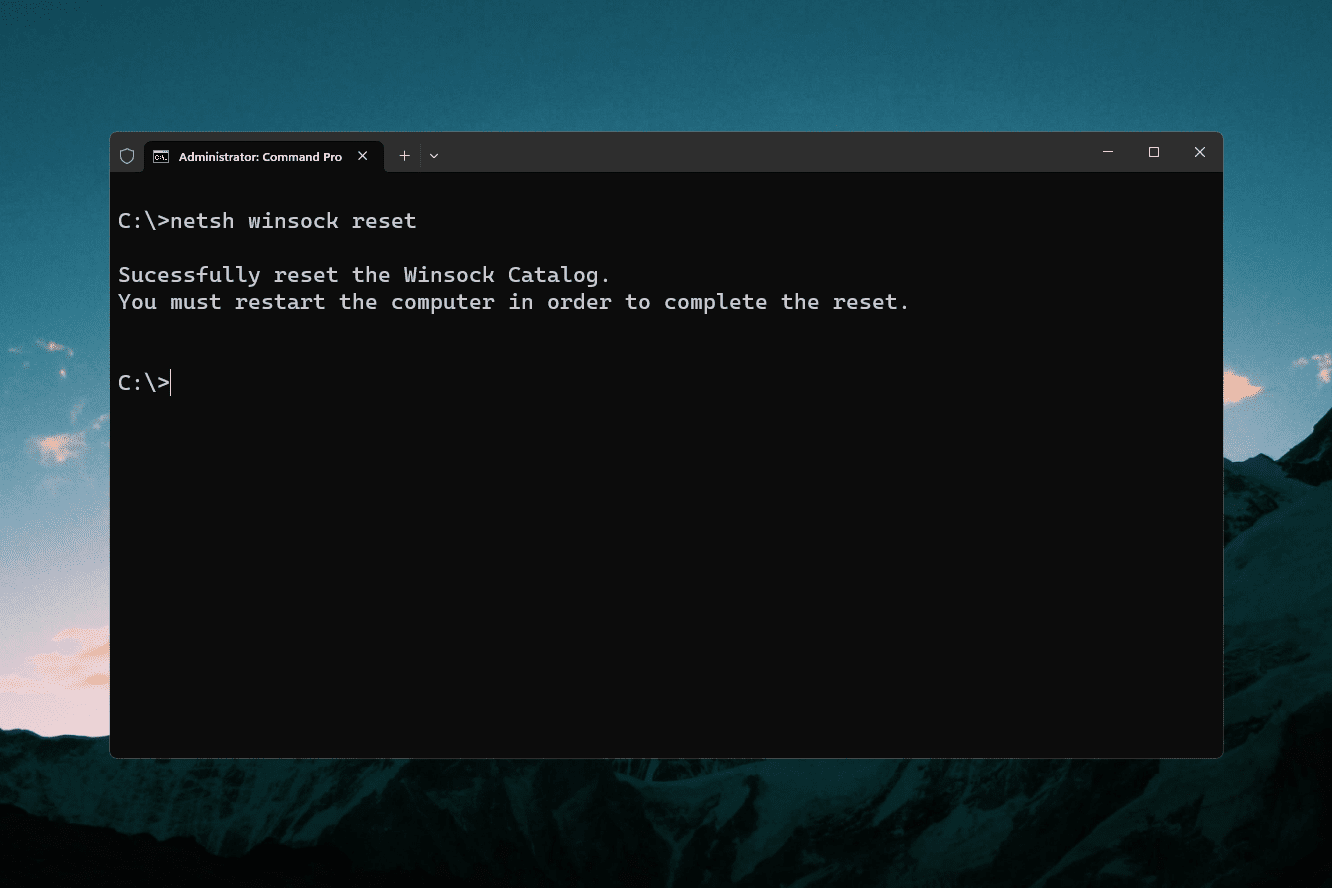
In the Command Prompt window, type the following command exactly:
Then press Enter.
If the command works, you should see a message indicating that the Winsock catalog was successfully reset and that you must restart the computer for the reset to complete.
Step 3: Restart Your Computer
This step is not optional unless you enjoy doing half a repair and expecting full results. Restart your PC after the command finishes. The reset typically does not take full effect until after rebooting.
Once the computer restarts, test your connection again. Open a browser, launch the app that was failing, or try the service that was refusing to connect.
The Full Reset Sequence Many People Use
Sometimes a Winsock reset alone is enough. Other times, it makes sense to pair it with other network repair commands, especially if your issue goes deeper than one broken app.
A common troubleshooting sequence looks like this:
Here is what those commands generally do:
netsh winsock resetresets the Winsock catalognetsh int ip resetresets parts of the TCP/IP stackipconfig /releasereleases the current IP addressipconfig /renewrequests a fresh IP addressipconfig /flushdnsclears the DNS resolver cache
If your issue is more stubborn, this broader reset sequence can be helpful. Still, you should not run every command in existence just because your browser had one dramatic moment. Start with the least disruptive fix that matches the symptom.
Winsock Reset vs. TCP/IP Reset
This is where many users get confused, because both commands show up in troubleshooting guides and tend to travel as a pair.
What netsh winsock reset does
This command focuses on the Winsock catalog, which affects how applications access network services in Windows.
What netsh int ip reset does
This command resets parts of the TCP/IP stack. That is a broader network protocol layer used by Windows for IP communication.
So if an app cannot connect because the application networking layer is corrupted, Winsock reset may be enough. If the deeper network stack is also damaged, the TCP/IP reset can help too. Think of Winsock reset as fixing the front desk communication system, while TCP/IP reset is more like checking the building’s plumbing behind the walls.
What Happens After a Winsock Reset?
In many cases, nothing dramatic happens beyond your network issue disappearing and you finally feeling superior to your laptop for five minutes. But there are a few things to know.
- Some third-party networking software may need to reconfigure itself
- VPN clients or proxy tools might need to be reinstalled or adjusted
- You may need to reconnect to certain services after reboot
- If malware or broken software caused the issue, the problem can return unless the root cause is fixed
That last point matters. A Winsock reset is a repair step, not a lifestyle. If you need to run it every few days, something deeper is probably wrong. Common suspects include bad drivers, broken VPN software, aggressive security tools, malware remnants, or damaged Windows components.
What If Netsh Winsock Reset Does Not Work?
If the command does not fix your problem, do not panic and do not immediately assume your computer is trying to ruin your week on purpose. Work through a logical checklist.
1. Check whether the issue is really on your PC
Test the same network with another device. If the other device also fails, your router or internet service may be the real problem.
2. Reset the TCP/IP stack too
If you only ran the Winsock reset, try netsh int ip reset and reboot again.
3. Flush DNS and renew IP settings
Sometimes the connection problem is tied to name resolution or stale network configuration rather than Winsock alone.
4. Disable or uninstall recent networking software
If the issue began after installing a VPN, firewall, DNS changer, or packet filtering app, that software may be the real villain in this story.
5. Update or reinstall network adapter drivers
Driver corruption can mimic Winsock problems. Open Device Manager and check for adapter issues or driver updates.
6. Use Windows Network Reset
Windows also includes a full Network Reset feature in Settings. This is more drastic than a simple Winsock reset because it can remove and reinstall network adapters and reset broader networking settings.
7. Scan for malware
If network settings keep breaking, run a reputable malware scan. Some threats tamper with network behavior, proxies, and socket settings.
Example Scenarios Where a Winsock Reset Helps
Example 1: Browser works yesterday, fails today
You uninstall an old VPN client, reboot, and suddenly Chrome, Edge, and a game launcher all report connection errors. Wi-Fi still says connected. A Winsock reset can repair the damaged application networking layer left behind by the VPN software.
Example 2: Malware cleanup left networking half broken
You remove adware, but some apps still cannot connect. Resetting Winsock helps clear leftover catalog changes that the unwanted software may have created.
Example 3: One computer fails, the rest are fine
Your phone, tablet, and another laptop connect normally on the same Wi-Fi network, but your desktop refuses to load sites. That points the finger at the Windows machine itself, making a Winsock reset a reasonable first repair step.
Best Practices Before You Reset Anything
Although netsh winsock reset is a standard and generally safe troubleshooting command, it is still smart to be methodical.
- Save your work before restarting
- Write down any custom proxy or VPN settings you may need later
- Check whether the problem began after a specific software install or update
- Try a basic restart before diving into deeper repairs
- Use administrator access so the command runs properly the first time
That way, if the reset solves the issue, great. If it does not, you still have clues about the real cause.
Common Mistakes to Avoid
Running Command Prompt without admin rights
This is the classic mistake. If you do not open an elevated Command Prompt, the command may fail or not apply correctly.
Forgetting to restart
The reset usually requires a reboot. Skipping that step is like washing your car and then parking it under a tree full of birds before looking at the results.
Assuming the command fixes every internet problem
It does not. Router failures, ISP outages, weak Wi-Fi signal, incorrect DNS settings, and broken drivers all require different fixes.
Ignoring recurring symptoms
If Winsock corruption keeps coming back, investigate the underlying software or system issue instead of repeatedly hitting the same reset button forever.
Final Thoughts
Learning how to perform a Netsh Winsock reset is one of those surprisingly useful Windows skills that sounds more intimidating than it really is. The command is simple, quick, and often effective when application-level network communication gets corrupted. If your PC is connected to the network but still behaving like the internet filed a restraining order, a Winsock reset is a smart troubleshooting move.
Just remember the key points: open Command Prompt as administrator, run netsh winsock reset, restart your computer, and test again. If the problem goes beyond Winsock, you may also need to reset the TCP/IP stack, flush DNS, or look more closely at drivers, VPN tools, or malware. Done thoughtfully, this small command can save a lot of time, frustration, and unnecessary keyboard glaring.
Real-World Experience and Practical Lessons
One reason the topic of how to perform a Netsh Winsock reset stays relevant is that the command often appears in real troubleshooting stories, not just sterile documentation. In everyday use, network problems are messy. They do not always show up as clean, easy-to-diagnose failures. More often, they arrive as weird little annoyances that slowly convince you your computer has developed a personality disorder.
For example, a user might say, “My Wi-Fi says connected, but Steam will not log in, Outlook is timing out, and my browser sometimes loads one page and then quits on life.” In a case like that, a Winsock reset can be surprisingly effective because the problem may live in the communication layer that applications use rather than the physical connection itself.
Another common experience happens after removing software. Someone installs a VPN, tests it for a week, decides it is not for them, uninstalls it, and then discovers that parts of Windows networking are suddenly unreliable. This is the kind of moment where a simple command feels almost magical. You open an elevated Command Prompt, type netsh winsock reset, restart the system, and suddenly apps stop acting like they forgot what the internet is.
There are also cases where the command helps only temporarily. That is an important lesson. If you perform a Winsock reset and your connection returns, but the same issue comes back every few boots, the reset did not truly cure the illness. It only reduced the symptoms. In real troubleshooting, that usually points to a root cause such as flaky drivers, aggressive security software, damaged system files, or leftover changes from old networking tools.
In office environments, support staff sometimes use a Winsock reset as part of a broader checklist when one Windows machine cannot connect properly while every other machine on the same network is fine. It is quick, built in, and easy to explain. It also works well as a middle step between “restart your PC” and “let’s start reinstalling drivers and rethinking our life choices.”
Home users often discover the command after a Windows update, a malware cleanup, or a sudden wave of DNS errors. In those cases, the best experience comes from pairing the reset with observation. Did the trouble begin after uninstalling antivirus software? Did a VPN client fail during an update? Did the issue appear right after restoring the system from a backup? The more context you gather, the more useful the reset becomes as part of a real fix rather than random command-line folklore.
The biggest practical takeaway is simple: Winsock reset is valuable because it is targeted, fast, and low drama. It does not require downloading third-party repair tools. It does not ask you to edit the registry by hand. It gives regular users a safe, legitimate Windows command that can solve a real class of problems. And when it does work, it feels like getting your afternoon back from the chaos goblins.
So yes, this command has earned its reputation. Not because it fixes everything, but because in the right situation it fixes enough of the right thing to matter.














