TikTok sounds have a strange superpower. A five-second clip can live in your head longer than your last math class, your grocery list, and that password you definitely promised yourself you would remember. Whether it is a voiceover, a funny sound effect, a remix, or your own original audio, there are plenty of legitimate reasons to save TikTok audio as an MP3. You may want to back up your own content, reuse a sound in a personal video project, organize audio ideas for editing, or keep a clean copy of a clip you created.
But before we charge into the land of buttons, file names, and mysterious “Export Audio” menus, let’s make one thing clear: downloading TikTok audio should be done legally and respectfully. The safest use cases are your own TikTok videos, sounds you created, audio in the public domain, royalty-free sounds, or clips where you have permission from the rights holder. TikTok is full of copyrighted music, and “it was catchy” is not a legal license, no matter how good the beat drop is.
This guide explains how to download TikTok audio sounds as MP3 on PC, iOS, and Android using practical, safer methods. You will learn how to save your own TikTok video, extract the audio, convert it to MP3, organize your files, avoid sketchy tools, and keep your workflow clean enough that future-you will not open a folder called “final_audio_REAL_final_2.mp3” and sigh dramatically.
Can You Download TikTok Audio as MP3 Directly?
In most cases, TikTok does not provide a simple “Download MP3” button for every sound. TikTok is designed for watching, creating, remixing, and sharing inside the app. Some videos can be saved if the creator allows downloads, while others cannot. Your own videos are generally the easiest and safest to save, especially if you posted the content yourself or still have the original project file.
The common legal workflow looks like this: first, save or export the TikTok video you own or have permission to use. Then, use a trusted audio editor, video editor, or converter to extract the audio and export it as MP3. That extra step may sound annoying, but it gives you more control over quality, trimming, volume, metadata, and file organization.
Think of it like making coffee. TikTok gives you the beans, your editor grinds them, and the MP3 is the cup you can actually carry around. Hopefully without spilling it all over your Downloads folder.
Important Legal and Safety Notes Before You Start
Before downloading any TikTok sound, ask yourself three quick questions:
- Do I own this audio? If you recorded it, composed it, or created it, you are usually in the safest position.
- Do I have permission? Permission may come from a license, a royalty-free library, a collaborator, or the original creator.
- How will I use it? Personal archiving is very different from uploading the audio in a monetized ad, podcast, YouTube video, or commercial campaign.
If the sound contains copyrighted music, a movie quote, a TV clip, or someone else’s original voiceover, be careful. TikTok may allow a sound inside the app, but that does not automatically mean you can download it as an MP3 and use it anywhere you like. For brand, business, or promotional videos, use properly licensed music, royalty-free audio, or TikTok’s commercial-safe music options.
Also, avoid suspicious “TikTok MP3 downloader” websites that ask for unnecessary permissions, push strange browser extensions, or cover the page with pop-ups that look like they were designed during a malware convention. A good rule: if a website has three fake download buttons and one of them is flashing, close the tab and go drink water.
Method 1: Download Your Own TikTok Video, Then Convert It to MP3 on PC
For most creators, the PC method is the cleanest. You get a bigger screen, easier file management, and better editing tools. This works well on Windows, macOS, and many Linux setups.
Step 1: Save the TikTok Video
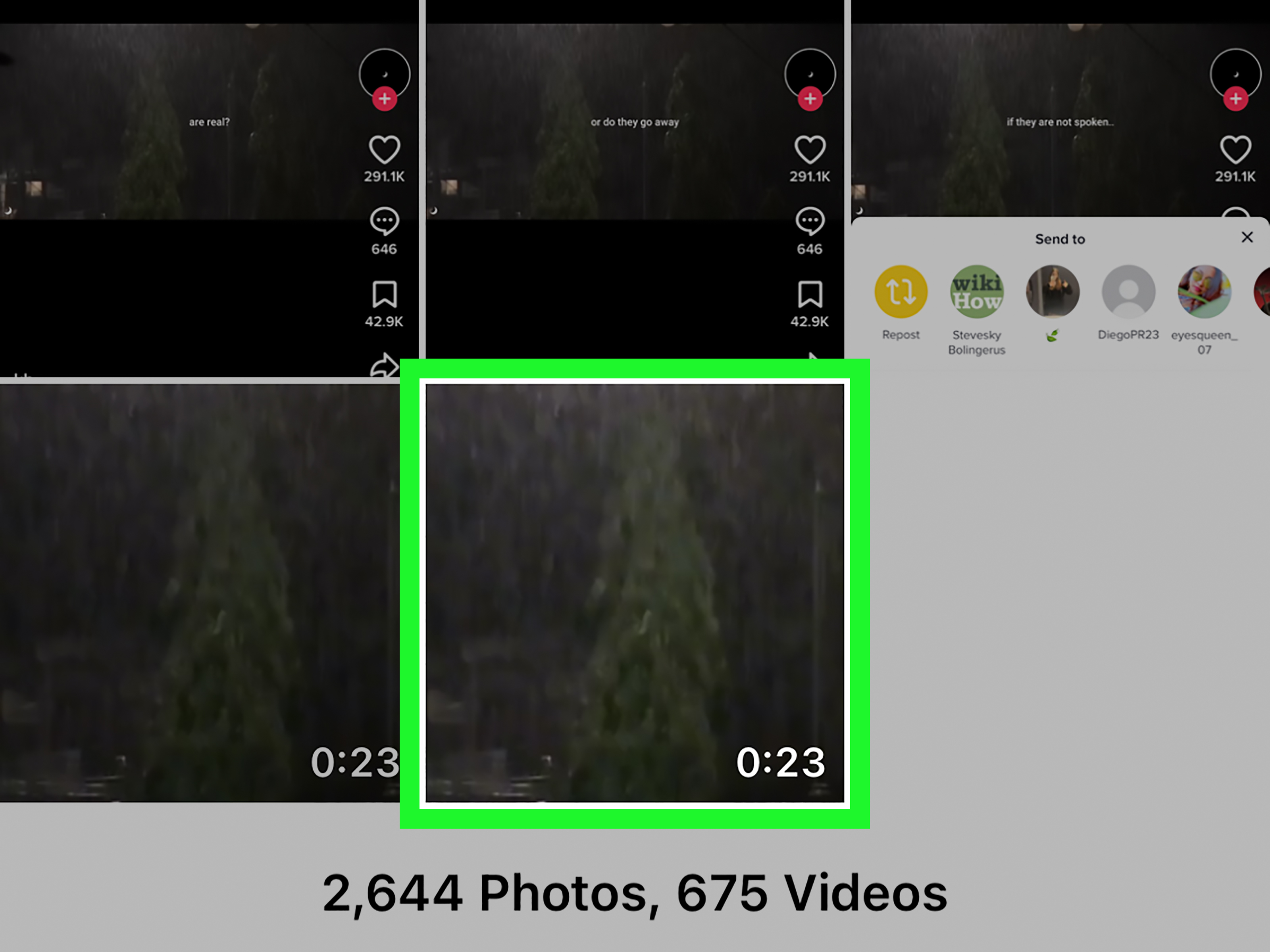
Open TikTok and find the video you own or have permission to use. If downloads are enabled, use the share option and choose the save or download option. If it is your own content, you may also have the original video in your phone gallery, editing app, or cloud storage. Whenever possible, use the original file because it usually has better audio quality than a re-downloaded social media version.
Step 2: Move the Video to Your Computer
Transfer the video to your PC using a USB cable, AirDrop, cloud storage, email, or a file-sharing app. Place it in a clearly named folder such as TikTok Audio Projects. This tiny act of organization may not feel exciting, but it will save you from the classic “where did that file go?” treasure hunt later.
Step 3: Extract the Audio with Audacity
Audacity is a popular free audio editor that can export MP3 files. Import your video or audio file, trim the section you need, adjust the volume if necessary, and export the finished clip as an MP3. When exporting, choose a quality setting that fits your purpose. For spoken audio, a moderate bitrate is usually fine. For music or sound design, a higher bitrate can help preserve more detail.
A simple creator-friendly setup is:
- Format: MP3
- Bitrate: 192 kbps or 256 kbps for general use
- File name: short, descriptive, and searchable
- Metadata: add title, artist, or project name if needed
Step 4: Convert with VLC Media Player
VLC is another practical option. Open VLC, choose the convert/save feature, add your TikTok video file, select an MP3 audio profile, choose the destination folder, and start the conversion. VLC is especially useful when you need a quick conversion without detailed audio editing.
Use Audacity when you want to trim, clean up, normalize, or polish the sound. Use VLC when you simply need to convert a video file into an MP3 quickly. In other words, Audacity is the kitchen; VLC is the microwave. Both are useful. Only one lets you season the soup.
Method 2: Download TikTok Audio as MP3 on iPhone or iPad
On iOS, the workflow usually starts by saving your own TikTok video to Photos or Files, then using a trusted editing or conversion app to export the audio as MP3. Apple devices are great for creators because files can move between Photos, Files, iCloud Drive, and editing apps fairly smoothly once you know where everything lives.
Step 1: Save Your Video
Open TikTok, go to your video, tap the share option, and save the video if the option is available. If the video is still in CapCut, iMovie, Photos, or another editor, export from the original editing project instead. Original exports often sound cleaner than downloaded copies.
Step 2: Use Files or Photos to Organize
After saving the video, move it to the Files app if you want better organization. Create a folder such as TikTok MP3 Exports. This keeps your content away from the chaos of screenshots, memes, pet photos, and that one blurry picture of a receipt from 2021.
Step 3: Extract Audio with a Trusted App
Use a reputable video editor, audio editor, or file conversion app that clearly explains its privacy practices and does not require strange permissions. Import your video, choose an extract audio or export audio option, and select MP3 if available. If MP3 is not available, export as M4A first, then convert it on your computer later.
Step 4: Use Screen Recording Only When Appropriate
iPhone and iPad include built-in screen recording. This can be useful for saving your own drafts, tutorials, or content previews, but it should not be used to capture someone else’s copyrighted audio for reuse. Screen recording may also capture notification sounds, microphone audio, or background noise if settings are not adjusted properly.
If you use screen recording for your own content, turn on Do Not Disturb, check audio settings, record in a quiet environment, and trim the beginning and end afterward. Nothing ruins a clean sound clip like a random notification announcing that your food delivery is nearby.
Method 3: Download TikTok Audio as MP3 on Android
Android gives users flexible file management, which makes it a strong choice for saving and converting TikTok audio. The exact steps may vary depending on your phone model, Android version, and installed apps, but the general workflow is consistent.
Step 1: Save the TikTok Video
Open TikTok, find the video you own or have permission to save, tap share, and choose the save option if available. If the video was edited in another app, export from the original app for better quality. Your saved file will usually appear in your gallery, camera roll, or video folder.
Step 2: Locate the File
Use your phone’s file manager to find the downloaded video. On many Android devices, it may appear in a Downloads, Movies, Camera, or TikTok folder. Rename the video before converting it. A file called voiceover-product-demo.mp4 is much easier to find than VID_20260425_231742.mp4.
Step 3: Convert the Video to MP3
Choose a reputable audio converter or video editor from a trusted app store. Import the saved video, select MP3 as the output format, and export the file. Check the app permissions carefully. A converter does not need access to your contacts, messages, or location to turn a video into audio. If it asks for everything except your birth certificate, move on.
Step 4: Use Android Screen Recording Carefully
Android includes built-in screen recording on many modern devices. You can choose whether to record device audio, microphone audio, or both depending on your model. This is helpful for capturing your own demonstrations or drafts, but it is not a magic permission slip for copyrighted audio.
After recording, trim the clip and convert it to MP3 only if you have the right to use the sound. Save the finished file in a dedicated audio folder so it is ready for editing, captioning, podcasting, or backup.
Best MP3 Settings for TikTok Sounds
TikTok audio is often short, compressed, and optimized for mobile playback. That means exporting at an extremely high bitrate will not magically turn a tiny social media clip into studio-quality audio. Still, choosing sensible settings helps prevent unnecessary quality loss.
Recommended MP3 Settings
- 128 kbps: acceptable for quick voice notes or drafts
- 192 kbps: good for spoken audio, sound effects, and casual use
- 256 kbps: better for music clips or higher-quality projects
- 320 kbps: useful only if the original audio is high quality
For most TikTok audio sounds, 192 kbps or 256 kbps is a practical sweet spot. It keeps the file small while preserving enough clarity for editing, reviewing, and reusing in personal projects.
How to Keep TikTok Audio Files Organized
Good file organization is boring until the day it saves your project. Use a simple naming system that includes the platform, sound type, date, and project name. For example:
- tiktok-voiceover-coffee-review-2026.mp3
- tiktok-sfx-door-transition-personal.mp3
- tiktok-original-audio-workout-tip-2026.mp3
Create folders by project or audio type. You might have folders for Voiceovers, Sound Effects, Original Music, Client Approved, and Drafts. The more content you create, the more important this becomes. Your future workflow should feel like opening a toolbox, not digging through a sock drawer.
Common Problems and How to Fix Them
The Download Button Is Missing
If the save option is missing, the creator may have disabled downloads, the account may have privacy restrictions, or the content may not be available for saving. Respect that setting. If you need the audio, ask the creator for permission or use your own original source file.
The MP3 Sounds Quiet
Use an audio editor to normalize or amplify the sound gently. Avoid pushing the volume too high, because that can create distortion. Loud is not always better. Sometimes loud is just crunchy, and not in the fun potato-chip way.
The Audio Has Background Noise
If the clip came from a screen recording, background noise may have slipped in. Try recording again in a quiet space, disable microphone input if you only need device audio, and close apps that may create notification sounds. For voice audio, light noise reduction can help, but overdoing it may make the voice sound robotic.
The File Will Not Open
Check whether the export actually finished, confirm the file extension is .mp3, and try opening it in another player. If needed, re-export from the original video using a trusted editor.
Safe Alternatives to Downloading TikTok Sounds
Sometimes the best way to get a TikTok-style sound is not to download it from TikTok at all. If you need background music, use royalty-free libraries, licensed stock audio, your own recordings, or TikTok’s commercial-safe options for brand content. If you want a voiceover, record your own. If you want a sound effect, create it or download it from a properly licensed sound library.
This approach keeps your projects cleaner, safer, and easier to publish across platforms. It also prevents the awkward moment when a video performs well and then gets muted, claimed, restricted, or removed because the audio rights were not clear.
Creator Experience: What Actually Works Best in Real Life
After working with short-form video workflows, the best method is usually the least dramatic one: keep your original files. If you record a TikTok voiceover, save the raw audio before posting. If you edit in CapCut, Premiere, DaVinci Resolve, iMovie, or another editor, export a separate audio copy when the project is finished. If you create a sound effect, store the source file in a dedicated folder. This habit turns MP3 exporting from a stressful rescue mission into a normal part of your publishing process.
For PC users, the smoothest experience is downloading or transferring the video, opening it in Audacity, trimming the exact sound, and exporting an MP3 with a descriptive file name. Audacity is especially helpful when the TikTok audio has dead space at the beginning or a loud pop at the end. You can zoom in, cut precisely, fade in, fade out, and export a clean version. This is perfect for creators who reuse intros, branded voice tags, product review snippets, educational hooks, or original sound effects.
For iPhone users, the biggest challenge is usually file location. The video may be in Photos, the audio export may land in Files, and the editing app may create its own folder. The best habit is to create one main folder in Files for TikTok audio exports. Save everything there. Rename files immediately. Do not wait until you have thirty clips called “audio,” “audio 1,” and “audio final.” That road leads to sadness, confusion, and unnecessary caffeine.
For Android users, the experience can be faster because file managers are often more flexible. You can save a video, locate it quickly, rename it, and send it to a converter or editor. The main caution is app quality. Some converter apps are useful; others are ad-heavy, permission-hungry, or unreliable. Read recent reviews, check permissions, and avoid apps that make simple conversion feel like entering a haunted carnival.
One practical tip is to create a mini audio checklist before exporting. First, confirm you have rights to use the sound. Second, listen with headphones. Third, trim silence. Fourth, export at 192 kbps or 256 kbps. Fifth, rename the file with the project name and date. Sixth, back it up to cloud storage or an external drive. This routine takes less than a minute once you get used to it, and it can prevent hours of searching later.
Another real-world lesson: do not rely on TikTok as your only archive. Apps change, accounts get locked, videos may be removed, and download settings can shift. Serious creators keep a local copy and a cloud backup of important assets. That includes original video files, voiceovers, captions, thumbnails, music licenses, project files, and exported MP3s. Your content library is part of your creative business, even if your current “studio” is a phone, a lamp, and a chair that squeaks at exactly the wrong time.
Finally, remember that audio quality starts before conversion. If you are recording your own TikTok sound, use a quiet room, keep the microphone close but not too close, avoid tapping the phone, and record a few seconds of silence before speaking. That silent section can help with noise cleanup later. A clean original recording will always beat a messy recording exported at a fancy bitrate. MP3 conversion is not a magic wand; it is more like a lunchbox. It can carry a good meal, but it cannot turn burnt toast into lasagna.
Conclusion
Learning how to download TikTok audio sounds as MP3 on PC, iOS, and Android is mostly about using the right workflow. Save the video you own or have permission to use, extract the audio with a trusted tool, export it with sensible MP3 settings, and organize the result like a creator who respects their future self.
For PC, Audacity and VLC-style conversion workflows are reliable choices. For iOS, use Photos, Files, and reputable editing apps. For Android, use your file manager and trusted converters while keeping a close eye on app permissions. Above all, respect copyright, creator settings, and platform rules. The internet already has enough chaos; your audio folder does not need to join the party.