
Moving is already a full-contact sport. Between boxes, forwarding mail, remembering where you packed the coffee filters, and wondering why you own twelve charg/p>
But here is the good news: changing your home address on iPhone is simple once you know where Apple stores it. Your “home address” can appear in several places, including your Contacts card, Apple Maps, Safari AutoFill, Wallet and Apple Pay, Apple Account billing details, Google Maps, and Waze. Updating only one of them may fix directions, but it may not fix checkout forms, payment billing, or third-party navigation apps.
This guide walks you through 12 practical steps to update your address across the iPhone settings and apps people actually use. Whether you want Apple Maps to stop sending you to your old apartment, Safari to fill in your new shipping address, or Apple Pay to stop acting like you still live three neighborhoods ago, this article has you covered.
Note: Menu names may vary slightly depending on your iOS version, region, and app updates. The general process remains the same: update your personal contact card first, then check Maps, AutoFill, payment, and navigation apps.
Why Your iPhone Home Address Matters
Your iPhone uses your home address for more than directions. Apple Maps may suggest routes home. Siri may answer questions like “How long will it take to get home?” Safari can use your contact card to fill out online forms. Apple Pay may use stored shipping and billing details during checkout. Third-party apps such as Google Maps and Waze also keep their own home labels.
That is why changing your home address on iPhone is not always a one-tap job. Think of your address like a contact lens: tiny, easy to overlook, and very annoying when it is wrong. If you recently moved, changed apartments, updated your billing address, or noticed that your maps app keeps navigating to the wrong location, it is worth checking every place below.
Before You Start: Know Which Address You Want to Change
Before tapping through settings, decide what problem you are solving. If Apple Maps shows the wrong home, update Maps and Contacts. If Safari fills in the wrong address on websites, update your My Card and Safari AutoFill settings. If Apple Pay checkout displays an old shipping address, update Wallet and Apple Pay transaction defaults. If App Store billing has problems, update Apple Account Payment & Shipping. If Google Maps or Waze points to the wrong house, change the home label inside those apps.
For the cleanest result, start with your iPhone contact card. Apple treats your personal contact card, often called “My Card,” as a central source for your personal details. Once that is correct, other features have a better chance of behaving like civilized technology instead of a confused robot with a driver’s license.
Simple Ways to Change Home Address on iPhone: 12 Steps
Step 1: Open the Contacts App
Start with the built-in Contacts app. This is where your iPhone stores your personal contact card, including your home address, work address, phone number, email address, birthday, and other details. Open Contacts from your Home Screen or App Library.
If you usually open contacts through the Phone app, that works too. Open Phone, tap Contacts, and continue from there.
Step 2: Tap “My Card” at the Top
At the top of the Contacts list, look for My Card. This should be your own contact profile. Tap it to open your saved personal information.
If you do not see My Card, create or select your own contact entry. Add your name and basic information, then make that contact your card. This matters because Safari AutoFill and some Apple features use My Card to identify your personal details.
Step 3: Tap Edit and Update Your Home Address
Tap Edit in the upper-right corner. Scroll until you see the address section. If an old address appears, replace it with your new street address, city, state, ZIP code, and country. If no address exists yet, tap Add Address.
Use the label next to the address field to mark it as home. This helps your iPhone understand that this is not your office, your favorite taco truck, or your cousin’s house where you keep accidentally shipping packages.
Step 4: Tap Done to Save Your Contact Card
After entering the correct address, tap Done. Do not skip this step. If you swipe away or close the app too early, your new address may not save.
At this point, your main iPhone contact card should be correct. This is the foundation for changing home address information across Apple services. However, Maps and payment settings may still need separate attention.
Step 5: Open Apple Maps and Check Your Home Location
Next, open the Maps app. Apple Maps can save Home, Work, and other favorite places. Even after updating Contacts, you should confirm that Maps recognizes the correct home location.
In Apple Maps, look for your saved places or Library section. Find Home. If it shows your old location, press and hold the Home entry or open its details, then choose the option to edit details. Enter the correct address and save it.
Step 6: Refine the Pin on the Map
Sometimes the written address is correct, but the map pin lands in the wrong driveway, behind the building, across the street, or in a nearby parking lot. That is not ideal unless your plan is to confuse every rideshare driver in a five-mile radius.
In Apple Maps, edit the Home details and use the option to refine the location on the map. Move the pin to the correct spot, then tap Done. This is especially helpful for apartment complexes, rural homes, new developments, townhouses, and buildings with multiple entrances.
Step 7: Ask Siri to Test the New Address
After updating Contacts and Apple Maps, test the result. Say, “Hey Siri, give me directions home.” You can also type “home” into Apple Maps and check the destination.
If Siri or Maps still uses the old address, close and reopen Maps. You can also restart your iPhone. If the problem continues, return to Contacts and Maps to confirm that only the correct home address is saved.
Step 8: Update Safari AutoFill Address
If your main issue is that websites keep filling in the wrong shipping address, check Safari AutoFill. Go to Settings, tap Apps, then tap Safari. Choose AutoFill and make sure Use Contact Info is turned on.
Then tap My Info and select your correct contact card. Safari uses this selected card to fill in online forms. If Safari is connected to the wrong contact card, it may keep pulling an old address even after you updated another contact.
Step 9: Update Apple Pay Shipping Address
For online purchases, Apple Pay may use transaction defaults that are separate from your Contacts card. Open Settings, tap Wallet & Apple Pay, and scroll to Transaction Defaults.
Check your shipping address, email, and phone number. Update the shipping address if it is old or incomplete. This helps prevent checkout mistakes, especially when ordering from websites that use Apple Pay for fast payment.
Step 10: Update Apple Account Billing Information
Your Apple Account may also have billing information tied to App Store purchases, subscriptions, iCloud storage, Apple Music, Apple TV, and other services. To update it, open Settings, tap your name at the top, then tap Payment & Shipping.
You may be asked to sign in. Tap your payment method and edit the billing details if needed. Make sure the billing address matches what your bank or card issuer has on file. A mismatch can cause payment failures, declined subscriptions, or the dreaded “Why is this not working?” spiral.
Step 11: Change Home Address in Google Maps on iPhone
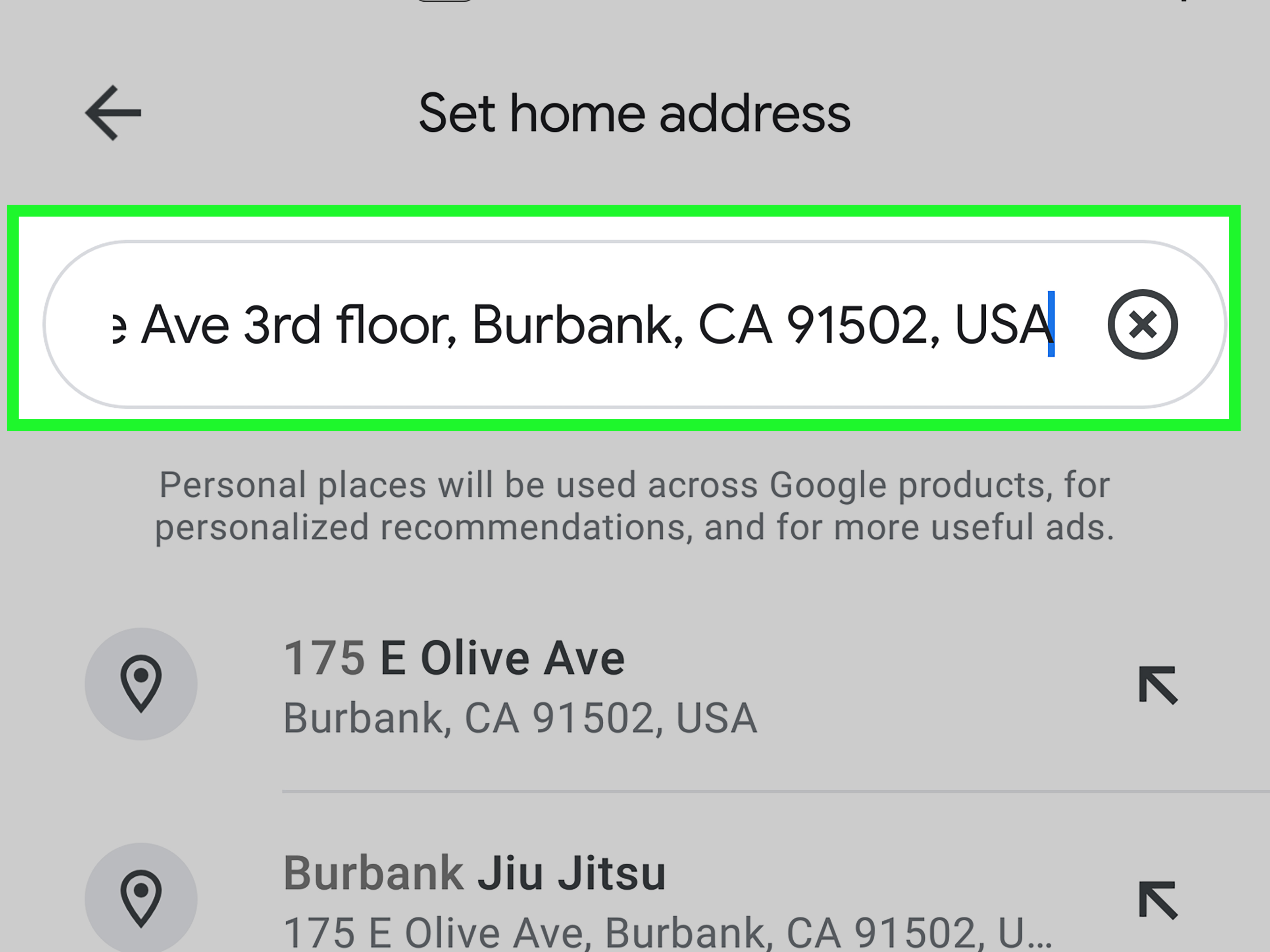
If you use Google Maps, it keeps its own Home and Work labels. Open Google Maps, tap your profile picture or initial, and make sure you are signed in to the correct Google Account. Go to your saved or labeled places, find Home, and edit the address.
You can also manage home and work addresses through your Google Account personal information. This is useful if Google Maps, Google Search, or other Google services keep suggesting the wrong home location.
Step 12: Change Home Address in Waze
If Waze is your daily navigation app, update it separately. Open Waze. Under the search bar, press and hold Home, then choose Edit home. Enter your new address and select the correct result.
If Waze still points to the wrong place, check that the selected result is accurate. Some addresses have similar names, duplicate entries, or map pins that need correction. Delete the old Home location if necessary and add the new one again.
What If Your iPhone Still Shows the Old Address?
If your iPhone keeps showing your old home address, do not panic. It does not mean your phone is haunted by your previous lease. It usually means one app or service is still storing old information.
Check for Duplicate Contact Cards
Open Contacts and search for your name. If you have multiple contact cards for yourself, one may contain your old address. Merge duplicates or delete outdated entries. Then confirm that the correct card is marked as My Card.
Restart Your iPhone
A restart can help apps refresh saved data. Press and hold the side button and volume button, power off your iPhone, wait a few seconds, and turn it back on. Then test Apple Maps, Siri, Safari AutoFill, and Apple Pay again.
Check Location Services
For maps and navigation accuracy, go to Settings, tap Privacy & Security, then tap Location Services. Make sure Location Services is on. For Maps, Google Maps, or Waze, choose a permission such as While Using the App. If available and appropriate, enable Precise Location for better navigation accuracy.
Clear or Update Saved Places
Apple Maps, Google Maps, and Waze may each store favorites, labels, recents, or saved places. Remove old home entries and keep only the current one. This reduces confusion when you type “home” or ask for directions.
Privacy Tips When Updating Your Home Address
Your home address is sensitive information. Keep it accurate, but do not share it more widely than necessary. Only store it in apps you actually use. Review which apps have location permission, especially apps set to Always. If an app does not need your exact location, consider turning off Precise Location for that app.
Apple provides controls for Location Services so users can decide which apps can access location data. You can also clear certain location history and saved map information if you want a cleaner privacy footprint. This is especially smart after moving, selling a phone, sharing a device with family, or switching from one navigation app to another.
Common Mistakes to Avoid
The most common mistake is updating Apple Maps but forgetting Contacts. Another is changing the address in Contacts but forgetting Safari AutoFill. Many users also overlook Apple Pay transaction defaults, which can keep an old shipping address during checkout.
Another sneaky problem is choosing the wrong search result when adding your address. Always check the city, ZIP code, and map pin. If you live on “Maple Street,” there may be another Maple Street nearby. Your iPhone is smart, but it is not a mind reader. It still occasionally needs adult supervision.
Practical Example: Moving to a New Apartment
Imagine you moved from Apartment 2B to a new place across town. You update your address in Contacts, but Apple Maps still sends you to the old apartment. That means Maps likely has a saved Home favorite that needs editing. Then you order a package and Apple Pay still shows the old shipping address. That means Wallet transaction defaults also need updating. Later, Google Maps continues predicting your commute from the old location. That means Google Maps has its own Home label.
The fix is not complicated; it is just spread across multiple apps. Update Contacts first, Apple Maps second, Safari AutoFill third, Wallet and Apple Account settings fourth, and third-party navigation apps last. Once all of them match, your iPhone should finally understand where you live. Congratulations: your phone has moved in too.
Extra Experience: What It Feels Like to Fix Your iPhone Home Address After Moving
Changing your home address on iPhone sounds like a tiny tech task, but in real life it usually happens during one of the busiest moments of your year. You have just moved. Your furniture is in the wrong rooms. Your Wi-Fi name still feels temporary. There is one mystery box labeled “important,” which somehow contains neither important things nor anything you need. Then, right when you are trying to get to work, your iPhone cheerfully offers directions from your old home.
The first experience many people have is with Apple Maps or Siri. You say, “Take me home,” and your iPhone picks the place you no longer live. It is a small problem, but it feels personal. The fastest fix is usually the Contacts app. Once you update My Card, Apple has the correct personal address. But the lesson is that your iPhone does not have one giant “home address” switch. It has several address-related systems that overlap.
The second common experience happens during online shopping. You are checking out quickly, using Safari AutoFill or Apple Pay, and suddenly the old address appears. This is where people often think, “But I already changed it!” And they probably did. They changed it in Contacts or Maps, but not in Wallet, Apple Pay, or Apple Account Payment & Shipping. That is why a complete address update should include both navigation and payment settings.
The third experience involves third-party apps. Google Maps and Waze are excellent tools, but they do not always copy Apple’s home address automatically. If you use Google Maps for commuting and Waze for traffic alerts, each app needs its own home update. This is especially important for people who drive daily, use CarPlay, or rely on commute predictions.
A helpful habit is to create a “moving checklist” for your phone. After updating your postal address with banks, utilities, subscriptions, and delivery services, spend five minutes checking iPhone Contacts, Apple Maps, Safari AutoFill, Apple Pay, Apple Account billing, Google Maps, and Waze. It is not glamorous, but it prevents wrong deliveries, bad directions, failed payments, and awkward texts from delivery drivers who are standing outside your former building.
Another real-world tip: always test the update. Open Maps and search “home.” Ask Siri for directions home. Start a checkout form in Safari and see what AutoFill suggests. Open Apple Pay settings and confirm the transaction default address. Open Google Maps and Waze to verify their Home labels. Testing takes less time than one wrong trip across town.
Finally, treat your home address as private information. Keep it correct where needed, but do not save it in every random app. Review location permissions once in a while. Your iPhone can be incredibly helpful when it knows where home is, but you should stay in charge of who gets that information. A correct home address should make life easier, not make your personal data wander around like a lost suitcase.
Conclusion
Changing your home address on iPhone is easy when you know where to look. The key is understanding that your iPhone may store address information in several places: Contacts, Apple Maps, Safari AutoFill, Wallet and Apple Pay, Apple Account billing, Google Maps, and Waze. Updating only one location may solve one problem, but updating all relevant places gives you the cleanest result.
Start with your My Card in Contacts, then update Apple Maps and refine the map pin. After that, check Safari AutoFill, Wallet transaction defaults, Apple Account Payment & Shipping, and any third-party navigation apps you use. Once everything matches, your iPhone can give better directions, fill forms accurately, and help prevent shipping or billing errors.
In short: your home may have changed, and your iPhone needs the memo. Give it the right address, test it once, and enjoy the small but satisfying victory of technology finally knowing where to send you.













