Whisper is one of those apps that sounds simple until you actually open it and realize, “Wait, am I posting a thought, joining a community, browsing nearby confessions, or accidentally becoming the main character in someone else’s comment section?” Relax. Whisper-style apps are built around anonymous posting, casual conversations, and discovery feeds where people share thoughts without the pressure of a polished public profile.
This guide explains how to use Whisper in 12 practical steps, from installing the app to posting your first message, chatting safely, managing privacy settings, and getting better at writing posts people actually want to read. Think of it as the friendly instruction manual the app forgot to include because, apparently, buttons are supposed to explain themselves now.
Note: App availability, names, and features may change by country, device, and app store. Some older versions of Whisper-style apps have had privacy and safety concerns, so this guide focuses on smart, responsible use: protect your identity, avoid oversharing, and treat anonymous spaces like public spaces with better costumes.
What Is Whisper?
Whisper is best understood as an anonymous social app where users can post short thoughts, confessions, jokes, questions, or observations. These posts are often paired with images, backgrounds, or visual templates, making them feel more like mini-posters than plain text updates. Depending on the current version available to you, Whisper may include global feeds, nearby posts, trending posts, direct messaging, comments, communities, group chats, video chat, or voice messaging.
The big appeal is low-pressure expression. You do not need to build a perfect profile, collect followers, stage a brunch photo under suspiciously perfect lighting, or pretend your Monday is “so blessed.” You can share a thought, browse what others are saying, and respond when something feels interesting. But anonymity is not a magic invisibility cloak. Your posts may still be public, searchable within the app, reported, saved by others, or connected to device and location data depending on permissions and policies.
How to Use Whisper: 12 Steps
Step 1: Download the Right Whisper App
Start by searching your device’s official app store for Whisper or Whisper Social. Read the app description carefully before installing. Because app names can be similar, check the developer name, screenshots, ratings, update history, and listed features. If the app promises anonymous posting, global or nearby feeds, direct messages, and community conversations, you are probably looking at the right type of app.
Avoid downloading unofficial APKs, random “modded” versions, or suspicious files from websites that look like they were designed during a power outage in 2008. Stick with the Apple App Store or Google Play whenever possible. This reduces the chance of malware, fake apps, or versions that quietly ask for every permission short of borrowing your toothbrush.
Step 2: Open the App and Review the Permissions
When you launch Whisper, it may request permissions such as notifications, camera access, microphone access, photo access, or location access. Do not tap “Allow” like you are swatting mosquitoes. Pause and ask: does the app really need this?
Location access may power nearby feeds, but it can also make your posts feel less anonymous than you expected. Camera and photo access may help you create image-based posts, but you can often choose limited access instead of handing over your entire photo library. Notifications are useful if you want alerts for messages and replies, but they are optional. A good rule: grant the minimum permission needed for the feature you actually plan to use.
Step 3: Create or Enter Your Anonymous Identity
Whisper-style apps usually reduce profile pressure by using anonymous or semi-anonymous identities. You may get a random username, nickname, or temporary identity. Some versions may let you customize a display name, avatar, or basic profile settings. Keep it simple. Do not use your real name, school name, workplace, address, phone number, or personal handle from other platforms.
The point of Whisper is casual expression, not building a detective trail back to your front door. If your username is “EmilyFromLincolnHighRoom204,” congratulations, you have invented the opposite of anonymity. Choose something general, playful, or completely unrelated to your real life.
Step 4: Explore the Main Feeds
Most Whisper-style apps include discovery feeds. You may see categories such as Global, Nearby, Trending, Popular, Latest, or Communities. Spend a few minutes browsing before posting. Notice what kinds of posts get responses. Some may be funny one-liners. Others may be questions, emotional reflections, opinions, or casual life updates.
Browsing first helps you understand the app’s culture. Every platform has its own rhythm. LinkedIn writes like it drinks productivity smoothies. TikTok moves at the speed of caffeine. Whisper tends to be more confessional and conversational. Before jumping in, learn what feels normal, what feels useful, and what feels like something you should scroll past with the grace of a ninja.
Step 5: Write Your First Whisper
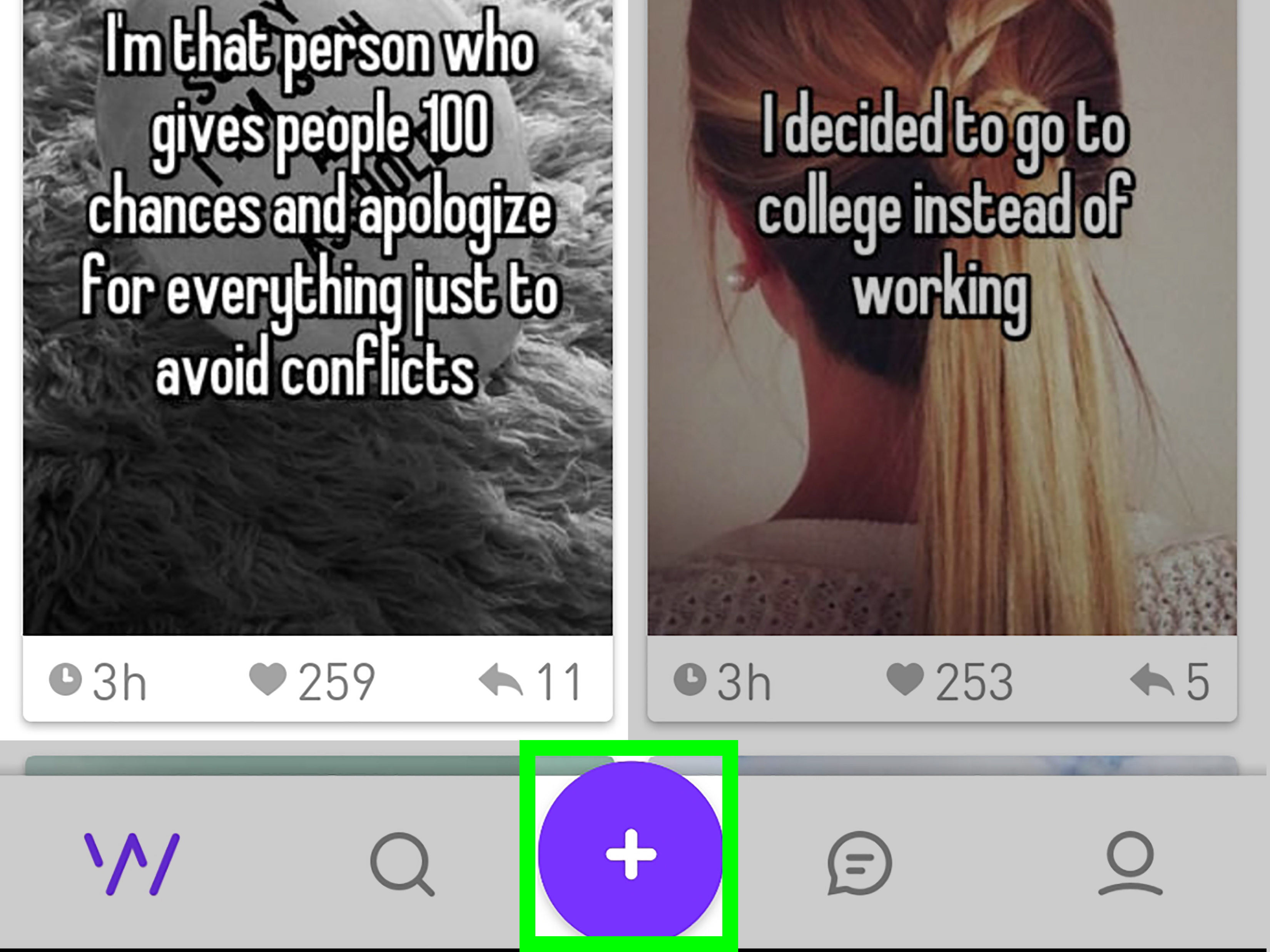
To create a post, look for a plus button, compose icon, “Post” button, or text box. Write a short thought that is clear and easy to understand. Whisper posts work best when they are direct. You do not need to write a novel. In fact, please do not. The app is not emotionally prepared for Chapter 17.
Good first-post ideas include a harmless opinion, a funny observation, a question for the community, or a general feeling. For example: “Why does cleaning my room feel like starting a small business?” or “What is one song you never skip?” These are safe, relatable, and easy for others to answer.
Avoid posting private information, accusations against identifiable people, threats, medical emergencies, legal confessions, school drama with names, or anything that could hurt you or someone else if screenshotted. Anonymous does not mean consequence-free.
Step 6: Choose a Background or Image
Many Whisper-style posts pair text with an image, color background, or visual template. Choose a background that matches the mood of your post without making it hard to read. If your text is serious, a calm image may work. If your post is funny, a bright or odd background can add personality.
Be careful with personal photos. Do not use images that reveal your face, license plate, school, house, street sign, uniform, family members, or location. A photo of your cat judging you from the couch is probably fine. A photo of your front porch with the address visible is not fine. The cat may be judgmental, but at least the cat respects privacy.
Step 7: Post to the Right Feed or Community
Some versions of Whisper allow you to post publicly, locally, or inside interest-based communities. Choose the right place for your message. A general joke may belong in the global feed. A hobby question may fit better in a community. A local question should be written carefully, without revealing your exact location or routine.
If the app has groups or communities, read the rules before posting. Communities often have different standards for acceptable topics, tone, and moderation. Posting a random shower thought in a serious support group is like bringing a kazoo to a library. Technically possible, socially questionable.
Step 8: Comment Thoughtfully
Comments are where the app starts feeling social. You can respond to other posts, answer questions, offer support, or add humor. The best comments are short, kind, and relevant. If someone shares something vulnerable, avoid sarcasm. If someone asks for opinions, answer honestly without turning the thread into a courtroom drama.
Anonymous platforms can make people bolder, which is not always a good thing. Do not use anonymity as permission to be cruel. A simple rule works well: if you would be embarrassed to see your comment printed on a giant billboard next to your school, job, or grandma’s favorite grocery store, rewrite it.
Step 9: Use Direct Messages Carefully
Whisper may include direct messaging, private replies, group chats, voice messages, video chat, or similar communication tools. These features can be fun, but they deserve extra caution. You are talking to strangers, and strangers are not automatically trustworthy just because they use friendly emojis.
Do not share your full name, exact age, phone number, home address, school, workplace, passwords, financial details, private photos, or daily schedule. Be especially careful if someone pressures you to move to another app, meet in person, send pictures, keep secrets, or prove who you are. Healthy conversations do not require pressure. If a message feels wrong, trust that feeling and use block or report tools.
Step 10: Manage Privacy, Location, and Notifications
After you understand the basics, open the settings area. Look for privacy controls, blocked users, notification preferences, location settings, account options, content filters, and reporting tools. Turn off anything you do not need. If you do not care about nearby posts, disable location access in your phone settings. If notifications become distracting, reduce them or turn them off.
Privacy is not a one-time setup. Review it occasionally, especially after app updates. Updates can add new features, adjust defaults, or request new permissions. Your phone settings are your seatbelt. Use them before the internet starts driving like it just learned what caffeine is.
Step 11: Block, Report, and Move On
Anonymous apps rely heavily on reporting and moderation. If someone harasses you, asks for personal information, posts harmful content, impersonates someone, or makes the app feel unsafe, block and report them. Do not argue for three hours trying to win the Nobel Prize in Comment Section Debate. You will not.
Blocking is not rude. It is digital housekeeping. Reporting helps moderators identify posts or users that break rules. Moving on protects your time, mood, and attention. The fastest way to improve your experience is to stop feeding conversations that clearly came from the basement of the internet.
Step 12: Use Whisper With Balance
Whisper can be entertaining, comforting, and surprisingly human. It can also become a rabbit hole of opinions, drama, confessions, and late-night scrolling. Set boundaries. Use the app when it adds something useful: a laugh, a conversation, a place to express a harmless thought, or a community around an interest. Step away when it makes you anxious, angry, distracted, or too invested in strangers’ chaos.
Healthy app use means you are in control. Whisper should be a tool, not your emotional weather system. If the feed starts affecting your day, take a break, mute notifications, or uninstall it for a while. The internet will survive without your immediate reaction to a stranger’s post about pineapple pizza.
Best Practices for Writing Better Whisper Posts
Make Your Post Clear
The strongest Whisper posts are easy to understand in one glance. Use simple language, one main idea, and enough context to make the post interesting. Instead of writing, “I can’t believe this happened again,” try, “I promised myself I would sleep early, and now I’m watching videos about raccoons at 1:12 a.m.” Specific beats vague almost every time.
Ask Questions People Can Answer
Questions invite replies. Try prompts such as “What is one small thing that instantly improves your day?” or “What is a harmless opinion you will defend forever?” These posts are easy to engage with because people do not need a philosophy degree or a dramatic backstory to respond.
Use Humor Without Being Mean
Funny posts often perform well, but humor works best when it does not punch down. Make fun of situations, habits, awkward moments, or universal struggles. Avoid targeting specific people, groups, classmates, coworkers, or anyone who could be identified. “My laundry has entered its fourth business quarter” is funny. “My coworker Sarah is the worst” is a problem with a first name.
Keep Sensitive Topics General
If you want to talk about something personal, remove identifying details. Share the feeling, not the dossier. For example, “I feel nervous about changing schools” is safer than naming your school, grade, neighborhood, teachers, and bus route. You can be honest without leaving breadcrumbs.
Common Mistakes to Avoid on Whisper
Assuming Anonymous Means Invisible
The biggest mistake is believing anonymity makes you impossible to identify. Apps may collect technical data. Other users can screenshot posts. Details in your writing can reveal more than you think. If you mention your city, school mascot, part-time job, and a very specific event, people may connect the dots faster than you expect.
Giving Strangers Too Much Trust
Most users may simply want conversation, but not everyone has good intentions. Keep boundaries firm. Be friendly, not careless. The internet is full of nice people, odd people, and people who type “just trust me” right before giving you a reason not to.
Posting When You Are Upset
Strong emotions can make posting feel urgent. Wait a few minutes before sharing anything intense. Ask yourself whether the post helps, harms, or exposes too much. Draft it, breathe, edit it, and then decide. The “post” button is easy to tap and much harder to untap once screenshots enter the chat.
Is Whisper Safe?
Whisper can be safe when used carefully, but it is not risk-free. Like any anonymous social app, it can expose users to rude comments, uncomfortable messages, misinformation, oversharing, privacy issues, or content that may not be appropriate for everyone. Safety depends on your settings, your boundaries, the app’s moderation, and how much personal information you reveal.
Use Whisper with the same mindset you would use in a large public place. You can talk, listen, laugh, and explore, but you should not hand your house keys to a stranger because they had a nice profile icon. Keep personal details private, use reporting tools, and step away from conversations that feel manipulative or unsafe.
of Practical Experience: What Using Whisper Feels Like in Real Life
Using Whisper for the first time feels a little like walking into a room where everyone is talking with the lights dimmed. You can hear emotions, jokes, worries, confessions, and random thoughts, but you do not always know who is speaking. That can be freeing. It can also be strange. The app creates a space where people may say things they would never post on a regular social profile. Sometimes that leads to honest conversations. Sometimes it leads to nonsense wearing sunglasses.
One of the best experiences with Whisper-style apps is the sense of low-pressure expression. You do not need a perfect profile picture. You do not need a follower count. You can post a simple thought and see whether anyone relates. For example, a post like “I miss the version of summer vacation I had as a kid” might attract thoughtful comments from people who feel the same. A joke like “My phone battery drops faster when I’m avoiding responsibilities” might get quick laughs. These small connections are the heart of the app.
The most useful lesson is that clear, relatable posts get better replies. Vague posts often disappear into the feed. Posts with a specific feeling, question, or funny detail invite conversation. If you want meaningful responses, write like you are talking to one real person, not shouting into a digital canyon. Ask questions. Add context. Keep it short enough to read quickly.
Another real-world lesson: privacy matters more than you think. It is easy to believe that because you did not use your real name, you are completely hidden. But identity can leak through details. Mentioning a small town, a school event, a job shift, or a unique personal situation can make you recognizable. The safest approach is to blur specifics. Share “I’m nervous about a big presentation” instead of naming the class, teacher, school, and time. You still get support without publishing a treasure map to your identity.
Direct messages are where caution becomes extra important. Some conversations may be friendly and harmless. Others may become pushy, weird, or too personal too quickly. A good boundary is to keep chats inside the app and avoid sharing private contact information. If someone pressures you, blocks are free. Use them like coupons.
Finally, the best way to enjoy Whisper is to treat it as a side dish, not the whole meal. Browse when you want a few laughs or a place to express a thought. Leave when the feed feels heavy, repetitive, or stressful. Anonymous apps can be interesting because they reveal what people think when they are not performing for their usual audience. But your attention is valuable. Spend it where you feel better, not where you feel drained.
Conclusion
Learning how to use Whisper is mostly about understanding three things: how to post, how to interact, and how to protect yourself. The app can be a fun place to share anonymous thoughts, browse global or nearby conversations, join communities, and connect with people around shared experiences. But smart use matters. Keep personal details private, control permissions, avoid risky conversations, and remember that anonymous does not mean invisible.
Used well, Whisper can feel like a digital bulletin board for honest, funny, and surprisingly relatable human moments. Used carelessly, it can become a privacy headache with push notifications. Choose wisely, post thoughtfully, and let your common sense be louder than the app’s most dramatic comment thread.