
Deleting a user on PS4 sounds like one of those tasks that should take five seconds and zero emotional damage. Then you open the Settings menu, see words like Initialization, Account Management, and Family Management, and suddenly your console feels like it wants a legal document signed in triplicate.
Good news: removing a PS4 user is usually simple once you know where to look. Whether you are cleaning up old profiles, removing a guest account, preparing the console for someone else, or clearing a profile from a used PlayStation 4, this guide explains the safest ways to do it without accidentally nuking the wrong data.
Before we begin, here is the most important thing to understand: deleting a user from a PS4 is not the same as permanently deleting a PlayStation Network account. A PS4 user is a local profile on the console. A PSN account is the online account connected to purchases, subscriptions, trophies, friends, wallet funds, and digital licenses. Removing the local profile takes it off that console; it does not automatically erase the PSN account from Sony’s system.
Before You Delete a PS4 User: What Actually Gets Removed?
When you delete a user profile from a PlayStation 4, the console removes data managed by that user on the system. That may include saved game data stored locally, screenshots, video clips, messages, profile-related settings, and access to content tied to that user’s account on that specific console. In plain English: if the profile has memories, saves, and embarrassing gameplay clips of missed open-goal shots, deleting it may remove them from the console.
This is why you should pause before tapping “Delete” like you are speed-running a menu. If the user belongs to you, back up anything important first. If the user belongs to someone else, ask before deleting it when possible. Saves can represent hundreds of hours of progress. Nobody wants to be the person who deleted a 98% completed RPG file five minutes before the final boss.
Quick Checklist Before Removing a User
- Back up saved game data to PlayStation Plus online storage if available.
- Copy important saves to a USB storage device when supported.
- Upload or transfer screenshots and video clips you want to keep.
- Sync trophies with PlayStation Network before making major changes.
- Deactivate the PS4 as your primary console if you are selling or giving it away.
- Make sure you are deleting the correct user profile, not your main account by accident.
Once the boring-but-important safety part is handled, you can choose one of the three easy methods below.
Method 1: Delete a PS4 User Through Login Settings
This is the most common and beginner-friendly way to delete a user on PS4. It is ideal when you want to remove one local profile while keeping the rest of the console intact. For example, use this method if your cousin made a profile during Thanksgiving, played two rounds of FIFA, and has not returned since.
Steps to Delete a User from Login Settings
- Turn on your PS4 and log in with a user that has access to Settings.
- From the home screen, go to Settings.
- Scroll down and select Login Settings.
- Choose User Management.
- Select Delete User.
- Choose the user profile you want to remove.
- Read the warning message carefully.
- Select Delete or Yes to confirm.
- Wait for the PS4 to finish removing the profile.
That is it. The selected profile should disappear from the login screen. Your other users, installed games, and console settings should remain in place unless they are specifically tied to the deleted user.
When Should You Use This Method?
Use the Login Settings method when you only want to remove one profile. It is the cleanest choice for everyday account cleanup. It does not fully reset the PS4, so it is not the best option if you are selling the console, trading it in, or handing it to a stranger who should not have access to your data.
Think of Method 1 like removing one name from a mailbox. The house is still there, the furniture is still there, and everyone else still gets their mail. You are just removing one user from the front door.
Method 2: Delete a User Through the Initialization Menu
Some PS4 menus and older user-guide paths refer to deleting users through the Initialization area. Do not panic when you see the word “Initialization.” In this case, you are not necessarily factory resetting the console. You are looking for the specific Delete User option.
This method is useful if you cannot find User Management through Login Settings, or if your PS4 system menu layout points you toward Initialization instead. The final result is similar: you remove a selected local user from the PS4.
Steps to Delete a User from Initialization
- From the PS4 home screen, open Settings.
- Scroll down and select Initialization.
- Choose Delete User.
- Select the user profile you want to delete.
- Review the on-screen warning.
- Confirm the deletion.
- Let the PS4 complete the process without turning off the console.
The warning matters. Interrupting deletion or initialization-related processes can cause issues, especially if the console is writing or removing data. Let the system finish. This is not the moment to test whether your power strip still “mostly works.”
Login Settings vs. Initialization: What Is the Difference?
For most users, the difference is simply the menu path. Both routes can lead to deleting a selected PS4 user. If your console shows Settings > Login Settings > User Management > Delete User, use that. If your PS4 shows Settings > Initialization > Delete User, that works too.
The key is to choose Delete User, not Initialize PS4, unless you intentionally want to erase the entire console. One removes a profile. The other is a digital bulldozer wearing a hard hat.
Method 3: Initialize the PS4 to Remove All Users
The third method is the big one: initializing the PS4. This removes all users and restores the console to factory settings. Use this method only when you want to wipe the whole system, such as before selling, donating, recycling, trading in, or giving away the console.
Initializing a PS4 deletes settings and information saved on the console. A full initialization is not something you casually click because you are bored on a Tuesday. It is a serious reset that should be done after backups are complete.
Steps to Initialize a PS4 from Settings
- Log in to your main PS4 user profile.
- Go to Settings.
- Select Account Management.
- Choose Activate as Your Primary PS4.
- If the console is activated, select Deactivate.
- Return to Settings.
- Select Initialization.
- Choose Initialize PS4.
- Select Full for a more complete wipe.
- Follow the on-screen instructions and keep the console powered on until the process finishes.
A Full initialization can take a while, but it is the better choice when you are passing the console to someone else. A quick reset may be faster, but when personal data is involved, speed is not always your friend. It is like washing one plate versus deep-cleaning the entire kitchen before moving out.
When Should You Initialize Instead of Deleting One User?
Initialize the PS4 if you want to remove every user profile, all local saves, downloaded games, screenshots, video clips, account traces, and settings from the console. This is the right method when the PS4 is leaving your hands permanently.
If you are only removing your brother’s forgotten profile or a guest account, do not initialize the console. Use Method 1 or Method 2 instead. Factory resetting for one unused profile is like burning down a closet because one sock is missing.
How to Back Up PS4 Data Before Deleting a User
Backing up data is the step everyone wants to skip until they realize their favorite save file is gone. Fortunately, PS4 gives you a few practical options.
Use PlayStation Plus Online Storage
If you have PlayStation Plus, you can upload saved data to online storage. On PS4, go to Settings > Application Saved Data Management > Saved Data in System Storage > Upload to Online Storage. Pick the game, choose the save file, and upload it.
This is especially useful if you plan to sign in on another PS4 or PS5 later. Your save data can follow you instead of being trapped on the old console like a digital houseplant nobody watered.
Use a USB Drive
You can also use a USB storage device for certain PS4 saved data. The usual route is Settings > Application Saved Data Management > Saved Data in System Storage > Copy to USB Storage Device. Select the game saves you want to preserve and copy them over.
For a broader backup, PS4 also has a full Backup and Restore option under Settings > System > Back Up and Restore. This can include games, apps, saved data, screenshots, video clips, and settings, depending on what you choose.
Sync Trophies
Trophies are usually tied to your PSN account, but you should still sync them before major changes. From the trophy screen, press the Options button and select Sync Trophies With PSN. It takes only a moment and prevents unnecessary trophy drama, which is the most gamer-specific kind of drama there is.
Does Deleting a PS4 User Delete the PSN Account?
No. Deleting a user from a PS4 does not permanently close the connected PlayStation Network account. It only removes that local user profile from the console. The PSN account can still exist, and the owner may be able to sign in again on another console or re-add the account later.
To permanently close a PlayStation account, the account owner must follow Sony’s account closure process. That is separate from deleting a local profile on the PS4. Closing a PSN account is much more serious because it can affect purchases, subscriptions, wallet funds, online ID access, and account data. Do not confuse the two unless you enjoy turning a small cleanup task into a customer support adventure.
What Happens to Games After You Delete a PS4 User?
Installed games may still appear on the console, but access depends on licenses. If the deleted user owned a digital game and no other account on the console has rights to it, other users may not be able to play that game. If another user owns the game or has valid access through their own account, it may still work.
Disc-based games are different because the physical disc acts as the license. However, saved data is usually tied to the user who created it. That means another user may be able to launch the game, but they will not magically inherit the deleted user’s progress. Your Level 87 warrior does not transfer by vibes.
Common Mistakes to Avoid
Deleting the Wrong Profile
Always double-check the user name before confirming. If multiple profiles have similar names, slow down. The PS4 will not understand “Oops, I meant the other one” after deletion.
Forgetting to Back Up Saves
Saved game data is often the most valuable thing on the console. Games can be reinstalled. Screenshots may be replaceable. But a 200-hour save file? That is a tiny digital monument to your patience.
Initializing the PS4 When You Only Needed Delete User
If you only want to remove one user, do not choose Initialize PS4. Initializing wipes the whole console. Choose Delete User instead.
Not Deactivating the Primary PS4 Before Selling
If you are preparing the console for resale, deactivate it as your primary PS4 first. This helps prevent account access and license headaches later, especially when you move to another PlayStation console.
Troubleshooting: What If You Cannot Delete a PS4 User?
If the Delete User option is missing or grayed out, restart the PS4 and check again. Make sure you are signed into a profile that can access system settings. If the console is acting strangely, update the PS4 system software, then try again.
If you bought a used PS4 and cannot access the previous owner’s profile, a full initialization may be the cleanest solution. This removes all previous users and prepares the console for a fresh setup. Just remember that this also erases all data on the system, so only do it if you are ready to start from scratch.
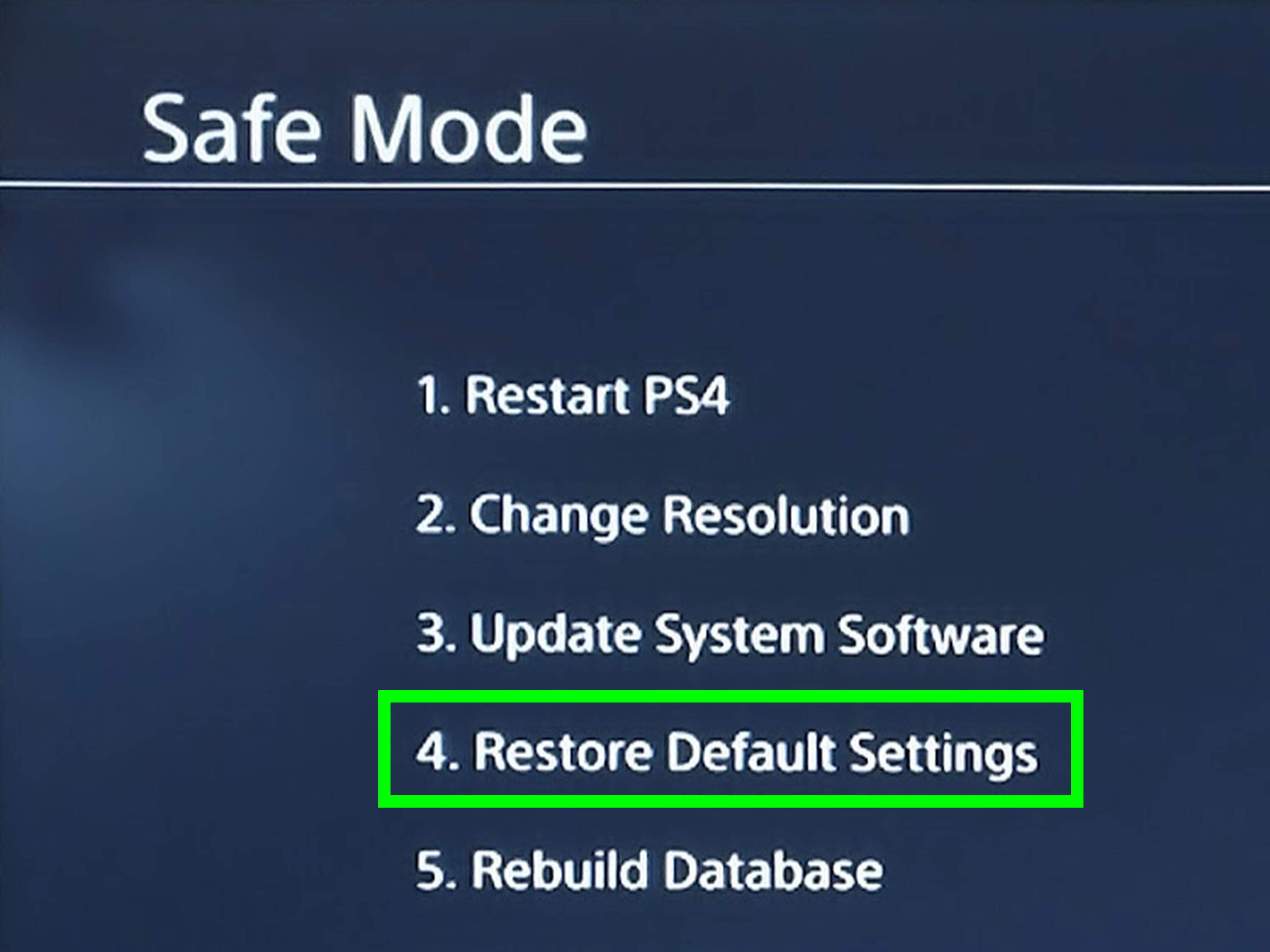
If the system is corrupted or will not boot normally, you may need Safe Mode. Turn the console completely off, hold the power button until you hear the second beep, connect the controller with a USB cable, and choose the appropriate reset or initialization option. Safe Mode is useful, but it is also where “be careful” goes from friendly advice to survival strategy.
Real-World Experience: What Deleting a PS4 User Feels Like in Practice
In real life, deleting a PS4 user is usually less dramatic than it sounds, but the context matters. The easiest situation is removing a temporary profile. Maybe a friend visited, created a user, played a few matches, and left behind a profile named “Player 2” like a tiny digital footprint. In that case, Method 1 is perfect. You go to Login Settings, select User Management, delete the profile, and the login screen becomes clean again. No confetti, no fireworks, just a tidier console.
The more stressful situation is deleting a profile that has actually been used. This is where many people hesitate, and they should. If the user has game saves, screenshots, videos, or downloaded content connected to the profile, deletion can matter. A parent cleaning up a family PS4, for example, should check whether a child’s Minecraft world, sports career mode, or RPG save is tied to the profile. The menu makes deletion look simple, but the emotional value of a save file is not always obvious from the outside. To the console, it is just data. To the player, it might be three summers of progress and one legendary house made entirely of diamond blocks.
Another common experience involves selling a PS4. Many owners think deleting their main user is enough, but that is not the best approach when the console is leaving the household. A factory reset through Initialize PS4 > Full is more appropriate because it removes all local users and personal data. Before doing that, the smart move is to back up saves, upload what matters, sync trophies, deactivate the primary PS4 setting, and then initialize. It takes longer, but it gives peace of mind. When someone else powers on the console, they should see a fresh setup screen, not your old profile waiting there like a forgotten toothbrush in a hotel bathroom.
Used consoles create their own little comedy. Sometimes a buyer turns on a secondhand PS4 and finds three mystery profiles, two half-installed games, and a username that clearly came from someone’s middle-school era. If you do not know the previous owner and do not need anything on the system, initialization is usually the cleanest path. It removes confusion and gives you a fresh start. You get to build the console around your own account instead of inheriting someone else’s digital attic.
The best practical lesson is this: decide whether you are cleaning up one profile or wiping the whole machine. That one decision tells you which method to use. For one user, choose Delete User. For resale, donation, or a used-console reset, choose full initialization. And before any deletion, back up the data you care about. It is not glamorous, but neither is replaying the first 40 hours of a game because you were too impatient to copy a save file.
Final Thoughts
Learning how to delete a user on PS4 is mostly about choosing the right level of cleanup. For a single unwanted profile, use Settings > Login Settings > User Management > Delete User. If your console presents the option through Initialization, use Settings > Initialization > Delete User. If you are selling, donating, or completely resetting the console, back up your data, deactivate the primary PS4, and use Initialize PS4 > Full.
The process is easy, but the consequences can be real. Delete carefully, back up first, and do not confuse removing a local PS4 user with permanently closing a PlayStation Network account. Your future self, your save files, and possibly your entire household will thank you.














