
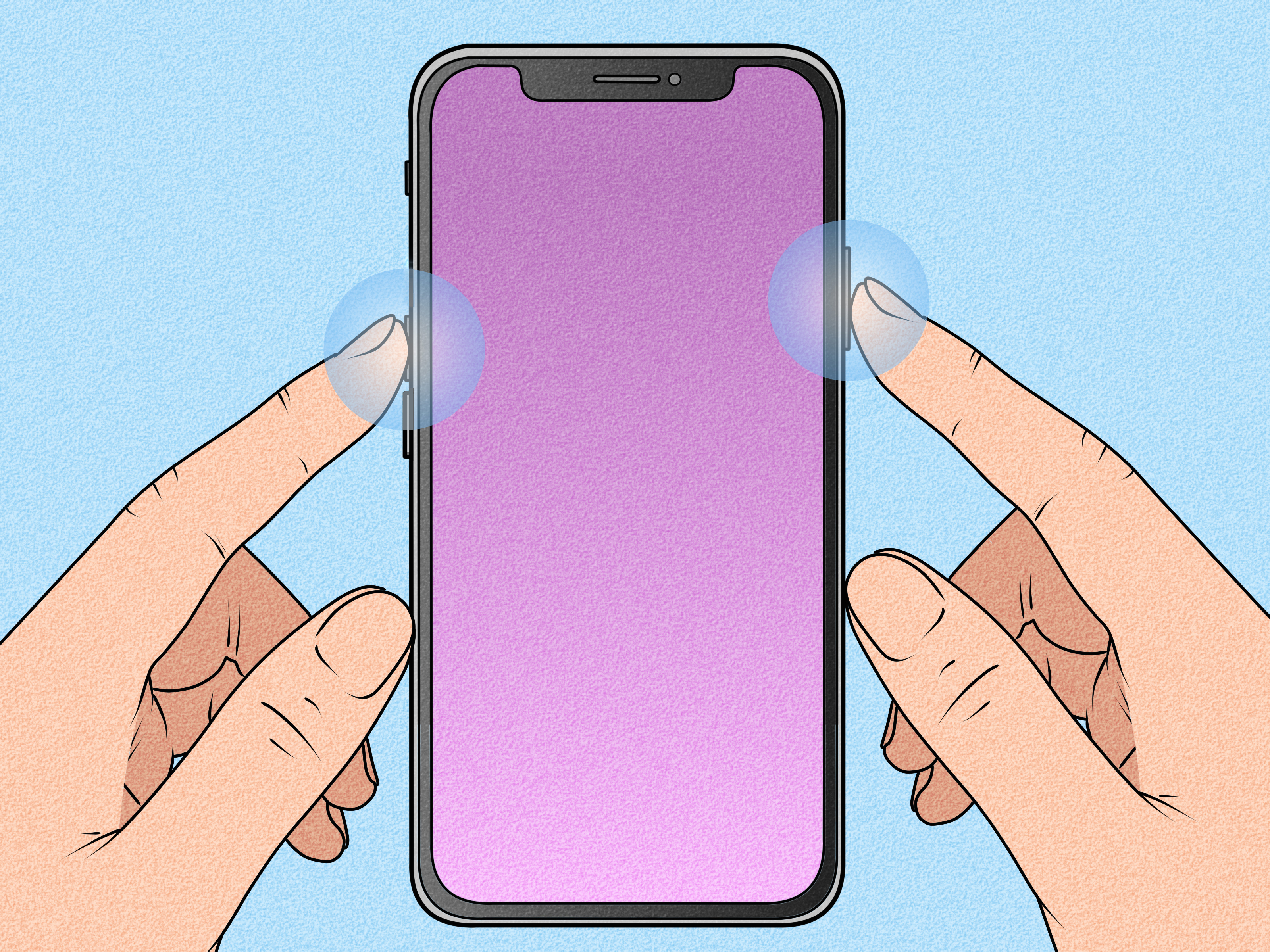
FaceTime has a talent for catching the best moments: your friend’s dramatic reaction, your grandma waving too close to the camera, or your dog wandering into frame like it owns the meeting. So when you tap the FaceTime Live Photo button and the picture never appears in Photos, it feels like your iPhone just ate your memory and left no crumbs.
The good news? FaceTime photos not saving is usually caused by a setting, permission, storage issue, software glitch, or iCloud Photos delaynot by your phone developing a personal grudge against your family calls. In most cases, you can fix it in a few minutes without resetting your entire digital life.
This guide walks you through seven easy tricks to fix FaceTime Photos not saving on iPhone, iPad, and Mac. We’ll cover the obvious switches, the sneaky settings, where the photos actually go, and what to do when FaceTime says the photo was taken but your Camera Roll looks emptier than a group chat after someone says, “Can we talk?”
Why Are FaceTime Photos Not Saving?
FaceTime Live Photos work differently from regular screenshots. When you take one, FaceTime captures a brief Live Photo moment from the video call and saves it to the Photos app. Apple also notifies both people that a Live Photo was taken, which is a privacy feature, not a bug.
If the photo does not save, one of these issues is usually responsible:
- FaceTime Live Photos is turned off on your device or the other person’s device.
- The call needs to be restarted after changing the setting.
- Your iPhone or iPad is low on storage.
- The Photos app is syncing slowly with iCloud Photos.
- You are looking in the wrong album or filter view.
- Screen Time, privacy restrictions, or device management settings are blocking features.
- Your iOS, iPadOS, or macOS version has a temporary bug.
Now let’s fix it without yelling at your phone. It can hear you, but it will not apologize.
1. Make Sure FaceTime Live Photos Is Turned On
The first fix is the classic “check the switch” move. It sounds too simple, but FaceTime Live Photos must be enabled before FaceTime can save photos from calls.
On iPhone or iPad
- Open Settings.
- Scroll to Apps, then tap FaceTime.
- Turn on FaceTime Live Photos.
On some older iOS versions, FaceTime may appear directly in Settings rather than under Apps. Either way, the goal is the same: find FaceTime settings and enable Live Photos.
On Mac
- Open the FaceTime app.
- Click FaceTime in the menu bar.
- Select Settings.
- Check FaceTime Live Photos.
Important detail: on Mac, Apple notes that the Photos app should have been opened at least once so FaceTime Live Photos can automatically save to the Photos library. If you just bought a new Mac and never launched Photos, open it once, let it set up the library, then try FaceTime again.
2. Ask the Other Person to Enable FaceTime Live Photos Too
This is the part people miss most often. FaceTime Live Photos is not only your setting. The other person also needs to allow it. If their FaceTime Live Photos option is off, your device may show an error such as “FaceTime photos must be enabled on both devices.”
Send them these quick steps:
- Open Settings.
- Go to Apps > FaceTime.
- Turn on FaceTime Live Photos.
- End the current FaceTime call.
- Start a fresh FaceTime call and test again.
That last step matters. Turning the setting on during a call may not always make it work immediately. Ending the call and starting a new one gives both devices a clean handshake. Think of it like restarting a conversation after someone accidentally joins with their microphone muted for eight minutes.
3. Check the Photos App in the Right Place
Sometimes FaceTime photos are saving just fine, but the Photos app makes you play hide-and-seek. The photo may not appear exactly where you expect, especially if your library is sorted, filtered, or synced across devices.
Try these places:
- Photos > Library and scroll to the most recent items.
- Albums > Live Photos.
- Albums > Recently Saved, if available on your iOS version.
- Use the Search tab and search for the date of the FaceTime call.
If you use iCloud Photos, the image may appear on one Apple device before another. For example, it may show on your iPhone but take longer to appear on your iPad or Mac. That is not always a saving problem. Sometimes it is a syncing delay wearing a tiny fake mustache.
4. Free Up Storage on Your iPhone, iPad, or Mac
FaceTime cannot save new photos reliably if your device is almost full. iPhones are smart, but they are not magicians. If storage is packed with videos, apps, message attachments, and 47 nearly identical pictures of your lunch, saving can fail or lag.
Check iPhone or iPad storage
- Open Settings.
- Tap General.
- Tap iPhone Storage or iPad Storage.
- Review Apple’s storage recommendations.
Easy ways to free space include deleting large videos, removing downloaded movies, clearing old message attachments, offloading unused apps, and emptying the Recently Deleted album in Photos. Be careful: if iCloud Photos is turned on, deleting a photo from one device can delete it from iCloud and other synced devices too.
Use Optimize iPhone Storage
If iCloud Photos is enabled, go to Settings > [your name] > iCloud > Photos and consider turning on Optimize iPhone Storage. This keeps smaller versions on your device while full-resolution originals stay in iCloud. It is not a cure for every FaceTime issue, but it can help if your device is constantly low on space.
5. Restart FaceTime and Restart Your Device
Restarting sounds boring because it is boring. It is also weirdly effective. Temporary bugs can affect FaceTime, Photos, camera access, iCloud syncing, or the connection between apps. A restart clears temporary processes and gives the system a fresh start.
Try this quick reset routine
- End the FaceTime call.
- Close the FaceTime app.
- Restart your iPhone, iPad, or Mac.
- Ask the other person to restart too if the problem continues.
- Start a new FaceTime call and take a test Live Photo.
If you are on iPhone, you can also temporarily turn FaceTime off and on again:
- Open Settings.
- Go to Apps > FaceTime.
- Turn FaceTime off.
- Wait about 30 seconds.
- Turn FaceTime back on.
This refreshes FaceTime activation and can solve small account or settings glitches. It is the digital version of taking a deep breath before replying to a confusing text.
6. Update iOS, iPadOS, or macOS
FaceTime and Photos are both system apps, which means fixes often arrive through software updates. If your FaceTime photos stopped saving after an update, there may be a follow-up update that fixes the issue. If you have not updated in a long time, your device may be missing compatibility improvements or bug fixes.
Update iPhone or iPad
- Back up your device.
- Connect to Wi-Fi.
- Plug into power.
- Open Settings > General > Software Update.
- Install any available update.
Update Mac
- Open System Settings.
- Go to General > Software Update.
- Install the latest available macOS update.
After updating, restart the device and test FaceTime Live Photos again. Also make sure the person you are calling is using a supported and updated Apple device. Older versions of iOS may not support all FaceTime Live Photo features.
7. Check Restrictions, iCloud Photos, and Privacy Settings
If the basic fixes do not work, it is time to inspect the sneaky settings. These are less common, but they can absolutely cause FaceTime photos not saving or not appearing where expected.
Check Screen Time restrictions
Screen Time can limit apps, privacy settings, camera access, and account changes. If this is a child device, school device, work device, or shared family device, restrictions may be blocking FaceTime or Photos behavior.
- Open Settings.
- Tap Screen Time.
- Tap Content & Privacy Restrictions.
- Review restrictions for apps, account changes, camera access, and privacy settings.
If a parent, school, or company manages the device, you may not be able to change these settings yourself.
Check iCloud Photos status
Open the Photos app and scroll to the bottom of the Library view. If iCloud Photos is syncing, paused, or waiting for Wi-Fi, you may see a status message. If syncing is paused because of low battery, low storage, or network problems, charge the device, connect to Wi-Fi, and leave Photos open for a while.
Check your network connection
A weak network usually affects the call quality more than saving itself, but iCloud Photos syncing depends on a stable connection. If the Live Photo saves locally but does not appear on other devices, Wi-Fi may be the missing piece.
What If FaceTime Says the Photo Was Taken but It Still Does Not Save?
If FaceTime displays a confirmation but the photo never appears, try this order:
- Check Albums > Live Photos.
- Check Library by date.
- Restart your device.
- Verify FaceTime Live Photos is on for both people.
- Free at least a few gigabytes of storage.
- Update iOS, iPadOS, or macOS.
- Test with a different contact.
Testing with a different contact is helpful because the issue may be on the other person’s device. If FaceTime Live Photos works with one person but not another, your iPhone is probably not the villain. The other caller’s settings, software version, or device restrictions are likely involved.
Can You Recover FaceTime Photos That Did Not Save?
Usually, no. If FaceTime never saved the Live Photo to Photos, there may not be a file to recover. Check Recently Deleted, Live Photos, and your full Library first, but if the image was never written to the Photos library, recovery tools are unlikely to help.
For future calls, take one test FaceTime Live Photo at the beginning. Confirm that it appears in Photos before relying on the feature for a special moment. This tiny test can save you from the heartbreak of missing the perfect screenshot of your cousin wearing a birthday hat against their will.
Extra Experience: Real-World Tips for FaceTime Photos That Actually Save
After dealing with FaceTime photos not saving across iPhones, iPads, and Macs, one pattern becomes clear: the problem is rarely dramatic. It is usually a small mismatch. One person has FaceTime Live Photos turned off. One device has not been restarted since dinosaurs roamed the App Store. One phone has 200 MB of free space and is bravely pretending everything is fine.
The best experience-based trick is to create a “before the call” routine if the moment matters. For example, if you are calling family during a graduation, birthday, long-distance holiday, or first baby wave, test FaceTime Live Photos before the main event. Start the call, take one quick Live Photo, open Photos, and confirm it saved. It feels silly for ten seconds. It feels genius later.
Another practical habit is asking the other person to check their FaceTime setting before the call begins. This matters because many users assume your setting controls everything. It does not. FaceTime Live Photos is a two-person permission feature. If they do not allow Live Photos, your phone cannot magically override that. Nor should it. Privacy wins, even when your aunt’s cat is doing something historic in the background.
Storage is another real-world troublemaker. People often blame FaceTime when the true problem is a nearly full phone. If your iPhone constantly says Storage Almost Full, FaceTime Live Photos may fail, Photos may sync slowly, and updates may refuse to install. Keeping several gigabytes free makes your phone behave better overall. Think of free storage as elbow room. Without it, iOS has to squeeze every task through a tiny hallway while carrying groceries.
For Mac users, the Photos app setup step is surprisingly important. If you are using FaceTime on a new Mac, open Photos at least once before expecting FaceTime Live Photos to save properly. Let the library initialize. This is easy to forget because the camera works, FaceTime works, and everything looks ready. But saving a Live Photo needs a Photos library destination.
One more lesson: do not rely on iCloud syncing as proof that the photo saved. If you take a FaceTime Live Photo on your iPhone, check the iPhone Photos app first. Waiting for it to appear on your Mac or iPad can confuse the issue because iCloud Photos may pause for Wi-Fi, battery, storage, or server conditions. Local saving and cloud syncing are related, but they are not the same thing.
If FaceTime photos still refuse to save after all seven tricks, test with another Apple device or another caller. This separates your device problem from a contact-specific problem. If it works with someone else, your settings are probably fine. If it fails with everyone, the issue is likely your device, storage, software, or restrictions.
And finally, for once-in-a-lifetime calls, use a backup method. Ask permission and take a regular screenshot if appropriate, or record the moment another way if everyone agrees. FaceTime Live Photos is convenient, but important memories deserve a backup plan. Technology is wonderful, but it also occasionally behaves like it needs coffee.
Conclusion
FaceTime photos not saving can be annoying, especially when the moment is funny, sweet, or impossible to recreate. Fortunately, the fix is usually simple: enable FaceTime Live Photos on both devices, restart the call, check the right Photos album, free up storage, update your software, and inspect restrictions or iCloud Photos status.
The most important takeaway is that FaceTime Live Photos depends on permission from both sides of the call. If one person has the setting off, the feature may fail even if your iPhone is perfectly configured. Start with the simple settings first, then move through storage, updates, and syncing. With a little troubleshooting, your FaceTime memories should start saving againno detective hat required.














