
Note: This guide is for converting unprotected DVDs, home movies, self-authored discs, training videos, and other media you own or have permission to digitize. HandBrake is a video transcoder, not a tool for bypassing copy protection. U.S. anti-circumvention rules can restrict decrypting protected commercial DVDs, so keep your movie-night heroics legal and boringthe best kind of legal.
DVDs are charming in the same way flip phones are charming: nostalgic, sturdy, and slightly offended by modern life. But if you want to watch an old family DVD on your laptop, phone, tablet, smart TV, media server, or external hard drive, you need to turn that shiny little disc into a modern video file. That is where HandBrake comes in.
HandBrake is a free, open-source video transcoder available for Windows, macOS, and Linux. Its main job is to convert video from supported sources into modern formats such as MP4, MKV, and WebM, using widely supported codecs for playback across phones, tablets, computers, TVs, game consoles, and web browsers.
In this how-to guide, you will learn how to use HandBrake to rip a DVD safely, choose the right title, select a preset, adjust quality settings, keep subtitles and chapters, avoid common mistakes, and create a clean digital file without needing a degree in “Why Is This Dropdown So Scary?”
What Does It Mean to Rip a DVD with HandBrake?
To “rip a DVD” usually means copying or converting the video content from a DVD into a digital file. In HandBrake, the more accurate word is transcode. HandBrake scans the disc, reads the video source, and creates a new file in a format like MP4, MKV, or WebM. It does not edit the original DVD. Your disc remains exactly as dramatic and circular as before.
HandBrake can open many common media sources, including video files and some DVD or Blu-ray-style sources, but it is designed for supported, accessible videonot for defeating copy protection. HandBrake documentation notes that copy-protected VIDEO_TS and BDMV folders cannot simply be copied directly without additional special software, and U.S. law generally prohibits circumventing technological protection measures without authorization.
Before You Start: What You Need
1. A DVD Drive
Many modern laptops have decided that DVD drives are ancient fossils, right up there with headphone jacks and patience. If your computer does not have a built-in DVD drive, use an external USB DVD drive. For home-recorded discs, make sure the disc plays normally before trying to convert it.
2. The Official HandBrake App
Download HandBrake only from the official HandBrake website. The project’s documentation states that the HandBrake website is the only official download source, and the current download page lists HandBrake 1.11.1 for Windows, macOS, and other platforms.
3. Enough Storage Space
A DVD conversion may produce a file anywhere from a few hundred megabytes to several gigabytes, depending on the preset, video length, quality setting, audio tracks, and subtitles. If you are converting a whole stack of discs, your hard drive may start wheezing like it just ran a marathon in jeans.
4. A Legal Source
Use HandBrake for discs you created, discs that are not encrypted, public-domain materials, business training discs you are allowed to archive, school projects, or content where you have clear permission. Commercial DVDs often include copy protection, and this guide does not provide steps for bypassing DRM.
Step-by-Step: How to Use HandBrake to Rip a DVD
Step 1: Install HandBrake
Go to the official HandBrake download page, choose the correct version for your operating system, and install it like any other application. Windows users should choose the Windows installer for their CPU type, while Mac users can download the universal macOS build. HandBrake is multi-platform and free, which is lovely because video software often behaves like it charges rent.
Step 2: Insert Your DVD
Place the DVD into your computer’s DVD drive. Wait a few seconds for the system to recognize it. If a media player opens automatically, close it. HandBrake needs access to the disc, and your DVD player app does not need to hover in the background like an anxious raccoon.
Step 3: Open the DVD Source in HandBrake
Launch HandBrake and click Open Source. Select your DVD drive or the DVD folder if you copied an unprotected VIDEO_TS folder from a disc you own or created. HandBrake will scan the source, detect titles, and prepare it for encoding. The official workflow begins by opening a video source after installation, then selecting what you want to encode.
Scanning may take a few moments. Long discs, older discs, scratched discs, or poorly authored home DVDs may take longer. If HandBrake seems to pause, do not immediately assume it has joined a monastery. Give it time.
Step 4: Choose the Correct Title
DVDs can contain several titles. A title may be the main movie, an episode, a bonus feature, a menu loop, or that mysterious 13-second clip nobody asked for. HandBrake explains that DVDs and Blu-ray discs can be divided into titles and chapters; usually, a title is a whole feature or episode, while chapters divide that title into sections.
For a movie, choose the longest title in most cases. For a TV DVD, choose the title that matches each episode length. For example, if a disc has four 23-minute titles, those are probably four sitcom episodes. If one title is 8 seconds long, it is probably not the emotional finale unless the writers made a very bold choice.
Step 5: Pick a Preset
HandBrake presets are ready-made groups of settings that help you avoid hand-tuning every encoder option. Official presets are designed for general use, specific devices, web playback, and other workflows; some presets also limit resolution or frame rate to improve compatibility.
For most DVD ripping projects, start with one of these:
- Fast 480p30: A practical choice for NTSC DVDs in the U.S.
- Fast 576p25: A practical choice for PAL DVDs used in many other regions.
- HQ 480p30 Surround: Better quality for U.S. DVDs when file size is less important.
- Super HQ 480p30 Surround: Higher quality, slower encoding, larger files.
If you are unsure, choose Fast 480p30 or HQ 480p30 Surround for a standard U.S. DVD. You can always test a short chapter before committing to a full two-hour encode.
Step 6: Choose MP4 or MKV
HandBrake creates widely supported container formats including MP4, MKV, and WebM. A container is the wrapper that holds the video, audio, subtitles, chapters, and related data. Think of it as the lunchbox; the codec is the sandwich.
MP4 is usually the best choice if you want broad compatibility with phones, tablets, smart TVs, and web uploads. MKV is excellent if you want more flexibility with multiple audio tracks, subtitle tracks, and archival-style organization. WebM is useful for web-focused workflows but is less common for DVD archiving.
Step 7: Select the Video Codec
For beginners, H.264 is the safest codec choice because it balances quality, file size, encoding speed, and playback compatibility. HandBrake documentation describes H.264 as widely supported by media players, including mobile devices, and notes that it provides strong quality, performance, and file size results.
H.265, also called HEVC, can create smaller files at similar quality, but it may encode more slowly and may not play on every older device. AV1 can be efficient but is often slower and better suited for users who enjoy watching progress bars as a lifestyle choice.
Step 8: Adjust Quality Without Losing Your Mind
Most official HandBrake presets use constant quality encoding. HandBrake recommends constant quality unless you have a specific reason not to use it. With common encoders like x264, x265, and SVT-AV1, lower RF values generally mean higher quality and larger files, while higher RF values mean lower quality and smaller files.
For DVDs, a reasonable starting point is often around RF 18–22 for H.264. If the video is precioussay, a family wedding, baby footage, or the only known recording of Uncle Dave doing karaoke in a pirate hatlean toward higher quality. If it is a casual training disc or a video you only need for reference, you can accept a slightly smaller file.
Step 9: Check Audio Tracks
Open the Audio tab and confirm the track you want is selected. DVDs may include stereo, surround sound, commentary tracks, or alternate languages. HandBrake can automatically choose audio tracks based on rules, but those rules depend on the source, so always check before encoding. Its documentation explains that audio and subtitle tracks vary by source, so HandBrake stores selection behavior rather than fixed tracks inside presets.
For a simple MP4, AAC stereo is widely compatible. If you want surround sound, choose an appropriate surround option or passthrough when supported. If you accidentally encode the director’s commentary instead of the movie audio, congratulations: you have created a very educational but possibly annoying file.
Step 10: Add Subtitles If Needed
Open the Subtitles tab. HandBrake can read subtitles from DVDs, including embedded VOBSUB or closed-caption tracks, and it also supports user-supplied SRT files.
If you want subtitles to be optional, keep them as a selectable track when the container supports it. If you want subtitles permanently visible, choose a burned-in subtitle option. Burned-in subtitles become part of the video image, which is useful for forced subtitles or devices that handle subtitle tracks badly. The downside: once burned in, they are not going anywhere. They are the tattoo of subtitles.
Step 11: Keep Chapter Markers
DVD chapters are helpful because they let you jump through scenes without scrubbing around like you are searching for buried treasure. HandBrake can copy chapter markers from a source into MP4, MKV, or WebM output files.
Open the Chapters tab and make sure chapter markers are enabled if you want them. This is especially useful for concerts, lectures, workouts, training videos, and long family events where “somewhere around minute 73” is not a navigation strategy.
Step 12: Choose a Destination and File Name
At the bottom of the HandBrake window, choose where to save the finished file. Give it a clean, descriptive name like Family_Reunion_2008.mp4 or Training_Disc_Module_01.mkv. Avoid names like final-final-new-real-one-USETHIS.mp4, unless you want your future self to send your present self a strongly worded email.
Step 13: Preview Before Encoding the Whole DVD
Before converting the entire DVD, encode a short preview or a single chapter. Check the video quality, audio sync, subtitle behavior, aspect ratio, and playback on your target device. This five-minute test can save you from discovering two hours later that everyone sounds like a robot trapped in a soup can.
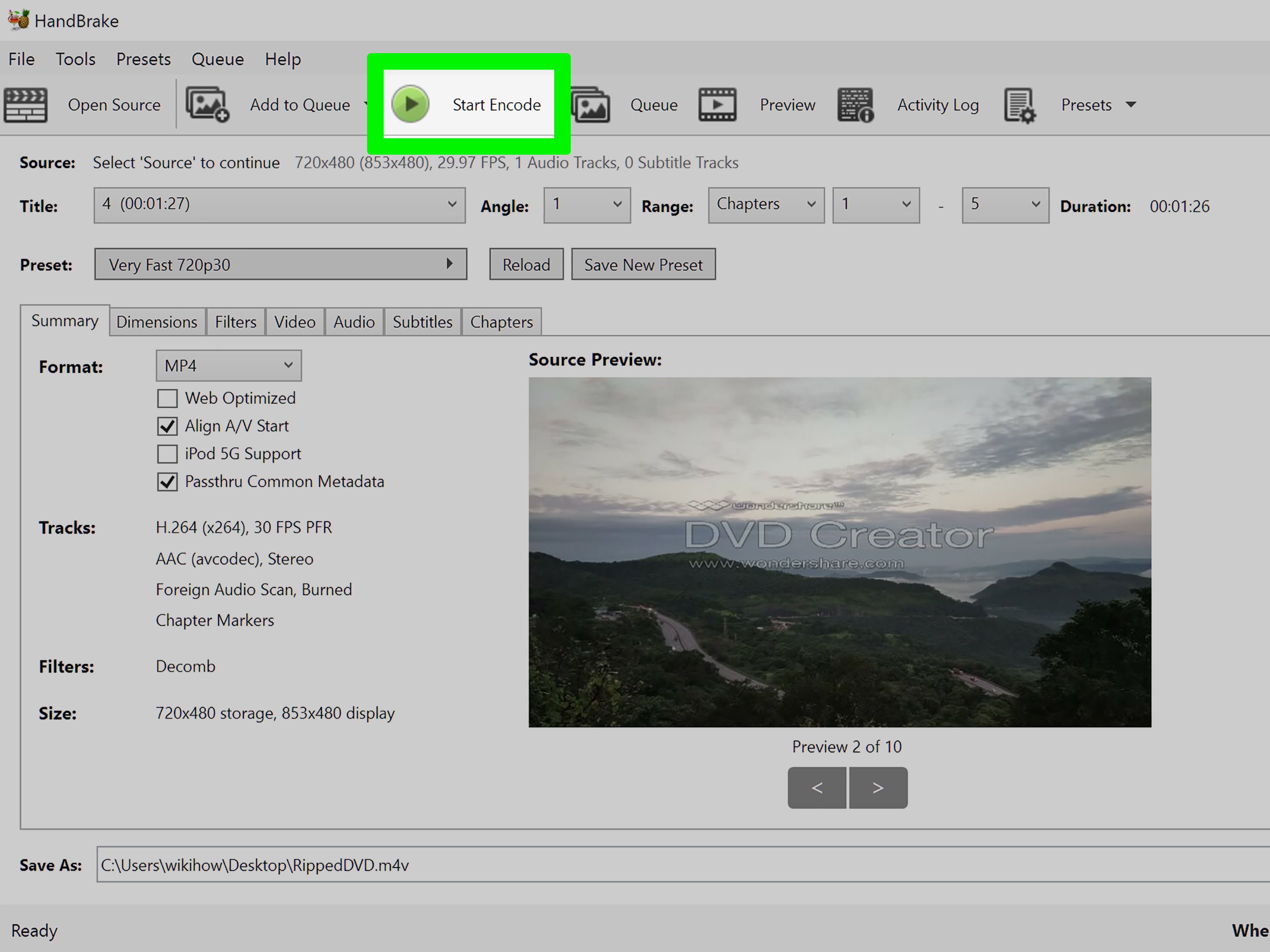
Step 14: Click Start Encode
When everything looks right, click Start Encode. HandBrake will begin converting the DVD title into your chosen file format. Encoding speed depends on your CPU or GPU, preset, codec, source condition, and quality settings. H.264 is usually faster; H.265 and AV1 may take longer.
When the encode finishes, open the file and watch a few sections: beginning, middle, end, any subtitle-heavy scenes, and any loud audio moments. If everything looks good, you have successfully converted your DVD into a modern digital file.
Best HandBrake Settings for DVD to MP4
Here is a beginner-friendly setup for most standard DVDs:
- Format: MP4
- Preset: HQ 480p30 Surround for NTSC DVDs or HQ 576p25 for PAL DVDs
- Video codec: H.264
- Quality: RF 18–22
- Audio: AAC for broad compatibility
- Subtitles: Add only the tracks you need
- Chapters: Keep chapter markers enabled
This setup is not magic, but it is sensible. It gives you a file that works on most devices, looks good for DVD-quality source material, and does not balloon into a digital hippopotamus.
MP4 vs MKV: Which One Should You Use?
Use MP4 If You Want Compatibility
MP4 is the everyday choice for most users. It plays nicely with phones, tablets, laptops, TVs, editing apps, cloud storage previews, and many media players. If your goal is “I just want this thing to play,” MP4 is your friendly neighborhood container.
Use MKV If You Want Flexibility
MKV is better if you want multiple audio tracks, optional subtitles, chapter data, and a more archive-friendly container. It is popular among media-library users because it can hold a lot of track information neatly. The tradeoff is that some devices and apps may prefer MP4.
Common HandBrake DVD Problems and Fixes
Problem: HandBrake Cannot Read the DVD
If HandBrake cannot scan the disc, the disc may be scratched, poorly authored, damaged, region-restricted, or copy-protected. Try cleaning the disc, testing it in a normal DVD player, or using another DVD drive. If the DVD is protected, this guide does not provide decryption instructions.
Problem: The Wrong Title Was Converted
Choose the title with the correct duration. For movies, this is usually the longest title. For TV shows, look for titles that match episode length. A preview encode is the easiest way to avoid creating a beautiful digital copy of the DVD menu animation.
Problem: The File Is Too Large
Use a faster preset, raise the RF value slightly, switch from Super HQ to HQ, or consider H.265 if your playback devices support it. Do not crank quality settings blindly. DVDs have limited source resolution, and there is no setting called “Turn This Into 4K Wizardry.”
Problem: The Audio Is Wrong
Check the Audio tab before encoding. Select the main audio track, not commentary or a secondary language unless that is what you want. If you need both stereo and surround, MKV may be a better container than MP4.
Problem: Subtitles Are Missing
Go back to the Subtitles tab and add the correct track. For foreign-language scenes, look for forced subtitle options. If a device refuses to show soft subtitles, consider burning them inbut only when you are sure, because burned-in subtitles are permanent.
Legal and Ethical Reminder
DVD ripping lives in a legally sensitive area. In the United States, 17 U.S.C. § 1201 generally prohibits circumvention of technological measures that control access to copyrighted works, and the U.S. Copyright Office periodically issues limited exemptions for specific uses.
That means the safest use of HandBrake is for unprotected DVDs, home videos, self-created discs, public-domain content, internal business recordings, educational material you are authorized to convert, or other sources where you have permission. Owning a DVD does not automatically mean every kind of copying or DRM circumvention is lawful. When in doubt, use a licensed digital copy, consult reliable legal guidance, or keep the disc as-is.
Practical Examples
Example 1: Converting a Family DVD
You have a DVD from a 2006 birthday party. Open it in HandBrake, choose the longest title, select MP4, pick HQ 480p30, use H.264, keep chapters, and encode. Save the file as Birthday_2006.mp4. Upload it to cloud storage or copy it to an external drive. Bonus points if you rename it before your relatives start asking why the file is called VIDEO_TS_FINAL_REAL.mp4.
Example 2: Digitizing a Training Disc
Your company has an old training DVD with permission to archive it internally. Choose the main title, select MP4 for broad playback, use AAC audio, keep subtitles if available, and test it in the company’s preferred media player. If several employees need access, store it in a shared folder with a clear name and date.
Example 3: Archiving a School Project
You made a student film on DVD years ago. Use HandBrake to create an MKV file if you want to preserve chapters and multiple tracks, or MP4 if you want easy sharing. Keep a high-quality copy on an external drive and a smaller MP4 version for everyday viewing.
Extra Experience: What Actually Helps When Using HandBrake
After working through enough HandBrake DVD conversions, one lesson becomes obvious: the easiest workflow is not the one with the most settingsit is the one you can repeat without second-guessing yourself. Beginners often open HandBrake, see tabs for Summary, Dimensions, Filters, Video, Audio, Subtitles, Chapters, and Queue, then quietly wonder whether they accidentally launched a spaceship. The trick is to ignore anything you do not need at first.
Start with the preset. A good preset is like training wheels, except nobody can see them and judge you. For ordinary DVDs, the HQ 480p or Fast 480p presets usually do the heavy lifting. Once you know the file plays correctly, you can experiment with RF values, codecs, and containers. Do not begin by changing six advanced settings because one forum post from 2014 sounded confident. Confidence and correctness are cousins, not twins.
Another experience-based tip: always label your files immediately. DVD projects tend to multiply. One disc becomes three files. Three files become nine test encodes. Suddenly your folder contains movie.mp4, movie2.mp4, movie-new.mp4, and movie-new-final-final.mp4, and nobody knows which one has the correct subtitles. Use a naming style like Title_Year_Source_Settings. For example: Family_Reunion_2009_DVD_H264.mp4. Your future self will applaud politely.
Testing is also underrated. Before encoding a full DVD, encode a short section with dialogue, motion, music, and subtitles if possible. A video can look fine in the first 30 seconds and then reveal audio sync issues, bad subtitle behavior, or strange interlacing later. DVD sources are not always clean. Some are interlaced, some are letterboxed, some were authored by software that apparently made decisions during a thunderstorm. A quick test catches problems early.
If you are archiving personal memories, make two copies: one high-quality master and one convenient everyday file. The master can be larger and stored safely on an external drive. The everyday file can be smaller and easier to share. For important family footage, do not rely on a single hard drive. Drives fail, laptops disappear, and cloud accounts get forgotten. Keep at least one backup somewhere separate.
Finally, do not expect HandBrake to improve bad source video magically. If a DVD is blurry, noisy, dark, or poorly recorded, HandBrake can convert it, but it cannot summon missing detail from the digital afterlife. Use sensible quality settings, preserve what is there, and avoid over-compressing. The goal is not to make a DVD look like a modern 4K stream. The goal is to make it playable, organized, and safe from the slow disappearance of optical drives.
Conclusion
Using HandBrake to rip a DVD is simple once you understand the basic workflow: install HandBrake from the official source, open an unprotected DVD, choose the right title, select a practical preset, pick MP4 or MKV, check audio and subtitles, keep chapters, preview, and start encoding. The best beginner setup is usually MP4, H.264, an HQ 480p preset, AAC audio, and only the subtitle tracks you actually need.
HandBrake is powerful, but you do not need to master every setting on day one. Start simple, test short clips, name files clearly, and keep backups. Whether you are saving home movies, organizing old training discs, or preserving school projects, HandBrake can turn dusty discs into usable digital fileswithout making you feel like you need a decoder ring and three cups of coffee.













