
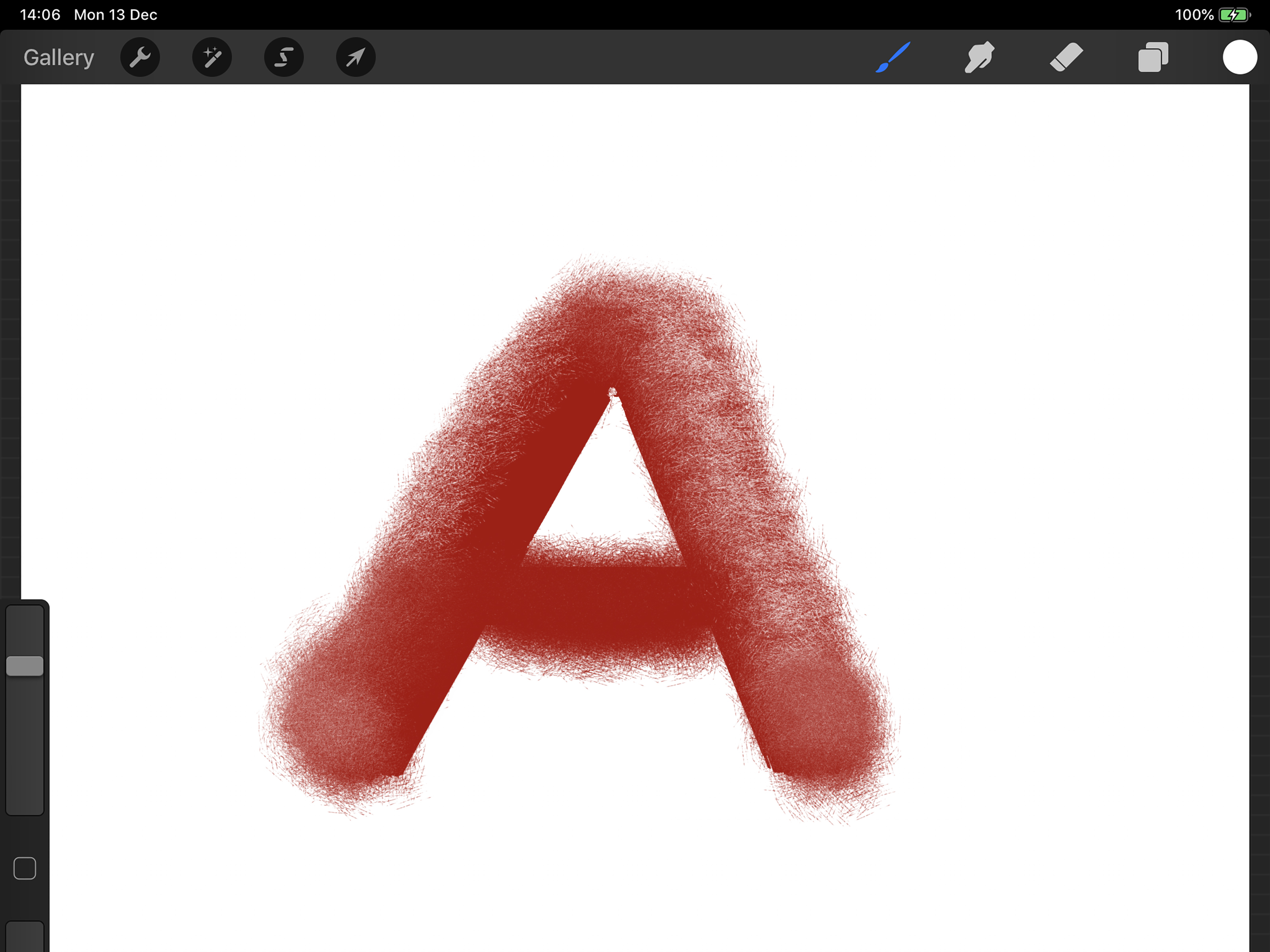
Note: This guide is written for Procreate on iPad. Menu names and small interface details may vary slightly depending on your Procreate version, iPadOS version, and Apple Pencil model.
Introduction: Meet the Tiny Finger Icon That Saves Your Artwork
The Smudge Tool in Procreate is one of those features that looks simple until you realize it can completely change the mood of your digital painting. It can soften a harsh shadow, blend two colors into a creamy transition, create painterly texture, smooth sketch lines, and rescue a cheek highlight that has become a little too enthusiastic. In short, it is the digital version of gently pushing wet paint around with your finger, except your hands stay clean and your iPad does not smell like turpentine.
If you have ever painted in Procreate and wondered why your shading looks like stripes on a racetrack, the Smudge Tool may be the missing piece. It helps blend colors, smooth edges, and create natural transitions between tones. But like any powerful art tool, it can also turn your beautiful portrait into a blurry potato if used without control. The secret is not simply smudging everything into a fog. The secret is knowing which brush to smudge with, how much strength to use, when to preserve texture, and when to stop before your artwork starts begging for a vacation.
In this guide, you will learn how to use the Smudge Tool in Procreate step by step, how to adjust its strength, which brushes work best for blending, how to avoid muddy colors, and how to use it for portraits, landscapes, lettering, textures, shadows, and digital painting effects. Whether you are a beginner trying to blend skin tones or an experienced illustrator polishing your workflow, this tutorial will help you smudge with purpose instead of panic.
What Is the Smudge Tool in Procreate?
The Smudge Tool is Procreate’s built-in blending tool. It lets you drag, mix, soften, and move pigment already on the canvas. You can use it to blend colors together, blur edges, soften brush strokes, create gradients, and add painterly movement to your artwork.
You can find it in the top-right toolbar. It looks like a pointing finger and sits near the Brush and Eraser tools. When you tap the Smudge icon, Procreate activates smudging mode. Tap it again, and you can choose a brush from the Brush Library. This is important because the Smudge Tool does not have only one personality. It borrows the behavior of whichever brush you choose. A soft airbrush creates smooth blending. A textured brush creates grainy, painterly blending. A pencil brush creates sketchy smears. A wet paint brush drags color like real paint. Same tool, totally different attitude.
How to Use the Smudge Tool in Procreate: Basic Steps
Step 1: Open Your Canvas
Start by opening a Procreate canvas with artwork already on it. The Smudge Tool works by moving existing pixels, so you need color, shading, sketch marks, or texture on the canvas before smudging. If the layer is blank, smudging it will achieve exactly nothing, which is also what happens when you try to make coffee without water.
Step 2: Tap the Smudge Icon
Look at the top-right toolbar and tap the finger-shaped Smudge icon. Once selected, the icon becomes active, and your Apple Pencil or finger will smudge instead of paint.
Step 3: Choose a Smudge Brush
Tap the Smudge icon again to open the Brush Library. Pick a brush based on the effect you want. For soft blending, try a Soft Airbrush. For natural texture, try brushes from Painting, Artistic, or Charcoals. For sketch blending, try a pencil-style brush. For dramatic painterly movement, try a wet or oil-style brush.
Step 4: Adjust Brush Size
Use the top slider on the left sidebar to change the size of the smudge brush. A large brush blends broad areas such as skies, backgrounds, cheeks, and soft gradients. A small brush is better for eyelashes, hair strands, fabric folds, lip edges, and tiny shadow transitions.
Step 5: Adjust Smudge Strength
The lower slider on the left sidebar controls the Smudge Tool’s strength. Higher strength pushes color more aggressively. Lower strength creates softer, more gradual blending. A good beginner range is often around 20% to 40% for gentle blending and 50% to 70% for stronger painterly movement. Use 100% carefully unless you want your colors to pack their bags and move across the canvas.
Step 6: Drag Gently Across the Area
Use short, controlled strokes to blend between colors. Drag from one color into another, following the form of the object. For a face, move along the curve of the cheek or jaw. For clouds, use soft circular motions. For hair, follow the direction of the strands. For fabric, follow the folds. Smudging works best when it respects the shape underneath.
Best Smudge Tool Settings for Beginners
There is no single perfect setting for every artwork, but there are reliable starting points. For smooth skin shading, use a soft brush at low to medium strength. For painterly artwork, use a textured brush at medium strength. For dramatic color mixing, use a wet brush at higher strength. For cleaning up sketch lines, use a small brush at low strength.
Recommended Beginner Settings
Try these as a starting point:
- Soft portrait blending: Soft Airbrush, 20% to 35% strength, medium brush size.
- Painterly blending: Oil, acrylic, or wet brush, 40% to 60% strength.
- Clouds and mist: Soft Airbrush, 15% to 30% strength, large brush size.
- Hair details: Fine brush or pencil brush, 20% to 45% strength, small brush size.
- Textured shading: Charcoal or pastel brush, 25% to 50% strength.
The biggest beginner mistake is using a huge brush at high strength on everything. That usually removes detail and creates muddy color. Start low, build slowly, and keep some brush strokes visible. Texture is not the enemy. Sometimes texture is the entire personality of the painting.
Choosing the Right Brush for Smudging
The brush you choose for the Smudge Tool matters as much as the tool itself. Think of the Smudge Tool as a hand, and the brush as the glove. A silk glove, a sponge glove, and a cactus glove would all touch the canvas differently. Please do not wear a cactus glove in real life.
Soft Airbrush
The Soft Airbrush is great for smooth transitions. Use it for skin, gradients, soft lighting, distant backgrounds, and gentle shadows. It creates a polished look, but too much can make artwork look overly airbrushed. Leave some natural edges so the piece does not look like it was edited by a fog machine.
Round Brush
A round brush gives more control than a soft airbrush. It is useful for blending forms while keeping structure. It works well for objects, cartoon shading, stylized portraits, and controlled transitions.
Charcoal and Pastel Brushes
Charcoal and pastel brushes are excellent when you want visible texture. They blend color while keeping grain. This is helpful for traditional-looking digital art, rough sketches, expressive portraits, and backgrounds that should feel handmade.
Oil and Wet Paint Brushes
Wet brushes drag pigment more dramatically. They can create beautiful painterly strokes, especially in landscapes, hair, clothing, and expressive illustrations. Use shorter strokes and vary pressure for a natural result.
Pencil Brushes
Pencil-style brushes are useful for softening sketch lines without destroying the drawing. They are also great for blending graphite-style shading or adding subtle texture to line art.
How to Blend Colors Without Making Mud
Muddy color happens when too many colors are pushed together without a plan. The Smudge Tool can mix colors beautifully, but it can also create dull gray-brown patches if you overwork the same area. The solution is to blend with intention.
Use Neighboring Colors
Colors blend more naturally when they are close in value or hue. For example, light peach blends well into warm pink, and blue blends well into purple. If you smudge bright green into red, you may get a dull neutral unless that is your goal.
Add a Middle Color First
Instead of forcing two very different colors to blend directly, paint a transition color between them. For skin, place a midtone between highlight and shadow. For sunsets, add orange between yellow and red. For blue skies, add a lighter blue between deep blue and white. Then smudge gently.
Use Short Strokes
Long smudge strokes can drag one color too far. Short strokes keep blending controlled. Use small movements, lift your Pencil often, and check the result. Digital art has Undo, yes, but your patience also deserves protection.
Do Not Blend Everything
Leave some hard edges. Realistic art needs a mix of soft and sharp transitions. A cast shadow may have a sharper edge near the object and a softer edge farther away. Hair has soft masses but sharp strands. Lips have smooth color but defined corners. If everything is blended equally, the image can look flat.
Using the Smudge Tool for Portraits
Portrait artists often use the Smudge Tool for skin transitions, cheeks, noses, lips, eyelids, and hair. The goal is not to erase every brush stroke. The goal is to soften transitions while preserving structure.
Skin Blending
Paint your base color, then add shadows and highlights on the same layer or on a merged copy. Use a soft brush with low strength to blend the edges between values. Follow the form of the face. Blend around the cheekbone, not straight across it. Blend down the bridge of the nose, not sideways like you are wiping a window.
Eyes
Use a small smudge brush around eyelids and under-eye shadows. Keep the eyelash line and iris details sharp. A tiny amount of smudging can make eyes look natural, but too much can make them look sleepy or melted. Unless you are painting a dream monster, avoid melted eyes.
Lips
Smudge along the natural curve of the lips. Blend highlights softly into the base color, but keep the mouth corners and the line between lips defined. For glossy lips, blend the color first, then paint sharper highlights on top.
Hair
For hair, smudge in the direction the hair flows. Start with large masses, then use smaller brushes for strands. Do not smudge every strand into one smooth helmet. Hair needs variation: soft areas, sharp strands, dark gaps, and bright accents.
Using the Smudge Tool for Landscapes and Backgrounds
The Smudge Tool is also excellent for landscapes. It can soften clouds, create mist, blend mountains into distance, smooth water reflections, and add movement to grass or trees.
Clouds
Paint cloud shapes with a soft brush, then use a large low-strength Smudge Tool to soften the edges. Smudge the bottom of clouds more than the top if you want a fluffy, natural look. Add brighter highlights afterward instead of blending them away immediately.
Water
For water reflections, use horizontal smudge strokes. This helps create the illusion of ripples. Keep some sharp lines for sparkle and contrast. If the whole lake becomes a smooth blur, it may look like blue pudding.
Mountains and Distance
Distant mountains usually have softer edges and lower contrast. Use the Smudge Tool lightly to push background shapes into the atmosphere. Foreground rocks and trees should stay sharper, so the artwork has depth.
Using Smudge for Lettering and Graphic Effects
The Smudge Tool is not only for painting. It can also add style to lettering, logos, stickers, and graphic illustrations. You can smudge the edges of hand lettering for a smoky effect, drag color accents into letters, or create motion trails behind shapes.
Soft Shadow Lettering
Duplicate your lettering layer, place the copy underneath, fill it with a shadow color, and blur or smudge the edges slightly. This creates a soft dimensional effect while keeping the original lettering sharp.
Painted Lettering
Use a textured brush with the Smudge Tool to drag colors inside letters. This creates a handmade paint effect. It works especially well with bold script, poster lettering, and playful illustrations.
Motion Effects
To create speed or movement, smudge one edge of a shape in the direction of motion. Keep the front edge sharp and the back edge stretched. This works for flying objects, action lettering, magical effects, and anything that needs a little “whoosh.” Yes, “whoosh” is a serious design term when used with confidence.
Smudge Tool vs. Gaussian Blur vs. Airbrush
Procreate gives you several ways to blend, and each one has a different purpose. The Smudge Tool is best when you want hands-on control. Gaussian Blur is best for evenly softening an entire layer or selected area. Airbrushing is best when you want to paint soft color gradually instead of moving existing pigment.
Use the Smudge Tool When:
- You want to control the direction of blending.
- You need to follow the shape of a form.
- You want painterly texture.
- You are blending small areas like cheeks, hair, lips, or shadows.
Use Gaussian Blur When:
- You need a quick, even blur.
- You are softening a shadow layer.
- You want glow, haze, or depth-of-field effects.
- You do not need brush texture.
Use Airbrush When:
- You want to build soft color from scratch.
- You are adding blush, glow, atmosphere, or gentle shading.
- You want a smooth finish without dragging existing pixels.
Non-Destructive Smudging: Protect Your Artwork
The Smudge Tool changes pixels directly, so it can be destructive if you work on your only layer. To protect your art, duplicate the layer before heavy smudging. You can also use separate layers for shadows, highlights, and color effects, then merge a copy when you are ready to blend.
A practical workflow is to keep your original sketch and base colors untouched. Duplicate the layer you want to blend, smudge the duplicate, and compare it with the original. If the smudged version looks better, keep it. If it looks like a smoothie accident, delete it and try again.
Common Smudge Tool Mistakes and How to Fix Them
Mistake 1: Over-Blending
Over-blending removes contrast and texture. Fix it by painting sharper shadows and highlights back on top. Use the Smudge Tool less on focal points, such as eyes, lips, hands, and important edges.
Mistake 2: Using the Wrong Brush
If your blending looks too smooth, switch to a textured brush. If it looks too scratchy, switch to a softer brush. The Smudge Tool is only as good as the brush you choose.
Mistake 3: Smudging in the Wrong Direction
Always smudge along the form. For round objects, use curved strokes. For hair, follow strands. For fabric, follow folds. Direction matters because smudging creates movement.
Mistake 4: High Strength Everywhere
High strength can be useful, but it is easy to overdo. Lower the strength for soft transitions and raise it only when you need bold color movement.
Mistake 5: Forgetting to Zoom Out
Zooming in is helpful, but it can trick you into polishing tiny areas nobody will notice. Zoom out often. If the artwork reads well from a normal viewing size, you are doing fine. Your canvas does not need pore-level diplomacy.
Advanced Tips for Better Smudging in Procreate
Use Pressure Sensitivity
Apple Pencil pressure can make smudging feel more natural, depending on the brush settings. Press lightly for gentle blending and harder for stronger movement. This is especially helpful for hair, painterly strokes, and textured shading.
Customize a Brush for Smudging
In Procreate’s Brush Studio, you can adjust settings such as shape, grain, rendering, properties, and wet mix behavior. Wet Mix settings influence how a brush moves pigment, which can make a brush feel more like wet paint, dry media, or a soft blender. Duplicate a brush before editing it so you do not accidentally turn your favorite pencil into a confused soup spoon.
Try Smudging With the Same Brush You Painted With
For a consistent style, paint and smudge with the same brush family. If you paint with a textured pastel brush and smudge with a smooth airbrush, the blended area may look disconnected. Matching brush texture keeps the artwork unified.
Blend, Then Repaint Detail
A professional-looking workflow often goes like this: block in color, add shadows, smudge transitions, repaint details, add highlights, refine edges. Smudging is part of the process, not the final magic button. It is a helpful assistant, not the CEO of your artwork.
Practical Exercise: Blend a Simple Sphere
If you want to practice the Smudge Tool, paint a simple sphere. Start with a circle filled with a midtone color. Add a darker shadow on one side and a bright highlight on the opposite side. Choose the Smudge Tool with a soft round brush at about 30% strength. Blend the shadow edge into the midtone using curved strokes. Then blend the highlight lightly, keeping the brightest center mostly sharp.
Add a cast shadow under the sphere on a separate layer. Smudge the far edge of the shadow to soften it. This small exercise teaches nearly everything you need: form, value, edge control, brush size, pressure, and restraint. Once you can blend a sphere, you can apply the same logic to cheeks, apples, clouds, stones, buttons, planets, and suspiciously round cats.
Experience-Based Tips: What Actually Helps When Learning the Smudge Tool
One of the most useful lessons about the Smudge Tool is that it rewards patience more than force. When beginners first discover it, they often treat it like a windshield wiper: swipe, swipe, swipe, and suddenly every color has joined a mysterious beige committee. A better approach is to make small movements and stop often. Smudge a little, zoom out, look at the shape, then continue. This rhythm feels slower at first, but it actually saves time because you are not constantly repairing over-blended areas.
Another experience that helps is creating a “smudge test strip” before working on the real artwork. On a blank corner of the canvas or a separate practice layer, paint two or three color blocks side by side. Try different smudge brushes across the borders. Test a Soft Airbrush, a textured brush, a painting brush, and a pencil brush. Watch how each one behaves. Some brushes will blur like silk. Others will drag texture across the canvas. Some will create gorgeous painterly streaks. Others will look like a raccoon walked through wet paint. Testing first prevents surprises later.
When working on portraits, it helps to smudge less than you think you need. Skin has soft transitions, but it also has planes, edges, and structure. If you blend every cheek, nose, and forehead area into one perfect gradient, the face may lose form. A good trick is to blend only the border between two values, not the entire shaded area. Let the shadow remain a shadow. Let the highlight remain a highlight. The Smudge Tool should introduce them politely, not force them into a group hug.
For landscapes, the best experience-based advice is to think about distance. Smudge more in the background and less in the foreground. Distant hills, clouds, fog, and water can handle soft blending. Foreground rocks, leaves, grass, and architectural details usually need sharper edges. This creates depth without complicated tricks. Your viewer may not know why the artwork feels spacious, but their eyes will appreciate the visual breathing room.
For lettering and graphic art, use smudging as an effect, not a cleanup tool for everything. A tiny smudge on a shadow can make lettering feel soft and dimensional. A dragged streak from a colorful word can create motion. But if the main letter edges become too soft, readability suffers. Keep your original lettering layer untouched, duplicate it, and smudge the duplicate underneath or inside a clipping mask. That way, the style looks intentional instead of accidentally fuzzy.
One workflow that consistently works is “paint, smudge, repaint.” First, paint your colors with confidence. Second, smudge the transition areas. Third, repaint important edges and highlights on top. This final repainting step is what makes the artwork look crisp again. Many beginners stop after smudging, which can leave the piece looking cloudy. Adding detail back is like seasoning a soup after simmering; it brings the flavor back.
Finally, remember that the Smudge Tool is not a shortcut around learning light, color, and form. It is a tool that supports those skills. The better your color placement, the better your blending will look. If the shadows are in the wrong place, smudging will only make the wrong place smoother. Practice with simple forms, observe real-life edges, and keep experimenting. The Smudge Tool becomes powerful when you stop using it to hide mistakes and start using it to guide the viewer’s eye.
Conclusion
The Smudge Tool in Procreate is one of the most flexible tools in the app. It can blend colors, soften shadows, add texture, create painterly movement, and make digital artwork feel more natural. The key is control. Choose the right brush, adjust the strength, follow the form, use short strokes, and avoid blending every detail into oblivion.
For beginners, start with a soft brush at low strength and practice on simple shapes. For intermediate artists, experiment with textured brushes, wet mix behavior, and layer-safe workflows. For advanced users, build custom smudge brushes and use the tool strategically for atmosphere, depth, and expressive style.
Smudging in Procreate is not about making everything smooth. It is about deciding which edges should be soft, which should stay sharp, and how colors should move together. Once you understand that, the little finger icon becomes less of a mystery and more of a studio assistant that quietly makes your artwork look better without asking for snacks.














