
Note: This guide is based on current MEGA Desktop App behavior for Windows, official app information, and reputable cloud-storage best practices. Always download MEGA from the official MEGA website or the Microsoft Store, not from mysterious “free-super-fast-cloud-tool.exe” links that look like they were designed in a basement during a thunderstorm.
Introduction: Why MEGA Sync Client Is Worth Learning
Learning how to use MEGA Sync Client on Windows can save you from the modern horror movie known as “Where did I put that file?” MEGA, now commonly presented as the MEGA Desktop App, is a cloud storage and synchronization tool that connects folders on your Windows computer with your MEGA Cloud Drive. Once configured, it can automatically upload, download, and keep selected folders updated across devices.
The big appeal is simple: you work with files normally in Windows File Explorer, while MEGA quietly syncs changes in the background. Add a document to a synced folder, and it uploads to the cloud. Rename a file in your MEGA Cloud Drive, and the change appears on your PC. Delete something in a synced folder, and yes, that deletion can sync tooso do not treat the sync folder like a junk drawer unless you enjoy surprise digital archaeology.
This guide explains how to install, configure, and use MEGA Sync Client on Windows in 13 practical steps. You will also learn the difference between sync and backup, how to manage transfers, how to avoid common mistakes, and how to build a safer everyday workflow.
What Is MEGA Sync Client on Windows?
MEGA Sync Client is the Windows desktop application that syncs files between your computer and your MEGA Cloud Drive. Many longtime users still call it MEGAsync, while MEGA’s current branding often refers to it as the MEGA Desktop App. The purpose is the same: automated encrypted cloud syncing for files and folders.
On Windows, the app usually runs from the system tray near the clock. From there, you can open settings, check transfer progress, pause syncing, add folders, manage bandwidth, and view account storage. It is designed for people who want cloud storage without manually uploading every file through a browser like it is 2009 and we are all still discovering tabs.
Before You Start: Important Things to Know
Sync Is Not the Same as Backup
This is the most important concept in the entire article. A sync keeps two locations matching each other. If you delete a file from your synced Windows folder, that deletion can be reflected in MEGA Cloud Drive. If you delete it in MEGA, it can disappear from the local synced folder as well.
A backup, on the other hand, is usually designed to preserve a copy from one place to another. MEGA’s desktop app includes backup-style features, but when you are setting up sync folders, think carefully before choosing important locations. Sync is fantastic for active work folders, shared project files, school documents, photos, and files you want available across devices. It is less ideal as your only disaster-recovery plan.
Use a Strong Password and Save Your Recovery Key
MEGA emphasizes user-controlled encryption, which means your password and recovery key matter a lot. Save your recovery key somewhere secure, such as a password manager or offline storage. If you forget your password and lose the recovery key, recovering encrypted files may be impossible. In short: guard the key like it is the last slice of pizza at a college party.
Check Your Windows Version
MEGA Desktop App is built for modern Windows systems. For the best experience, use an updated Windows 10 or Windows 11 computer with enough local disk space for the folders you plan to sync.
How to Use MEGA Sync Client on Windows: 13 Steps
Step 1: Create or Sign In to Your MEGA Account
Start by creating a MEGA account or signing in to your existing account. Use an email address you can actually access, not that ancient inbox you opened for one free trial in 2014. During account setup, MEGA may ask you to save a recovery key. Do it immediately. Store it somewhere safe before uploading important files.
After logging in through the browser, take a minute to review your Cloud Drive. You can create folders such as “Documents,” “Photos,” “School,” “Work Projects,” or “Archive.” Planning the folder structure first makes syncing much cleaner later.
Step 2: Download the Official MEGA Desktop App
Download the MEGA Desktop App from the official MEGA website or the Microsoft Store. Avoid random download portals unless you have a very good reason and can verify the installer. Cloud sync apps handle private files, so downloading from a suspicious source is like handing your house keys to someone named “Definitely Not Malware.”
Once the installer downloads, open it and follow the installation prompts. Windows may ask for permission to run the installer. Confirm only if the publisher and file source look legitimate.
Step 3: Install the App and Allow Windows Integration
During installation, MEGA may offer options such as launching at startup or integrating with File Explorer. For most users, enabling startup launch is useful because syncing begins automatically when you sign in to Windows. File Explorer integration is also helpful because it can add right-click options for MEGA actions.
After installation, look for the MEGA icon in the Windows system tray. If you do not see it, click the small upward arrow near the clock to reveal hidden icons.
Step 4: Sign In from the Desktop App
Open the MEGA Desktop App and sign in with your MEGA account email and password. If two-factor authentication is enabled, complete that step as well. The app may take a moment to connect to your Cloud Drive and read your folder structure.
At this stage, do not rush through setup screens. A sync client is powerful because it automates file changes. That is also why you should configure it carefully. Automation is wonderful until it automatically does the wrong thing at incredible speed.
Step 5: Choose Between Full Sync and Selective Sync
MEGA may let you sync your entire Cloud Drive or select specific folders. Most Windows users should choose selective sync, especially if the MEGA account contains more data than the PC can comfortably store.
For example, if your MEGA Cloud Drive has 300 GB of old videos but your laptop has 80 GB free, full sync is not a heroic choiceit is a storage crisis wearing a cape. Select only the folders you truly need on that Windows computer.
Step 6: Pick a Local Folder on Your Windows PC
Choose the local folder that will sync with MEGA. You can use a default MEGA folder or create your own folder, such as:
C:\Users\YourName\MEGAC:\Users\YourName\Documents\MEGA ProjectsD:\Cloud Sync\MEGA
If you have a second drive with more space, placing your sync folder there can be smart. Avoid syncing system folders, application folders, temporary folders, or entire drives unless you fully understand the consequences.
Step 7: Choose the Matching Folder in MEGA Cloud Drive
Next, choose the cloud folder that matches your local folder. You might sync your local “MEGA Projects” folder with a cloud folder named “Projects,” or your Windows “School Notes” folder with a MEGA folder named “School.”
Clean naming helps. A folder called “Important Stuff Final Final New Real Version 3” may feel emotionally accurate, but it will not help you six months from now.
Step 8: Start the Sync and Watch the First Transfer
After confirming the local and cloud folders, start the sync. The first transfer may take time, depending on file size, internet speed, and MEGA transfer limits. Click the MEGA tray icon to check progress in the transfer manager.
Do not shut down your computer during the first big sync unless you are comfortable resuming later. MEGA can continue where it left off, but large initial uploads are smoother when the PC stays awake and connected.
Step 9: Test Sync with a Small File
Before trusting the setup with precious files, create a small test file in the synced Windows folder. Name it something obvious, such as mega-sync-test.txt. Wait for the app to upload it, then check your MEGA Cloud Drive in the browser.
Next, rename the file from the MEGA web interface and see whether the new name appears on Windows. This small test confirms that two-way syncing works. It is the cloud-storage equivalent of tapping a microphone and saying, “Is this thing on?”
Step 10: Add More Sync Folders If Needed
You are not limited to one sync pair. In MEGA Desktop App settings, look for the sync section and add another local folder-cloud folder pair. This is useful when you want separate sync rules for different categories.
For example, you might sync a daily work folder, a school folder, and a photo-editing folder separately. Keeping them separate makes it easier to pause, remove, or troubleshoot one sync without disturbing everything else.
Step 11: Manage Uploads, Downloads, and Bandwidth
The transfer manager shows active uploads and downloads. You can monitor progress, pause transfers, resume them, and sometimes adjust priority. If syncing slows down your internet connection, check the app’s bandwidth settings.
Limiting upload speed can be helpful if video calls start sounding like a robot trapped in a toaster. A reasonable upload cap lets MEGA continue syncing while leaving enough bandwidth for browsing, meetings, streaming, or online classes.
Step 12: Use File Explorer for Everyday Syncing
Once setup is complete, you do not need to constantly open MEGA in your browser. Work inside the synced folder using Windows File Explorer. Add files, edit documents, organize folders, and let MEGA handle the cloud side.
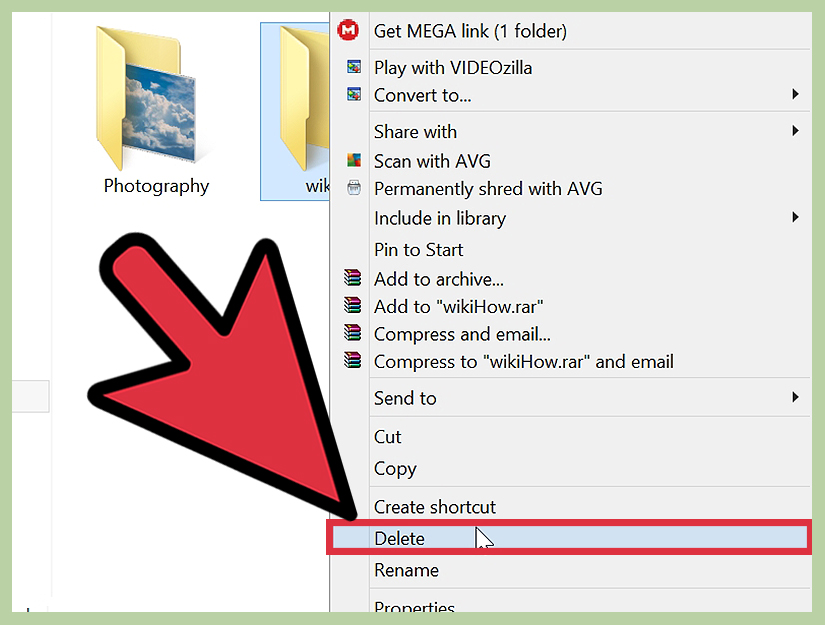
If File Explorer integration is enabled, right-clicking files may show MEGA-related actions, such as getting a MEGA link. Link-sharing options can be useful for sending large files, but always check permissions before sharing. If a file is private, treat its link like a password.
Step 13: Pause, Stop, or Remove Sync Safely
If you need to pause syncing temporarily, use the MEGA tray icon. Pausing is useful during travel, weak Wi-Fi, gaming, large downloads, or video meetings. If you want to permanently stop syncing a folder, open MEGA settings and remove that sync pair carefully.
Before deleting any local synced folder, confirm whether you are simply removing the sync relationship or deleting the actual files. When in doubt, copy important files to a temporary safe location first. A little caution here can prevent a very dramatic afternoon.
Best Practices for MEGA Sync Client on Windows
Organize Before You Sync
Messy folders become messy cloud folders. Before turning on sync, remove duplicates, rename confusing files, and create a logical folder structure. A simple structure like “Documents,” “Photos,” “Projects,” and “Archive” is easier to manage than one giant folder called “Everything.”
Do Not Sync Temporary or Cache Folders
Avoid syncing browser caches, software build folders, game directories, and temporary export folders. These locations can change constantly, creating unnecessary uploads and conflicts. Sync important finished files, not every tiny temporary file your computer sneezes into existence.
Keep Enough Free Disk Space
MEGA sync uses local storage. If you sync a 40 GB cloud folder, your Windows PC needs room for those files. Keep extra free space available for edits, downloads, temporary files, and Windows updates.
Review Deletions Carefully
Because sync reflects changes across locations, deletion deserves respect. If a folder contains critical work, consider making separate backups outside the sync folder. Sync helps availability; backup helps recovery. They are cousins, not twins.
Common Problems and Quick Fixes
MEGA Is Not Syncing
First, check whether the desktop app is running in the system tray. Then confirm that you are signed in, connected to the internet, and not paused. Open the transfer manager to see whether files are waiting, failed, or blocked by quota or bandwidth settings.
Files Are Stuck Uploading
Large files can take time, especially on slower upload connections. Check your upload speed, storage quota, and available local disk space. Restarting the MEGA Desktop App can help if the interface appears frozen, but avoid repeatedly force-closing during active transfers.
You See Duplicate or Conflict Files
Conflicts can happen when the same file changes in two places before syncing completes. Keep one version, rename the correct file clearly, and delete duplicates only after checking contents. For collaborative work, communicate with teammates before editing the same file offline.
The PC Is Running Slowly
Large sync jobs can use CPU, disk, and network resources. Pause syncing during heavy tasks, reduce bandwidth usage, or schedule big uploads for overnight. Also check whether antivirus software is scanning every uploaded file, which can add extra overhead.
Security Tips for Using MEGA on Windows
Use a unique password for your MEGA account and enable two-factor authentication if available. Save your recovery key securely. Keep Windows updated, install MEGA updates when offered, and avoid signing in on shared computers unless absolutely necessary.
Be careful with shared links. MEGA makes file sharing convenient, but convenience can become chaos if links are posted publicly by mistake. For sensitive files, use password protection or expiration options when available, and remove shared links when they are no longer needed.
Who Should Use MEGA Sync Client?
MEGA Sync Client is a good fit for Windows users who want encrypted cloud storage, automatic file syncing, and access to files across multiple devices. It is useful for students, freelancers, small teams, photographers, writers, researchers, and anyone who wants files available without emailing attachments to themselves like a digital carrier pigeon.
It may not be the best fit if you need deep real-time document collaboration like Google Docs or Microsoft 365. MEGA is strongest as encrypted storage, sync, backup, and secure sharingnot as a full office suite.
Conclusion
Using MEGA Sync Client on Windows is straightforward once you understand the basics: install the official MEGA Desktop App, sign in, choose local and cloud folders, start syncing, and monitor transfers from the system tray. The most important lesson is to respect the difference between sync and backup. Sync keeps locations matching; backup protects against loss. For important files, use both strategies.
Set up your folders thoughtfully, test with a small file, manage bandwidth when needed, and keep your recovery key safe. Done right, MEGA becomes a quiet assistant that keeps your files moving between Windows and the cloud while you focus on actual workor at least pretend to while organizing folders with suspicious enthusiasm.
Real-World Experience: What It Feels Like to Use MEGA Sync Client on Windows
In everyday use, MEGA Sync Client feels best when it is treated as a focused workspace rather than a dumping ground. The smoothest setup is usually a dedicated MEGA folder with a few clearly named subfolders. For example, a student might create “Assignments,” “Research,” “PDF Library,” and “Submitted Work.” A freelancer might use “Client Projects,” “Invoices,” “Assets,” and “Archive.” This structure keeps the sync process predictable and makes it easier to find files from another device.
One practical habit is to test every new sync folder with a harmless file before moving serious work into it. Create a text file, wait for the tray icon to show that syncing is complete, then check the MEGA web app. Rename it online, wait again, and confirm the change appears in Windows. This two-minute ritual prevents confusion later, especially when setting up MEGA on a new laptop or after reinstalling Windows.
Another lesson: large files require patience. Uploading a folder full of videos, design exports, or compressed archives can take a while, and the first sync is always the slowest. After that, MEGA usually handles smaller changes more quietly. If your internet connection is shared with family, roommates, or coworkers, bandwidth limits are not just technical settingsthey are peacekeeping tools. Nobody wants to be the person whose cloud upload turns movie night into buffering night.
MEGA is also easier to live with when you avoid syncing folders that constantly change. Development build folders, video cache folders, game save directories, and temporary download folders can generate endless tiny file changes. The sync client may try to keep up, but the result can be noisy and inefficient. A better method is to sync final files, source documents, and important project folders, while excluding disposable clutter.
For people who work across multiple computers, MEGA can feel surprisingly convenient. Save a document on a desktop PC, open the laptop later, and the file is waiting there after sync completes. The key is to let one device finish uploading before editing the same file on another device. When two machines edit the same file at the same time, conflict copies can appear. They are not disasters, but they do create extra cleanup work.
The best overall experience comes from combining MEGA sync with a backup mindset. Keep active files in synced folders, but keep irreplaceable files backed up somewhere else tooan external drive, another backup service, or a separate archive. Cloud sync is excellent for access and convenience, but no single tool should be responsible for your entire digital life. Even the best sync client deserves a backup buddy.













