
Note: This body-only HTML is ready for web publishing and intentionally omits source links.
Discord is supposed to quietly update in the background while you grab a snack, refill your water, or pretend you were absolutely going to answer that message five minutes ago. But sometimes the app gets stuck in a miserable little cycle: Checking for updates, Update failed, retry, repeat, and somehow your patience becomes the first real casualty.
If you are dealing with the dreaded Discord update failed loop, the good news is that this problem is usually fixable. In most cases, the culprit is one of a few familiar troublemakers: corrupted update files, missing permissions, antivirus interference, network issues, DNS or proxy conflicts, or a broken local installation. The even better news? You do not need a computer science degree, a wizard hat, or a dramatic keyboard slam to fix it.
In this guide, you will learn how to fix Discord update failed loop with five practical solutions that actually make sense. We will also cover why the loop happens, what to do if Discord keeps getting stuck on checking for updates, and how to stop the issue from coming back.
Why Does Discord Get Stuck in an Update Failed Loop?
The Discord desktop app checks for updates when it launches. If something interrupts that process, the updater can get trapped in a loop instead of finishing the job. Think of it like a delivery driver who keeps arriving at your house, forgetting the package, and driving away again. Same route, no progress.
Common causes include:
- Corrupted files in the Discord cache or AppData folders
- Discord updater not having enough permission to write or replace files
- Antivirus or firewall tools blocking the updater
- Proxy, VPN, or DNS problems interfering with connections
- A broken installation that needs a clean reinstall
- Temporary Discord service issues or local internet instability
The exact message may vary. Some users see Update failed retrying in x seconds. Others get stuck at Checking for updates. A few are greeted with weird phrases that sound like a distracted video game side quest. Either way, the fix path is usually the same.
Solution 1: Check Whether the Problem Is Discord or Your Connection
Before you start deleting folders like a digital tornado, make sure the problem is not simply a temporary service outage or a flaky connection. If Discord itself is having issues, your local troubleshooting will feel a lot like trying to fix the weather with a screwdriver.
What to do first
- Check whether Discord is experiencing an outage or incident.
- Open a few websites to confirm your internet connection is stable.
- Try Discord on another device, such as your phone or browser.
- Restart your router if your connection has been acting up.
- Fully restart your PC, then try launching Discord again.
If Discord works fine on your phone or in the browser but fails only on your Windows desktop app, the issue is almost certainly local to your computer. That narrows things down nicely and saves you from blaming the universe too early.
Best use case for this fix: Discord suddenly stopped updating today, and nothing else on your PC seems obviously broken.
Solution 2: Force-Close Discord and Run It as Administrator
Sometimes Discord is not truly closed even when the window disappears. The app can linger in the system tray or keep background processes running. That stuck updater process can block the next update attempt like an overdramatic bouncer refusing to let anyone into the club.
How to force-close Discord
- Press Ctrl + Shift + Esc to open Task Manager.
- Find every Discord process under Processes.
- Click End task on each Discord-related item.
- Check the system tray near the clock and fully exit Discord there too.
Then run the updater with elevated permission
- Press Windows + R.
- Type %localappdata%\Discord and press Enter.
- Find Update.exe.
- Right-click it and choose Run as administrator.
If that works, Discord may simply have been blocked by a permissions issue. This is especially common after system changes, stricter security settings, or a partial update that did not finish cleanly.
Example: You click Discord, it flashes the update window, fails instantly, and loops every single launch. Running the updater as administrator often breaks that cycle because it gives the app permission to write where it needs to.
Best use case for this fix: Discord launches, tries to update, then fails almost immediately without doing much of anything.
Solution 3: Delete Corrupted Discord Cache and Update Files
This is one of the most reliable ways to fix the Discord update failed loop on Windows. If Discord’s local files are damaged, outdated, or partially downloaded, the updater may keep reusing the same broken data over and over. That is not persistence. That is software stubbornness.
How to clear Discord’s local update data
- Close Discord completely, including all background processes in Task Manager.
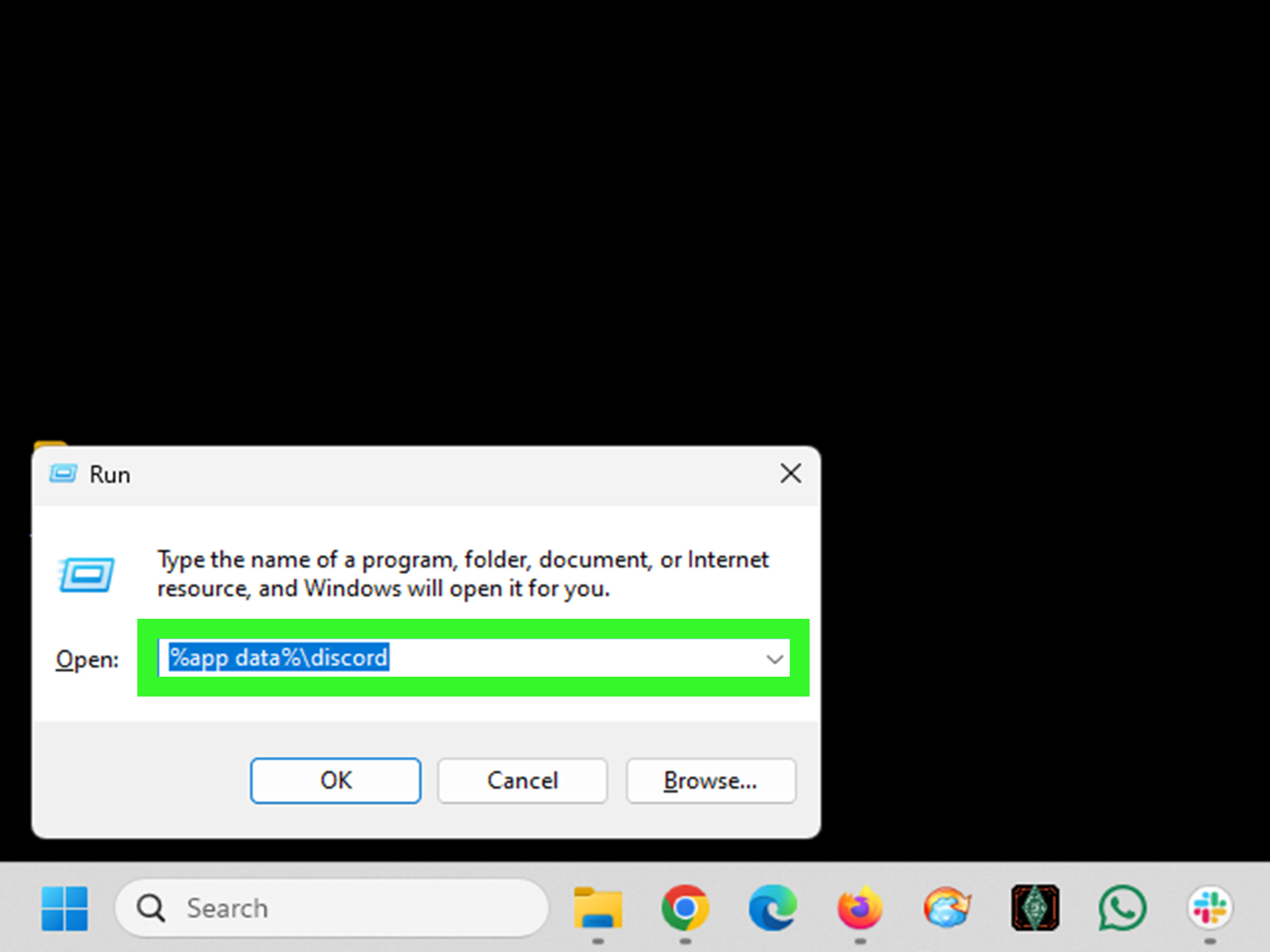
- Press Windows + R.
- Type %appdata% and press Enter.
- Delete the Discord folder.
- Press Windows + R again.
- Type %localappdata% and press Enter.
- Delete the Discord folder there too.
- Restart your computer.
- Try launching Discord again or reinstalling it fresh.
This step removes corrupted temporary files, cached update leftovers, and broken local installer data that can keep triggering the same failure. It sounds dramatic, but it is a standard repair step and often fixes the problem fast.
If Windows says a file is still in use, go back to Task Manager and make sure every Discord process is really gone. Discord is sneaky like that.
Best use case for this fix: You have already restarted your computer and Discord still gets stuck checking for updates or retrying endlessly.
Solution 4: Fix Firewall, Antivirus, Proxy, VPN, and DNS Conflicts
When Discord cannot connect properly to the services it needs, the app may fail to download update files even though your internet appears to be working. This is where security tools and network settings become the usual suspects.
Try these network-related fixes
- Temporarily disable your third-party antivirus and test Discord again.
- Check whether Windows Firewall is blocking Discord or its updater.
- Turn off any active VPN and try again.
- Disable or review proxy settings in Windows.
- Switch your DNS provider if Discord keeps looping or will not download.
How to check the firewall
Open Windows Security, go to Firewall & network protection, and review whether Discord is allowed through the firewall. If needed, add it as an allowed app. This can help when the updater is being blocked quietly in the background.
How to review proxy settings
Open Settings > Network & internet > Proxy. If you do not intentionally use a proxy, make sure nothing odd is turned on. A misconfigured proxy can cause Discord to fail in ways that look like an app bug when the real problem is network routing.
Why DNS matters
Discord itself recommends changing your DNS provider for issues such as being stuck in an update loop, being unable to download Discord, or having trouble connecting. If your current DNS provider is slow, unstable, or serving bad routes, switching to a reliable public DNS option can help.
Best use case for this fix: Discord works sometimes, fails randomly, or only breaks when your VPN, security suite, or network settings get involved.
Solution 5: Perform a Clean Reinstall of Discord
If the loop keeps coming back, stop trying to rescue a half-broken installation and start fresh. A clean reinstall is often the ultimate fix because it removes the damaged files, downloads a clean installer, and gives Discord a proper second chance.
How to clean reinstall Discord
- Uninstall Discord from Windows.
- Open Task Manager and end any remaining Discord processes.
- Delete the Discord folders in %appdata% and %localappdata%.
- Restart your PC.
- Download a fresh copy of Discord from the official Discord website.
- Right-click the installer and select Run as administrator.
If Discord still refuses to cooperate, one extra trick sometimes mentioned in troubleshooting guides is renaming the Update.exe file inside the local Discord folder so the app is forced to generate a fresh one. This is not always necessary, but it can help in stubborn cases where the updater itself appears corrupted.
A clean reinstall is especially useful if Discord has also been throwing installation errors, refusing to open, or behaving like it has recently gone through a messy breakup with Windows.
Best use case for this fix: You tried the lighter solutions and the loop still returns, or Discord now shows install errors in addition to update failures.
Extra Tips to Prevent the Discord Update Failed Loop from Coming Back
- Keep Windows updated so Discord is running on a supported environment.
- Do not install Discord from sketchy mirrors or bundled download sites.
- Avoid aggressive “PC cleaner” apps that delete files unpredictably.
- Whitelist Discord in your antivirus if it repeatedly blocks updates.
- Close Discord fully before major system changes or security software updates.
- If the desktop app is acting up, use Discord in a browser temporarily instead of forcing the broken client.
Real-World Experiences With the Discord Update Failed Loop
In real-world troubleshooting, the Discord update failed loop usually follows a pretty predictable pattern. A user launches Discord before a game, before class, or before a work call, and suddenly the app decides today is the day it wants to become performance art. It spins on checking for updates, flashes an error, retries, and repeats the same bad decision with the confidence of someone who has learned absolutely nothing.
The first thing most people try is clicking the retry button a few dozen times as if enthusiasm alone might fix corrupted files. It does not. Then comes the classic move: closing the window and reopening it. Also not enough. The people who usually solve the problem fastest are the ones who stop treating it like a mystery and start treating it like a Windows app with damaged local data.
One common experience is that Discord works fine on a phone and in the browser, but the desktop app fails every time. That is a huge clue. It tells you the Discord service is probably fine and the account is probably fine too. The issue is usually tied to the local installation, permissions, or network settings on that specific PC.
Another frequent pattern is antivirus interference. A user installs a new security suite, tightens network settings, or turns on extra filtering, and Discord suddenly starts failing updates. Nothing else looks obviously broken, so Discord gets blamed for being “buggy.” In reality, the updater is sometimes being blocked quietly in the background. Once Discord is whitelisted or the security tool is temporarily disabled for testing, the app often updates normally again.
Then there is the corrupted-file scenario, which is basically the king of this problem. A partial update gets interrupted, maybe from a restart, maybe from a network hiccup, maybe from Windows deciding now is a fantastic time to be dramatic. After that, Discord keeps reusing the same bad files and never escapes the loop. Deleting the folders in %appdata% and %localappdata% is often the turning point. It feels almost too simple, but it works because it removes the broken leftovers the updater keeps tripping over.
Some people also discover that running Update.exe or the installer as administrator fixes everything instantly. That tends to happen when the updater cannot write, replace, or verify files properly under normal permission settings. It is not the most glamorous solution, but neither is missing your group call because software decided to role-play a broken merry-go-round.
And finally, there is the nuclear option: the clean reinstall. It is usually the fix people resist because it sounds annoying, but it is often the most efficient route once the simpler attempts fail. End the processes, remove the leftovers, restart the PC, and install a clean copy from the official source. At that point, Discord usually comes back to life like nothing ever happened, which is both comforting and slightly insulting.
The big lesson from all these experiences is simple: most Discord update loops are not permanent, and they are rarely random. When you work through the right steps in the right order, the problem usually cracks much faster than you expect.
Final Thoughts
If you want the fastest path for how to fix Discord update failed loop, start with the basics: check Discord status, restart the app, and run the updater as administrator. If that does not work, delete the Discord folders in AppData and LocalAppData. After that, review firewall, antivirus, proxy, VPN, and DNS settings. And if the app still refuses to behave, do a clean reinstall and move on with your life like the mature tech hero you are.
Most importantly, do not let the loop trick you into thinking the app is doomed. Discord update issues are annoying, but they are usually fixable with a few targeted steps. The loop may be stubborn, but it is not unbeatable.













