Creating labels in Microsoft Word sounds like one of those tiny office tasks that should take five minutesand then somehow turns into a wrestling match with margins, printer trays, and a sheet of sticky rectangles that absolutely refuses to cooperate. The good news? Word actually has strong built-in label tools once you know where to look.
Whether you need address labels for holiday cards, return address labels for a small business, name tags for an event, product labels for jars, folder labels for a home office, or shipping labels for packages, Microsoft Word gives you several practical ways to get the job done. The trick is choosing the right method before you start clicking around like a caffeinated squirrel.
In this guide, you’ll learn how to create labels in Microsoft Word using three easy methods: Word’s built-in Labels tool, mail merge with an Excel address list, and ready-made label templates. We’ll also cover printing tips, formatting advice, common mistakes, and real-world experience from working with labels that looked perfect on screen but came out looking like they had been printed during an earthquake.
Before You Start: What You Need to Make Labels in Word
Before opening Microsoft Word, take a quick inventory. Label printing is easier when you know your label sheet size, brand, product number, and printer type. Most label sheets, especially common Avery-style sheets, include a product number printed on the package. That number matters because Word uses it to match the exact label dimensions, including height, width, top margin, side margin, pitch, and number of labels per sheet.
For example, a popular address label sheet might have 30 labels per page, while a return address label sheet might have 80 smaller labels. A name badge sheet might have fewer, larger rectangles. If Word is told the wrong product number, your text may slowly drift out of alignment as it moves down the page. That is how perfectly good labels become modern art.
Helpful items to prepare first
- Your label paper or label package
- The label brand and product number
- Microsoft Word installed on your computer
- A printer with the correct paper tray settings
- An Excel list if you are making many personalized labels
- Plain paper for a test print
One important note: the desktop version of Word is usually best for creating labels from scratch. Word for the web can work with label templates, but the full label setup tools are more dependable in the desktop app. If you plan to print a large batch of mailing labels, use Word on Windows or Mac whenever possible.
Method 1: Create a Full Page of the Same Label in Word
This is the fastest method when every label on the sheet should say the same thing. It works beautifully for return address labels, small business branding stickers, “This belongs to” labels, pantry labels, classroom labels, and simple product labels. If you want one design repeated across an entire sheet, this is your starting point.
Step 1: Open the Labels tool
Open Microsoft Word and create a blank document. Go to the Mailings tab at the top of the screen. Then click Labels. Word will open the Envelopes and Labels dialog box, which is where the label magic lives. It is not a glamorous window, but it is usefulthe office software equivalent of a reliable station wagon.
Step 2: Enter your label text
In the address box, type the information you want to appear on each label. For a return address label, this might include your name, street address, city, state, and ZIP code. For a business label, it might include a company name, website, phone number, or short tagline.
Example:
Green Basket Studio
1428 Maple Street
Portland, OR 97205
greenbasketstudio.com
You can select the text, right-click, and choose font options if you want to change the typeface, size, style, or alignment. Keep readability in mind. A fancy script font may look charming until your mail carrier has to decode it like ancient treasure-map handwriting.
Step 3: Choose your label size
Click Options. In the Label Options window, choose your printer type, usually either page printer or continuous-feed printer. Most home and office users should choose the page printer option. Next, select the label vendor, such as Avery US Letter, Microsoft, or another available brand. Then choose the product number that matches your label package.
If your exact product number is not listed, you can select New Label and manually enter the measurements. You will need details such as label height, label width, number across, number down, top margin, side margin, vertical pitch, and horizontal pitch. This is less fun than selecting a product number, but it is extremely useful for custom label sheets.
Step 4: Select full page of the same label
Back in the Labels dialog box, choose Full page of the same label. Then click New Document. Word will generate a full sheet of labels using the dimensions you selected. Creating a new document is safer than printing directly because you can review the layout, adjust formatting, save the file, and print a test page first.
Step 5: Review and print
Once Word creates the sheet, check that the text appears in each label cell. If the label borders are invisible, go to the table layout options and turn on gridlines. Gridlines do not print, but they help you see where each label begins and ends. After reviewing the document, print a test page on regular paper. Hold it behind your label sheet against a light source to check alignment before sacrificing real labels to the printer gods.
Method 2: Create Different Labels on One Sheet
Sometimes you do not want every label to be the same. Maybe you are labeling storage bins, file folders, spice jars, school supplies, craft materials, or office drawers. In that case, you need a sheet where each label can contain different text. Microsoft Word can do this by creating a label document laid out as a table.
Step 1: Start with the Labels tool
Open a blank Word document and go to Mailings > Labels. Click Options, choose your label vendor, and select the correct product number. This step is important because Word needs to create a table that matches your actual label sheet.
Step 2: Create a new label document
After choosing the label type, click OK, then select New Document. Word will create a page divided into label-sized cells. Each cell corresponds to one label on your sheet.
If you cannot see the cell outlines, turn on gridlines. In many versions of Word, you can click inside the table, go to the Layout tab, and choose View Gridlines. These lines are only there to guide you; they will not appear on the printed labels unless you add actual borders.
Step 3: Type unique content into each label
Now click inside each label cell and enter different text. For example, a pantry label sheet might include:
- Flour
- Sugar
- Brown Rice
- Pasta
- Oats
- Coffee
- Tea
- Snack Mix
You can format each label individually, or you can select the whole table and apply one consistent style. For a clean look, center the text horizontally and vertically. Use a readable font, leave enough white space, and avoid cramming a paragraph into a label the size of a postage stamp. Labels are supposed to help people find things, not test their eyesight.
Step 4: Add simple design elements
Word allows you to add small icons, lines, shapes, and even images to label cells. For example, you can add a tiny leaf icon for homemade jam labels, a small logo for business packaging, or bold category text for file folders. Just remember that labels are small. A minimalist design often prints better than a busy one.
If you add images, make sure they are inserted inside the label cell and set to an appropriate wrapping option. “In Line with Text” is usually the safest choice for simple labels. Floating images can shift unexpectedly, especially if you resize cells or adjust margins.
Step 5: Save before printing
Save your label sheet before printing. This gives you a reusable file for future edits. If you are creating office labels, pantry labels, or product labels, you may want to save a master version and duplicate it whenever you need a new batch.
Method 3: Create Labels Using Mail Merge
Mail merge is the best method when you need many personalized labels, especially mailing labels. Instead of typing names and addresses one by one, you connect Word to a data source, usually an Excel spreadsheet, and Word fills each label with a different record. It is one of those features that feels slightly intimidating the first time, then makes you wonder why you ever copied addresses manually like it was 1997.
Step 1: Prepare your Excel list
Start with a clean Excel spreadsheet. Each column should have a clear header, such as First Name, Last Name, Address, City, State, and ZIP Code. Put each contact on its own row. Avoid blank rows, merged cells, random notes, and mysterious columns named “Stuff.” Word reads your spreadsheet based on structure, so the cleaner your list, the smoother the mail merge.
A simple mailing list might look like this:
| First Name | Last Name | Address | City | State | ZIP Code |
|---|---|---|---|---|---|
| Emma | Brooks | 25 Lakeview Road | Madison | WI | 53703 |
| Caleb | Turner | 410 Pine Avenue | Austin | TX | 78701 |
Save the Excel file and close it before connecting it to Word. This helps prevent file access errors.
Step 2: Start mail merge in Word
Open Word and go to Mailings > Start Mail Merge > Labels. Choose the label vendor and product number that match your label sheet. Word will create a label layout based on the selected size.
Step 3: Select your recipients
Go to Select Recipients and choose Use an Existing List. Browse to your Excel file and select the correct worksheet. If your spreadsheet includes headers, make sure Word recognizes the first row as field names.
Step 4: Insert merge fields
Click in the first label and insert the fields you want to appear. For a standard address label, you might use:
<<First Name>> <<Last Name>>
<<Address>>
<<City>>, <<State>> <<ZIP Code>>
You can also use Word’s Address Block option, but inserting individual fields gives you more control over spacing and formatting. After arranging the first label, click Update Labels. This copies the layout to the rest of the labels on the sheet and adds the necessary “Next Record” fields so each label pulls a different person from your list.
Step 5: Preview and finish
Click Preview Results to make sure the names and addresses appear correctly. Check for missing ZIP codes, awkward spacing, long names, or addresses that wrap strangely. When everything looks right, choose Finish & Merge. You can print immediately or create a new document first. Creating a new document is often the smarter choice because you can inspect the final labels before printing.
Bonus Method: Use Ready-Made Label Templates
Although this article focuses on three core methods, templates deserve a special mention. Word includes label templates, and many label manufacturers offer downloadable Word templates for specific product numbers. Templates are helpful for decorative labels, product labels, gift tags, classroom labels, name badges, and branded packaging.
To find templates inside Word, go to File > New and search for terms like “labels,” “address labels,” “gift labels,” or “shipping labels.” Choose a design, replace the sample text with your own information, and customize fonts, colors, and images as needed.
Templates are especially useful when design matters more than data. If you are printing 200 different mailing addresses, mail merge is better. If you are making cute homemade candle labels with a logo and scent name, a template may save time and make the final result look more polished.
How to Format Labels So They Look Professional
Good label design is not about adding every font, border, and clip-art flower you can find. It is about clarity. The best labels are easy to read, properly aligned, and suitable for their purpose. An address label should be clean and postal-friendly. A product label should include the brand name and essential information. A file folder label should be readable from a distance, because nobody wants to squint at “Tax Receipts 2022” while standing in front of a cabinet.
Use readable fonts
Choose simple fonts such as Arial, Calibri, Aptos, Times New Roman, Georgia, or Verdana. Decorative fonts can work for gift labels or handmade products, but use them sparingly. If the label needs to be scanned, mailed, sorted, or read quickly, clarity wins.
Leave enough white space
White space makes labels easier to read. Do not push text right up to the edge of the label. Even if it looks fine on screen, printers may shift slightly. A little breathing room protects your design from minor alignment issues.
Print a test sheet
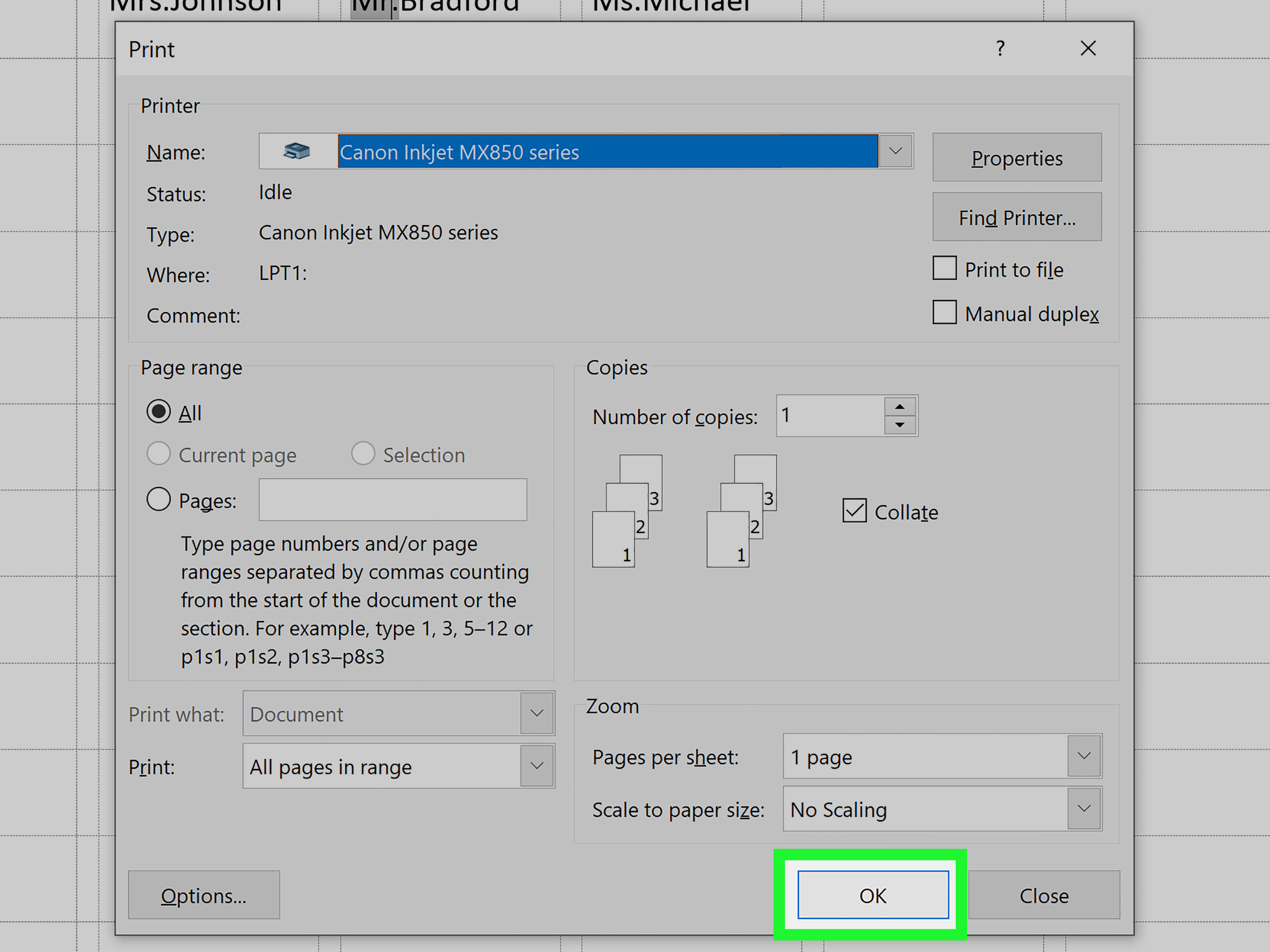
Always print on plain paper first. Then compare the test page with your actual label sheet. This one habit can save you from wasting expensive label paper. It also gives you a chance to adjust printer scaling, tray direction, and alignment before committing.
Common Label Printing Problems and How to Fix Them
Even when you follow the steps correctly, label printing can misbehave. The printer may scale the document, Word may use the wrong label dimensions, or the sheet may be inserted upside down. Fortunately, most problems have simple fixes.
Problem: Text does not line up with the labels
First, confirm that you selected the correct label product number. Next, check your printer settings and make sure scaling is set to 100 percent or “actual size.” Avoid “fit to page” because it can shrink the label layout just enough to ruin alignment.
Problem: Labels print too high or too low
Check whether the label sheet is loaded in the correct direction. Some printers feed paper face up, while others feed face down. Use a marked test sheet if you are unsure. Draw an arrow on a plain sheet, print a test page, and see how the printer pulls paper through.
Problem: Gridlines show on screen but not on paper
That is normal. Table gridlines in Word are visual guides. They help you edit the label sheet but do not print unless you add real borders. If you want printed borders, apply table borders manually.
Problem: Mail merge repeats the same address
This usually happens when the labels were not updated correctly or the “Next Record” rule is missing from labels after the first one. Set up the first label, click Update Labels, then preview results again.
Best Uses for Microsoft Word Labels
Microsoft Word labels are useful for more than mailing envelopes. Once you learn the process, you can use labels for home organization, school projects, small business packaging, office filing, event planning, and inventory systems.
- Address labels: Great for invitations, holiday cards, business mail, and customer shipments.
- Return address labels: Useful for personal stationery and business envelopes.
- Product labels: Ideal for candles, soaps, jars, bottles, baked goods, and handmade items.
- File folder labels: Helpful for offices, classrooms, and home records.
- Name tags: Perfect for conferences, meetings, parties, and classroom activities.
- Storage labels: Useful for bins, shelves, garage boxes, pantry containers, and craft supplies.
The more often you use labels, the more valuable saved templates become. Instead of rebuilding the same layout every time, keep master label files for different purposes. One for return addresses, one for pantry labels, one for product labels, and one for event name tags. Future you will be grateful. Future you may even make coffee in your honor.
Personal Experience: What Actually Works When Creating Labels in Microsoft Word
After working with Microsoft Word labels for mailing projects, office files, small business packaging, and home organization, one lesson stands above all others: label printing rewards patience and punishes guessing. The most common mistake is assuming that “close enough” is good enough. With labels, close enough can mean the first row prints perfectly, the second row looks suspicious, and the final row has text sliding off the sticker like it is trying to escape.
The best experience I have had with Word labels started with a simple return address project. The job seemed easy: one address, one label design, one full sheet. Instead of rushing, I checked the label product number, selected the matching vendor in Word, created a new document, and printed on plain paper first. That test print revealed that the printer was set to “fit to printable area,” which slightly reduced the page. On regular paper, the problem was harmless. On real label sheets, it would have shifted every label just enough to look sloppy. Changing the print setting to actual size fixed it immediately.
Mail merge projects require even more discipline. For a large mailing list, the Excel file matters as much as the Word document. Clean column headers make the process smoother. Separate first name and last name columns are easier to manage than one combined name field. ZIP codes should be formatted consistently, especially when some begin with zero. It is also worth scanning the list for blank rows, duplicate names, and incomplete addresses before merging. Word can only merge the data you give it; it cannot politely ask why Uncle Robert has no ZIP code.
Another practical lesson is to create the merged labels as a new document before printing. Printing directly from the merge tool is tempting, but the new document gives you one last chance to review everything. You can spot long names, awkward line breaks, missing apartment numbers, and formatting problems. This is especially helpful for event name tags, where one person’s title may be much longer than everyone else’s. A quick manual adjustment can make the final sheet look intentional instead of chaotic.
For decorative labels, templates are often the easiest route. However, templates can become messy if you over-customize them. The safest approach is to replace the sample text first, save a copy, and then experiment with fonts, colors, and images. If the design starts misbehaving, you still have a clean version. This is also useful when creating product labels for candles, jars, or handmade goods. A simple design with a clear product name usually looks more professional than a crowded label packed with too many design elements.
The biggest printing tip is wonderfully low-tech: use a plain-paper test and hold it against the label sheet near a window or lamp. This lets you see whether the text lands inside the label boundaries before using the real sheet. If you print labels regularly, this habit can save money, time, and dramatic sighing.
Finally, do not underestimate the value of saving finished label files. A well-made Word label document can become a reusable asset. Save it with a clear name like “Return Address Labels Avery 5160” or “Pantry Labels 30 Per Sheet.” The next time you need labels, you can open the file, update the text, and print without rebuilding the layout from scratch. That is the real beauty of creating labels in Microsoft Word: once the setup is right, the next batch becomes faster, cleaner, and far less likely to make you argue with your printer.
Conclusion
Learning how to create labels in Microsoft Word gives you a practical skill you can use again and again. For simple repeated labels, use the built-in Labels tool and create a full page of the same design. For different labels on one sheet, generate a new label document and type directly into each cell. For large mailing lists, use mail merge with a clean Excel spreadsheet. And when you want something more visual, start with a ready-made template.
The key is to choose the right method, match your label product number, keep your formatting clean, and always print a test page before using real label sheets. Microsoft Word may not make your printer less dramatic, but it does give you the tools to create polished address labels, product labels, folder labels, name tags, and organization labels without special design software.
Note: This article is based on current Microsoft Word label workflows, common label manufacturer guidance, and practical label-printing experience. Menu names may vary slightly depending on your version of Word, operating system, printer driver, and label product.