
When you are halfway through a competitive match, reaching for Discord’s mute button with a mouse can feel like trying to operate a vending machine during an earthquake. Fortunately, Discord keybinds let you mute your microphone, activate push-to-talk, deafen incoming audio, or control other useful functions with a quick keyboard shortcut.
This guide explains how to enable keybinds in Discord in seven simple steps. It also covers the difference between keybinds and built-in hotkeys, which shortcuts are worth creating, and what to do when a Discord keybind refuses to work during a game.
The instructions focus on the Discord desktop application for Windows and macOS. Custom keybinds are not available in the same way through Discord’s mobile apps or browser client, so installing the desktop app is the first important step.
What Are Discord Keybinds?
A Discord keybind is a custom keyboard shortcut that performs a selected action inside the desktop application. Instead of clicking the microphone icon every time your dog begins barking at an innocent delivery truck, you can press a chosen key combination to mute yourself instantly.
Depending on your Discord version and operating system, available actions may include:
- Push to Talk
- Push to Mute
- Toggle Mute
- Toggle Deafen
- Switch between voice activity and push-to-talk modes
- Activate or lock the in-game overlay
- Enable or disable Streamer Mode
Discord also includes built-in hotkeys for navigation, messaging, muting, and other tasks. Custom keybinds are different because you create them yourself and assign them to supported actions.
Keybinds versus built-in Discord shortcuts
Built-in shortcuts are predefined combinations such as keyboard commands for moving between servers or marking channels as read. Custom keybinds are created under User Settings > Keybinds.
Some built-in shortcuts may not be fully customizable. However, custom keybinds give you greater control over the actions most commonly needed during voice chats, gaming sessions, meetings, and streams.
Before You Enable Discord Keybinds
Complete these quick checks before beginning:
- Install and open the Discord desktop app.
- Sign in to your Discord account.
- Connect your microphone or headset if the keybind controls voice chat.
- Choose a shortcut that is not already essential to a game or another application.
- Update Discord if the settings menu looks different from the instructions below.
Discord changes its interface from time to time, but the basic process remains straightforward. The Keybinds section is normally located in the App Settings area of User Settings.
How to Enable Keybinds in Discord in 7 Simple Steps
Step 1: Open the Discord desktop application
Launch Discord on your Windows PC or Mac. Use the installed desktop application rather than opening Discord in Chrome, Firefox, Safari, or another browser.
Although the browser version supports many standard keyboard navigation commands, it does not provide the complete custom keybind system available in the desktop client. Mobile users also cannot create desktop-style global keybinds.
Step 2: Open User Settings
Look near the lower-left corner of the Discord window, where your username, avatar, microphone button, and headphone button appear. Select the gear icon beside those controls.
This opens User Settings, the control room where Discord keeps everything from appearance options to voice settings. It is basically the app’s basement, except the lighting is better and there are fewer mysterious boxes.
Step 3: Select Keybinds
Scroll through the menu on the left until you find the Keybinds option under App Settings. Select it to open the custom shortcut page.
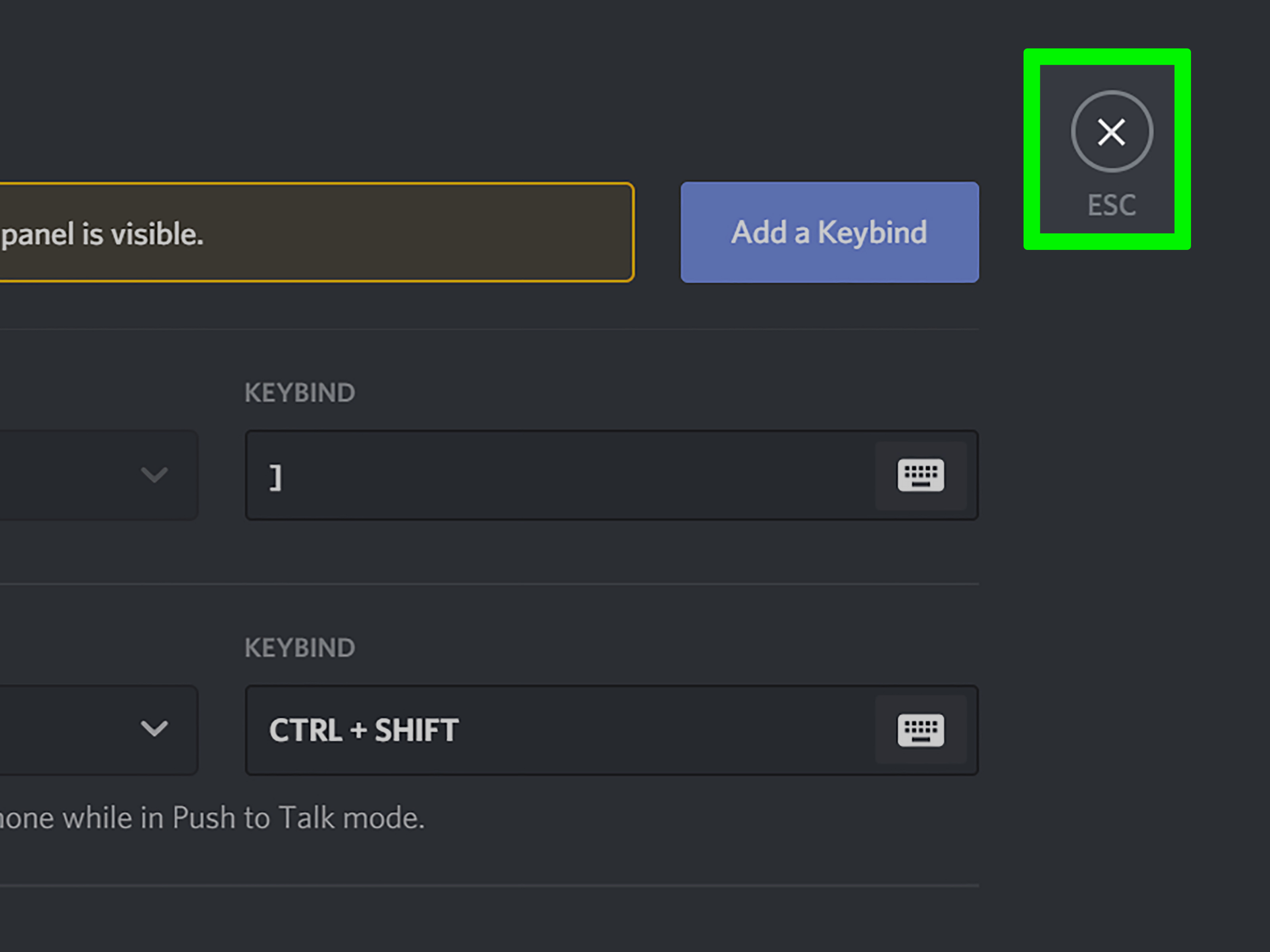
One detail causes plenty of unnecessary confusion: custom keybinds are temporarily disabled while you are actively editing them on the Keybinds page. This behavior prevents every recorded keystroke from immediately triggering an action.
Therefore, do not conclude that your new shortcut is broken while you are still staring at the settings screen. You must leave the Keybinds page before testing it.
Step 4: Click Add a Keybind
Select the Add a Keybind button. Discord will create a new entry with an action menu and a recording field.
You can add multiple keybinds, but each one must be configured separately. Creating a small, practical set is usually better than building a keyboard control panel that requires an aircraft pilot’s license.
Step 5: Choose the keybind action
Open the Action dropdown menu and select the command you want Discord to perform. Your options can vary slightly depending on the app version and platform.
Common choices include:
- Push to Talk: Your microphone transmits only while the assigned key is held.
- Push to Mute: Your microphone is muted while the assigned key is held.
- Toggle Mute: One press mutes your microphone; another press unmutes it.
- Toggle Deafen: Turns incoming Discord audio off or on. Deafening also mutes your microphone.
- Toggle Voice Activity: Changes the active voice input behavior when supported.
- Overlay controls: Opens or locks Discord’s in-game overlay on compatible Windows systems.
For most users, Toggle Mute is the easiest place to start. Push to Talk is useful in noisy rooms, while Push to Mute is convenient for coughing, speaking to someone nearby, or opening a bag of chips directly beside the microphone.
Step 6: Record your shortcut
Select the recording field, which may display text such as Record Keybind. Press the key or combination of keys you want to assign.
A combination such as Ctrl + Shift + M, Alt + M, or a spare mouse button may work well, depending on your existing controls. Avoid keys that perform important actions in your games or applications.
For example, assigning Discord mute to the same key used for reloading in a game could create an entertaining but inconvenient routine: reload, mute, reload, unmute, panic, lose match.
Useful keybind selection rules include:
- Choose something easy to reach with one hand.
- Avoid common typing keys when using voice activity.
- Use modifier combinations to reduce accidental activation.
- Check the game’s control menu for conflicts.
- Do not overwrite an operating-system shortcut you frequently use.
Step 7: Leave the Keybinds page and test it
Navigate to another Discord settings page, close User Settings, or return to a server. Your new keybind should become active after you leave the editing screen.
Join a voice channel and test the shortcut. Watch the microphone or headphone icon while pressing the assigned combination. For push-to-talk, speak while holding the key and confirm that Discord detects your voice.
Test the shortcut both inside Discord and while another application is active. A global keybind should normally continue working while Discord runs in the background, although operating-system permissions, elevated games, or conflicting software can interfere.
Recommended Discord Keybinds for Different Situations
Best keybind for gaming
Push to Talk is helpful when mechanical keyboards, fans, family members, or dramatic desk-slapping might activate an open microphone. Choose a side mouse button or a keyboard key that does not interfere with movement and combat controls.
Players who prefer voice activity may find Push to Mute more comfortable. Holding one button temporarily silences the microphone without changing the normal open-mic setup.
Best keybind for work and study calls
Toggle Mute is usually the most practical option for meetings and study groups. A single shortcut lets you mute before typing loudly, answering another call, or discussing something that the entire channel does not need to hear.
Choose a combination that is easy to remember but difficult to press accidentally. A dedicated macro key can also work, provided the keyboard software does not intercept the command.
Best keybind for streamers
Streamers may benefit from separate shortcuts for Toggle Mute, Toggle Deafen, Streamer Mode, and overlay controls. However, each keybind should be tested alongside broadcasting software, scene controls, game commands, and hardware macros.
A key combination already assigned to start recording, change scenes, or save a clip can produce conflicting actions. Your heroic in-game moment should not end with three programs opening menus simultaneously.
How to Fix Discord Keybinds That Are Not Working
Leave the Keybinds settings page
This is the first fix because it is the easiest one to overlook. Discord disables custom keybinds while you are editing them. Close User Settings or select another page before testing the shortcut.
Check for shortcut conflicts
Assign a different key combination and test again. Games, recording utilities, keyboard programs, accessibility tools, and operating-system features may already use your chosen shortcut.
Try a distinctive combination involving Ctrl, Alt, Shift, or a spare mouse button. If the new combination works, the original shortcut was probably being intercepted elsewhere.
Confirm the correct voice input mode
A Push to Talk keybind is useful only when Discord is configured appropriately. Open User Settings > Voice & Video and review the Input Mode setting.
If you use Push to Talk, confirm that the microphone activates while the key is held. If you use Voice Activity, a Push to Mute or Toggle Mute shortcut may be more suitable.
Review microphone permissions
On Windows, open the Privacy & Security settings and make sure microphone access is enabled for applications and desktop apps. A keybind may appear to work while the microphone remains silent because Discord lacks permission to use it.
On macOS, open System Settings > Privacy & Security. Check both Microphone access and, when necessary, Input Monitoring. Input Monitoring permission can be important when an app needs to recognize keyboard activity while another application is active.
Restart Discord after changing permissions so the app can reload them properly.
Check games running with elevated permissions
A Windows game running with elevated privileges may prevent a normal application from detecting global shortcuts. Current Discord releases may use Discord System Helper to improve keybind and feature reliability in games that require elevated permissions.
Keep Discord updated and follow any in-app prompt related to System Helper. Avoid downloading unofficial “keybind fix” utilities from random websites, no matter how confidently their download button glows.
Remember the Game Overlay limitation
Discord’s Game Overlay is designed for Windows and is not available in the same form on macOS or Linux. An overlay-related keybind will not magically summon the Windows overlay on an unsupported operating system.
On Windows, confirm that the Game Overlay is enabled and that the relevant game is recognized by Discord before troubleshooting its shortcut.
Restart and update Discord
Completely close Discord, including its background process, and reopen it. If the problem continues, install available updates and recreate the keybind.
You can also temporarily remove other custom shortcuts to determine whether two Discord keybinds conflict with each other.
Common Discord Keybind Mistakes to Avoid
- Testing while editing: Keybinds remain inactive on the Keybinds settings page.
- Using the browser client: Custom global keybinds require the desktop app.
- Choosing a common letter: Binding mute to a normal typing key can create constant accidental activations.
- Ignoring game controls: The same key may already control movement, inventory, chat, or voice communication.
- Forgetting mute status: Toggle shortcuts can leave you muted without realizing it.
- Creating too many shortcuts: A complicated setup is harder to remember and troubleshoot.
- Skipping permissions: macOS and Windows privacy settings can prevent voice or background input from working.
Real-World Experiences and Practical Lessons
The most successful Discord keybind setups are usually the simplest. Users often begin by assigning shortcuts to every available action, then discover that they remember only two of them. A practical arrangement normally includes one microphone control and, perhaps, one deafen or overlay command.
Experience 1: The gaming conflict nobody notices at first
A common gaming experience begins with a perfectly sensible shortcut. A player assigns the letter V to Push to Talk because V is easy to reach. The shortcut works in Discord, so everything appears ready.
Then the player launches a game where V performs melee attacks, changes the camera, or opens an interaction menu. Every conversation becomes accompanied by an unrelated in-game action. The keybind is technically working, but the setup is impractical.
The lesson is to test a keybind inside every frequently played game. A mouse thumb button can be more convenient, although it should not already control grenades, abilities, or browser navigation. Modifier combinations reduce conflicts, but overly complicated combinations can be difficult to press during fast gameplay.
Experience 2: The mysterious shortcut that “does nothing”
Another frequent situation occurs immediately after a user records a new shortcut. They press it several times while remaining on the Keybinds page and see no response. They delete it, recreate it, restart the computer, question reality, and perhaps accuse the keyboard of betrayal.
The actual explanation is simple: Discord disables keybinds while they are being edited. Leaving the settings page activates them. This tiny detail solves a surprisingly large percentage of apparent keybind failures.
Experience 3: Toggle Mute causes an awkward monologue
Toggle Mute is convenient, but it can also create the classic experience of speaking enthusiastically for two minutes while everyone else hears nothing. Unlike Push to Talk, a toggle remains active after the key is released.
Audio notifications can help, but users should also glance at Discord’s microphone indicator after pressing the shortcut. A shortcut that is easy to press accidentally should be replaced with a more deliberate combination.
Experience 4: The shortcut works in Discord but not in a game
Some users find that a keybind works while Discord is focused but stops responding when a particular Windows game is active. This can happen when the game uses elevated permissions or captures keyboard input aggressively.
Updating Discord, checking System Helper, and choosing a different key combination are sensible first steps. Testing the keybind in a basic application, such as a text editor, can also reveal whether the problem affects every background program or only one game.
Experience 5: macOS permissions quietly block background input
Mac users sometimes configure a keybind correctly but find that it responds only when Discord is the active window. Reviewing Input Monitoring under Privacy & Security can resolve background keyboard detection problems. Microphone permission must also be enabled for voice features.
After changing these settings, quitting and reopening Discord is important. Applications do not always recognize newly granted permissions until they restart.
The practical takeaway
Begin with one shortcut, test it in Discord, test it in another application, and finally test it in a real game or meeting. Add more keybinds only after the first one works consistently.
A good Discord keybind should be comfortable, memorable, conflict-free, and difficult to trigger accidentally. When configured thoughtfully, it becomes invisible: you press it, the correct action happens, and nobody in the voice channel hears your vacuum cleaner attempting to consume a shoelace.
Conclusion
To enable keybinds in Discord, use the desktop application, open User Settings, select Keybinds, add a new shortcut, choose an action, record your preferred key combination, and leave the settings page before testing it.
If a shortcut does not work, check for conflicts, confirm your voice settings, review operating-system permissions, update Discord, and test whether the problem occurs only inside a particular game. Start with a simple Toggle Mute or Push to Talk shortcut and expand your setup only when necessary.
Once configured, Discord keybinds make voice communication faster and less distracting. More importantly, they let you mute unexpected household chaos before your entire server receives a live audio documentary about it.













