
Minecraft has a funny way of looking simple while quietly asking your computer to juggle a small universe. One minute you are punching trees like a responsible block-based citizen, and the next minute you have twenty-seven mods, a cinematic shader pack, a mob farm the size of a shopping mall, and a game that sounds like it is begging for water. When that happens, allocating more RAM to Minecraft can make a real difference.
That said, more RAM is not a magic wand. It is more like seasoning. Add the right amount and everything improves. Dump the whole jar in and dinner is ruined. If Minecraft keeps stuttering, crashing, freezing on world load, or throwing memory-related errors, increasing memory allocation may help. If your PC is already low on total system memory, though, giving Minecraft too much can actually make performance worse. Yes, computers can be dramatic too.
In this guide, you will learn three practical ways to allocate more RAM to Minecraft, how much memory you should actually use, what not to do, and what real-world results players usually notice after making the change. Whether you play vanilla Minecraft Java Edition, run giant modpacks, or manage a private server for friends who definitely did not “accidentally” explode the village again, this walkthrough will help you get your Minecraft RAM allocation under control.
Before You Change Anything: Know Your Limits
Before adjusting Minecraft RAM settings, check how much memory your computer actually has. On Windows, you can see installed RAM and whether your system is 64-bit by opening Settings > System > About. This matters because a 64-bit system is much better suited for larger memory allocations. If you only have 8GB of total system RAM, you should not hand 6GB to Minecraft and expect Windows, Discord, your browser, and the rest of your apps to smile politely.
As a general rule, 8GB of system RAM is workable for light play, 16GB is the sweet spot for modern gaming, and 32GB is great for heavy multitasking, demanding modpacks, or running background apps while playing. For Minecraft itself, vanilla gameplay often does fine with a modest allocation, while heavily modded versions usually need more.
Here is a practical starting point:
Vanilla Minecraft Java: 2GB to 4GB
Lightly modded Minecraft: 4GB to 6GB
Large modpacks: 6GB to 8GB
Extreme setups: only go beyond that if your system has plenty of memory and the pack specifically benefits from it
The goal is not to give Minecraft every last gigabyte like it is the favorite child. The goal is to give it enough to run smoothly while leaving room for your operating system and everything else.
Way 1: Allocate More RAM in the Official Minecraft Launcher
The first and most common method is to change the memory limit directly inside the Minecraft Launcher. This is the best option for most players using Minecraft Java Edition, especially if you want per-installation control over how much RAM each version gets.
How to Do It
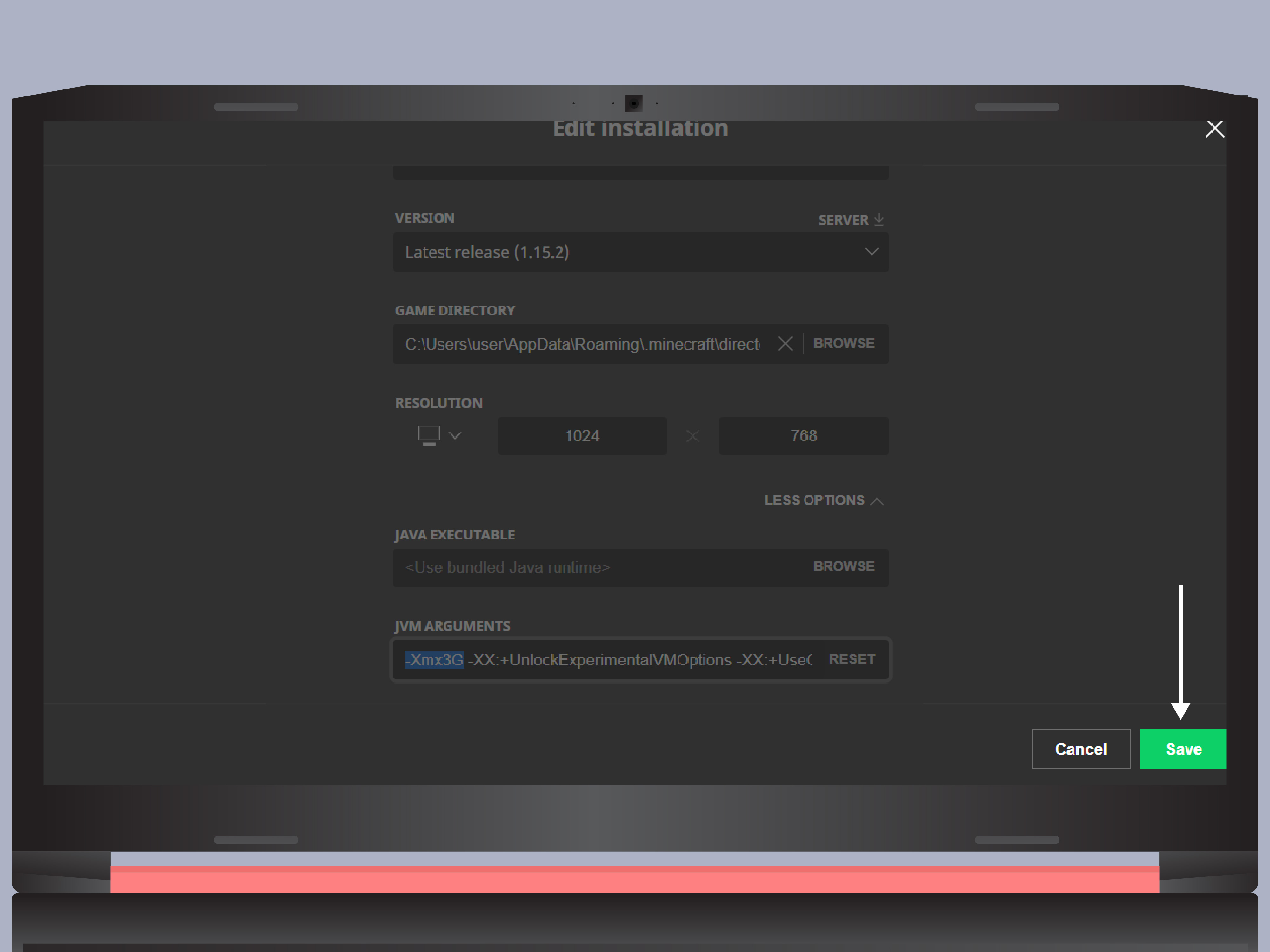
Open the Minecraft Launcher and go to the Installations tab. Find the installation or version you want to edit, click the menu or edit option, and then open More Options. In that section, you will see a field labeled JVM Arguments. Somewhere in that line, you should spot something that looks like -Xmx2G or a similar value.
That little chunk of text is the star of the show. The -Xmx argument sets the maximum heap size, which is the maximum amount of RAM Java can use for Minecraft. If you want to increase the allocation to 4GB, you would change -Xmx2G to -Xmx4G. For 6GB, use -Xmx6G.
Example:
-Xmx4G
After changing the value, save the installation and launch the game normally.
Why This Method Works Well
This approach is simple, flexible, and built into the official launcher. It also lets you customize RAM by profile. That means your vanilla survival world can keep a modest memory setting while your enormous fantasy modpack gets the extra breathing room it needs. Think of it as giving each Minecraft setup its own snack drawer instead of forcing everybody to share one granola bar.
Best Use Case
Use this method if you:
Play standard Java Edition
Switch between multiple installations
Want a clean and reliable way to adjust RAM
Do not need a third-party launcher
Common Mistakes to Avoid
Do not edit random parts of the JVM argument string unless you know what they do. Changing the wrong thing can cause startup errors. Also, do not assume that higher always means better. Giving Minecraft 10GB when it only needs 4GB can lead to wasteful garbage collection behavior and poorer overall performance.
Way 2: Allocate More RAM in a Modded Launcher
If you use CurseForge, ATLauncher, or the FTB App, you usually do not need to dig through a line of Java arguments like a digital archaeologist. Most modded launchers include a RAM slider or memory setting built into the interface, which makes the job much easier.
CurseForge
In CurseForge, you can set RAM either globally or by profile, depending on the current launcher layout. For many profiles, the easiest route is to open My Modpacks, select the pack, open the profile options, and enable Custom RAM Allocation. Then choose the amount of memory you want to assign.
This is especially useful for players who run different kinds of packs. A small quality-of-life pack might be happy with 4GB, while a heavier kitchen-sink modpack may want 6GB to 8GB. CurseForge makes it much easier to manage that without touching the full JVM arguments field.
ATLauncher
ATLauncher keeps things nicely straightforward. Open the launcher, go to Settings, then the Java tab, and adjust the Maximum RAM value. Save the setting and launch your instance. If your options are suspiciously tiny, that may point to a 32-bit setup or an outdated Java installation.
FTB App
In the FTB App, select the modpack instance, open its settings, and adjust the Instance Memory slider. The app saves the change automatically. FTB’s own documentation also warns against going overboard, and that is smart advice. Just because a slider keeps moving does not mean your performance will keep improving.
Why Modded Launchers Need Extra RAM
Modded Minecraft is basically regular Minecraft after it drank three energy drinks and downloaded an engineering degree. Mods add biomes, dimensions, mobs, automation systems, magic systems, UI layers, and background processes that increase memory demands. That is why allocating more RAM to modded Minecraft is often necessary even when vanilla runs fine.
If your game takes forever to load, stutters when entering new chunks, crashes after adding mods, or freezes while generating terrain, insufficient RAM may be part of the problem. A thoughtful increase in memory allocation can help stabilize the experience.
Best Use Case
Use this method if you:
Play modpacks through CurseForge, ATLauncher, or FTB
Want a simpler interface than manual JVM editing
Frequently switch between light and heavy modpacks
Prefer profile-based RAM settings
Way 3: Allocate More RAM with Custom JVM Arguments or Server Files
The third option is more hands-on. It is ideal for advanced users, people launching Minecraft through custom setups, or anyone running a private server. This method relies on Java startup arguments, specifically -Xmx and -Xms.
What These Arguments Mean
-Xmx sets the maximum heap size.
-Xms sets the initial heap size.
For example:
java -Xms2G -Xmx4G -jar server.jar nogui
That command tells Java to start with 2GB of memory and allow the application to use up to 4GB. For a Minecraft server, this can be a very effective way to improve stability when more players join, more chunks are loaded, or a modded environment becomes memory-hungry.
When to Use It
This method is useful if you:
Run a Minecraft server from a batch file or shell script
Use a custom launcher setup
Want more direct control over Java memory behavior
Need to tweak both initial and maximum heap size
How to Apply It
Open the batch file, shell script, or startup shortcut that launches the game or server. Find the existing Java command and edit the memory flags. If you are running a server, the command often appears in a file like run.bat, start.bat, or a launcher script.
Examples:
java -Xms2G -Xmx4G -jar minecraft_server.jar nogui
java -Xms4G -Xmx6G -jar forge-server.jar nogui
Save the file, then relaunch the game or server.
One Important Warning
Do not set -Xms and -Xmx to huge matching values unless you understand why you are doing it. Reserving too much memory up front can reduce flexibility and may not provide any real performance benefit. For many players, setting a reasonable maximum with -Xmx matters more than aggressively raising both values.
How Much RAM Should You Actually Allocate to Minecraft?
This is the question everybody asks, and the least satisfying honest answer is: it depends. Yes, I know. Nobody likes that answer. It is the salad of answers. But it is true.
If you play vanilla Minecraft with no major resource packs, 2GB to 4GB is usually enough. If you run medium-sized modpacks, 4GB to 6GB is often the sweet spot. If you use very large modpacks, especially with shaders, texture packs, or background apps, 6GB to 8GB may be more appropriate.
What matters most is balance. On a system with 16GB total RAM, allocating 4GB to 6GB is often a sensible range. On a system with 8GB total RAM, you may need to stay closer to 2GB to 4GB so the rest of the computer can still function normally. If your computer starts swapping memory to disk, the whole system can feel slower, and Minecraft may end up running worse instead of better.
Signs You Allocated Too Little or Too Much
Too Little RAM
Slow world loading
Freezing during chunk generation
Crashes with memory or Java errors
Modpacks failing to launch
Constant stuttering after a few minutes of play
Too Much RAM
The rest of your PC feels sluggish
Background apps close or lag badly
Performance becomes inconsistent instead of smooth
You see no meaningful improvement despite a huge increase
In other words, if Minecraft is still unhappy after a RAM boost, the bottleneck may be somewhere else, such as CPU performance, storage speed, graphics settings, or a misbehaving mod.
Extra Tips for Better Minecraft Performance
Allocating more RAM helps, but it is only one piece of the optimization puzzle. You can also improve performance by closing unnecessary background apps, lowering render distance, reducing shader intensity, removing unstable mods, and making sure your Java and launcher setup are current.
If you are playing on a laptop, remember that thermal limits can affect performance too. Sometimes the issue is not memory at all. Sometimes the issue is your laptop trying to become a toaster.
of Real-World Experience with Minecraft RAM Allocation
In practice, the difference between a bad RAM allocation and a good one often shows up in small but important ways. Players usually notice it first during startup. A modpack that once took forever to launch may begin loading faster and more consistently. Menus feel less sticky. World generation becomes less jerky. The game stops acting like it is reconsidering all of its life choices every time you cross a chunk border.
One common experience comes from players moving from vanilla to modded Minecraft for the first time. At first, they assume the game is broken because a pack keeps freezing during load or crashing before the main menu appears. Then they increase the memory allocation from a modest setting to something more appropriate, such as 4GB or 6GB, and suddenly the same pack behaves much better. Not perfect, because modded Minecraft always keeps a little chaos in its back pocket, but noticeably better.
Another frequent experience is the opposite: someone reads that “more RAM equals more speed,” allocates a giant chunk of memory, and expects fireworks. Instead, the game feels about the same or even slightly worse. That happens because Minecraft does not automatically benefit from excessive memory. If the game only needs a moderate amount, feeding it a mountain of RAM can be like giving a goldfish a swimming pool. Impressive in theory, unnecessary in practice.
Server owners notice the impact differently. They tend to see fewer crashes when multiple players join at once, fewer hiccups during exploration, and smoother performance during busy moments like redstone contraptions, mob farms, and chunk loading. However, the best results usually come from pairing proper memory allocation with sensible server management. A server with bad mods, poor optimization, or overloaded hardware will not become a champion just because you edited two numbers in a startup file.
Players with older systems often report the most dramatic learning curve. On an 8GB machine, for example, allocating too much memory to Minecraft can make the whole computer feel slow. Discord lags. Browser tabs throw a tiny tantrum. Windows starts acting like it is carrying groceries up three flights of stairs. In those cases, finding the right balance matters more than chasing the biggest number.
There is also a psychological side to the whole thing. Once players understand what -Xmx does, the mystery disappears. Instead of guessing, they start testing. They try 4GB, then 6GB, and compare how their favorite world behaves. They notice whether chunk loading improves, whether startup time changes, and whether crashes disappear. That hands-on trial-and-error approach usually leads to the best long-term results.
The biggest shared experience, though, is simple: when Minecraft gets the right amount of RAM, it feels less fussy. The game breathes easier. Modpacks load with fewer complaints. Servers stay steadier. And players spend less time troubleshooting Java settings and more time doing what really matters, like building an impossibly large base and pretending it definitely will not need another expansion later.
Conclusion
If you want to allocate more RAM to Minecraft, you have three solid options: change the setting in the official Minecraft Launcher, adjust memory inside a modded launcher like CurseForge or FTB, or manually edit JVM arguments for custom setups and servers. The best method depends on how you play, but the core idea stays the same: give Minecraft enough memory to run well without starving the rest of your system.
For most players, a balanced approach works best. Start with a reasonable amount, test performance, and increase only if needed. Minecraft is much happier when you tune it like a smart mechanic, not when you treat the RAM slider like a carnival strength tester.













