
Posting a picture on Twitternow officially called Xis one of those tasks that sounds almost too easy until the button you need disappears, your photo refuses to upload, or your carefully cropped masterpiece turns into a mysterious rectangle with someone’s forehead missing. The good news: posting photos on X is still simple once you know where everything lives on desktop and mobile.
Whether you want to share a vacation photo, a meme, a product announcement, a screenshot, a school project, a pet portrait, or the kind of lunch picture that says, “Yes, I own a basil leaf,” this guide walks you through the exact process. You will learn how to post a picture on Twitter (X) from a computer, iPhone, Android phone, and mobile browser, plus how to add captions, alt text, multiple images, and better image sizes for cleaner results.
The short version? Open the compose box, upload your photo, write your post, check the preview, add image description if needed, and hit Post. The longer versionthe one that saves you from blurry uploads and “why does this look weird?” panicis below.
What You Need Before Posting a Picture on X
Before you post a picture on Twitter (X), make sure your image is ready. X accepts common image formats such as JPEG, PNG, and GIF. Photos can be uploaded directly from your device, while animated GIFs have separate upload limits depending on whether you are posting from web or mobile. X does not support every image format, so if a BMP or TIFF file is throwing a tantrum, convert it to JPG or PNG first.
You can attach multiple media items to a post, including photos, a GIF, or video, up to the platform’s current media rules. In normal everyday posting, most users can add up to four photos in a single post. This is perfect for mini photo dumps, before-and-after shots, product angles, recipe steps, or “my cat moved exactly three inches and I documented it like a wildlife photographer.”
Best Image Types for X Posts
For most posts, use JPG when you want a smaller file size and PNG when you need sharper text, graphics, logos, or screenshots. GIFs are best for short looping animation, reactions, or playful visual comments. If your image contains small text, avoid heavy compression because X may scale or process the upload for display.
A good general image size for a single in-feed picture is around 1200 x 675 pixels for a landscape image. Square images, such as 1080 x 1080 pixels, also work well, especially for graphics, quotes, announcements, and product shots. Vertical images can perform nicely on mobile, but always preview them before posting so the most important part is not awkwardly cropped.
How to Post a Picture on Twitter (X) on Desktop
Posting from desktop is ideal when your image is stored on your computer, edited in design software, or part of a work project. It is also easier to review captions, hashtags, and image descriptions on a full keyboard. Your thumbs may be talented, but a laptop still wins the typing marathon.
Step 1: Go to X.com and Sign In
Open your browser and go to X.com. Sign in with your account. Once you are on the home feed, look for the compose area. Depending on your layout, you may see a “What is happening?!” box near the top or a Post button in the left-side menu.
Step 2: Click the Post Composer
Click inside the compose box or select the Post button. This opens the post editor where you can write text and attach media. You can post a picture with text, without text, with hashtags, with mentions, or with a short caption that makes the photo understandable at a glance.
Step 3: Select the Image Icon
Click the image icon, usually shown as a small landscape or photo symbol. Your computer’s file picker will open. Choose the picture you want to upload from your desktop, downloads folder, cloud-synced folder, or wherever your files have decided to hide today.
Step 4: Review the Preview
After selecting the file, X will show a preview inside the composer. Look closely at the crop, orientation, and overall clarity. If the image appears sideways, blurry, or poorly framed, cancel the upload and fix the file before posting. A few seconds of checking can save you from publishing a photo that looks like it was taken during an earthquake.
Step 5: Add Text, Hashtags, or Mentions
Write a caption that gives the image context. A strong caption does not need to be long. For example, a small business could write, “New handmade ceramic mugs are live todayeach one has a different glaze pattern.” A photographer might write, “Sunset over Lake Michigan, no filter, just dramatic clouds doing their job.”
If relevant, add one or two hashtags. Do not turn your post into a hashtag soup. A good rule is to use hashtags only when they help people discover the topic, event, location, brand, or community.
Step 6: Add Image Description or Alt Text
Before posting, add an image description. On desktop, X usually provides an “Add description” option on or near the uploaded image. This text helps people using screen readers understand the image. It can also help when images load slowly or when users need more context.
A helpful image description is clear and specific. Instead of writing “dog,” try “A golden retriever wearing a red bandana sits on a wooden porch beside a blue water bowl.” If the image contains important text, summarize or transcribe that text. Keep it natural, not robotic.
Step 7: Click Post
Once your image, caption, and image description are ready, click Post. Your picture will appear on your profile and may appear in the timelines of people who follow you. Congratulations: your image has entered the fast-moving river of X, where it will compete with breaking news, jokes, sports arguments, and someone’s extremely confident opinion about pizza toppings.
How to Post a Picture on Twitter (X) on iPhone
The X app for iPhone makes photo posting quick, especially if you are sharing something you just captured. This is the classic “take picture, post picture, hope autocorrect does not betray you” workflow.
Step 1: Open the X App
Open the X app on your iPhone and make sure you are logged in. Tap the compose button, usually shown as a plus icon or feather-style post icon, depending on the current app design.
Step 2: Tap the Photo Icon
Inside the composer, tap the photo icon. X may ask for permission to access your photo library. Choose the permission level you are comfortable with. You can allow access to selected photos or your full library, depending on your iPhone settings and privacy preferences.
Step 3: Choose Your Picture
Select the picture you want to post. You can usually choose more than one image if you want to create a multi-photo post. Put the images in a logical order if they tell a story, such as step one, step two, finished result, and dramatic victory pose.
Step 4: Edit or Crop If Needed
Depending on the app version and your device, you may be able to crop or adjust the image before posting. If the built-in tools are limited, edit the picture in your Photos app first. Straighten horizons, crop distractions, brighten dark images, and make sure the main subject is easy to see.
Step 5: Add a Caption and Alt Text
Write your post text. Then tap the ALT or +ALT option on the image to add image description. A good mobile alt text description is short but meaningful. For example: “A white coffee cup on a desk beside a notebook, laptop, and small green plant.”
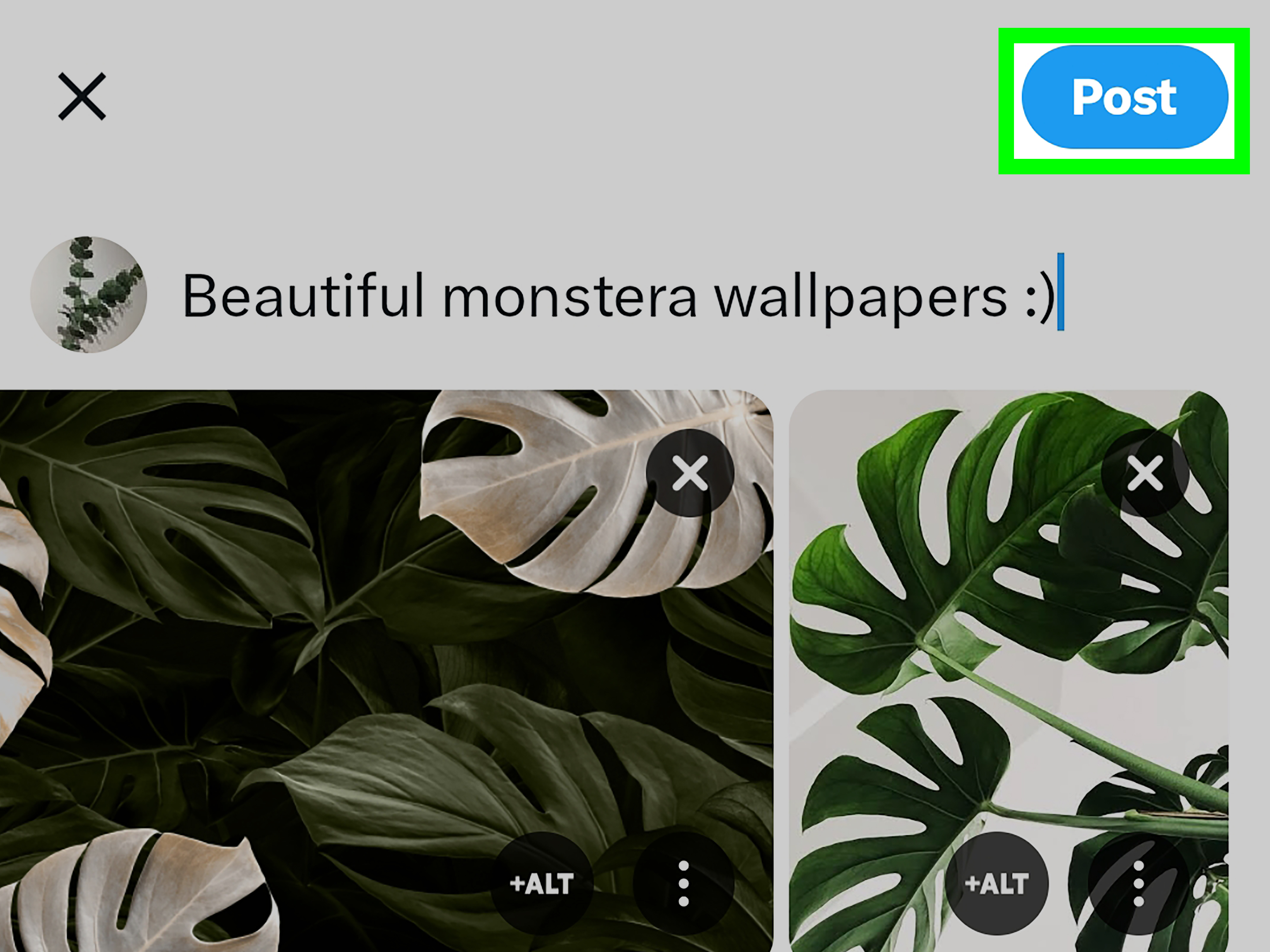
Step 6: Tap Post
Review everything one last time. Check for typos, accidental screenshots, private information, or background details you did not mean to share. Then tap Post. Your image is now live.
How to Post a Picture on Twitter (X) on Android
Posting a picture on X from Android is very similar to iPhone. The exact button placement may vary slightly depending on your app version, phone size, and whether X has moved something again just to keep everyone humble.
Step 1: Open X and Start a New Post
Open the X app and tap the compose button. This opens a blank post where you can type text and add media.
Step 2: Tap the Gallery or Image Icon
Tap the image icon to open your gallery. If prompted, allow X to access your photos. Android may let you grant access to all photos or only selected media. Choose the option that fits your privacy comfort level.
Step 3: Select One or More Photos
Choose the photo you want to upload. If you are posting several images, select them in the order you want them to appear. For tutorials, comparisons, and product posts, order matters. Nobody wants to see the “after” before the “before” unless the story is about time travel.
Step 4: Add Your Caption
Write a caption that explains, entertains, or adds value. For personal posts, simple captions work well. For brand posts, be clear about what the image shows and what you want users to do next. For example, “Our spring menu starts todayfirst up: lemon blueberry pancakes with house-made syrup.”
Step 5: Add Image Description
Tap the ALT or image description option and write a useful description. If your picture includes a chart, flyer, screenshot, menu, or announcement, include the essential text in the description so people do not miss important information.
Step 6: Post the Picture
When the preview looks right, tap Post. If the upload fails, check your connection, file size, format, and app version. Sometimes the fix is as glamorous as switching from mobile data to Wi-Fi. Technology: occasionally magical, often petty.
How to Post a Picture on X from a Mobile Browser
You can also post pictures from a mobile browser by visiting X.com on your phone. This is useful if your app is glitching, storage is low, or you simply prefer not to use the app.
Open your mobile browser, go to X.com, and sign in. Tap the compose button, choose the image icon, select a photo from your device, write your post, add image description if available, and publish. The mobile browser may feel slightly less smooth than the app, but it can be a reliable backup.
How to Post Multiple Pictures on X
To post multiple pictures on X, open the composer and select up to four images. Arrange them in the order you want. The first image often gets the most attention, so make it the strongest visual. If you are posting a mini gallery, choose a cover image that quickly tells people why they should tap or pause.
Multiple images work especially well for:
- Before-and-after transformations
- Travel photo sets
- Product close-ups and detail shots
- Step-by-step tutorials
- Event highlights
- Receipts, examples, or visual proof
When you add multiple images, add image descriptions to each one. Do not paste the same description four times unless the images are truly identical, in which case you may have invented the world’s least exciting gallery.
How to Add Alt Text to Pictures on X
Alt text, also called an image description, is one of the most useful features on X. It makes your image more accessible to people who use screen readers and helps explain visual details that might not be obvious from the caption alone.
Good Alt Text Example
Weak description: “Food on table.”
Better description: “A round wooden table with two bowls of ramen, chopsticks, iced tea, and a small plate of dumplings.”
Alt Text Tips
Describe what matters most. Be specific, but do not write a novel. Mention visible text if it is important. Avoid phrases like “image of” unless the format matters, such as “Screenshot of a weather app showing heavy rain all afternoon.” Stay objective and useful.
Best Image Sizes for Posting Pictures on X
X can display several image shapes, but your post will usually look cleaner if you prepare the file before uploading. For landscape posts, 1200 x 675 pixels is a strong choice. For square posts, 1080 x 1080 pixels is simple and reliable. For vertical graphics, test how the preview looks on mobile and desktop before posting.
If you are posting screenshots, crop out unnecessary browser tabs, private messages, addresses, email details, or personal information. If you are posting a flyer, keep text large enough to read on a phone. Tiny text on social media is basically a trust exercise for people’s eyeballs.
Common Problems When Posting Pictures on X
Your Picture Will Not Upload
If your picture will not upload, check the file format first. Use JPG, PNG, or GIF. Next, check the file size and your internet connection. Try refreshing the page, closing and reopening the app, or updating X. If the image is very large, resize or compress it before uploading.
Your Image Looks Blurry
Blurry images usually come from low-resolution files, screenshots that have been shared too many times, or heavy compression. Start with the clearest file you have. Avoid downloading and re-uploading the same image repeatedly. Each generation can lose quality, like a photocopy of a photocopy wearing sunglasses.
Your Image Is Cropped Weirdly
Different devices may display previews differently. Keep important text, faces, logos, and products away from the very edges. Center the main subject and use safe margins. If the image is a graphic, test it as a draft before posting publicly.
Your GIF Does Not Animate
If an animated GIF does not loop correctly, X may show it as a static image. Use a looping GIF and keep it within the supported upload limits. If animation is essential, consider converting the file to a short video format when appropriate.
Tips for Better Picture Posts on X
Use a Caption That Adds Context
A picture can catch attention, but the caption tells people why it matters. Instead of writing “Look at this,” give the reader a reason to care. Try “First test print from the new designstill adjusting the colors, but the texture is exactly what we wanted.” That caption tells a story.
Keep Text on Images Large
Many people browse X on mobile. If your graphic contains text, make it large, high-contrast, and brief. A crowded graphic may look fine on your computer screen and become microscopic on a phone.
Post With Purpose
Every image should have a job. It can inform, entertain, prove, announce, document, or invite discussion. Random is fine for personal accounts, but business and creator accounts usually perform better when each picture supports a clear message.
Check Privacy Before Posting
Before sharing any picture, zoom in and inspect the background. Look for addresses, school names, license plates, IDs, private messages, open browser tabs, or anything you do not want strangers to see. The internet has excellent eyesight and questionable boundaries.
Desktop vs Mobile: Which Is Better for Posting Pictures?
Desktop is better when you need careful editing, precise writing, or multiple files from a folder. It is also more comfortable for brand managers, bloggers, journalists, and creators who schedule or draft posts carefully.
Mobile is better for speed. If you just took a photo at an event, in a store, outside, or during a live moment, the mobile app gets it online faster. Mobile posting feels natural for casual updates, behind-the-scenes content, quick reactions, and real-time photos.
The best choice depends on your goal. If the picture is polished, planned, and part of a campaign, desktop may be easier. If the picture is spontaneous, timely, and already on your phone, mobile wins.
Examples of Good Picture Posts on X
For Personal Use
“Finally finished the bookshelf I started three weekends ago. It only required one hardware store trip, two wrong screws, and a heroic amount of patience.”
For a Small Business
“Fresh batch just out of the oven: cinnamon rolls with cream cheese glaze. Available today until sold out.”
For a Creator or Blogger
“Testing three different thumbnail styles for next week’s post. The clean layout is winning so far, but the dramatic one keeps yelling for attention.”
For an Event
“Day one highlights from the community art fair: live painting, handmade ceramics, and the friendliest booth dog in attendance.”
Extra Experience: What I Have Learned About Posting Pictures on X
Posting a picture on Twitter (X) sounds like a tiny task, but after doing it often, you start noticing patterns. The most successful picture posts are rarely the ones with the most complicated captions or fanciest filters. They are usually clear, easy to understand, and posted with a reason. A sharp photo with a simple caption often beats a cluttered graphic trying to say twelve things at once.
One useful experience is to always preview the image like a stranger would see it. When you create a post, you already know what the photo means. Other people do not. They are scrolling quickly, half-distracted, probably between messages, videos, news, and someone arguing passionately about a movie from 1997. Your image needs to make sense in two seconds. If the main subject is hidden, too dark, too small, or buried under text, people may scroll past before the caption gets a chance to help.
Another lesson: captions should not simply repeat the image. If the picture shows a finished cake, the caption does not need to say, “This is a cake.” Let us aim slightly higher than bakery witness testimony. A better caption might explain the flavor, the occasion, the process, or the funny disaster that happened while making it. The image catches attention; the caption gives people a reason to react.
Alt text is also worth treating as part of the post, not as an afterthought. Many people skip it because they are in a hurry, but adding image descriptions is one of the easiest ways to make posts more inclusive. It also forces you to think about what the image actually communicates. If you cannot describe the picture clearly, that may be a sign the image itself is too confusing.
For brands and blogs, I have found that consistency matters. Use similar visual styles, image sizes, colors, or layouts so people recognize your posts over time. That does not mean every picture should look identical. It means your content should feel like it came from the same voice. Think of it like dressing your posts in the same family of outfits instead of sending one in a tuxedo, one in pajamas, and one dressed as a pirate for no reason.
Timing can help, but image quality and relevance matter more. A great picture posted at an average time can still outperform a dull post published at the so-called perfect hour. If your audience follows you for tutorials, post useful visuals. If they follow you for humor, post images that support the joke quickly. If they follow you for news, clarity and accuracy matter most.
It is also smart to keep a small folder of ready-to-post images. Creators, business owners, teachers, bloggers, and community managers can save time by preparing reusable visuals: profile-friendly graphics, announcement templates, product photos, event images, and screenshots with sensitive details removed. When you are busy, having clean images ready prevents last-minute posting chaos.
Finally, do not underestimate the final check. Before posting, inspect the image, read the caption out loud, check the spelling, and make sure you are not accidentally sharing private information. Once a post is live, people can screenshot it quickly. A 20-second review is boring, yes, but boring is better than explaining why your personal email address was visible in the corner of a screenshot.
The best picture posts on X are clear, accessible, and intentional. They do not need to be perfect. They just need to communicate something worth seeing.
Conclusion
Learning how to post a picture on Twitter (X) is easy once you know the steps for desktop and mobile. On desktop, open X.com, start a post, click the image icon, choose your file, add your caption, write image description, and publish. On iPhone or Android, open the X app, tap compose, select a photo from your gallery, add text and alt text, then tap Post.
The real secret is not just uploading the picture. It is preparing the image so it looks good, writing a caption that adds context, using alt text for accessibility, and checking the preview before your post goes live. Do that, and your picture posts will look cleaner, feel more professional, and avoid the classic social media tragedy known as “why is my image cropped like that?”













