When an Android phone freezes at the logo, loops through endless restartode can feel like a secret maintenance door hidden behind the wallpaper. It is not magic, and it is not automatically dangerous. It is a small, separate troubleshooting environment that can restart the device, install approved updates, display recovery logs, clear certain temporary system files on supported models, or perform a factory reset.
The tricky part is that Android manufacturers do not all use the same button combination. Google Pixel phones usually begin in Fastboot Mode, Samsung Galaxy devices commonly use Volume Up and the Side or Power key, and Motorola phones typically begin with Volume Down and Power. This guide explains the general process, brand-specific methods, common Recovery Mode options, and what to do when the familiar “No command” robot appears and looks as though it has given up before you have.
What Is Android Recovery Mode?
Android Recovery Mode is a lightweight maintenance environment that runs separately from the normal Android interface. Because it does not depend on the full operating system loading correctly, it may still be available when the phone is stuck in a boot loop, crashes during startup, or cannot open the Settings app.
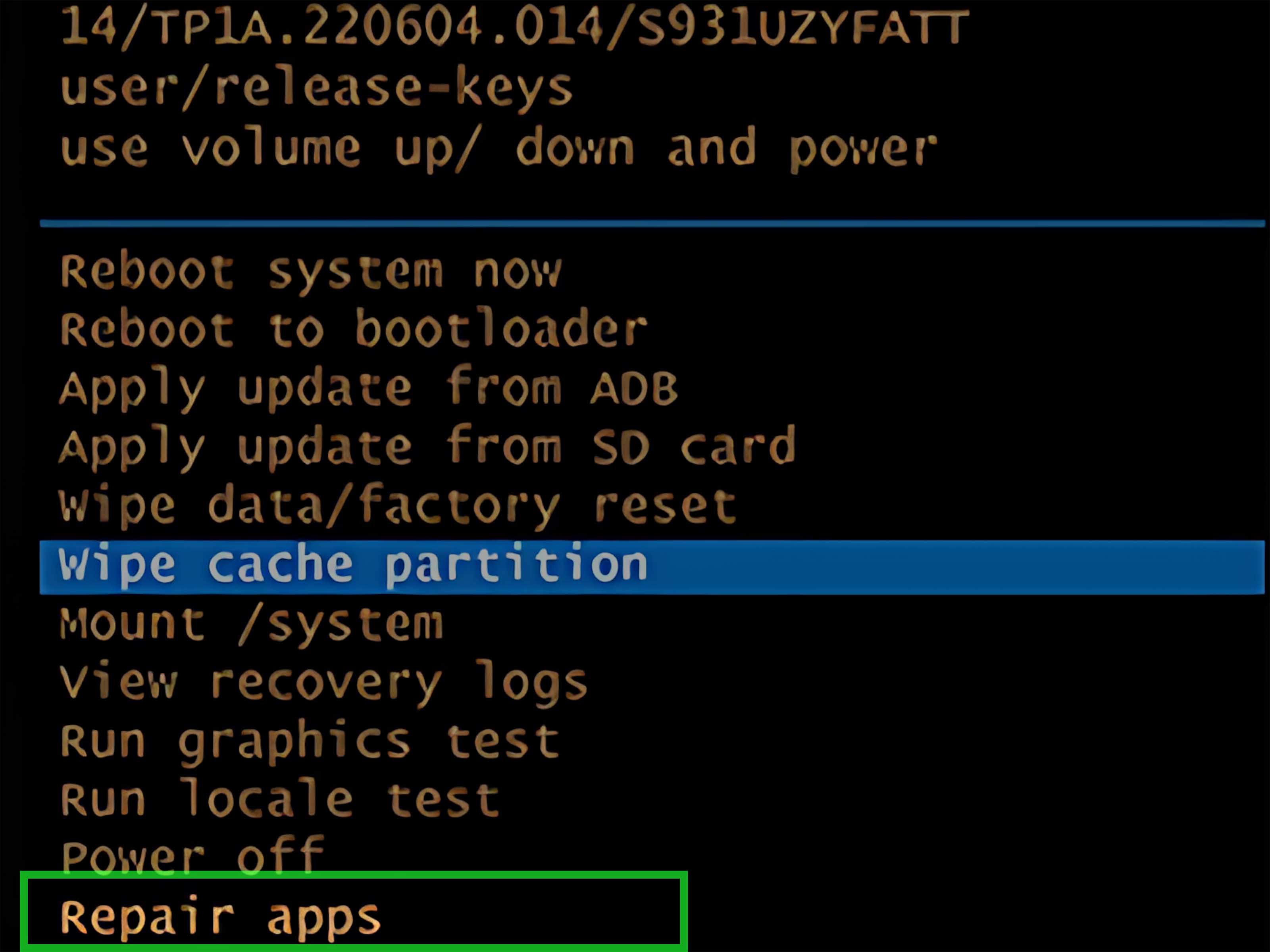
Stock recovery is installed by the phone manufacturer. Its exact menu varies by device, Android version, carrier software, and manufacturer policy. Common entries include Reboot system now, Wipe data/factory reset, Apply update from ADB, View recovery logs, and Power off. Some phones also offer Wipe cache partition, while newer devices may omit it entirely.
Simply entering Recovery Mode does not erase your files. Data is removed only when you deliberately choose an option such as Wipe data/factory reset and confirm the warning. Recovery menus are not known for their warm hospitality, but they generally do ask before launching the digital bulldozer.
Before You Enter Recovery Mode
A few minutes of preparation can prevent a troubleshooting session from becoming a personal archaeology project.
- Charge the battery: Aim for at least 30%, and preferably 50% or more. A phone shutting down during an update or reset can create additional problems.
- Back up important data: If Android still opens, use Settings > Google > Backup and confirm that recent device data is saved. Check Google Photos or another photo service separately.
- Know your Google Account credentials: After a factory reset, Android may require the Google Account that was previously synced with the phone. This security protection helps discourage unauthorized resets.
- Remove the case if necessary: A tight case can make a button combination harder to press or may hold a key down accidentally.
- Confirm the model: Look at the box, purchase record, carrier account, or manufacturer support page. A recent Galaxy phone and an older Galaxy model may not use identical steps.
How to Enter Recovery Mode on Android: General Method
Many Android phones use a two-stage process: first open a bootloader or Fastboot screen, and then select Recovery Mode.
Step 1: Power Off the Phone Completely
Use the normal power menu if the phone responds. If it is frozen, hold the Power or Side key for about 20 to 30 seconds, or use the manufacturer’s forced-restart combination. Wait until the screen is fully black and vibration has stopped.
Step 2: Hold the Correct Button Combination
The most common starting combination is Power + Volume Down. Press both keys at the same time and keep holding until a bootloader, Fastboot, or device menu appears. Do not panic if Android does not start normally; that is the point of this little keyboard shortcut for phones.
Step 3: Highlight Recovery Mode
On most bootloader screens, use the Volume Up and Volume Down buttons to move through the available choices. Highlight Recovery Mode, then press the Power button to select it.
Step 4: Open the Recovery Menu
If the full Android Recovery menu appears, you are finished. If you see an Android robot with a red warning symbol and the words No command, hold the Power button, briefly press Volume Up, and then release both buttons. The timing can be fussy. Try again if the menu does not appear on the first attempt.
Step 5: Navigate Without Touch Controls
Recovery Mode usually ignores the touchscreen. Use the Volume keys to move and the Power button to select. Read every option before pressing Power, especially when the highlighted line contains the words wipe, erase, or factory reset.
Recovery Mode Instructions by Android Brand
Button combinations can change between generations, so treat these as the most common current methods and verify your exact model when possible.
Google Pixel
- Turn the Pixel off.
- On Pixel 6 and later, hold Power + Volume Down until Fastboot Mode appears. Some earlier Pixel models use Power + Volume Up.
- Use the Volume buttons to highlight Recovery Mode.
- Press Power to select it.
- At the No command screen, hold Power, tap Volume Up, and release both quickly.
You should now see the Android Recovery menu. If the phone restarts normally, the buttons were probably held too long; power it off and repeat the sequence.
Samsung Galaxy
- Power off the Galaxy phone completely.
- For many recent models, connect the phone to a powered computer with a USB cable if the standard method does not work.
- Press and hold Volume Up + Side/Power.
- Release the keys when the Samsung logo or Recovery menu appears.
Older Galaxy devices with physical Home or Bixby buttons may require Volume Up + Home/Bixby + Power. Menu choices also vary by One UI version, so do not assume that a cache or update option shown in an older video will still be present.
Motorola and Many Lenovo-Branded Phones
- Charge the phone and switch it off.
- Hold Volume Down + Power until the boot selection screen appears.
- Press Volume Down until Recovery mode is highlighted.
- Press Power to select it.
- If the red-exclamation Android robot appears, hold Power and press Volume Up once.
OnePlus
- Turn the phone off.
- Press and hold Power + Volume Down.
- Release the buttons when the OnePlus logo or recovery interface appears.
- Select a language if prompted, then choose the required recovery option.
OnePlus recovery screens may look more graphical than the plain text menu found on Pixel and Motorola devices. Be careful with Wipe data, because labels and confirmation steps can differ among OxygenOS versions.
Other Android Phones
For devices from Xiaomi, Nothing, ASUS, Sony, TCL, Nokia/HMD, or another manufacturer, begin by checking the official support page for the exact model. Common combinations include Power + Volume Up or Power + Volume Down, but guessing repeatedly can open a different service menu or simply restart the phone. The manufacturer’s instructions are the safer map.
Optional Method: Enter Recovery Mode With ADB
If the phone starts normally, USB debugging was enabled beforehand, and the computer has already been authorized, advanced users can connect the device to a computer with Android Platform Tools and run:
This method avoids button timing, but it is not a rescue shortcut for a locked, unresponsive, or unauthorized phone. If the computer has never been approved on the device, ADB will not gain permission merely because you asked nicely in a terminal window.
What the Main Recovery Mode Options Do
- Reboot system now: Restarts the phone into normal Android. Choose this when you are finished or entered recovery accidentally.
- Reboot to bootloader: Returns to the bootloader or Fastboot menu for additional service actions.
- Wipe cache partition: Clears a dedicated system cache on phones that still provide this option. It should not delete personal files, but many newer devices no longer expose it.
- Apply update from ADB: Allows an authorized update package to be sideloaded from a computer. Use only files and instructions supplied for the exact device.
- Apply update from SD card: Installs a compatible update package stored on removable media, when supported.
- View recovery logs: Displays diagnostic information that may help a technician investigate failed updates or startup errors.
- Wipe data/factory reset: Erases local user data, removes installed apps and accounts, and returns settings to their default state. It normally does not downgrade the installed Android version.
- Power off: Shuts down the phone without booting Android.
When Should You Use Android Recovery Mode?
Recovery Mode is most useful when ordinary troubleshooting is unavailable. Typical situations include a phone stuck at the manufacturer logo, repeated boot loops after an update, a system that crashes before the lock screen, or a device that cannot open Settings for a necessary factory reset.
It should not be the first response to every slow app, warm battery, or mysterious notification. Start with a normal restart, install pending updates, free storage, remove a recently installed problem app, and try Safe Mode when Android can still boot. A factory reset is the final hammer, not the polite opening question.
Recovery Mode vs. Safe Mode vs. Fastboot
| Mode | Main Purpose | Does Android Fully Load? | Typical User |
|---|---|---|---|
| Recovery Mode | Maintenance, updates, logs, and resets | No | Users and technicians |
| Safe Mode | Diagnose third-party app problems | Yes, with downloaded apps disabled | Most users |
| Fastboot/Bootloader | Low-level boot and flashing operations | No | Technicians and advanced users |
Confusing these modes is common because a Pixel often passes through Fastboot before entering Recovery Mode. Think of Fastboot as the building lobby, Recovery Mode as the maintenance room, and Safe Mode as the regular apartment with the questionable third-party furniture temporarily removed.
Troubleshooting: Android Recovery Mode Is Not Working
The Phone Boots Normally
Power it off again and press both keys simultaneously before the startup logo appears. Release them when the bootloader or recovery screen loads. Holding the combination too briefly or too long can trigger a normal restart.
The Phone Is Stuck on “No Command”
This screen is usually an intermediate step, not an error. Hold Power, press Volume Up once, and release both. On some models, pressing and releasing the keys quickly works better than holding Volume Up.
A Samsung Phone Will Not Open Recovery
Try connecting it by USB to a powered computer, then repeat Volume Up + Side/Power. Also remove the case and confirm that both buttons click normally.
The Buttons Are Broken
If Android loads and USB debugging was already authorized, use ADB. Otherwise, contact the manufacturer or a qualified repair provider. Downloading a random “one-click recovery” utility is a fine way to turn one problem into three problems plus a browser toolbar.
Recovery Keeps Reappearing
Select Reboot system now. If the phone returns to recovery repeatedly, a button may be stuck, the operating system may be damaged, or a failed update may require manufacturer repair tools. Avoid repeated factory resets if the first reset did not solve the issue.
How to Exit Recovery Mode Safely
- Use the Volume buttons to highlight Reboot system now.
- Press Power once.
- Allow several minutes for the first startup, especially after an update or cache-related maintenance.
If the menu is frozen, hold Power for about 20 to 30 seconds to force a restart. Do not interrupt the phone while it is actively installing an update or erasing data.
Frequently Asked Questions
Does Entering Recovery Mode Delete Everything?
No. Opening the menu does not erase data. Selecting and confirming Wipe data/factory reset does.
Can Recovery Mode Unlock a Phone Without the Password?
Recovery Mode may allow a factory reset, but it does not legitimately reveal or bypass the existing passcode. After a reset, the phone may request the previously synced Google Account during setup.
Why Is There No “Wipe Cache Partition” Option?
Manufacturers can change or remove recovery features. Modern partition designs and update systems mean that some newer phones no longer provide a user-accessible cache-wipe command.
Can I Recover Photos From Recovery Mode?
Stock recovery usually does not provide a normal file browser or photo-export tool. If the phone cannot boot, avoid a factory reset until you have checked cloud backups and professional repair options.
Will a Factory Reset Remove the Current Android Update?
Usually no. A factory reset clears user data and settings but normally keeps the currently installed operating-system build.
Practical Experiences: Lessons From Real-World Recovery Attempts
The most common Recovery Mode failure is not a broken phone; it is imperfect timing. People often press Power first, wait for the logo, and then add a Volume key. By then, the normal boot process has already won the race. Pressing both required buttons together while the device is fully off is far more reliable. Removing a thick case also helps because some cases soften the button click just enough to make the combination inconsistent.
The second recurring surprise is the “No command” screen. It looks like a dead end, so users restart the phone and repeat the entire process several times. On Pixel and many Motorola-style recovery systems, it is actually the doorway to the menu. Holding Power and briefly tapping Volume Up usually reveals the options. The gesture may take two or three tries because the release timing matters. Annoying? Yes. Evidence that the phone is doomed? Usually not.
Samsung owners frequently discover that instructions from an older video no longer match a newer Galaxy model. A tutorial may mention a physical Home button that the phone does not have, or show a recovery menu with options removed in later software. Recent Galaxy devices commonly use Volume Up and the Side key, and some models enter recovery more consistently when connected to a powered computer by USB. The practical lesson is simple: match the instructions to the exact model and software generation, not merely the logo on the back.
Another important pattern appears after factory resets. Users may assume that erasing the phone also erases account verification. Instead, setup can request credentials for a Google Account previously associated with the device. That is a theft-deterrence feature, not a recovery malfunction. Before resetting a phone you own, confirm the correct account address and password on another device. If the phone was purchased used, the previous owner should remove their account properly rather than handing over a reset device that remains activation-locked.
Recovery Mode is also often blamed for failing to rescue photos. Stock recovery is designed for system maintenance, not personal-file browsing. Once a factory reset is confirmed, local data may be permanently lost, particularly on encrypted modern devices. When photos matter more than getting the phone running immediately, pause before wiping. Check Google Photos, cloud storage, computer imports, messaging backups, and repair options first.
Finally, successful recovery work follows a least-destructive order. Start with Reboot system now. If Android loads, back up everything before trying anything more aggressive. Use Safe Mode for suspected app conflicts. Use a cache-wipe option only when it exists and the manufacturer recommends it. Reserve factory reset for situations where safer steps have failed or when the phone must be erased intentionally. Recovery Mode is powerful precisely because it can operate outside Android; that power deserves slow reading, steady buttons, and zero enthusiasm for menu items containing the word “wipe.”
Conclusion
To enter Recovery Mode on Android, power the phone off, use the manufacturer’s correct Power-and-Volume combination, select Recovery Mode from the bootloader when required, and use the hardware keys to navigate. Pixel and Motorola devices commonly begin with Power + Volume Down, while many Samsung Galaxy phones use Volume Up + Side/Power. The “No command” screen is often solved by holding Power and tapping Volume Up.
Entering recovery is generally safe; choosing a destructive command is what changes the stakes. Back up first, know your Google Account credentials, verify instructions for the exact model, and use factory reset only after less destructive troubleshooting has failed.