If Fortnite just kicked you out with the message "Media Streaming Error Detected", congratulations: your jam session, Festival run, or perfectly timed button-mashing moment has been interrupted by one of the most annoying errors in the game. It is not quite as dramatic as losing a Victory Royale to fall damage, but it is close enough to deserve a dramatic sigh.
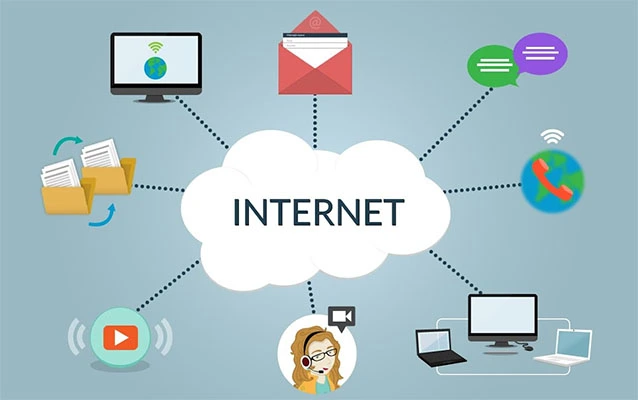
This error most often appears in Fortnite Festival, especially when the game has trouble loading or maintaining the streamed media needed for songs, stage content, or rhythm-based gameplay. In plain English, Fortnite is trying to stream game-related media in real time, but something between your device, your internet connection, Epic’s servers, and the game client is getting cranky.
The good news? You usually do not need to reinstall your entire digital life. Most fixes involve restarting Fortnite properly, improving your connection, clearing cache, switching DNS, verifying game files, or checking whether Epic’s servers are having a rough day. Below are 11 practical ways to fix the Media Streaming Error Detected Fortnite issue on PC, Xbox, PlayStation, Nintendo Switch, and mobile where applicable.
What Does "Media Streaming Error Detected" Mean in Fortnite?
The message means Fortnite failed to stream or process media required for a game mode, usually Fortnite Festival Main Stage or a similar experience that depends on synchronized audio, visuals, and online services. Unlike a basic graphics bug, this problem can be tied to connection stability, packet loss, DNS problems, local cache corruption, server downtime, or game files that did not update cleanly.
Think of it like ordering a pizza and receiving only the box. The system knows something should be delivered, but the actual content never arrives properly. In Fortnite Festival, that “pizza” may be song data, stage assets, or live-streamed media required before the match can continue.
1. Fully Close Fortnite and Relaunch It
Start with the simplest fix: fully close Fortnite and open it again. Do not just return to the lobby or suspend the app. On PC, exit the game completely and make sure it is not still running in the background. On Xbox or PlayStation, quit Fortnite from the console dashboard. On Nintendo Switch, close the software from the home screen. On Android, swipe it away from recent apps and relaunch it.
This helps because Fortnite may fail to load streaming media after a temporary session glitch. A clean relaunch forces the game to reconnect to Epic services, reload current assets, and start a fresh session. It sounds boring, but boring fixes are underrated. They wear sensible shoes and actually get things done.
Best for:
One-time errors, random disconnects, frozen loading screens, and Festival mode failing shortly after the countdown starts.
2. Try Another Fortnite Mode, Then Return to Festival
If the error happens in Fortnite Festival, switch to another mode such as Battle Royale, LEGO Fortnite, Reload, Creative, or another available playlist. Load into that mode, return to the lobby, and then launch Fortnite Festival again.
This works because Fortnite sometimes needs a clean mode transition to refresh matchmaking, playlist data, and session routing. It is not magic; it is more like nudging a sleepy vending machine. You are not fixing the entire machine, but sometimes the candy bar drops.
If Festival keeps failing while other modes work normally, the problem is likely specific to the media-streaming layer of Festival rather than your entire Fortnite installation.
3. Check Epic Games Server Status Before Blaming Your Router
Before you unplug your router like an angry wizard, check whether Epic Games services are currently down or under maintenance. Fortnite depends on several online services, including login, matchmaking, game services, and content delivery systems. If Epic is running scheduled maintenance or dealing with an outage, no amount of local troubleshooting will fix the error immediately.
Signs that the issue may be server-side include many players reporting the same error at once, multiple Fortnite modes failing, login problems, matchmaking errors, or sudden disconnects even on a strong connection.
If servers are down, the best fix is to wait until services return to normal. Yes, that answer is emotionally unsatisfying. No, yelling at your monitor will not accelerate server recovery, although it may impress nearby furniture.
4. Switch From Wi-Fi to Ethernet
If you play on PC, Xbox, or PlayStation, use a wired Ethernet connection if possible. Fortnite Festival is more sensitive to connection hiccups than many players expect because streamed media needs a stable connection, not just a fast one.
Wi-Fi can be affected by walls, distance, interference, crowded networks, microwave ovens, Bluetooth devices, and the mysterious power of your neighbor’s router named “FBI Surveillance Van.” Even if your download speed looks fine, short latency spikes or packet loss can interrupt streamed content.
Ethernet reduces signal loss and usually gives Fortnite a steadier connection. If the error disappears on Ethernet, your Wi-Fi stability was probably the culprit.
Quick tip:
If you cannot use Ethernet, move closer to the router, switch to a less crowded Wi-Fi band, pause downloads, and ask other devices to stop streaming 4K video during your Festival session.
5. Restart Your Modem and Router
Restarting your network hardware can clear temporary connection issues, refresh your route to online services, and resolve weird DNS or packet-routing problems. To do it properly, turn off your modem and router, unplug them for about 30 seconds, plug them back in, and wait until the connection fully returns.
Do not rush this step. If your router is still blinking like a confused Christmas tree, Fortnite may reconnect before the network is fully stable. Once everything is back online, launch Fortnite and test Festival again.
This fix is especially useful if the error appears after several hours of gaming, after a router firmware update, after an ISP hiccup, or when other online games also feel unstable.
6. Switch to a Public DNS
DNS translates website and service names into network addresses. If your default DNS is slow, unreliable, or poorly routed, Fortnite may struggle to reach certain Epic services smoothly. Switching to a public DNS can help strengthen connectivity for some players.
Common public DNS options include Google DNS and Cloudflare DNS. On many devices, you can change DNS from network settings. For example, Google DNS commonly uses 8.8.8.8 as primary DNS and 8.8.4.4 as secondary DNS. Cloudflare commonly uses 1.1.1.1 and 1.0.0.1.
After changing DNS, restart Fortnite. On PC, you can also restart the device to make sure the new network settings apply cleanly.
Important note:
DNS is not a magical ping-lowering potion. It usually will not turn a 90 ms connection into a 5 ms connection. However, it can help if your device is struggling to resolve or reach Epic services reliably.
7. Clear Fortnite or Epic Games Launcher Cache
Cache files help apps load faster, but old or corrupted cache can cause launch errors, connection problems, blank launcher screens, or streaming issues. Clearing cache gives Fortnite and the Epic Games Launcher a cleaner starting point.
On PC, close the Epic Games Launcher completely before clearing its web cache. On Android, open the device settings, find Fortnite under apps or storage, and use the clear cache option. On consoles, cache clearing usually involves fully powering down the console and unplugging it briefly, though exact steps vary by platform.
Clearing cache does not delete your Fortnite account, skins, V-Bucks, Battle Pass progress, or cosmetics. Those are tied to your Epic account. It simply removes temporary local files. In other words, your favorite skin is safe. Your corrupted temporary junk files are not.
8. Verify Fortnite Game Files on PC
If you play Fortnite through the Epic Games Launcher on PC, verify the game files. This checks the installation and repairs missing or damaged files without forcing you to reinstall the entire game.
Open the Epic Games Launcher, go to your Library, find Fortnite, open the options menu, choose Manage, and select Verify. The process can take a while, especially if your drive is slower or Fortnite has recently received a large update.
This is one of the best fixes after a patch, failed update, sudden crash, or power interruption. If media files, streamed assets, or core game data did not install correctly, verification may replace the broken pieces.
9. Update Fortnite, the Epic Games Launcher, and Your Device
Fortnite changes constantly. New seasons, Festival updates, hotfixes, collaborations, and backend changes can all require the latest client version. If your game or launcher is outdated, you may run into connection and content-loading errors.
Update Fortnite first. Then update the Epic Games Launcher if you are on PC. Console players should check for both game updates and system updates. Android players should update Fortnite through the official source they use to install it.
Also update your graphics drivers on PC, especially if Fortnite crashes or freezes before the media streaming error appears. While this specific error is usually connection or media related, outdated drivers can make Fortnite behave like it just saw a ghost.
10. Disable VPNs, Proxies, or Strict Firewall Rules
VPNs and proxies can change your routing, increase latency, or interfere with streaming services inside Fortnite. If you use a VPN, turn it off temporarily and test the game again. If the error disappears, your VPN route may not play nicely with Fortnite Festival.
Strict firewall rules can also block Epic services. On a school, office, hotel, dorm, or shared network, certain domains or ports may be restricted. That can cause Fortnite to load the lobby but fail when a mode needs additional streamed content.
On your own PC, make sure Fortnite and the Epic Games Launcher are allowed through Windows Security or your antivirus firewall. Avoid disabling protection permanently. The goal is not to turn your computer into a welcome mat for chaos; it is to confirm whether security software is blocking the game.
11. Reinstall Fortnite as a Last Resort
If nothing else works, reinstall Fortnite. This should be the final step because Fortnite is large, updates frequently, and may take time to download depending on your connection. Before reinstalling, try relaunching, checking server status, switching to Ethernet, restarting your router, changing DNS, clearing cache, and verifying files.
Reinstallation can help if the installation is deeply corrupted or if optional assets failed to install correctly. On PC, uninstall Fortnite from the Epic Games Launcher, restart your computer, and install it again. On consoles, uninstall and reinstall from your game library. On Android, remove the app and reinstall it from the official Fortnite source.
After reinstalling, launch Fortnite, let all required content finish updating, and test Festival again before changing other settings.
Extra Fixes Worth Trying
Sync Your System Clock
An incorrect system date or time can interfere with online services. Set your device to automatic date and time, then restart Fortnite.
Pause Background Downloads
If someone is downloading a 90 GB game update while you are trying to play Festival, your connection may become unstable. Pause downloads, cloud backups, and heavy streaming before testing Fortnite again.
Change Matchmaking Region
In Fortnite settings, try switching matchmaking region from Auto to the nearest region with the lowest ping. If one region is having trouble, another may work better temporarily.
Submit a Bug Report
If the error keeps returning after every reasonable fix, submit a Fortnite bug report in-game. Include your platform, region, internet type, whether you use Wi-Fi or Ethernet, and when the error appears. The more specific your report, the more useful it is.
Best Fix Order for "Media Streaming Error Detected"
If you want the fastest troubleshooting path, try this order:
- Check Epic Games server status.
- Fully close and relaunch Fortnite.
- Try another Fortnite mode, then return to Festival.
- Restart your modem and router.
- Switch from Wi-Fi to Ethernet.
- Change to a public DNS.
- Clear Fortnite or launcher cache.
- Verify Fortnite files on PC.
- Update Fortnite, your launcher, and your device.
- Disable VPN, proxy, or strict firewall settings temporarily.
- Reinstall Fortnite only if everything else fails.
This order saves time because it starts with the fixes most likely to work and least likely to annoy you. Reinstalling first is like buying a new refrigerator because you forgot to check whether it was plugged in.
Personal Experience: What Usually Works in Real Fortnite Sessions
When dealing with the "Media Streaming Error Detected" Fortnite problem, the biggest lesson is that “fast internet” and “stable internet” are not always the same thing. A player might have 500 Mbps download speed and still get kicked from Fortnite Festival because the connection has tiny drops, sudden ping spikes, or packet loss. Festival can be picky because it is not just loading a map; it is keeping media synchronized while the match is running.
In real troubleshooting, the first thing worth doing is checking whether the error happens only in Festival. If Battle Royale, Creative, and other modes work fine, that tells you the issue is probably related to streamed media or Festival session handling. In that case, switching modes and returning to Festival can genuinely help. It feels too simple, but it refreshes the session without forcing a full reinstall.
The second most useful fix is improving connection stability. Ethernet is the boring champion here. Nobody gets excited about plugging in a cable, but wired connections solve a surprising number of Fortnite problems. Wi-Fi can look perfect until someone walks between your device and the router, another device starts streaming, or the network briefly stutters. Fortnite Festival does not always forgive those tiny interruptions.
Another pattern is that DNS changes help some players, but expectations matter. Changing DNS is not a cheat code for lower ping. It will not turn a laggy connection into esports-grade internet overnight. However, if your ISP’s DNS is slow or unreliable, public DNS can make Fortnite’s connection to Epic services more consistent. It is a practical fix, not a miracle smoothie.
Cache clearing is also underrated. Temporary files can become outdated after Fortnite updates, especially when new Festival content, songs, or assets are added. Clearing cache gives the game a cleaner path to reload what it needs. On PC, clearing the Epic Games Launcher cache and verifying Fortnite files make a strong one-two combo. One clears temporary launcher junk; the other repairs the actual game installation.
One mistake many players make is reinstalling Fortnite too early. Reinstalling can work, but it is slow and often unnecessary. If the real problem is server maintenance, Wi-Fi instability, or DNS routing, reinstalling only wastes time. The smarter approach is to rule out server issues first, then test your connection, then repair local files.
The most frustrating cases are intermittent. The game works one day, fails the next, then magically works again after dinner. That usually points to server-side issues, ISP routing, or local network congestion. If the error appears at the same time every evening, your home network may be crowded. If many players report it at once, Epic’s side may be struggling. If only one device in your house has the problem, focus on that device’s cache, game files, DNS, or firewall settings.
Overall, the best mindset is calm and methodical. Do not change ten settings at once, because then you will not know what actually fixed it. Try one fix, test Fortnite, then move to the next. The error is annoying, but it is usually fixable. And when Fortnite Festival finally loads correctly again, you can return to missing notes for normal human reasons instead of network drama.
Conclusion
The "Media Streaming Error Detected" on Fortnite is usually caused by connection instability, temporary session problems, cache issues, corrupted files, DNS trouble, or Epic server problems. Start with easy fixes like restarting Fortnite, checking server status, trying another mode, and rebooting your router. Then move to stronger solutions such as Ethernet, public DNS, cache clearing, file verification, updates, and firewall checks.
Most players should not need to reinstall Fortnite unless the installation is damaged or every other fix fails. The key is to troubleshoot in the right order: server status first, connection stability second, local files third. That way, you spend more time playing and less time staring at an error message that has all the charm of a wet sock.