
Changing your “primary email” for a Microsoft account sounds like it should be one click and a high-five. In reality, Microsoft uses a smarter (and occasionally confusing) system called aliases. The good news: you can switch the main address you see on Microsoft devices and use to sign inwithout losing your OneDrive files, Xbox purchases, Outlook inbox, or that one Excel spreadsheet you swear you’ll organize someday.
This guide walks you through the exact steps, the gotchas Microsoft doesn’t tattoo on your forehead, and a few real-world “why is this happening to me” momentsso your email swap doesn’t turn into a weekend hobby.
What “Primary Email” Means for a Microsoft Account
In Microsoft-land, your account can have multiple email addresses tied to it. These are called aliases. Think of aliases like multiple doorbells that all ring the same house. Different label, same home, same stuff inside.
Primary alias vs. “the email you actually use”
Your primary alias is the address Microsoft treats as the main one. It’s the one that typically:
- Shows up as your “main” address on Microsoft account pages and some devices
- Can be used for sign-in (along with other aliases, unless you restrict it)
- Often becomes the default “identity label” across Microsoft services
Important: changing your primary alias does not magically “move” your data to a new account. It’s still the same Microsoft accountsame subscriptions, purchases, OneDrive storage, and settings. You’re just changing the main label.
Step Zero: Personal vs. Work/School Accounts
Before you touch anything: make sure you’re dealing with the right type of account. Microsoft has two major account worlds that look similar but behave very differently:
- Microsoft personal account (used for Outlook.com, Xbox, OneDrive personal, Microsoft Store, etc.)
- Work or school account (created and managed by an organization’s IT/admin, used for Microsoft 365 business/education)
If you’re using a work/school email address: you may not be able to make that address your primary alias on a personal Microsoft account. If the account is truly a work/school account, changing the primary email is typically an admin-controlled change.
Quick reality check: if you sign in and see company branding, or you’re in an org-managed Microsoft 365 environment, you may need your IT admin. If you’re signing into a personal Microsoft account, keep goingyou’re in the right place.
Before You Start: A 5-Minute Prep Checklist
This is the part people skip and later regret with the intensity of a thousand “forgot password” loops. Do these quick checks first:
1) Make sure you can access the new email address
If you plan to make Gmail, Yahoo, or any non-Microsoft email your new primary alias, you’ll need access to it to verify ownership.
2) Confirm your account recovery options
Microsoft may send verification codes to your primary alias or to the security contact methods you’ve added. If your recovery info is outdated, update it first so you don’t get locked out mid-switch.
3) Save your sign-in state on at least one device
If you’re currently signed in on a PC or phone, don’t sign out everywhere “to be clean.” Stay signed in on at least one device until you confirm the new primary alias works.
4) If you use an old address everywhere, list the important places
The Microsoft account primary alias affects your Microsoft identitybut other websites (banks, shopping, social media) won’t automatically update. Make a quick list: password manager, banking alerts, subscriptions, and anything that sends security codes.
How to Change Your Primary Email (Make an Alias Primary)
This is the main event. The process is basically: Add the new email as an alias → verify → make it primary.
Step 1: Go to your Microsoft account alias management page
On a browser (desktop is easiest), sign in to your Microsoft account and open the alias management area. You’ll typically find it via: account.microsoft.com → Your info → Edit account info (or directly at account.live.com/names/manage).
Step 2: Add your new email address as an alias
Look for an option like Add email (or Add an alias), then choose one of these:
- Create a new Outlook.com address (great if you want a fresh Microsoft-domain address)
- Add an existing email address (Gmail/Yahoo/your ISP emailanything you already own)
Heads-up: You can’t add an email address that’s already associated with another Microsoft account. And you generally can’t add an address tied to a work or school account as a personal account alias.
Step 3: Verify the new alias
Microsoft will send a verification message/code to the email you’re adding (if it’s an existing external email). Follow the prompts and confirm it’s yours.
Step 4: Make the new alias your primary alias
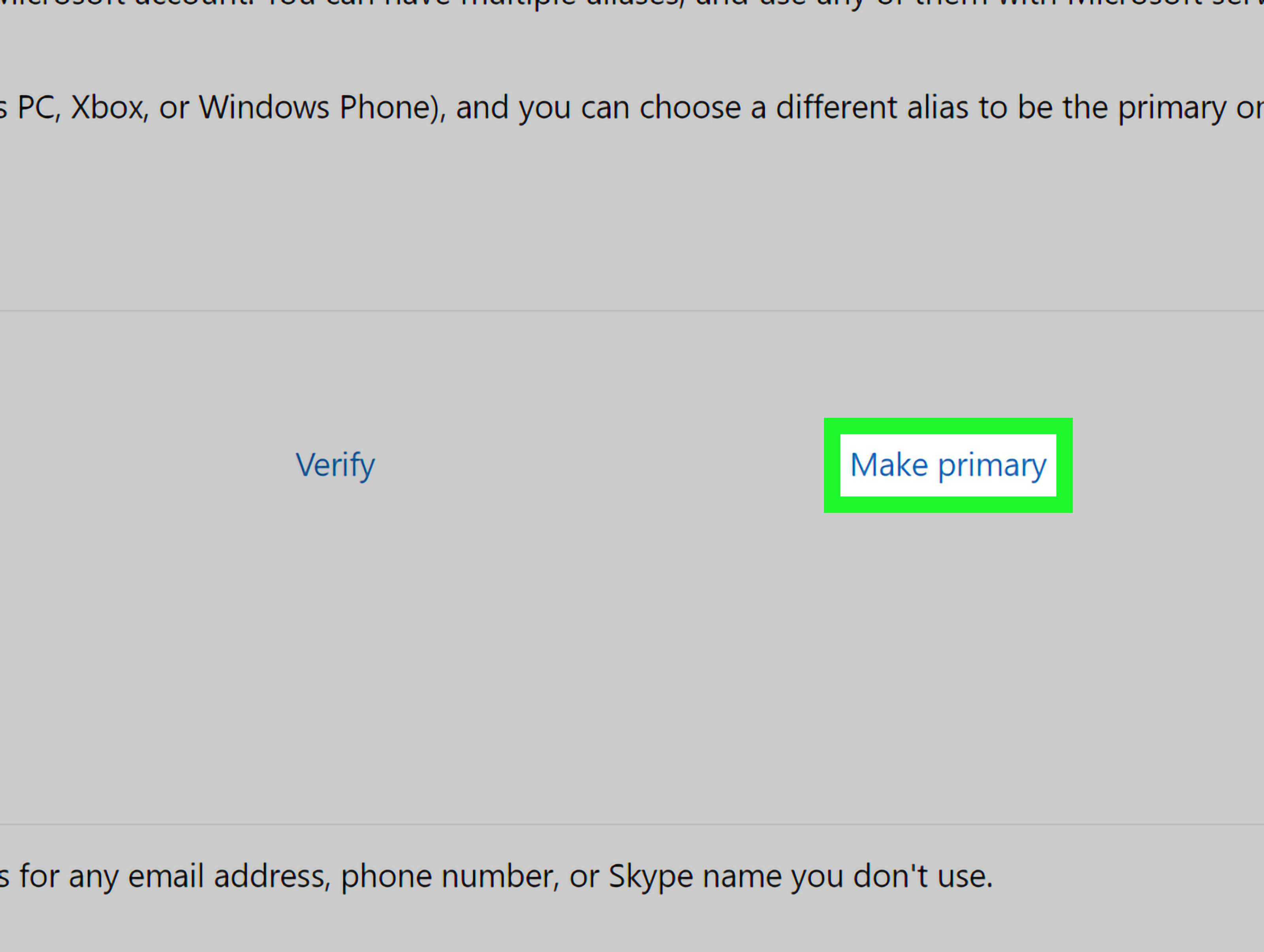
Once the new email appears in your alias list, select Make primary next to it. Confirm the change when prompted.
Step 5: Give it a little time to propagate
Some Microsoft services update quickly, others take their sweet time. Microsoft notes it can take up to 48 hours for the new primary alias name to appear everywhere. Translation: don’t panic if you still see the old address in a few places for a day or two.
A concrete example (because life is easier with examples)
Let’s say you created your Microsoft account with [email protected] years ago. Now you want it to be [email protected] because Hotmail is… well… retro.
- Add [email protected] as an alias
- Verify it via the email Microsoft sends
- Click Make primary next to [email protected]
- Optionally restrict sign-in so the Hotmail address can’t be used to log in
- Keep the old address for receiving (or remove it later if you’re 100% sure)
Optional but Smart: Change Sign-In Preferences (Security Boost)
If the reason you’re changing your primary email is “I’m tired of random sign-in attempts,” you can go one step further: limit which aliases can be used to sign in.
Why this helps
If you’ve used your email address publicly for years, it’s probably floating around the internet. Restricting sign-in means that even if someone knows the old address, it won’t work as a login name anymore.
What to do
In the same alias management area, look for something like Change sign-in preferences. You may be able to uncheck the old alias so only your new one can be used to sign in.
Pro move: Create a “secret” sign-in alias that you never share with anyone, then use a different address for sending/receiving mail publicly. This cuts down on login noise dramatically.
Optional: Remove the Old Email (Read This First)
Removing an alias is where people accidentally turn a simple cleanup into an emotional support group session. You can remove an aliasbut you should know what you’re deleting.
If your old alias is a Microsoft-domain email (Outlook/Hotmail/Live/MSN)
Big warning: If you remove an alias that ends in a Microsoft domain (like @outlook.com, @hotmail.com, @live.com, or @msn.com), Microsoft says you’re permanently deleting that alias, and it can’t be associated with any Microsoft account again. That’s not a “maybe.” That’s a “forever.”
If your old alias is a non-Microsoft email (like Gmail)
Removing a non-Microsoft alias usually makes it available to be added elsewhere again (assuming you still control it). Still: don’t remove an address you need for recovery codes or old subscriptions.
Rule of thumb
Don’t remove the old alias until:
- You’ve successfully signed in with the new primary alias on every device you care about
- You’ve updated important accounts that still send messages to the old address
- You’re sure you won’t need the old Microsoft-domain address for legacy logins or contacts
What Changes (and What Doesn’t) After You Switch
What changes
- The main email identity displayed in many Microsoft account views and some device prompts
- Where Microsoft may prefer to send certain verification emails (often tied to primary alias and security settings)
- Your default sign-in “name” if you choose to use the new alias to log in
What does NOT change
- Your OneDrive files, Microsoft Store purchases, Xbox purchases, subscriptions, and licenses
- Your account password (unless you change it separately)
- Your inbox contents (aliases can share the same mailbox if you’re using Outlook.com/Outlook aliases)
- Other websites you used the old email for (those still need manual updates)
Sending email from a specific address
If you use Outlook.com, you can often choose which alias you send from. Switching your primary alias doesn’t automatically mean every email you send will use the new address unless you set it that way in your mail settings/workflow.
Troubleshooting: Common Problems and Fixes
Problem: “Make primary” isn’t showing
- Make sure the alias is verified and fully added.
- If the email is tied to a work/school environment, it may not be eligible as a primary alias for a personal account.
- Try using a different personal email address you control (or create a new Outlook.com alias).
Problem: Microsoft says the email is already in use
An alias can’t already be associated with another Microsoft account. If you previously used that email for another Microsoft login, you’ll need to recover that account, remove the alias there (if possible), or use a different email.
Problem: You’re not receiving verification codes
First, check you’re looking in the right inbox (and the spam folder). Also note: Microsoft verification codes sent by email typically go to your primary alias or to an email you added specifically as a sign-in verification method.
- Wait a few minutes and request a new code.
- Check junk/spam, and search your inbox for “Microsoft account” or “security code.”
- If you can, add or use a phone number as a backup verification method.
Problem: The old email still shows up on a device or service
This is common. Microsoft notes it can take up to 48 hours for updates to show across all products and services. Also, some apps/devices may require a sign out/sign in to refresh the display name.
Problem: You changed the primary alias and now something “looks weird”
Two things to try before you start a dramatic monologue:
- Sign out of the affected Microsoft app/service and sign back in using the new primary alias.
- Give it time. Some identity changes roll out gradually across services.
FAQ
Can I change my primary Microsoft email without creating a new account?
Yes. That’s the whole point of aliases: you can add a new email address and make it primary without losing your data or purchases.
Can I create a new @hotmail.com alias?
Generally, no. Microsoft typically allows creating new aliases using Outlook.com, and notes you can’t create a new alias using @hotmail.com, @live.com, or @msn.com. If you need a new Hotmail address specifically, Microsoft’s guidance is usually to create a new account.
Will emails sent to my old address still arrive?
Often, yesas long as that address remains as an alias on your account. If you remove it (especially a Microsoft-domain alias), you may be permanently deleting it, and messages to that address won’t reach you anymore.
Does changing the primary alias change my password?
No. Aliases share the same account security (including the same password). You can change your password separately if you want.
What if I’m doing this for an Xbox account?
Xbox uses your Microsoft account. So changing your primary alias is handled at the Microsoft account level, not inside the console’s settings alone. After you change it, you may need to sign in again on your console with the updated alias.
Real-World Experiences: What People Run Into (and How to Win)
The instructions to change your primary Microsoft account email are pretty straightforward… right up until the real world shows up wearing Crocs and carrying a bag of unexpected complications. Here are common “experience-based” situations people run intoand what to do when they happen.
1) “I changed it, but my old email is still showing. Did I break Microsoft?”
This one’s a classic. People make the new alias primary, refresh the page, and expect confetti. Instead, they still see the old address in a few places: Windows settings, an Xbox profile screen, an Office app, or a random Microsoft webpage that looks like it hasn’t been redecorated since 2012.
Usually, nothing is broken. Identity changes can take time to propagate across Microsoft’s ecosystem. The practical move is: (1) wait a bit, (2) sign out/sign back in to the specific app, and (3) double-check you actually hit “Make primary” and confirmed it. If you want instant gratification, Microsoft account settings may not be your love language.
2) “I removed my old alias and now I’m having regrets. Like, immediate regrets.”
Removing an alias feels like cleaning your closet: “I don’t wear this anymore, bye.” Then you remember it’s the only jacket you own. The biggest regret scenario is deleting a Microsoft-domain alias (Outlook/Hotmail/Live/MSN) and later realizing it was tied to old logins, contacts, or recovery paths. Since Microsoft treats those deletions as permanent, it’s worth treating removal like a tattoo decision: don’t do it on a whim, and maybe don’t do it at 2 a.m. after watching minimalism videos.
The safer experience-based pattern is to keep the old alias for a while, restrict it from sign-in (if your goal is security), and slowly migrate important services away from it. Once you’ve gone a full cyclebilling, renewals, sign-ins, and at least one “I forgot my password” momentyou’ll know whether the old address can safely retire.
3) “Microsoft won’t let me use my work email. But it’s MY email!”
This is the painful difference between “my email address” and “my account type.” If the address is part of a work/school tenant, Microsoft often treats it differently from a personal consumer email. People commonly run into this when they used a school email for Xbox or Microsoft Store purchases and later graduate or leave a job.
The experience-based workaround is usually to add a personal email you control (Gmail, Yahoo, or a new Outlook.com address) as the alias, make it primary, and update recovery info. Then, if the old work/school email stops working later, you still have a stable personal login to access your Microsoft services. It’s less “I changed my email” and more “I built myself an exit ramp.”
4) “I’m doing this because I keep getting sign-in attempts. It’s freaking me out.”
Sadly common. If your email address has been in breaches or publicly visible, automated sign-in attempts happen. People often report feeling better after creating a new, private alias and using it only for sign-in. The key experience lesson: changing the primary alias alone may not stop attempts if the old alias can still be used to sign in. That’s why adjusting sign-in preferences (so only the new alias is allowed for login) can be the real stress reducer.
Pair that with multi-factor authentication, a strong password (or better: passkeys where available), and you’ve turned your account from “easy target” into “not worth the effort.” Most bots are lazy. Be the account equivalent of a “Beware of Dog” sign.
5) “I expected this to update my email everywhere. It didn’t.”
This is the big misunderstanding: changing your Microsoft account primary alias updates your Microsoft identitynot the email address on your bank, your doctor’s portal, your streaming services, or that website you signed up for in 2014 to buy one novelty mug.
People who have the smoothest experience treat this as a two-part project: (1) change the Microsoft primary alias, and (2) gradually update third-party accounts that used the old email. If you keep the old alias active for receiving mail during the transition, you won’t miss important notices. Once the “change email” confirmations stop showing up in your old inbox, you’ll know you’re close to done.
Bottom line: the steps are simple, but the experience is smoother when you plan for propagation delays, keep recovery methods current, and avoid deleting anything you might miss later. Your future self will thank you. Possibly with snacks.
Conclusion
Changing your primary email for a Microsoft account is really about managing aliases: add the new address, verify it, make it primary, and (optionally) tighten sign-in preferences for better security. Take your time before removing old aliasesespecially Microsoft-domain ones and expect some services to take a little while to reflect the change. Do it carefully, and you’ll keep all your Microsoft data and perks while upgrading the email address you show the world.














