Some people text like they are being paid per vibration. You love them, probably. You may even need them in your life. But you do not need your phone acting like a tiny drum solo every time they remember a meme, a grocery item, or a “hey” followed by six more “hey” messages. The good news is that you usually do not have to block anyone, fake your own disappearance, or throw your phone into a decorative basket and call it self-care. In most cases, you can silence notifications for one person without muting your entire device.
If you are trying to mute one chat thread, hush a single contact, hide previews on your lock screen, or create a more selective Do Not Disturb setup, both iPhone and Android give you more control than most people realize. Some settings work at the conversation level. Others work at the contact level. A few work best when you flip the logic and allow only the people you actually want to hear from.
This guide breaks down five practical phone tricks that help you silence notifications for one person while keeping the rest of your digital life intact. You will also see when each trick works best, when it gets a little weird, and what to do if your phone menu looks different because Android manufacturers enjoy turning simple settings into scavenger hunts.
Why Silence One Person Instead of Turning Off Everything?
Because real life is not all or nothing. Sometimes you need work alerts, family messages, delivery updates, banking notices, and your best friend’s emergency “Do you have a lemon zester?” text. What you do not need is one especially enthusiastic contact blowing up your lock screen during meetings, classes, workouts, or sleep.
Silencing one person is usually the best move when:
You still want to receive their messages, just not immediately.
You are trying to reduce distractions without starting unnecessary drama.
You need quiet during work hours, study time, or sleep.
You want privacy on your lock screen without cutting the person off entirely.
The trick is choosing the right tool. A muted conversation is different from a Focus filter. A custom tone is different from blocking. And yes, there is a difference between “I do not want to hear this right now” and “I never want to hear from this number again.” Your phone understands nuance. Sometimes better than people do.
Phone Trick #1: Mute One Conversation on iPhone With Hide Alerts
If you use an iPhone, the fastest answer is usually Hide Alerts. This is the cleanest way to silence notifications for one person in the Messages app without muting everyone else. The conversation still exists. Their texts still arrive. Your phone just stops trying to perform a full Broadway production every time they send another message.
How it works
Open Messages, find the conversation, then either swipe left on the thread and tap the mute icon or open the conversation, tap the contact at the top, and turn on Hide Alerts. Once it is enabled, you will still get the messages, but that thread will stop triggering normal alerts.
When this trick is best
This works great when the problem is one specific text thread. Maybe it is a chatty cousin, a friend live-commenting a TV show you have not watched yet, or a co-worker who thinks punctuation is optional and sending eight separate messages is a personality trait.
What to know before you use it
Hide Alerts is thread-based, not relationship-based. If the same person messages you in a different thread or another app, those alerts may still come through. Also, muting a conversation is not the same as blocking someone. They can still text you. You are simply choosing peace over constant interruptions.
One more useful bonus: on iPhone, you can also assign a different Text Tone for a specific person. So even if you do not want to silence them completely, you can make their alerts less startling. That is the digital equivalent of replacing a fire alarm with a polite knock.
Phone Trick #2: Silence a Single Chat in Google Messages on Android
On Android, especially if you use Google Messages, you can mute a specific 1:1 conversation or group chat without muting the entire app. This is the Android version of “I care, just not at 2:13 a.m.”
How to do it
Open Google Messages, go into the conversation, tap the menu, open Details or Group details, then tap Notifications. From there, you can usually switch the thread to Silent. On some Android phones, you may also see options like Default, Priority, or Silent.
Why Android users should love this
This setting is perfect for noisy group chats and one-on-one threads that are technically important but emotionally exhausting. You still keep the messages. You just remove the sound, vibration, and sometimes the more aggressive pop-up behavior.
The fine print
Android menus vary by device maker, Android version, and messaging app. A Pixel, Samsung Galaxy, and Motorola phone can all be running Android and still act like distant cousins who only meet at holidays. If you are using Samsung Messages instead of Google Messages, you may see different labels, but similar conversation-level mute options often exist.
If your phone does not show a clean “mute” button, look for conversation notification settings, long-press the notification itself, or open the system notification page for that thread. Android loves hiding good settings one tap farther than necessary.
Phone Trick #3: Use Focus or Do Not Disturb Like a Scalpel, Not a Hammer
This is where things get clever. If muting one thread is not enough, you can use Focus on iPhone or Modes / Do Not Disturb on Android to control exactly who can interrupt you. Instead of reacting to one noisy person after the fact, you create a rule that decides who gets through in the first place.
On iPhone
Go to Settings > Focus, choose a Focus mode like Do Not Disturb, Personal, Sleep, or Work, then edit the People section. iPhone lets you either allow notifications from certain people or silence notifications from specific people during that Focus. That means you can create a mode for studying, sleeping, working, or recovering from society and decide exactly whose calls or messages deserve a pass.
For example, maybe one person always sends non-urgent messages during work hours. You can create a Work Focus that silences that person while still letting your boss, partner, or family reach you. That is not rude. That is settings-based maturity.
On Android
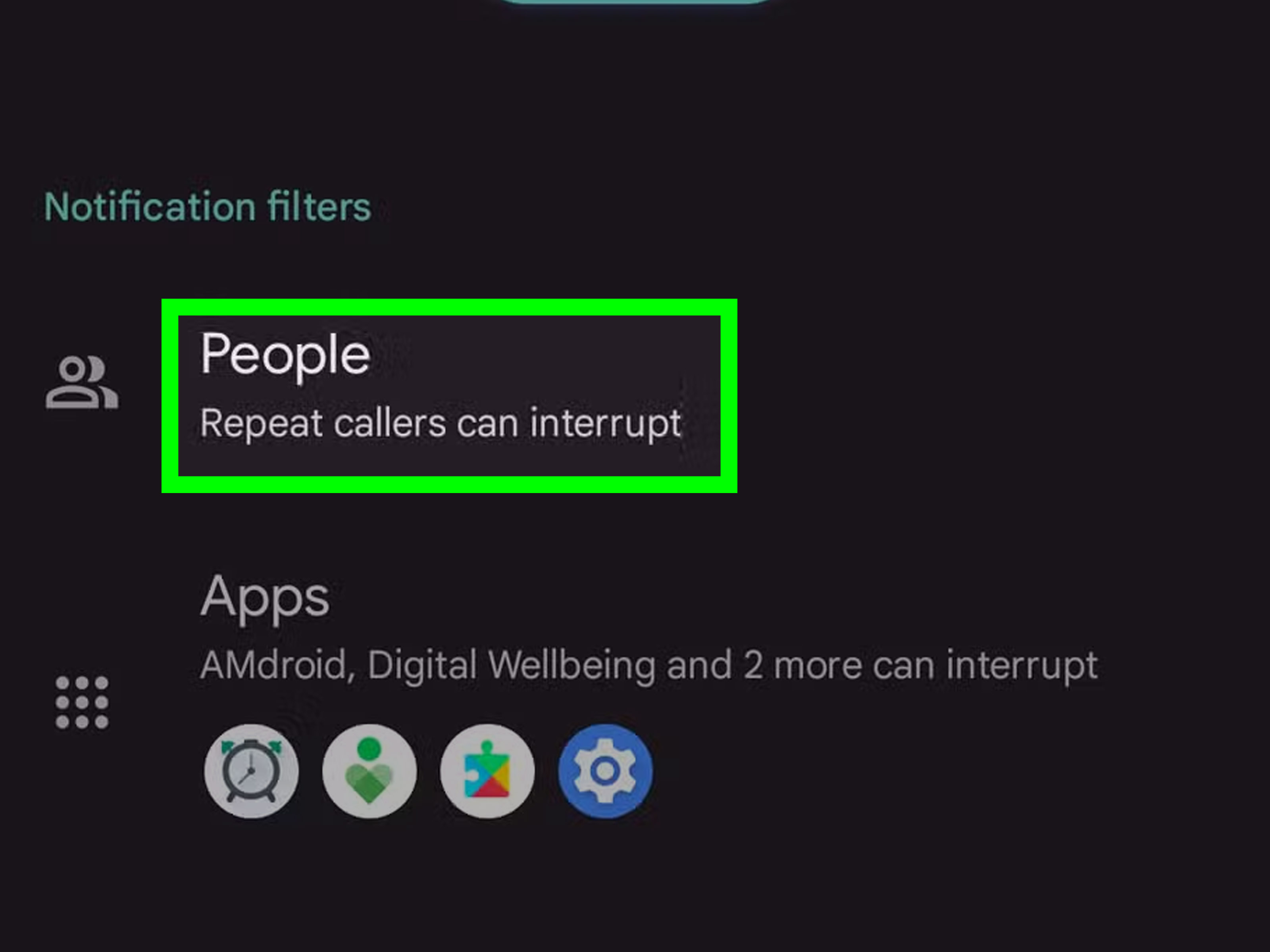
Open Settings, then look for Modes, Do Not Disturb, or sometimes Sound & vibration. Modern Android versions let you control interruption filters for People, Apps, and Conversations. In many setups, you can allow only starred contacts, block certain conversations, or choose who can message or call when a mode is active.
This is especially useful if your goal is not just muting one person forever, but muting them during certain times. Think bedtime, classes, gym sessions, movie nights, or any event where you would rather not have your concentration shattered by “wyd.”
Best use cases for Focus and DND
Focus-based control is ideal when:
You need silence only during certain hours.
You want to mute one person without changing that thread permanently.
You need exceptions for family, work, or emergencies.
You want a cleaner routine with less manual toggling.
This is the most powerful trick in the whole article because it is flexible. It can be temporary, scheduled, location-based, or activity-based. It turns your phone from a needy roommate into a decent assistant.
Phone Trick #4: Customize Tones, Previews, and Lock Screen Behavior
Sometimes you do not need full silence. You just need less chaos. That is where customized notification behavior comes in. Instead of muting a person completely, you can make their alerts quieter, less visible, or easier to ignore.
Change a specific person’s text tone on iPhone
Inside a one-on-one Messages conversation, tap the contact at the top, open their contact info, and edit the Text Tone. You can pick a softer sound or a different vibration pattern. This is useful when the person is not a problem, but their current alert sound makes your soul leave your body.
Hide message previews on the lock screen
If your goal is privacy more than silence, change how notifications appear. On iPhone, go to Settings > Notifications, choose your messaging app, and adjust Show Previews to When Unlocked or Never. On Android, lock screen notification settings often let you hide sensitive content or silent notifications.
This will not mute the person entirely, but it stops their messages from turning your lock screen into a public announcement board. That matters if you share space with classmates, family, co-workers, or one nosy friend who reads upside down like it is a party trick.
Use silent-style notifications on Android
On many Android phones, you can set a conversation or notification type to Silent instead of fully disabling it. That means the message still appears, but it does not buzz, ding, or jump into your face. This is ideal when you want passive awareness without active interruption.
Think of it as moving someone from front-row VIP seating to the waiting area. They are still in the building. They just are not on stage.
Phone Trick #5: Use Temporary Quiet Tools Before You Block Someone
Not every annoying notification problem calls for a dramatic ending. Before you block someone, try the middle-ground tools that modern phones offer.
Try notification cooldown or temporary quiet features
Android now includes tools like Notification cooldown on supported devices, which reduce repeated sound interruptions when too many alerts arrive in a short time. This is helpful for bursty conversations that go from zero to forty-seven messages in under four minutes.
Mute the thread instead of the person
If the issue is one active conversation rather than the individual contact, muting the thread is often smarter than blocking. Maybe your friend is fine, but the trip-planning group chat with them inside it is a full-time job. Mute the chat. Keep the friendship.
Block only when the situation has changed
If someone is crossing boundaries, spamming, harassing, or refusing to stop, blocking is absolutely the better option. Silencing notifications is for reducing interruptions. Blocking is for stopping contact. Those are different tools for different problems, and your peace is allowed to rank first.
A useful rule of thumb is simple: if you still want the message later, mute. If you do not want the message at all, block.
Common Mistakes People Make When Trying to Mute One Person
The biggest mistake is using the wrong level of control. People often mute the whole Messages app when they only needed to mute one thread. That is like shutting down the whole kitchen because one microwave beep annoyed you.
Another common problem is forgetting that different apps behave differently. Muting a contact in iPhone Messages does not mute them in WhatsApp, Instagram, Messenger, Signal, or Google Chat. If the person is determined and owns multiple apps, your peace plan may need more than one stop.
Android users also run into device-specific menu differences. If your phone does not match a tutorial exactly, search for the conversation’s notification settings from inside the thread first. That is usually the shortest path.
And finally, do not confuse silent with hidden. A message can arrive silently and still show up on the lock screen. If privacy matters, change previews too.
What This Feels Like in Real Life: of Honest Experience
Silencing notifications for one person sounds like a tiny technical trick, but in real life it can feel surprisingly huge. The first time you do it, there is often a weird little moment of guilt, as if you just told your phone to put someone in timeout. Then an hour passes. Then two. Your screen stays calm. Your pocket stops buzzing like it swallowed a nervous bee. Suddenly you remember that concentration used to be a thing humans could actually have.
One common experience is the chatty friend who means well but texts in fragments. Not one complete message. Never one complete message. It starts with “hey,” then “random question,” then “are you busy,” then “lol never mind,” then finally the actual point. If your phone alerts for every piece of that puzzle, your brain gets yanked out of whatever you were doing again and again. Muting that one conversation does not end the friendship. It simply moves the conversation from “urgent interruption” to “available when I am ready.” That difference can make a workday feel ten times more manageable.
Another very real scenario is family chat overflow. Maybe you have a relative who sends every recipe, every photo, every weather update, every holiday plan, and every inspirational quote with three sparkle emojis. You do not want to block them because, well, Thanksgiving still exists. But you also do not need a notification every time Aunt Linda discovers a new slow-cooker dip. Silencing the thread lets you stay connected without turning your afternoon into a parade of lock screen banners.
There is also the emotional side of this. Sometimes the person is not just noisy. Sometimes they are complicated. Maybe it is an ex, a friend you are taking space from, or someone from work who does not understand the phrase “after business hours.” In those cases, muting notifications can create breathing room without forcing an immediate confrontation. You still stay in control. You still decide if and when to read the message. That little bit of distance can lower stress more than people expect.
Students feel this too. Imagine trying to study while one friend keeps dropping memes into your phone every seven minutes. Each buzz breaks your attention, and then you have to rebuild focus from scratch. The message itself may be harmless, but the timing is chaos. Turning on a Focus mode or silencing one thread during study hours feels less like being anti-social and more like finally protecting your own brain.
Even sleep changes. A lot. One well-placed setting can stop late-night messages from waking you up or pulling your eyes to the screen at 12:43 a.m. just because someone remembered a funny video. The next morning, the messages are still there. The sky has not fallen. Civilization remains intact. You were simply allowed to sleep like a person instead of a customer service line.
The biggest experience most people report after doing this is relief mixed with surprise. Relief because the noise drops immediately. Surprise because it was fixable all along. It turns out you do not need to be at the mercy of every notification your phone throws at you. Sometimes peace is just three taps away, hiding in a settings menu with terrible design.
Final Thoughts
If you are wondering how to silence notifications for one person, start simple. On iPhone, use Hide Alerts for a specific conversation. On Android, open the thread and switch its notifications to Silent. If the situation is more complex, use Focus or Do Not Disturb to control who can interrupt you and when. Then clean up the experience by adjusting tones, previews, and lock screen behavior.
The best part is that you do not have to choose between total chaos and full social exile. Modern phones let you create a middle ground where you stay reachable, keep important alerts, and stop one person from hijacking your day. That is not avoidance. That is smart notification management with a side of sanity.
And honestly, if your phone can identify faces in photos, translate menus, and tell you how much rain is coming next Thursday, it can absolutely learn that one particular person does not need to buzz your pocket every five minutes.