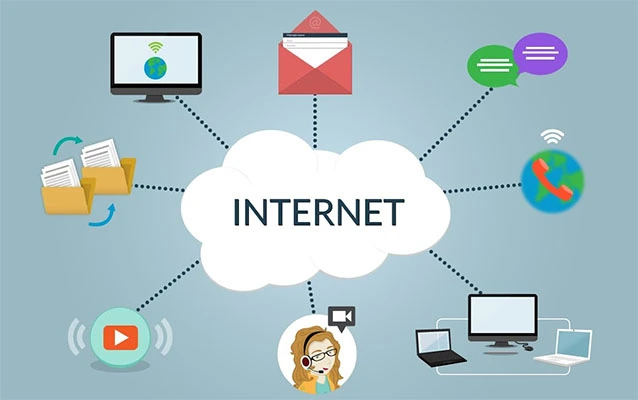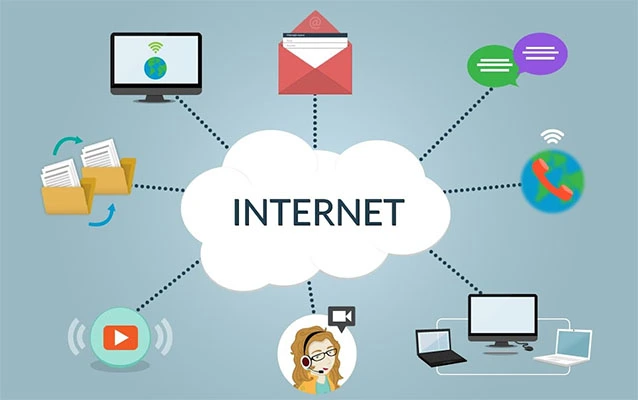
If your router were a tiny apartment building, 192.168.1.4 would be one of the apartment numbers. It is not glamorous, it does not wear sunglasses, and it will not appear on a red carpet. But without local IP addresses like this one, your laptop, phone, printer, smart TV, security camera, and that one mysterious device named “android-3f9b7” would have a much harder time talking to each other.
The IP address 192.168.1.4 is a private IPv4 address commonly used inside home and small office networks. It usually identifies one device on a local network, such as a computer, printer, camera, media box, or smart home hub. It is not normally used as a public internet address, which means you cannot simply type it from a coffee shop across town and magically access a device at home. Your router would politely, and correctly, say: “Absolutely not.”
In this guide, we will explain what 192.168.1.4 means, how it is assigned, when it might appear on your network, how to troubleshoot it, and how to use it safely. No lab coat required.
What Is 192.168.1.4?
192.168.1.4 is an IPv4 address. IPv4 addresses are written as four numbers separated by dots, and each number can range from 0 to 255. In this case, the four parts are 192, 168, 1, and 4. Together, they form a local network address that can be used by a device inside a private network.
The key phrase is private network. Addresses beginning with 192.168 are part of a reserved private IP address range. That range is commonly used by routers in homes, apartments, dorms, small businesses, and local office networks. These addresses are designed for internal communication, not direct public internet routing.
In plain English, 192.168.1.4 is like a room number inside your house. It is useful to people already inside the house, but it does not tell the mail carrier where your house is on the planet.
Why 192.168.1.4 Is a Private IP Address
The private address block that includes 192.168.1.4 runs from 192.168.0.0 to 192.168.255.255. These addresses are set aside for private use, which is why millions of networks can reuse them without causing chaos on the public internet.
For example, your laptop might be 192.168.1.4 at home. Someone else’s printer in Ohio might also be 192.168.1.4. A security camera in Arizona might use the same address too. That is perfectly fine because each address exists inside a separate local network. The devices are not shouting across the public internet at each other like confused twins in a shopping mall.
This reuse is one of the reasons private IP addresses are so practical. Public IPv4 addresses are limited, but private addresses allow countless devices to connect behind routers while sharing one public internet connection.
How 192.168.1.4 Usually Appears on a Home Network
Most home routers use a local address such as 192.168.1.1 or 192.168.0.1 as the default gateway. The gateway is the router’s local address, and it acts like the front desk for your network. When your laptop wants to reach a website, the router sends that request out to the internet.
Devices connected to the router receive their own local IP addresses. If the router uses the 192.168.1.x network, the first few devices might receive addresses such as:
- 192.168.1.2 for a laptop
- 192.168.1.3 for a smartphone
- 192.168.1.4 for a printer
- 192.168.1.5 for a smart TV
The exact order depends on when devices connect, router settings, lease timing, and whether any addresses have been manually reserved. Your router is not assigning addresses based on popularity. Otherwise, the smart TV would probably demand a corner office.
Is 192.168.1.4 a Router Login Address?
Usually, 192.168.1.4 is not the router login address. Most routers use 192.168.1.1, 192.168.0.1, 192.168.1.254, or another default gateway address for their admin panel. However, router settings can be changed. In unusual cases, a router, access point, extender, or network device could be configured to use 192.168.1.4 as its management address.
If you type http://192.168.1.4 into a browser while connected to your local network, one of three things may happen:
- A device login page appears.
- The browser shows an error because nothing is hosting a web interface there.
- The address belongs to a device that does not accept browser-based access.
Do not assume every local IP address leads to a router control panel. Sometimes it is just a printer quietly living its best toner-filled life.
DHCP: The Friendly Address Handout System
Most home networks use DHCP, or Dynamic Host Configuration Protocol. DHCP automatically assigns IP addresses to devices when they join the network. Without DHCP, you would need to manually configure IP addresses, subnet masks, gateways, and DNS servers on every device. That is nobody’s idea of a relaxing Saturday.
When a device joins your Wi-Fi, it asks the router for network settings. The router checks its available address pool and assigns an IP address, such as 192.168.1.4. This assignment usually lasts for a specific lease period. When the lease expires, the device may renew the same address or receive a different one.
This means 192.168.1.4 might belong to your phone today and your printer tomorrow, unless you create a fixed assignment.
Static IP vs. DHCP Reservation
If you want a specific device to always use 192.168.1.4, you have two common options: a static IP address or a DHCP reservation.
Static IP Address
A static IP address is configured directly on the device. For example, you might open a printer’s network settings and manually set its address to 192.168.1.4. You would also need to enter the correct subnet mask, gateway, and DNS details.
Static IP addresses can work well, but they can also create conflicts if the router later assigns the same address to another device. That is the networking version of two people showing up to the same theater seat with valid tickets.
DHCP Reservation
A DHCP reservation is often the cleaner option. With a reservation, you tell the router to always give a certain IP address to a specific device based on its MAC address. The device still uses DHCP, but the router remembers it and hands it the same address each time.
For printers, NAS devices, smart home hubs, and cameras, DHCP reservation is usually easier to manage than manual static configuration. It keeps the “address book” centralized in the router, where future-you can find it without digging through ten device menus and a drawer full of old cables.
Common Uses for 192.168.1.4
The address 192.168.1.4 can be used by almost any device on a local network. Common examples include:
- A desktop computer connected by Ethernet
- A laptop connected by Wi-Fi
- A network printer
- A smart TV or streaming device
- A home security camera
- A game console
- A smart speaker or home automation hub
- A network-attached storage device
In small offices, 192.168.1.4 might be assigned to a shared printer, a point-of-sale device, a file server, or an access point. The address itself does not reveal the device type. To identify it, you need to check the router’s client list, the device hostname, or the MAC address.
How to Check Whether 192.168.1.4 Is in Use
If you want to know whether 192.168.1.4 is active on your network, start with your router’s admin page. Look for sections named Attached Devices, Client List, LAN Devices, DHCP Clients, or Network Map. Router brands love giving the same feature five different names, because apparently networking needed more mystery.
You can also use a simple ping test from a computer on the same network.
On Windows
On macOS or Linux
If the device responds, the address may be active. If it does not respond, that does not always mean the address is unused. Some devices block ping requests for security reasons, and some may be asleep, disconnected, or on a different network segment.
How to Find Your Own Local IP Address
If you are troubleshooting a connection issue, first check your own device’s IP address. If your computer is on 192.168.1.25, then 192.168.1.4 is likely on the same local subnet. If your computer is on 10.0.0.15, then 192.168.1.4 may not be reachable unless routing is configured between networks.
Windows
Open Command Prompt and type:
Look for IPv4 Address and Default Gateway.
macOS
Open System Settings, choose Network, select your active connection, and view the TCP/IP details. You can also use Terminal commands, but the settings panel is friendlier and less likely to make you feel like you accidentally joined a hacker movie.
Linux
Open a terminal and use:
or:
Then compare your address and gateway with 192.168.1.4 to see whether they belong to the same network.
Understanding the Subnet Around 192.168.1.4
In many home networks, 192.168.1.4 sits inside a subnet written as 192.168.1.0/24. The subnet mask is usually 255.255.255.0. That means devices from 192.168.1.1 through 192.168.1.254 can typically communicate with one another on the same local network.
In this common setup:
- 192.168.1.0 identifies the network.
- 192.168.1.1 is often the router or gateway.
- 192.168.1.2 through 192.168.1.254 can be assigned to devices.
- 192.168.1.255 is commonly used as the broadcast address.
The important takeaway is that 192.168.1.4 is typically a usable host address. It is not usually the network address or broadcast address in a standard /24 home network.
Can 192.168.1.4 Access the Internet?
A device using 192.168.1.4 can access the internet if the network is properly configured. The device sends traffic to the router, and the router uses NAT, or Network Address Translation, to translate private local addresses into the public IP address assigned by the internet provider.
Think of NAT as a receptionist for your local network. Your devices say, “Please send this request to the internet,” and the router handles the public-facing conversation. When the reply comes back, the router knows which internal device should receive it.
This is why many devices in your home can browse the web while sharing one public IP address. Your laptop, phone, tablet, and smart TV may each have different private IP addresses, but to the outside world, they usually appear behind the same public connection.
Why You Might Not Be Able to Reach 192.168.1.4
If 192.168.1.4 does not open, respond, or connect, do not panic. The address may simply not be assigned to anything. Here are the most common reasons:
- The device is offline. It may be powered off, sleeping, or disconnected from Wi-Fi.
- The address changed. DHCP may have assigned a different local IP.
- You are on the wrong network. Guest Wi-Fi and main Wi-Fi may be separated.
- A firewall blocks access. Some devices reject ping or browser connections.
- There is an IP conflict. Two devices may be trying to use the same address.
- The subnet is different. Your device may be on 192.168.0.x or 10.0.0.x instead.
The router’s client list is usually the best first stop. It tells you which devices are connected and which addresses they currently use.
IP Address Conflicts: When Two Devices Want the Same Chair
An IP address conflict happens when two devices use the same local IP address. If both devices claim 192.168.1.4, one or both may lose network access. Symptoms can include dropped connections, printer problems, devices appearing and disappearing, or the classic troubleshooting sentence: “It was working yesterday.”
To fix a possible conflict:
- Restart the affected device.
- Restart the router if needed.
- Check the DHCP range in the router settings.
- Avoid manually assigning addresses inside the router’s automatic DHCP pool.
- Use DHCP reservation for devices that need permanent addresses.
For example, if your router automatically assigns addresses from 192.168.1.2 to 192.168.1.100, do not manually set a printer to 192.168.1.4 unless you reserve it properly. Otherwise, the router may give that address to another device later, and suddenly the printer and laptop are having a turf war.
Is 192.168.1.4 Safe?
By itself, 192.168.1.4 is not dangerous. It is just a private local address. However, the device using that address may still need proper security. A private IP address does not automatically make a device bulletproof. It is more like having a front door inside a gated community: helpful, but you should still lock it.
Follow these practical security tips:
- Change default router admin passwords.
- Use strong Wi-Fi encryption, preferably WPA2 or WPA3.
- Keep router firmware updated.
- Disable remote administration unless you truly need it.
- Be careful with port forwarding.
- Segment guest devices from trusted devices when possible.
- Review connected devices regularly.
If you see 192.168.1.4 in your router list and do not recognize the device, check the hostname and MAC address. It may be something ordinary, like a smart plug, but unknown devices deserve attention. Your network should not have surprise roommates.
Should You Manually Use 192.168.1.4?
You can manually use 192.168.1.4, but only if it fits your network plan. It is often better to let the router manage addresses automatically unless you have a clear reason to assign a fixed local address.
Good candidates for a consistent local IP include:
- Printers
- Network storage devices
- Security cameras
- Home servers
- Media servers
- Smart home controllers
For everyday devices like phones and tablets, dynamic DHCP is usually fine. Your phone does not need a permanent throne at 192.168.1.4 just to scroll recipes, stream music, and ignore software update reminders.
Best Practices for Managing Local IP Addresses
A clean local network is easier to troubleshoot. You do not need enterprise-level complexity at home, but a little organization helps.
Use a Sensible DHCP Range
Many routers let you choose the range of addresses used for automatic assignment. For example, you might set DHCP to assign addresses from 192.168.1.100 to 192.168.1.200, leaving lower addresses available for reserved devices.
Reserve Important Devices
If your printer always needs to be reachable, reserve an address for it. If your NAS hosts backups or media, reserve an address for it too. This prevents annoying “Where did my device go?” moments.
Name Devices Clearly
Change device names when possible. “Office-Printer” is more helpful than “HP9A7C42.” “LivingRoom-TV” beats “Unknown.” The router client list becomes much less spooky when devices introduce themselves properly.
Document Your Network
A simple note with your router IP, Wi-Fi network names, reserved addresses, and key devices can save time later. You do not need a 40-page binder. A short list is enough.
Real-World Example: Printer at 192.168.1.4
Imagine a small office with one router, five laptops, two phones, and a shared printer. The router uses 192.168.1.1 as its gateway. The printer receives 192.168.1.4 through DHCP. Everyone prints happily for a week.
Then the printer is turned off over the weekend. On Monday, another device joins the network and receives 192.168.1.4. When the printer returns, it gets a different address, such as 192.168.1.18. Suddenly, computers that were configured to print to 192.168.1.4 cannot find the printer.
The fix is simple: create a DHCP reservation for the printer. The router will always assign the printer the same local address, and the office can return to printing invoices, reports, and the occasional “Do Not Touch the Thermostat” sign.
Real-World Example: Camera at 192.168.1.4
A homeowner installs a local security camera. During setup, the camera receives 192.168.1.4. The owner bookmarks the camera’s web interface and uses it to adjust settings. Later, the router restarts and the camera receives a different address. The bookmark stops working.
Again, a DHCP reservation solves the problem. The camera can keep the same internal address without exposing it directly to the internet. For remote access, a secure vendor app, VPN, or carefully configured access method is safer than casually opening ports without understanding the risks.
Local IP Addresses and SEO: Why People Search for 192.168.1.4
People often search for 192.168.1.4 because they see it in a router app, printer setup screen, network scanner, error message, or device manual. They may wonder whether it is a router login, a security risk, a public IP address, or a sign that something is wrong.
In most cases, the answer is refreshingly boring: it is probably just a normal private IP address assigned to a local device. Boring is good in networking. Exciting usually means something is blinking red.
Experience Notes: What Working With 192.168.1.4 Teaches You About Local Networks
After spending enough time around home routers and small office networks, you start to notice that addresses like 192.168.1.4 are rarely the actual problem. They are clues. A local IP address is like a footprint in the carpet: it tells you something was there, but you still need to figure out what walked through the room.
One common experience is the disappearing printer. A user says, “The printer is broken,” but the printer is not broken at all. It simply changed from 192.168.1.4 to another address after a router reboot. The computer was still trying to print to the old address, like sending pizza delivery to a house where nobody lives anymore. The practical lesson is simple: devices that provide services should keep predictable addresses.
Another frequent lesson involves guest Wi-Fi. Someone tries to reach a device at 192.168.1.4 but cannot connect. After a few minutes of dramatic suspicion, the reason turns out to be that the phone is on the guest network while the device is on the main network. Guest networks are often isolated by design, which is excellent for security but confusing when you are trying to configure a printer before coffee.
Address conflicts also teach humility. A manually configured device may use 192.168.1.4, while the router’s DHCP server also thinks 192.168.1.4 is available. Everything seems fine until another device joins and receives the same address. Then the network behaves like a sitcom with two characters pretending to be the same person. The fix is not magic; it is planning. Keep static assignments outside the DHCP pool or use reservations.
Small networks become much easier when you treat the router as the source of truth. Instead of guessing which device owns 192.168.1.4, check the router’s client list. Instead of setting random static addresses on devices, create reservations in one place. Instead of naming devices “Unknown,” rename them so you can recognize them later. These habits turn troubleshooting from detective fiction into routine maintenance.
The most important experience is that private IP addresses are not passwords, shields, or secret tunnels. Seeing 192.168.1.4 does not mean a device is publicly exposed, but it also does not mean the device is automatically secure. Good security still depends on strong router credentials, updated firmware, encrypted Wi-Fi, careful remote access settings, and common sense. Local addresses help organize the network; they do not replace good administration.
In day-to-day use, 192.168.1.4 is best understood as a practical label. It helps your router deliver traffic to the right local device. It helps you find equipment during setup. It helps printers print, cameras stream, storage boxes share files, and smart home hubs coordinate their tiny electronic kingdoms. It is not flashy, but it is useful. And in networking, useful beats flashy almost every time.
Conclusion
192.168.1.4 is a private IP address used inside local networks, most often on home or small office routers that use the 192.168.1.x range. It may belong to a computer, printer, camera, smart TV, access point, or another connected device. It is usually assigned automatically by DHCP, although it can also be reserved or manually configured for devices that need a consistent address.
The address is not normally reachable from the public internet, and it is not automatically the router login page. To understand what it does on your network, check your router’s client list, compare your subnet, and look for DHCP reservations or conflicts. With a little organization, addresses like 192.168.1.4 stop looking mysterious and start looking like what they really are: simple local labels that keep your digital household from bumping into the furniture.
Note: This article is intended for educational use on home and small-office networking. Router menus, default gateways, DHCP ranges, and device names vary by manufacturer and model.