Installing Java on Ubuntu sounds like one of those tasks that should come with dramatic background music, a black hoodie, and at least one mysterious error message. Good news: it does not have to be that intense. Whether you want to run a Java application, build a Spring Boot project, compile a simple HelloWorld.java file, or finally stop your IDE from complaining like a smoke detector with a low battery, Ubuntu gives you several clean terminal-based ways to install Java.
This guide walks you through 4 easy ways to install Java in Ubuntu using Terminal. We will cover the safest default method, installing a specific OpenJDK version, using Eclipse Temurin from Adoptium, and installing Oracle JDK manually with a Debian package. Along the way, you will also learn how to verify Java, choose between multiple Java versions, and set JAVA_HOME without accidentally turning your system into a spaghetti bowl of environment variables.
Note: The exact Java version available through Ubuntu repositories depends on your Ubuntu release. Ubuntu 24.04 LTS commonly uses OpenJDK 21 as the default Java line, while older and newer Ubuntu releases may offer different defaults. When in doubt, run apt search openjdk or check your package list before installing.
Before You Start: JRE vs JDK Explained Without the Headache
Before typing commands into the Terminal like a caffeinated wizard, it helps to know what you are installing. Java usually comes in two major flavors: JRE and JDK.
What Is the JRE?
The Java Runtime Environment, or JRE, lets your computer run Java applications. If all you need is to launch a Java-based app, server tool, or downloaded .jar file, the JRE may be enough.
What Is the JDK?
The Java Development Kit, or JDK, includes the JRE plus developer tools such as javac, the Java compiler. If you plan to write, compile, test, or build Java code, install the JDK. For most developers, students, backend engineers, Minecraft modders, and “I just want this Gradle project to work” survivors, the JDK is the better choice.
Update Ubuntu First
No matter which method you choose, start by updating your package index. This tells Ubuntu to refresh its list of available packages.
You can also upgrade installed packages if you want to be extra tidy:
Now let’s install Java without making the Terminal angry.
Way 1: Install the Default OpenJDK with APT
The easiest way to install Java on Ubuntu is to use the default OpenJDK packages from Ubuntu’s official repositories. This is the best option for most users because it is simple, stable, and maintained through Ubuntu’s package system. In plain English: Ubuntu handles the updates, and you get to keep your afternoon.
Install the Default JDK
If you want to develop Java applications, install the default JDK:
This installs the default Java Development Kit for your Ubuntu version. It also includes the runtime needed to run Java programs.
Install Only the Default JRE
If you only need to run Java apps and do not need to compile code, install the default JRE instead:
For beginners, the JDK is usually the safer pick because it includes the tools you may need later. Installing only the JRE is like buying a kitchen with a microwave but no stove. Fine for reheating leftovers, not ideal if you suddenly decide to become a chef.
Check the Installed Java Version
After installation, verify Java with:
Or, on some older systems:
If you installed the JDK, also check the compiler:
If both commands return version numbers, congratulations. Java is installed, Ubuntu is cooperating, and your Terminal has not judged you today.
Best For
This method is best for beginners, students, general Ubuntu users, and anyone who wants the most straightforward way to install Java in Ubuntu using Terminal.
Way 2: Install a Specific OpenJDK Version
Sometimes the default Java version is not the version your project needs. One project might require Java 17, another might need Java 21, and a newer development stack may target Java 25. Software projects can be picky like that. Luckily, Ubuntu lets you install specific OpenJDK versions through APT when those packages are available for your release.
Search Available OpenJDK Packages
First, see which OpenJDK packages are available:
You can narrow the list with:
Or:
Install OpenJDK 21
OpenJDK 21 is a strong choice for many modern Java applications, especially on Ubuntu 24.04 LTS.
Verify it:
Install OpenJDK 17
Java 17 is still widely used in enterprise software, Android-related tooling, older Spring Boot projects, and long-running production environments.
Then check:
Install Only the JRE for a Specific Version
If you only need the runtime for a particular Java version, install the matching JRE package:
For headless servers, you may prefer:
The headless package skips desktop-related graphical components. It is a good fit for servers, containers, build agents, and machines that do not need Java GUI libraries.
Best For
This method is best when a project specifically requires Java 17, Java 21, or another OpenJDK version available in Ubuntu’s repositories. It is also ideal for developers who want predictable compatibility instead of “whatever the default happens to be today.”
Way 3: Install Eclipse Temurin Java from Adoptium
Eclipse Temurin is a popular OpenJDK distribution from the Eclipse Adoptium project. It is widely used by developers and organizations that want high-quality Java builds with predictable vendor packaging. If Ubuntu’s default packages do not match your preferred vendor or version, Temurin is a clean alternative.
This method adds the Adoptium APT repository, imports its signing key, updates the package list, and installs the Temurin JDK you choose. It sounds fancy, but the commands are manageable.
Install Required Tools
Add the Adoptium GPG Key
Add the Adoptium Repository
Update APT
Install Temurin JDK
For Temurin 21:
For Temurin 17:
For Temurin 25, if supported for your Ubuntu codename:
Verify the Installation
The output should mention Temurin if that version is active. If you already have another Java installation, you may need to switch versions using update-alternatives, which we will cover shortly.
Best For
This method is best for developers, teams, CI/CD servers, and production environments that want Eclipse Temurin builds instead of the default Ubuntu OpenJDK packages. It is also useful when you want Java updates through APT while still choosing a specific vendor distribution.
Way 4: Install Oracle JDK with a .deb Package
Oracle JDK is the official JDK distribution from Oracle. It can be useful when your organization specifically requires Oracle Java, when you are testing vendor-specific behavior, or when a commercial environment has a licensing policy built around Oracle’s Java offerings.
However, do not skip the fine print. Oracle Java licensing terms can differ depending on version, purpose, and usage. For personal development, learning, or certain permitted uses, downloads may be available at no cost, but commercial production use may require review. Translation: read the license before your legal department starts breathing into a paper bag.
Download the Oracle JDK .deb File
Oracle’s download links change as new Java versions are released, so the safest approach is to copy the current Linux x64 Debian package link from Oracle’s Java downloads page. Once you have the link, use wget:
Replace XX with the actual version number shown on Oracle’s site.
Install the Package
If Ubuntu reports missing dependencies, fix them with:
Verify Oracle JDK
Oracle JDK packages usually install under /usr/lib/jvm/ and register with Ubuntu’s alternatives system, making it possible to switch between Oracle JDK and other Java installations.
Best For
This method is best when you specifically need Oracle JDK, not just any Java distribution. If you are a beginner or simply need Java to run common tools, the default OpenJDK method is usually easier.
How to Switch Between Multiple Java Versions
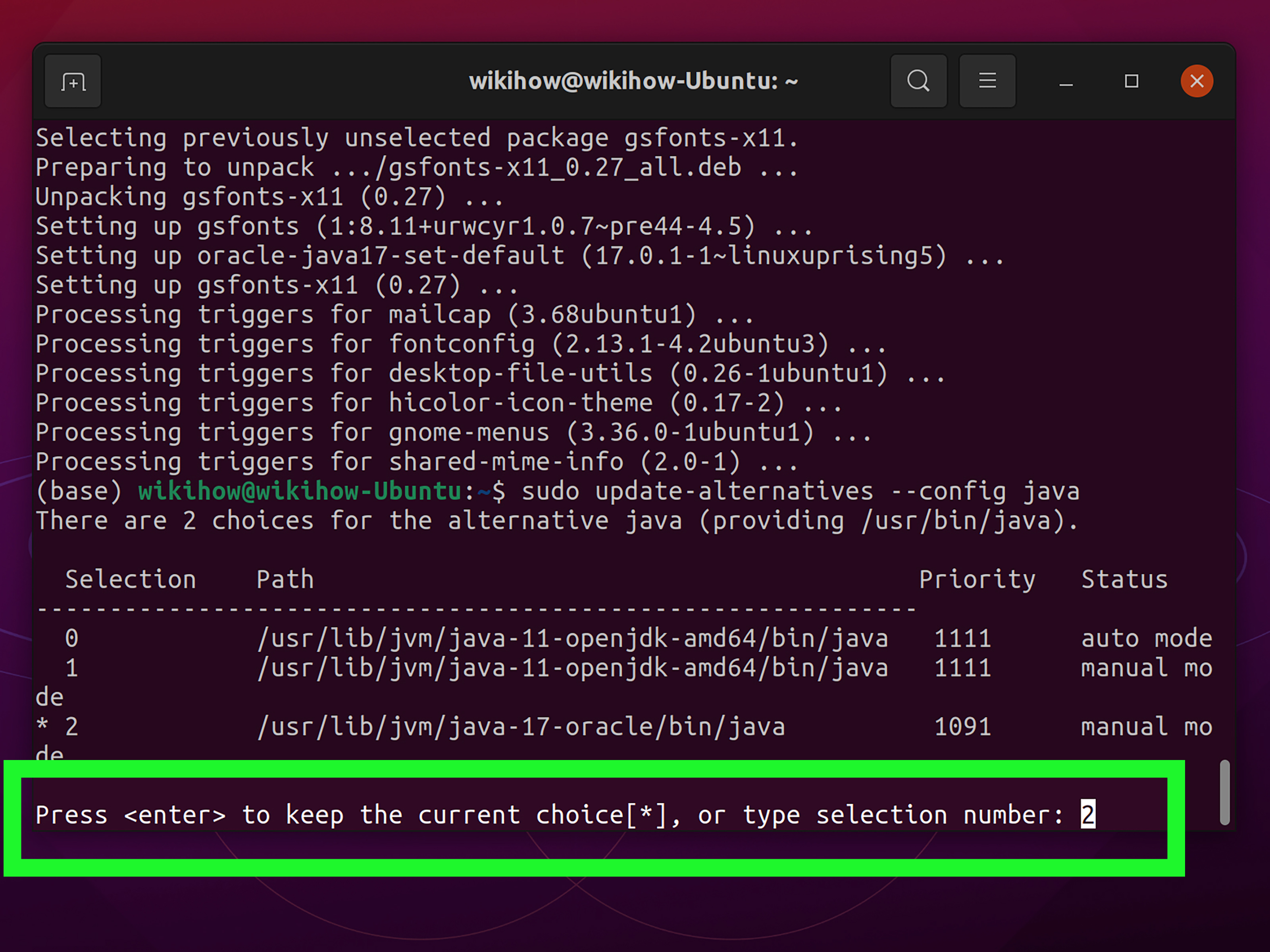
If you installed more than one Java version, Ubuntu needs to know which one should run when you type java. This is where update-alternatives comes in. Think of it as Ubuntu’s polite traffic cop for command-line tools.
Choose the Default Java Runtime
You will see a list of installed Java runtimes. Type the selection number for the version you want, then press Enter.
Choose the Default Java Compiler
This step matters if you develop Java applications. Your runtime and compiler should usually match. Running Java 21 with a Java 17 compiler is not always a disaster, but it can create confusing build problems. Confusing build problems are how developers age in dog years.
Confirm the Active Version
How to Set JAVA_HOME on Ubuntu
Many Java tools look for the JAVA_HOME environment variable. Maven, Gradle, Tomcat, Jenkins, Android tools, and application servers may use it to find the correct JDK.
Find Your Java Installation Path
You may see a path like:
The JAVA_HOME value is the directory before /bin/java:
Set JAVA_HOME for Your User
Open your shell configuration file:
Add these lines at the end:
Apply the changes:
Check it:
Set JAVA_HOME System-Wide
For all users, edit /etc/environment:
Add or update:
Then log out and back in, or reboot if needed.
Common Java Installation Problems on Ubuntu
Problem: “Command ‘java’ not found”
This means Java is not installed or not on your PATH. Install Java with:
Then verify:
Problem: “javac: command not found”
This usually means you installed the JRE instead of the JDK. Install the JDK:
Problem: Wrong Java Version Appears
Use alternatives:
Problem: Maven or Gradle Uses the Wrong JDK
Check JAVA_HOME:
If it points to the wrong version, update your shell configuration or project environment settings.
Which Java Installation Method Should You Choose?
If you want the fastest and safest option, install default-jdk with APT. If your project requires a specific Java version, install openjdk-17-jdk, openjdk-21-jdk, or another available package. If you want a vendor-managed OpenJDK build from Eclipse Adoptium, use Temurin. If your company requires Oracle JDK, install Oracle’s Debian package after reviewing the license terms.
For most Ubuntu users, the best command is still beautifully boring:
Sometimes boring is beautiful. Especially when boring means “it works.”
Experience Notes: Real-World Lessons from Installing Java on Ubuntu
After installing Java on Ubuntu enough times, you start to notice a few patterns. The first lesson is simple: the default method is usually the best starting point. Many beginners immediately search for Oracle JDK, third-party repositories, tarballs, and complicated setup scripts when all they really need is sudo apt install default-jdk. Ubuntu’s repository packages are not glamorous, but they are dependable. They update cleanly, uninstall cleanly, and usually work with common Java tools right away.
The second lesson is that version mismatches cause more trouble than failed installations. Java itself may install perfectly, but your project may still refuse to build because it expects Java 17 while your Terminal points to Java 21. This is common with older enterprise projects, Android builds, legacy Gradle wrappers, and tutorials written before dinosaurs discovered dependency management. When a build fails, do not panic-install three more JDKs. First run java --version, javac --version, and echo $JAVA_HOME. Those three commands solve an embarrassing number of mysteries.
The third lesson: JAVA_HOME matters more than people think. Some tools happily use the Java version on your PATH, while others look directly at JAVA_HOME. That means your Terminal can say Java 21, while Maven quietly uses Java 17 from another directory like a mischievous raccoon in a server rack. When setting up a development machine, always make sure java, javac, and JAVA_HOME agree with each other.
The fourth lesson is that installing multiple Java versions is normal. It is not a sign that your system is messy. A developer might need Java 8 for one old application, Java 17 for a stable production service, and Java 21 for a modern framework. The trick is not to avoid multiple versions; the trick is to manage them intentionally. Ubuntu’s update-alternatives works well for system-wide switching. For per-project switching, many developers prefer tools like SDKMAN because it can install and switch Java versions in a user-friendly way without changing the entire machine.
The fifth lesson is to avoid outdated random commands from old forum posts. Java installation advice ages quickly. A command that worked on Ubuntu 18.04 may be unnecessary, deprecated, or risky on Ubuntu 24.04 or later. Be especially careful with old PPAs, abandoned installer packages, and instructions that mention removed browser plugins. Modern Java installation on Ubuntu should usually involve official Ubuntu packages, trusted vendor repositories, or current vendor downloads.
Finally, keep installation notes for yourself. Write down which Java version your project needs, how you installed it, and what JAVA_HOME should be. Future you will be grateful. Future you may even forgive present you for naming that test file FinalFinalReallyFinalApp.java.
Conclusion
Installing Java in Ubuntu using Terminal is much easier once you know which route fits your goal. Use default-jdk for the simplest setup, install a specific OpenJDK version when your project requires one, choose Eclipse Temurin for Adoptium-managed builds, or install Oracle JDK when your environment specifically needs Oracle’s distribution. After that, verify your setup with java --version, configure update-alternatives if you have multiple versions, and set JAVA_HOME so your build tools know where Java lives.
The Terminal may look intimidating, but for Java on Ubuntu, it is mostly a matter of choosing the right package and checking your version. Once everything is configured, you can get back to the real work: building apps, running tools, learning Java, and occasionally wondering why one missing semicolon can ruin an entire afternoon.