Note: This article is written for designers, editors, students, and layout teams who need practical, web-ready guidance on unlocking objects in Adobe InDesign without turning a simple edit into a detective novel with fonts.
Few things interrupt a smooth design session faster than clicking a text frame, logo, image, or decorative shape in Adobe InDesign and realizing it will not move. You click again. You try the black arrow. You try the white arrow. You whisper motivational words to your mouse. Still nothing. The object sits there like it signed a lease.
The good news is that locked objects in InDesign are not usually broken, corrupted, haunted, or personally offended. In most cases, they are locked for a good reason: to protect backgrounds, headers, page numbers, brand graphics, templates, parent page elements, or finished layout pieces from accidental edits. Locking is helpful. Forgetting what you locked, however, is how designers develop a close personal relationship with the Undo command.
This guide explains 4 quick and easy ways to unlock objects in InDesign, including single-object unlocking, unlocking everything on a spread, using the Layers panel, and handling parent page items. You will also learn how to troubleshoot common problems, avoid relocking chaos, and keep your layout workflow clean, calm, and slightly less dramatic.
Why Objects Get Locked in InDesign
InDesign lets you lock individual objects, groups, and entire layers. Designers often use this feature to prevent accidental changes while working on complex layouts. For example, a magazine designer may lock background color blocks while editing body copy. A book designer may lock folios and running headers. A marketing team may lock logos in a brand template so nobody “just nudges it a little” into visual disaster.
A locked object cannot be edited directly until it is unlocked. Depending on your preferences and workspace settings, you may see a small padlock icon when hovering over or selecting the locked item. Sometimes the object itself is locked. Sometimes the entire layer is locked. Sometimes the object lives on a parent page, which means it is not technically locked in the same way but still cannot be edited from the regular document page until it is overridden.
Understanding the difference matters. If you try to unlock the wrong thing, you may end up clicking around the layout like you are playing a very boring escape room. The four methods below solve the most common situations.
Method 1: Unlock a Single Object with the Padlock Icon
The fastest way to unlock one object in InDesign is to use the small lock icon that appears on or near the locked object. This is the best method when you know exactly which item is locked and you do not want to unlock anything else on the page.
How to Unlock One Object
- Choose the Selection Tool, also known as the black arrow.
- Move your pointer over the locked object.
- Look for the small padlock icon near the frame or object edge.
- Click the padlock icon to unlock the object.
- Select and edit the object as usual.
This method works well for locked text frames, image frames, shapes, graphic elements, grouped objects, and decorative layout items. It is especially useful when you have carefully locked several items but only need to edit one. Nobody wants to unlock an entire spread just to move a caption two pixels to the left. That is how layout gremlins get invited.
When This Method Works Best
Use the padlock icon when the object is visible, easy to identify, and not hidden behind several other objects. It is also ideal when you are working in a shared file and do not want to disturb someone else’s carefully protected layout structure.
If you do not see the lock icon, zoom in and make sure frame edges are visible. You can also switch to Normal view instead of Preview mode. Preview mode is wonderful for checking design polish, but it can hide the very clues you need when troubleshooting locked objects.
Method 2: Use Object > Unlock All on Spread
If several objects on the current spread are locked, the quickest fix is the menu command Object > Unlock All on Spread. This unlocks all locked objects on the active spread, which is the left-and-right page pair you are currently viewing, or a single page if your document is set up that way.
How to Unlock Everything on the Current Spread
- Go to the spread where the locked objects appear.
- Open the top menu and choose Object.
- Select Unlock All on Spread.
- Click the previously locked item and edit it normally.
This is the “I do not have time for this” button of InDesign unlocking. It is excellent when you inherit a document from another designer, open a template, or receive a file where multiple items are locked and nobody left a note. Classic design team behavior: beautifully organized layers, absolutely no explanation.
Important Limitation
Unlock All on Spread only affects the current spread. It does not unlock every locked object in the entire document. If you have a 48-page catalog with locked items on every spread, you will need to repeat the command on each spread, use the Layers panel strategically, or consider a script-based workflow for large production jobs.
Also remember that this command does not solve every “I cannot edit this” problem. If the object is on a locked layer, you may need to unlock the layer first. If it is a parent page item, you may need to override it or edit it directly on the parent page.
Method 3: Unlock Objects and Layers from the Layers Panel
The Layers panel is the control room for complex InDesign documents. If your file has stacked images, grouped objects, background shapes, text layers, guide layers, and parent page items, the Layers panel can reveal what your cursor cannot.
To open it, choose Window > Layers. You will see a list of document layers. Expand a layer by clicking the small triangle beside its name, and you can view objects within that layer. Locked layers usually show a lock or crossed-out editing indicator. Individual locked objects may show their own lock icon as well.
How to Unlock a Layer
- Choose Window > Layers.
- Find the layer containing the object you want to edit.
- Look for a lock icon beside the layer name.
- Click the lock icon or lock column to unlock the layer.
- Select the object on the page and edit it normally.
How to Unlock an Object Inside a Layer
- Open the Layers panel.
- Expand the layer that contains the object.
- Find the object or group in the layer list.
- Click the lock indicator next to that object to unlock it.
This method is perfect for crowded layouts where clicking directly on the object is difficult. For example, imagine a restaurant menu with background texture, food photos, icons, price boxes, text frames, and decorative lines. The object you need may be buried below three other items and a semi-transparent overlay. The Layers panel lets you find it without accidentally moving the chili pepper icon into the dessert section.
Layer Lock vs. Object Lock
Here is the key difference: if an individual object is locked, other items on the layer may still be editable. If the entire layer is locked, objects on that layer cannot be selected or edited directly. That is why unlocking the object alone may not work if its layer is still locked.
A smart workflow is to name layers clearly. Instead of leaving everything on “Layer 1,” use names like Background, Images, Text, Guides, Brand Elements, and Parent Items. Future you will appreciate this. Future you is already tired.
Method 4: Unlock or Override Parent Page Items
Sometimes an item looks locked, acts locked, and refuses selection, but it is not actually locked in the normal object-locking sense. It may be a parent page item. Parent pages, previously called master pages, are reusable templates that apply repeated elements across multiple pages. Common parent page objects include page numbers, headers, footers, background graphics, logos, margin guides, and placeholder frames.
Parent page items are intentionally protected on document pages. This prevents accidental edits from breaking consistency across a long file. For example, if page numbers are on a parent page, you do not want to manually select and move them on page 17 unless you have a very specific reason and a strong cup of coffee.
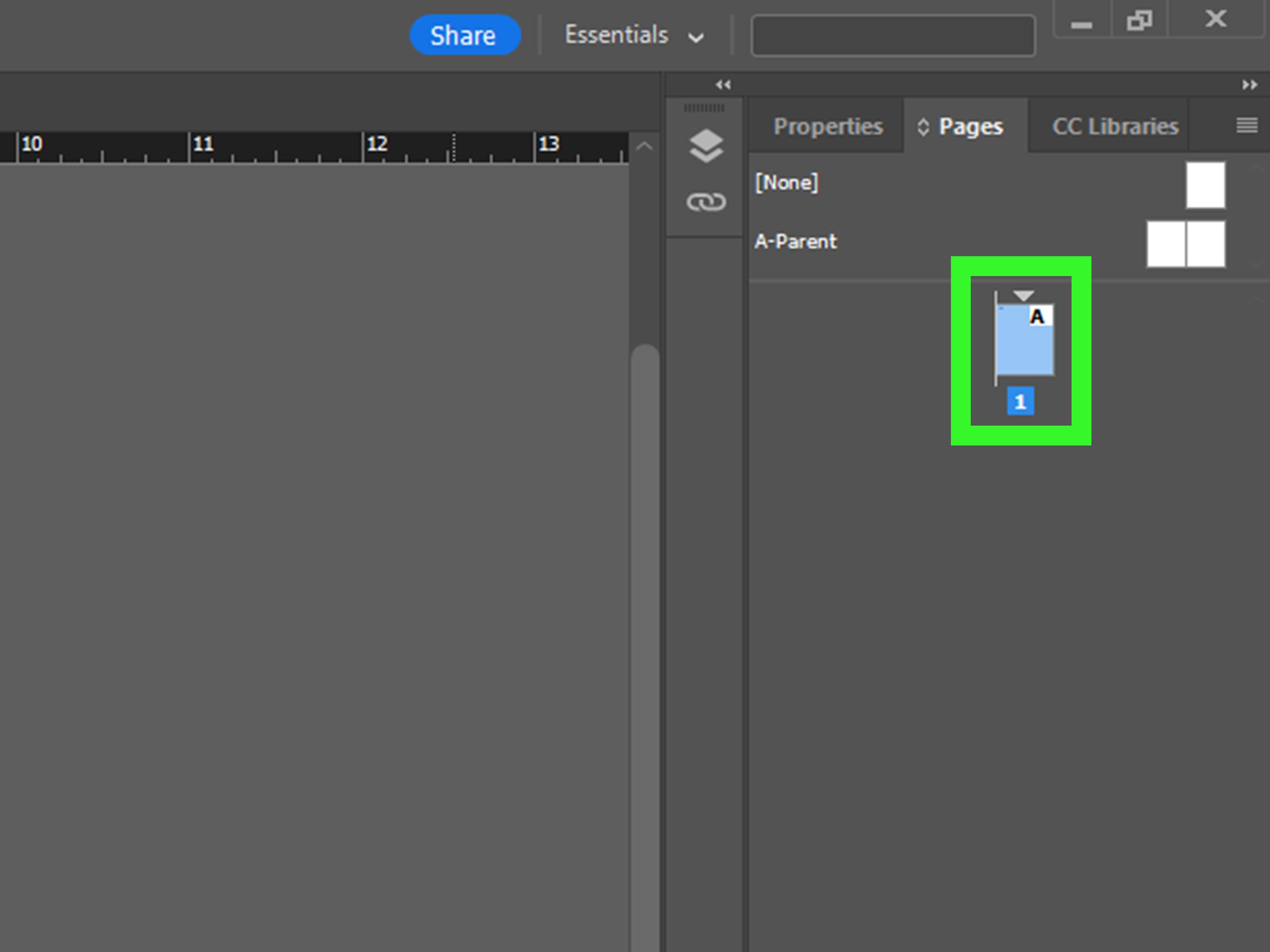
Option A: Edit the Item on the Parent Page
- Open the Pages panel.
- Double-click the parent page thumbnail, such as A-Parent.
- Select and edit the object there.
- Return to your document pages.
This is the best option when you want the change to apply everywhere the parent page is used. For example, if the logo on every chapter opener needs to move down, edit it on the parent page once instead of repeating the change across the whole document like a medieval monk copying page furniture by candlelight.
Option B: Override a Parent Page Item on One Page
- Go to the document page containing the parent item.
- Use the Selection Tool.
- On Windows, press Ctrl + Shift and click the parent item.
- On macOS, press Command + Shift and click the parent item.
- Edit the item on that page only.
Overriding is useful when one page needs an exception. Maybe a large photo conflicts with a page number. Maybe a footer needs to disappear from a full-page advertisement. Maybe your layout just needs one rebellious page to express itself. Override carefully, because too many local exceptions can make a document harder to maintain.
Quick Troubleshooting: Why You Still Cannot Unlock the Object
If you tried the four methods above and the object still refuses to cooperate, do not panic. InDesign files can contain several overlapping reasons why an item is hard to select or edit.
Check Whether You Are Using the Right Selection Tool
Use the Selection Tool for selecting and moving frames. Use the Direct Selection Tool for selecting content inside frames or editing anchor points. If you are trying to move an image frame but keep selecting the image inside it, you may think the object is locked when you are simply selecting the wrong part.
Check for Grouped Objects
A locked-looking item may be part of a group. Select the group and choose Object > Ungroup if appropriate. Be careful with this in polished layouts, because ungrouping can make it easier to accidentally move pieces that were meant to stay together.
Check for Hidden or Locked Layers
If an object appears but cannot be selected, open the Layers panel. Make sure the object’s layer is visible and unlocked. A hidden layer will not appear on screen, and a locked layer may prevent direct editing.
Check Parent Page Overrides
If the object has a dotted border or appears consistently across multiple pages, it may belong to a parent page. Edit it on the parent page or override it on the document page using the correct keyboard shortcut.
Check Your Preferences
InDesign includes preferences related to selecting locked objects. If locked items behave differently than expected, review your general preferences and selection settings. This is especially useful when working on a different computer, in a school lab, or on a shared production workstation where someone has customized the setup and then vanished into the snack room.
Best Practices for Locking and Unlocking Objects in InDesign
Unlocking objects is easy once you know where to look, but the better long-term strategy is to lock things intentionally. A clean locking workflow saves time, prevents production mistakes, and keeps your files understandable for anyone who opens them later.
Name Important Layers
Layer names are not decoration. They are tiny signs that say, “Please do not make this harder than it has to be.” Use descriptive layer names such as Background Art, Text Frames, Images, Page Numbers, and Do Not Edit.
Lock Backgrounds, Not Everything
Locking every object may feel safe, but it can slow down editing. Lock recurring or fragile elements, such as backgrounds, guides, logos, and approved headers. Leave active text and image areas editable while you are still designing.
Use Parent Pages for Repeating Elements
If an item appears on many pages, put it on a parent page instead of copying it manually. Parent pages keep layouts consistent and reduce the need to lock dozens of duplicated objects.
Unlock Only What You Need
When possible, unlock a single object instead of using a broad unlock command. This reduces the chance of accidentally moving finished elements. InDesign is precise, but human hands after three coffees are not always precision instruments.
Save a Version Before Major Unlocking
If you are about to unlock many objects in a large document, save a copy first. Use a filename such as Catalog_v3_before-unlocking.indd. This small habit can rescue you from a large headache later.
Common Examples of Locked Object Problems
Example 1: The Background Image Will Not Move
You are designing a flyer and cannot select the background image. Open the Layers panel and check whether the background layer is locked. If it is, unlock the layer, move the image, and lock the layer again when finished.
Example 2: The Page Number Cannot Be Selected
You click the page number, but nothing happens. It is probably on a parent page. Edit the parent page if every page number needs the same change, or override the parent item if only one page needs adjustment.
Example 3: The Logo Has a Padlock Icon
Hover over the logo with the Selection Tool and click the padlock icon. Make your edit, then lock it again if it is part of the approved brand layout.
Example 4: Nothing on the Page Can Be Edited
Open the Layers panel. If every layer is locked, unlock the layer you need. If all page items come from a parent page, you may be trying to edit a template layer from the wrong place.
Experience-Based Tips: What Unlocking Objects in InDesign Teaches You Over Time
After working with InDesign layouts for a while, you start to recognize locked-object problems before they fully ruin your afternoon. The first lesson is that “I cannot select this” does not always mean “this object is locked.” It may mean the object is on a parent page, covered by another frame, grouped with other items, placed on a locked layer, or sitting behind an invisible frame with no fill and no stroke. InDesign is powerful, but it also has a talent for hiding simple answers behind five panels and a keyboard shortcut.
One practical habit is to check the Layers panel early. Beginners often click repeatedly on the page, hoping the right object will eventually surrender. Experienced users open the Layers panel, expand the layer, and look for the lock. This saves time because it turns a guessing game into a structured search. In production design, that difference matters. When a client asks for “one tiny change” five minutes before export, every saved minute feels like finding money in an old jacket.
Another useful habit is to relock objects after editing them. Many designers unlock a background, adjust it, and forget to lock it again. Later, while selecting text, they accidentally drag the background slightly out of position. The movement may be tiny, but in print design, tiny mistakes can become very visible. A shifted bleed, misaligned brand bar, or moved page number can make a professional document look rushed. The safest workflow is simple: unlock, edit, inspect, relock.
Parent page items are another area where experience pays off. At first, parent pages feel like locked objects with a different personality. Over time, you learn that they are one of InDesign’s best time-saving tools. If a header, footer, page number, or recurring graphic needs to appear throughout a document, parent pages are cleaner than copying and locking objects across individual pages. The trick is knowing when to edit the parent and when to override a single item. If the change should affect the whole document, edit the parent. If the change is a one-page exception, override it locally.
Good file organization also reduces unlocking confusion. In a messy file, every locked object feels like a surprise. In a clean file, locks make sense. Backgrounds live on a Background layer. Text lives on a Text layer. Images live on an Images layer. Page furniture lives on a Parent Items or Folios layer. When the structure is obvious, unlocking becomes fast and low-risk. This is especially important for teams, because the next person who opens your file may not have your design brain, your memory, or your tolerance for chaos.
A final lesson: lock objects to protect decisions, not to punish future editors. If an item is approved, structural, or easy to accidentally move, locking it is smart. If every object is locked for no clear reason, the file becomes frustrating. The best InDesign users balance protection with flexibility. They lock what should stay fixed, label what matters, and leave the rest accessible enough for real-world editing. That is the difference between a professional template and a digital booby trap.
Conclusion
Unlocking objects in InDesign is usually quick once you understand where the lock is coming from. For a single locked object, click the padlock icon. For several locked items on the current spread, use Object > Unlock All on Spread. For deeper control, open the Layers panel and unlock the object or layer directly. If the item belongs to a parent page, edit the parent or override the item on a specific document page.
The real secret is not just knowing how to unlock objects, but knowing why they were locked in the first place. Smart locking protects backgrounds, brand elements, page numbers, templates, and finished layouts. Smart unlocking lets you make changes without accidentally turning a polished document into a puzzle. Use locks with intention, name your layers, save versions before major edits, and remember: InDesign is not fighting you. It is just very committed to boundaries.