An in-app resource center gives users answers, tutorials, product updates, and support options without forcing them to leave your application. When designed well, it becomes a quiet little superhero: always available, rarely annoying, and capable of rescuing users before they submit a ticket titled “URGENT!!!” followed by no useful details whatsoever.
However, simply placing a help icon in the corner of the screen does not create a useful support experience. A successful in-app resource center must be searchable, contextual, personalized, easy to maintain, and connected to human support. This guide explains what to include, how to organize it, which mistakes to avoid, and how to measure whether it is actually helping users.
What Is an In-App Resource Center?
An in-app resource center is a self-service support hub embedded directly inside a software product, mobile app, or digital platform. Users can open it while completing a task instead of navigating to a separate documentation website, searching the web, or opening another browser tab.
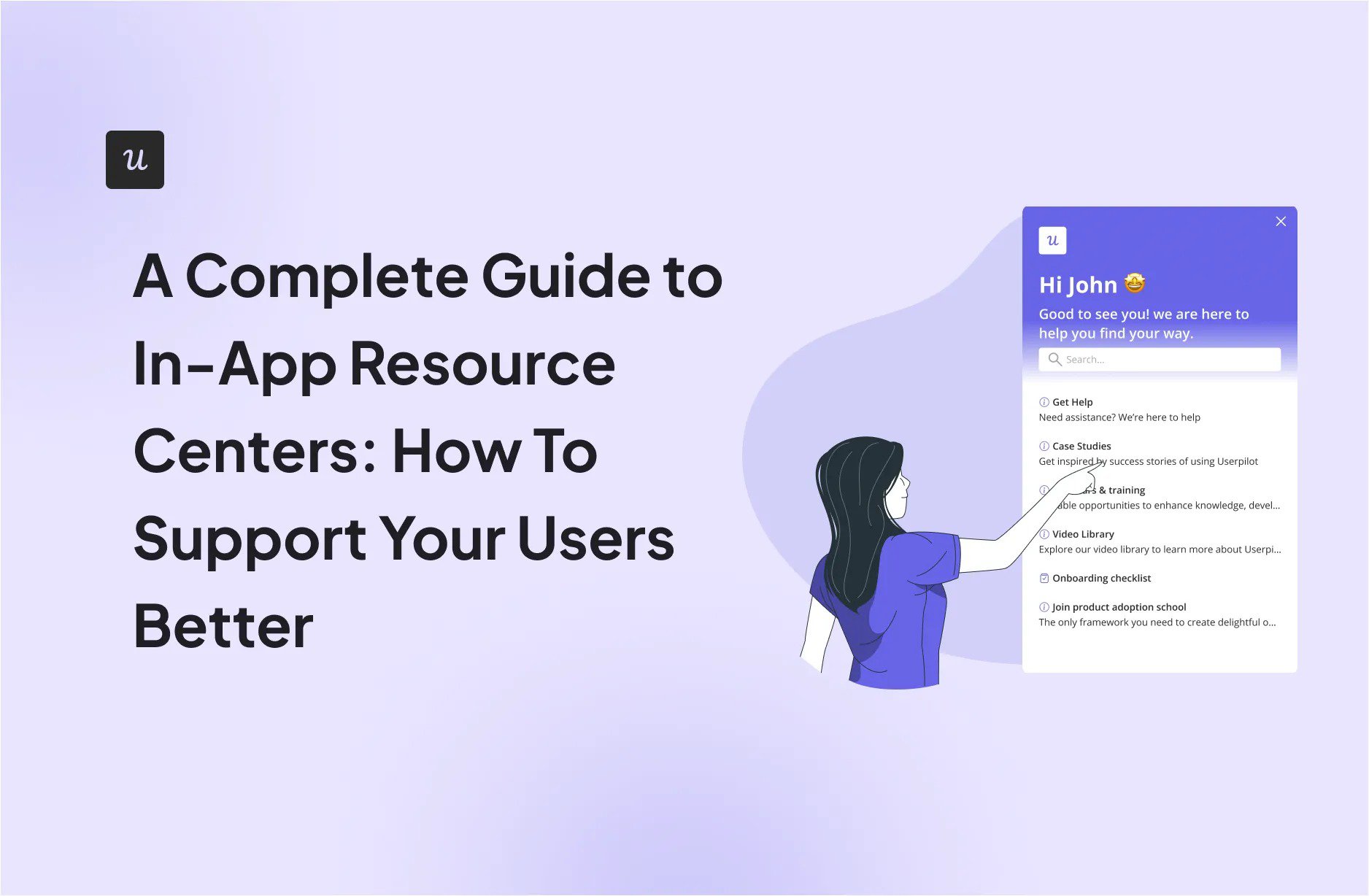
Depending on the product, the resource center may include help articles, onboarding checklists, interactive walkthroughs, video tutorials, frequently asked questions, release notes, troubleshooting instructions, feedback forms, live chat, and links to contact support.
The main advantage is context. A traditional knowledge base may contain hundreds of useful articles, but the user still has to leave the product, search for the correct topic, and translate general instructions into the screen currently in front of them. An in-app help center can present relevant information exactly where the problem occurs.
Resource Center vs. Traditional Help Center
A traditional help center is usually a separate website containing documentation and support articles. It remains valuable for detailed guides, public search visibility, and complex troubleshooting.
An in-app resource center is the accessible front door to that content. It can display selected help articles inside the application, launch product tours, recommend resources based on the current page, and offer an immediate path to human assistance.
The two systems should work together. Replacing a complete knowledge base with six tiny tooltips is not innovation. It is documentation wearing a very small hat.
Why Better In-App Support Matters
Users do not open software because they are excited to study its navigation. They open it because they want to send an invoice, create a report, invite a teammate, edit a design, or complete another specific job. Every unnecessary interruption increases frustration and delays the moment when the product delivers value.
Self-service support helps users solve routine problems independently and at any hour. It can shorten waiting times, reduce repetitive tickets, and allow support agents to spend more time on technical, sensitive, or account-specific issues.
An effective resource center can also improve product adoption. Tutorials and contextual guides help users discover valuable features that might otherwise remain hidden behind mysterious icons and menu labels invented during an especially energetic product-planning meeting.
Benefits for Users
- Answers are available without leaving the current workflow.
- Instructions can reflect the page, feature, role, or account plan.
- Users can learn at their own pace rather than waiting for an agent.
- Interactive guides can show the next action instead of merely describing it.
- Human support remains available when self-service is not enough.
Benefits for Support and Product Teams
- Common questions can be resolved before becoming tickets.
- Support conversations can reveal missing or confusing content.
- Product teams can identify workflows that repeatedly cause difficulty.
- Customer success teams can deliver scalable onboarding and education.
- Announcements and release notes can reach users inside the product.
Essential Components of an In-App Resource Center
1. Searchable Help Content
Search should be one of the most prominent features. Users frequently describe problems differently from product teams, so content should account for common synonyms, informal terms, feature names, and task-based phrases.
For example, an accounting platform may officially call a feature “transaction reconciliation,” while users search for “match bank payments,” “fix balance,” or “why is this number wrong?” Article titles and keywords should reflect how customers actually speak.
Search analytics are particularly valuable. Queries that return no useful results reveal content gaps, confusing terminology, or emerging product issues. They are effectively users handing the company a prioritized editorial calendar for free.
2. Contextual Guides and Walkthroughs
Contextual support delivers guidance at the moment and location where it is needed. A user viewing the billing page should see billing-related resources. An administrator configuring permissions should see role-management instructions rather than a cheerful tutorial about changing profile photos.
Interactive walkthroughs are useful for multi-step workflows, especially when users must perform actions in a specific order. Keep them optional, brief, and easy to dismiss. Long mandatory product tours are often forgotten because users have not yet developed a reason to care about every feature.
Whenever possible, let users relaunch important walkthroughs from the resource center. This turns one-time onboarding into reusable assistance.
3. Frequently Asked Questions
An FAQ section should address questions that customers genuinely ask, not questions the marketing team wishes they asked. Start with support tickets, chat transcripts, onboarding calls, customer interviews, sales objections, and failed search queries.
Answers should be direct and task-focused. Place the essential answer first, followed by steps, screenshots, limitations, and related resources. Avoid beginning a password-reset article with a sweeping history of digital identity.
4. Video Tutorials
Short videos can explain visual or complicated workflows more efficiently than long articles. They work especially well for configuration, design, analytics, and feature demonstrations.
Keep videos focused on one outcome and provide captions or a written alternative. Users may be working in a noisy office, a quiet library, or a meeting in which they are pretending to listen. Accessible alternatives also improve usability for people with hearing, visual, cognitive, or language-related needs.
5. Onboarding Checklists
A checklist can guide new users toward the actions most strongly connected to early success. Rather than listing every available feature, focus on meaningful milestones such as creating the first project, importing data, inviting a teammate, or publishing the first result.
Progress indicators can encourage completion, but every item should deliver real value. A checklist is not a scavenger hunt designed to make users visit six pages they do not need.
6. Product Announcements and Release Notes
The resource center can provide a permanent home for product updates. This is more useful than relying entirely on temporary banners that disappear after one click and are never seen again.
Explain what changed, who benefits, why it matters, and how to use it. Release notes should translate engineering work into user outcomes. “Refactored the permissions architecture” may be accurate, but “You can now assign custom access without creating duplicate roles” is considerably more helpful.
7. Feedback and Contact Options
Self-service should not become a locked door separating customers from the support team. Include clear escalation options such as live chat, email, ticket submission, scheduled assistance, or community support.
When users contact support, preserve context when possible. Capture the current page, account information, previous searches, selected article, and basic diagnostic details with appropriate privacy controls. This saves users from repeating information and helps agents begin with a more complete picture.
How to Build an Effective Resource Center
Step 1: Research Real Support Needs
Begin with evidence rather than assumptions. Review ticket categories, search terms, chat conversations, product analytics, onboarding feedback, customer interviews, and recurring questions from sales or customer success teams.
Group the findings by user goal. Categories such as “Create and publish a report” or “Manage team access” are usually more intuitive than categories based on internal departments or technical architecture.
Step 2: Prioritize High-Impact Problems
Do not attempt to publish everything at once. Start with issues that occur frequently, block important tasks, generate many tickets, or affect new customers during activation.
A simple prioritization model can consider ticket volume, user impact, resolution complexity, and business importance. A five-minute article that prevents hundreds of password-related tickets may be more valuable than a cinematic 20-minute tutorial about an obscure configuration option.
Step 3: Choose the Right Content Format
Match the format to the problem. Use a tooltip for a short clarification, an article for searchable instructions, a walkthrough for a multi-step workflow, a video for a visual demonstration, and human support for situations requiring judgment or account access.
Do not force every answer into a product tour. Sometimes users simply need one sentence, not an interactive parade of pulsing dots.
Step 4: Organize Content Around Tasks
Use clear labels that reflect customer goals. Keep the top-level menu small enough to scan quickly, and place frequently used resources near the top.
Products serving multiple audiences may need different resource-center experiences for administrators, regular users, developers, partners, or customers on different plans. Personalization prevents irrelevant content from overwhelming the menu.
Step 5: Make the Resource Center Discoverable
Use a familiar help icon or a clearly labeled button such as “Help,” “Support,” or “Resources.” Keep its location consistent throughout the application.
When introducing the resource center, show users what it contains and how to reopen it later. A one-time announcement may work for existing customers, while a brief onboarding step can introduce it to new users.
Step 6: Test With Real Users
Ask users to complete common tasks and observe how they seek help. Can they find the resource center? Do they understand the labels? Does search return the expected answer? Can they resume their work after reading an article?
Internal teams already know the product’s vocabulary and structure, which makes them unreliable judges of discoverability. Real customers are much better at revealing that nobody outside the company understands what “Workspace Object Governance” means.
Step 7: Create a Maintenance Process
Assign an owner to every important article or guide. Record the publication date, affected feature, target audience, and next review date. Update content whenever workflows, screenshots, permissions, pricing rules, or product terminology change.
Support, product, customer success, UX, and documentation teams should share responsibility. A resource center becomes stale quickly when everyone assumes someone else is feeding it.
Best Practices for Better User Support
Write for Action
Use descriptive headings, short paragraphs, numbered steps, and meaningful screenshots. Begin instructions with verbs and clearly explain prerequisites, expected results, and possible errors.
Write “Select Export, choose CSV, and then select Download” instead of “Export functionality can be utilized through the appropriate interface controls.” The second sentence sounds impressive only if the goal is to prevent anyone from completing the task.
Combine Proactive and Reactive Help
Reactive support appears when users deliberately open the resource center or search for an answer. Proactive support appears when behavior suggests that assistance may be useful, such as repeated errors, inactivity during a setup step, or the first visit to a complex feature.
Use proactive messages carefully. The goal is to reduce friction, not create a new variety of it. Trigger help based on meaningful signals, limit repetition, and let users dismiss or snooze guidance.
Personalize Without Becoming Creepy
Relevant personalization may use role, plan, language, lifecycle stage, enabled features, or previous actions. A new administrator may need setup instructions, while an experienced analyst may benefit from advanced reporting guides.
Be transparent about data use and avoid displaying sensitive information unnecessarily. Helpful personalization should feel like a knowledgeable concierge, not a stranger who has memorized the contents of your refrigerator.
Design for Accessibility
Ensure the resource center supports keyboard navigation, visible focus states, screen readers, readable contrast, scalable text, captions, and clear language. Do not rely solely on color, animation, or hover behavior to communicate essential information.
Test the experience on smaller screens and mobile devices. A support widget that covers the button users need to select is technically available but philosophically confused.
Provide a Smooth Human Escalation Path
Some problems are too complex, urgent, personal, or unusual for self-service. Clearly communicate available channels, expected response times, and any information users should provide.
When automation cannot resolve the issue, transfer the conversation and its context rather than making the user begin again. Better support is not measured by preventing every human interaction; it is measured by helping customers reach the right resolution efficiently.
Common In-App Resource Center Mistakes
- Publishing too much content: A giant unorganized menu simply relocates the confusion.
- Using internal terminology: Customers search for tasks and symptoms, not your company’s project names.
- Hiding human support: Ticket deflection should not become customer deflection.
- Forcing long walkthroughs: Guidance should help users continue working, not trap them in an onboarding documentary.
- Ignoring unsuccessful searches: No-result queries are direct evidence of missing content or mismatched language.
- Leaving old screenshots online: Outdated instructions can create more tickets than they prevent.
- Measuring opens instead of outcomes: A resource center can receive many clicks because users are confused, not because it is effective.
How to Measure Resource Center Performance
Measurement should connect content usage to successful outcomes. Useful indicators include resource-center adoption, search success, article helpfulness, guide completion, ticket volume by topic, escalation rates, repeat contacts, and time required to complete supported tasks.
Search Success
Track popular queries, searches with no results, result selections, repeated searches, and searches followed immediately by support contact. A high search volume means little if users must try five phrases before finding an answer.
Support Deflection
Estimate how often users consume relevant content and complete the intended task without opening a ticket. Evaluate deflection carefully; users who abandon the task entirely should not be counted as successful self-service cases.
Content Effectiveness
Use simple helpfulness ratings, follow-up questions, task completion data, and ticket analysis. When users repeatedly contact support after viewing a particular article, the content may be unclear, incomplete, outdated, or addressing the wrong problem.
Business and Product Outcomes
Depending on the product, connect resource-center usage with activation, feature adoption, onboarding completion, retention, expansion, or customer satisfaction. The strongest measurement framework shows not only that content was opened, but that users made meaningful progress afterward.
Practical Experiences and Lessons From Resource Center Projects
One of the most common lessons from building an in-app resource center is that the first version is usually organized around the company rather than the customer. Product teams naturally create sections matching their navigation: Dashboard, Settings, Reports, Integrations, and Billing. Users, however, often think in goals: “Invite my team,” “Fix a failed connection,” “Send this report,” or “Understand my invoice.”
Reorganizing support content around these jobs can make the same articles easier to find without writing a single new sentence. Navigation is content, too. A beautifully written guide buried under an unclear label is like an excellent restaurant located behind an unmarked door in a warehouse.
Another practical lesson is that support tickets are not merely a workload; they are research material. Imagine a project-management application receiving dozens of weekly questions about assigning tasks to guests. The first response might be to publish an article called “Guest Permissions.” Yet ticket analysis could show that users are actually confused by three different issues: who can be invited, what guests can see, and why certain projects reject invitations.
Instead of one broad article, the team could create a short permissions overview, a contextual explanation beside the invitation field, and a troubleshooting guide for failed invitations. The resource center would then surface different help depending on the user’s page and behavior. One recurring ticket category becomes three precise support experiences.
Teams also discover that introducing the resource center matters almost as much as building it. Users cannot benefit from a feature they do not notice or understand. A brief welcome message can explain that the help menu contains tutorials, documentation, updates, and contact options. New users can see this during onboarding, while existing customers may receive a one-time announcement.
Another experience is the danger of over-automation. After seeing early success, teams may trigger guides for every hesitation, click, and error. The product soon behaves like an overenthusiastic tour guide who interrupts each photograph to explain that photographs are allowed. Effective triggers should correspond to genuine friction: repeated validation errors, an incomplete critical setup, or a user returning several times to the same difficult step.
Content maintenance often becomes the hardest long-term challenge. During launch, everyone is excited to contribute. Six months later, a button has moved, two features have been renamed, and a tutorial still confidently directs users toward a menu that no longer exists.
A practical maintenance system assigns owners, review dates, and update triggers. Product-release checklists should include documentation and in-app guidance, not treat them as decorative tasks to complete after launch. Support agents should also have a simple method for reporting inaccurate articles and recurring content gaps.
Finally, successful teams resist treating ticket deflection as the only objective. A customer who finds an answer independently may be delighted. A customer who cannot find the contact button may be furious. The goal is not to eliminate conversations but to eliminate unnecessary effort.
The strongest in-app resource centers create a connected support journey. A user can search, read, launch a walkthrough, provide feedback, and reach a human without losing context. Meanwhile, the company learns from searches, guide behavior, and support conversations to improve both the content and the product itself.
That feedback loop is where the real value appears. Repeated confusion may indicate missing documentation, but it may also reveal a poorly designed workflow. Sometimes the best support article is a simpler interface that makes the article unnecessary.
Conclusion
An in-app resource center can transform user support from a distant emergency service into an accessible part of the product experience. By combining searchable documentation, contextual guidance, onboarding resources, product updates, feedback tools, and clear human escalation, companies can help users solve problems without interrupting their work.
The most effective approach begins with real customer questions, organizes information around user goals, and selects the right format for each problem. It also treats accessibility, personalization, analytics, and maintenance as core requirements rather than optional finishing touches.
Build a focused first version, study how users interact with it, and improve it continuously. A resource center should never become a dusty digital filing cabinet. It should behave like a living support systemuseful when invited, relevant when opened, and smart enough to know when a human needs to step in.