
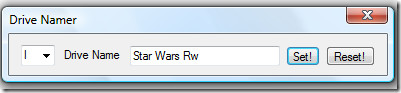
There are two kinds of Windows users in this world: the ones who leave every storage device named Local Disk, and the ones who would rather label a drive Taxes, Photos, Backups, Retro Games, Do Not Touch, Seriously. If you belong to the second group, welcome home. Renaming drives in Windows is one of those tiny upgrades that makes a computer feel instantly more organized. It is not flashy. It will not make your PC run 400% faster. It will, however, save you from opening the wrong drive five times in a row and muttering at your monitor.
That is where Drive Namer enters the chat. This small utility has long been mentioned as a handy way to rename drives that Windows does not always make easy to rename, especially optical drives. At the same time, modern versions of Windows already give you several built-in ways to rename many regular volumes. So the smart question is not just, “Can Drive Namer change a drive name?” It is, “When does it make sense to use Drive Namer, and when is plain old Windows enough?”
This guide walks through both sides of the story. You will learn what Windows actually changes when you rename a drive, where Drive Namer fits in, how to use the tool without drama, and what to do if Windows acts like naming a drive is a matter of national security.
What Windows Is Really Renaming
Before talking about Drive Namer, it helps to clear up one of the most common points of confusion in Windows storage management: a drive letter and a drive name are not the same thing.
Drive Letter vs. Drive Label
A drive letter is the address. Think C:, D:, or E:. A drive label, also called a volume label, is the friendly name people actually notice in File Explorer, like System, Media, Work SSD, or Backup Vault.
That difference matters because changing a label is usually harmless and cosmetic, while changing a letter can affect shortcuts, installed apps, scripts, game launchers, and backup jobs. In other words, renaming a drive is usually like putting a nicer tag on a drawer. Changing the drive letter can be more like moving the whole drawer to another room and hoping everyone figures it out.
That is why the safest advice for most users is simple: if your goal is easier identification, change the label, not the letter. Your future self will thank you, and your software will be less likely to stage a rebellion.
Why Drive Namer Still Gets Attention
On modern Windows systems, many fixed and removable drives can be renamed directly in File Explorer, from a Properties window, through Disk Management, or with Command Prompt and PowerShell. So why bother with a separate utility?
Because Windows has always been a little pickier with certain drive types, especially optical drives. In older and even some later Windows setups, a normal hard drive or USB volume is easy to rename, but a CD/DVD drive may not show a simple Rename option. That is the niche Drive Namer was made for. It gives users a lightweight, portable way to assign a friendlier display name to an optical drive without digging through the registry like a treasure hunter with too much caffeine.
So despite the broad promise of the title, the real strength of Drive Namer is not that it replaces every built-in Windows method. Its strength is that it helps with the drive types Windows has historically handled awkwardly. It is the specialist, not the mayor.
How to Change a Drive Name With Drive Namer
If you are using Drive Namer, the process is refreshingly short. That alone gives it some charm. No giant installer, no pop-up wizard asking for your life story, and no buried menu named something mysterious like Advanced Volume Personality Settings.
Basic Steps
First, launch Drive Namer with administrator rights. This matters because Windows protects storage-related settings more aggressively than it protects your feelings. Once the program is open, choose the drive letter you want to target, enter the label you want to display, and apply the change. Many versions of this kind of utility also let you reset the label back to the default if you change your mind later.
For example, an optical drive that appears as DVD RW Drive (E:) could become:
Movie Drive (E:)
Install Media (E:)
Archive Reader (E:)
That may sound minor, but it becomes genuinely useful on systems with multiple drives, docking stations, external bays, or older workstations that still use optical media for installs, archives, or backups.
When Drive Namer Makes the Most Sense
Drive Namer is especially useful when:
You want to rename an optical drive that Windows does not rename cleanly.
You prefer a tiny portable tool over manual registry work.
You manage older systems where modern Settings options are missing or incomplete.
You want a quick visual improvement without changing drive letters or formatting anything.
In short, Drive Namer is less about doing magic and more about removing friction. Sometimes convenience wins. Sometimes convenience also wears a tiny freeware cape.
Built-In Windows Ways to Rename a Drive
Even if Drive Namer is the headline act, a strong article on the topic needs to say the quiet part out loud: many users can rename a drive without any third-party tool at all.
Method 1: File Explorer
This is the simplest option for ordinary volumes. Open File Explorer, go to This PC, right-click the drive, and choose Rename. On some systems, selecting the drive and pressing F2 works too. Enter the new label and press Enter.
This is perfect for everyday tasks like turning:
Local Disk (D:) into Projects (D:)
New Volume (F:) into Photos 2026 (F:)
If Windows prompts for administrator approval, approve it and move on. No need to panic. It is normal.
Method 2: Drive Properties
If right-click-and-rename is not your favorite style, right-click the drive, open Properties, and edit the name in the label field on the General tab. This method feels a little more official, like you are signing a storage document instead of casually scribbling a new nickname on a folder.
Method 3: Disk Management
Disk Management is more useful when you are already dealing with partitions, letters, and storage layouts. Open it, right-click the volume, go to Properties, and update the label there.
This tool is also where Windows handles drive letters. That does not mean you should start changing letters for fun. If programs already depend on a drive letter, changing it can cause headaches. Rename the label first. Save the alphabet gymnastics for when there is a real reason.
Method 4: Settings in Windows 11
On newer Windows 11 systems, Microsoft has pushed more storage options into the modern Settings app. Under System > Storage > Advanced storage settings > Disks & volumes, you can view a volume’s properties and change its label. This is useful for people who avoid classic administrative tools on sight, which is fair. Disk Management has always looked like it was designed by someone who trusted gray dialog boxes far too much.
Method 5: Command Prompt
If you prefer typing to clicking, the built-in label command can rename a volume. A simple example looks like this:
That tells Windows to rename the volume on drive D to WorkFiles. It is fast, script-friendly, and satisfying in the way command-line tools often are when they work the first time.
Method 6: PowerShell
PowerShell is especially useful if you manage multiple systems or automate setup tasks. A typical command looks like this:
This method feels very IT department, but it is not just for admins. It is also handy for anyone who likes repeatable steps, cleaner automation, and pretending their weekend organizing session is a mission-critical infrastructure project.
Best Practices for Naming Drives Like a Sane Person
A good drive name should be easy to understand at a glance. That means clear, short, and specific beats clever, long, and mysterious.
Good examples include:
Windows
Games
Client Files
Photo Backup
Video Scratch
NAS Copy
Less helpful examples include:
Stuff
Disk 2 But Maybe Important
AAAAA
Final Final Real Final Backup
Also remember that file system rules can affect how long a volume label can be. NTFS usually gives you more naming room than older FAT-style formats, so if a name gets rejected, the issue may not be your creativity. It may just be the format saying, “That is enough adjectives for one drive.”
Troubleshooting Common Renaming Problems
You Do Not See a Rename Option
If a standard volume does not show Rename, try the Properties window, Disk Management, or PowerShell. If the device is an optical drive, this is exactly the kind of situation where Drive Namer can help.
Windows Says Access Is Denied
Run File Explorer as usual but approve the administrator prompt when it appears, or run your terminal tool as administrator if you are using commands. Drive-related changes often need elevated permissions.
The New Name Does Not Stick
Refresh File Explorer, disconnect and reconnect the device, or restart the system. On removable devices, Windows sometimes needs a little nudge before the new label appears consistently.
The Drive Should Not Be Touched
Leave EFI, recovery, or other special system partitions alone unless you know exactly what you are doing. The goal is better organization, not starring in your own accidental disaster-recovery documentary.
Is Drive Namer Worth Using Today?
Yes, but with the right expectations. Drive Namer is not essential for every Windows user in 2026. For most common drives, Windows already offers easy built-in ways to rename a label. But Drive Namer still earns its place as a practical little utility for optical drives, older systems, and awkward edge cases where Windows makes a simple rename feel much harder than it should.
That is really the honest takeaway. If all you need is to rename a normal partition, Windows can usually do it on its own. If you are dealing with a stubborn optical drive or you just like lightweight portable tools, Drive Namer is still a neat piece of software to keep around.
Real-World Experiences With Renaming Drives in Windows
In real life, renaming drives is one of those changes people underestimate until they actually do it. Imagine a home office desktop with four internal drives, two external SSDs, one old archive HDD, and an optical drive that mostly exists to read ancient discs once every six months. Out of the box, that setup can look ridiculous in File Explorer: Local Disk, Local Disk, New Volume, USB Drive, and one lonely DVD drive sitting there like it wandered in from 2009. At that point, storage management stops being a workflow and starts looking like a guessing game.
Rename those drives, though, and everything changes fast. Suddenly C: becomes Windows, D: becomes Apps, E: becomes Projects, F: becomes Backup SSD, and the optical drive becomes Install Media. That small improvement removes mental clutter every single day. You stop opening the wrong volume. You stop double-checking where your exports go. You stop copying a 40 GB folder to the wrong external drive and discovering your mistake only after your coffee gets cold.
There is also a surprisingly big benefit for shared computers. On family PCs, renamed drives reduce confusion immediately. A parent can label one drive School Files, another Family Photos, and an external backup disk Do Not Unplug. That last one is not technically magical, but it sends a message. People notice labels. Labels influence behavior. Good labels are like tiny signs posted around your digital house.
For freelancers and creators, the value is even more obvious. A video editor may separate Raw Footage, Scratch Disk, and Client Archive. A photographer may use Lightroom Cache, Wedding Masters, and Delivery Exports. A gamer might go with Steam Library, Mods, and Backups. The point is not style points. The point is speed and accuracy.
Even IT hobbyists get something out of it. Anyone who dual-boots, tests software in spare partitions, or rotates external drives for clones and backups knows that vague labels are the enemy. Renaming a drive from New Volume to Win11 Test or Monthly Image can prevent the kind of mistake that leads to a very long evening and a very short temper.
And that is exactly why tools like Drive Namer still have a place. Not because renaming a drive is glamorous, but because it is useful. When a tool takes an annoying little task and turns it into a 30-second fix, people remember it. Sometimes the best Windows utility is not the one that changes your whole system. Sometimes it is the one that makes your storage stop looking like a pile of identical cardboard boxes.
Conclusion
Changing a drive name in Windows is a small task with an outsized payoff. It helps you work faster, stay organized, and make sense of a machine that may have more storage devices than common sense. For regular drives, Windows already gives you several easy built-in options. For optical drives and stubborn edge cases, Drive Namer remains a simple and useful shortcut.
The best part is that this upgrade costs almost nothing in time. Spend a few minutes labeling your drives clearly, and your PC immediately becomes easier to navigate. That is not revolutionary. It is just smart. And sometimes smart beats flashy by a mile.














