
Note: Body-only HTML, ready to copy and publish.
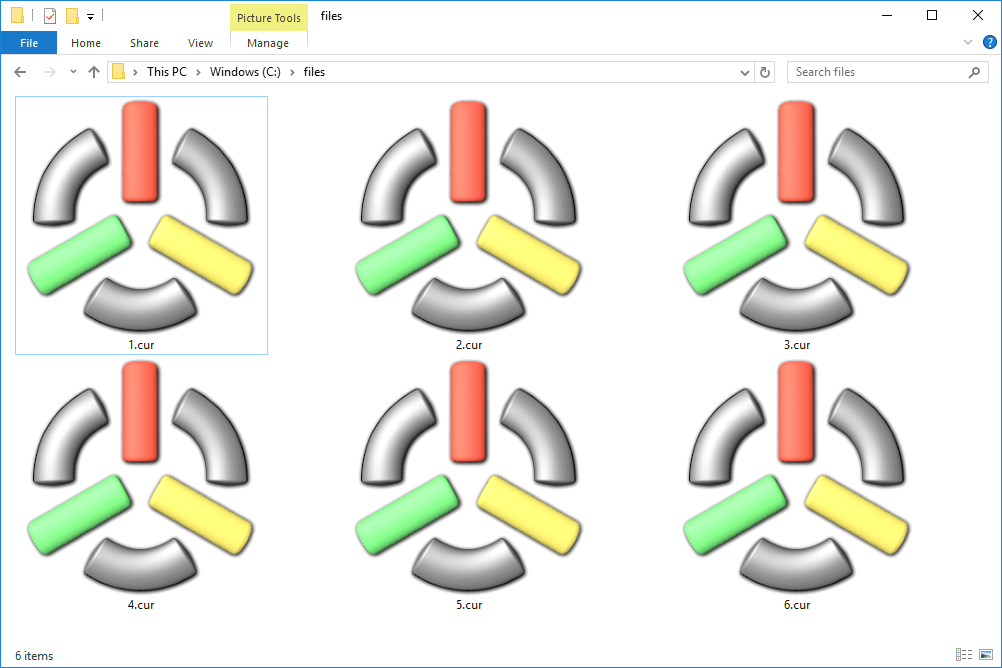
Not every file gets its own little on-screen spotlight, but a CUR file absolutely does. If you have stumbled across one of these tiny oddballs, you are looking at a Windows cursor file. In plain English, it is the file format used for those little mouse pointers that arrow around your screen, turn into an I-beam over text, or become a spinning “please wait” symbol when your computer is having a dramatic moment.
CUR files are small, simple, and weirdly useful. They are not photos, not documents, and not something you open with the same enthusiasm as a vacation picture. Still, they matter if you want to customize Windows, inspect a cursor pack, reuse old interface graphics, or convert a cursor into a more common image format. This guide explains what a CUR file is, how it works, how to open one, and what to do when Windows acts like it has never met the file before.
What Is a CUR File?
A CUR file is a Windows cursor image file. It stores the graphic used for a mouse pointer in Microsoft Windows. Common examples include the standard arrow pointer, the text-selection I-beam, and the busy or loading pointer. If you have ever downloaded a custom cursor theme with neon swords, cartoon cats, or a minimalist black-and-white pointer set, chances are the package included CUR files.
The easiest way to think about the format is this: a CUR file is basically a cursor-specific cousin of the ICO icon format. The two are closely related, but a CUR file includes one extra detail that matters a lot: the hotspot. That hotspot is the exact pixel Windows uses as the “real” click point. On an arrow cursor, for example, the hotspot is usually near the tip. Without that hotspot, your cursor might look fine but click in the wrong place, which is a fast way to ruin anyone’s afternoon.
CUR files are for static cursors. If the cursor is animated, Windows usually uses an ANI file instead. So if your pointer sparkles, spins, or generally behaves like it is auditioning for a talent show, you are probably not dealing with a CUR file.
What Makes a CUR File Different From Other Image Files?
It Is Not Just a Tiny Picture
A CUR file may look like a normal image behind the scenes, but Windows treats it as a functional interface element. That means the file is meant to be used by the operating system, not just displayed in a gallery or dropped into a slideshow. In other words, it is less “look at this image” and more “be the pointer.”
It Has a Hotspot
The hotspot is the secret sauce. A regular PNG or JPG does not know where a click should happen. A CUR file does. This is why converting a CUR file to PNG can be useful for viewing, but not perfect for reuse as an actual cursor. Once you flatten a cursor into a standard image, you may lose the hotspot data and other cursor-specific behavior.
It Is Built for Windows
CUR files are most at home in Windows. Other operating systems may be able to view or convert them with the right software, but Windows is where they naturally belong. So if you are on a Mac or Linux machine and a CUR file lands on your desk, treat it like a tourist: it can visit, but it may need help finding its way around.
How to Open a CUR File in Windows
There are really two different meanings of “open” here, and this is where many people get tripped up:
- You might want to use the CUR file as your actual mouse pointer.
- You might want to view the CUR file like an image just to inspect it.
Method 1: Use the CUR File as a Windows Cursor
If your goal is to make Windows wear a new cursor outfit, open the Mouse Properties window and import the file there. On modern Windows systems, you can get to cursor controls through Settings and then open the classic mouse options panel. In Windows 11, one common path is:
Start > Settings > Bluetooth & devices > Mouse > Additional mouse settings > Pointers
Once you are on the Pointers tab, select the cursor role you want to replace, click Browse, and choose your CUR file. Then click Apply and OK. That is it. Your cursor is now officially promoted from random file to front-line user interface employee.
You can also save the setup as a custom scheme if you are changing several cursor states at once. That is handy when you download a full cursor pack that includes normal select, text select, resize arrows, and busy indicators.
Method 2: View the CUR File as an Image
If you do not want to install the cursor and just want to inspect it, use an image viewer or graphics editor that supports CUR files. Two practical options are:
- IrfanView, which can read CUR files
- GIMP 3.0, which can import and export Windows CUR and ANI cursors
This approach is useful when you want to preview a cursor before applying it, compare several files in a cursor pack, or convert the cursor to another format for design work.
Method 3: Use the File Inside a Supported App
Some programs let you browse to a CUR file when customizing pointer behavior inside the app. For example, Adobe Captivate supports browsing to a custom CUR file for mouse pointer properties on Windows. That does not make Captivate a universal CUR viewer, but it does show how the format is still used in real software workflows.
Can You Open a CUR File by Double-Clicking It?
Sometimes yes, often not in a useful way. Windows may not launch a dedicated viewer when you double-click a CUR file. That is because the format is primarily meant to be imported into cursor settings, not casually opened like a PNG or TXT file.
If nothing sensible happens, do not panic and do not accuse the file of being broken just yet. Instead, right-click the file and choose Open With, then select a compatible image viewer or editor. If you want to use it as a cursor, skip the double-click experiment altogether and head straight to Mouse Properties.
How to Convert a CUR File
Sometimes you do not want a cursor file to stay a cursor file. Maybe you need the graphic as a PNG for a design mockup, or you want to turn it into an ICO file for an app icon experiment. In those cases, conversion makes sense.
Common Conversion Targets
- CUR to PNG for easy viewing and editing
- CUR to ICO if you want an icon file instead of a cursor file
- CUR to JPG, BMP, or GIF for broader compatibility
Important Conversion Warning
Converting a CUR file to PNG is convenient, but it is not always a perfect one-to-one transformation. A PNG does not store cursor hotspot data the same way a CUR file does. If the original CUR file includes multiple frames or cursor-specific metadata, those details may not survive the trip. So if you are converting just to see the cursor, great. If you plan to turn it back into a working cursor later, keep the original file safe.
When Conversion Is a Good Idea
Convert a CUR file if you want to:
- Preview it on a device that does not support CUR natively
- Edit the artwork in a mainstream graphics app
- Reuse the cursor image in documentation, tutorials, or UI mockups
- Create an icon version for another project
Do not convert it unless necessary if your real goal is simply to use it as a cursor in Windows. The native CUR file is already the right tool for that job.
Common Problems When Opening a CUR File
The File Will Not Open at All
First, confirm the extension really is .cur. File extensions that look similar can send you down the wrong rabbit hole. A file with a near-match name is not automatically a cursor file.
The Cursor Looks Wrong
If the pointer appears blurry, misaligned, or oddly cropped, the file may have been converted badly, created with the wrong hotspot, or bundled in a low-quality cursor pack. Try another file from the same set or view it in an image editor that supports CUR to inspect the artwork more closely.
The Cursor Clicks in the Wrong Place
That usually points to a hotspot issue. The visible arrow may be in one place while the clickable point is somewhere else. It is the digital equivalent of using a laser pointer taped sideways.
Windows Refuses the File
If Browse does not accept the file, the CUR may be damaged, mislabeled, or not actually a valid cursor file. Try opening it in GIMP or IrfanView first. If those programs cannot read it either, the file may be corrupt.
When Should You Keep the CUR File Instead of Converting It?
Keep the original CUR file if you plan to:
- Install it as a Windows pointer
- Edit or preserve the hotspot information
- Build a full cursor scheme
- Archive retro Windows interface assets accurately
The CUR file is the functional master copy. A converted PNG is often just the pretty postcard version.
Real-World Experiences With CUR Files
CUR files tend to show up in the most random but memorable ways. One day you are organizing old downloads, and there it is: blue_pointer.cur. Another day you are unpacking a retro Windows theme from the early internet, and suddenly half the folder is filled with mysterious tiny files that look too small to matter and too strange to delete. That is usually the moment CUR files stop being abstract and start becoming a practical puzzle.
A very common experience is downloading a custom cursor pack because it looks amazing in the preview images, only to realize the files do not behave like normal pictures. You double-click one expecting a nice preview window, and Windows responds with the emotional warmth of a parking meter. That confusion is normal. CUR files are made to be assigned inside mouse settings, not admired like family photos. Once people figure that out, the entire format suddenly makes much more sense.
Another frequent experience is discovering how important the hotspot is. A cursor can look absolutely perfect in a screenshot but feel completely wrong in use. Maybe the arrow tip looks sharp, but every click lands a few pixels off. Maybe a custom crosshair looks cool until you try selecting text and feel like you are using a claw machine. That mismatch teaches a quick lesson: with CUR files, appearance matters, but precision matters more.
Designers and tinkerers also run into CUR files when working on tutorials, software demos, or old interface assets. Sometimes the goal is not to use the cursor in Windows at all, but to extract it as an image for a presentation, mockup, or instructional graphic. That is where conversion becomes the hero of the story. Turning a CUR into a PNG makes it easy to drop into documents and presentations, but it also reveals the trade-off. You gain convenience and lose some of the cursor-specific magic.
There is also a nostalgia factor. CUR files are tiny artifacts from a very Windows-flavored era of computing, when customizing your desktop felt like a personality test. People swapped cursor packs the way they swapped wallpapers and startup sounds. Finding an old CUR file today can feel like opening a digital time capsule from the age of glossy buttons, pixel-perfect icons, and desktop themes that were not afraid to be dramatic.
In practical terms, the best experience with CUR files usually comes from treating them according to your goal. Want to use one? Import it through Mouse Properties. Want to inspect or edit it? Open it in a compatible viewer like IrfanView or GIMP. Want to reuse the graphic? Convert it carefully and keep the original. That simple mindset saves a lot of frustration.
So yes, CUR files are niche. Yes, they are a little fussy. And yes, they can absolutely send you into a short spiral the first time you meet one. But once you understand that a CUR file is a Windows cursor with a built-in click point and a job to do, it stops being mysterious. It becomes one of those delightfully specific file types that quietly remind you the computer world is full of specialized formats doing tiny but important work behind the scenes.
Final Takeaway
A CUR file is a static Windows cursor file used to define mouse pointers. It is closely related to the ICO format, but it includes cursor-specific hotspot data that tells Windows exactly where the click point should be. If you want to use a CUR file, import it through the Windows mouse pointer settings. If you only want to view or edit it, open it with compatible software such as IrfanView or GIMP. And if you need a more universal image format, convert it to PNG or ICO, while remembering that some cursor-specific data may not come along for the ride.
Tiny file, oddly specific purpose, surprisingly useful. That is the CUR file in a nutshell.













