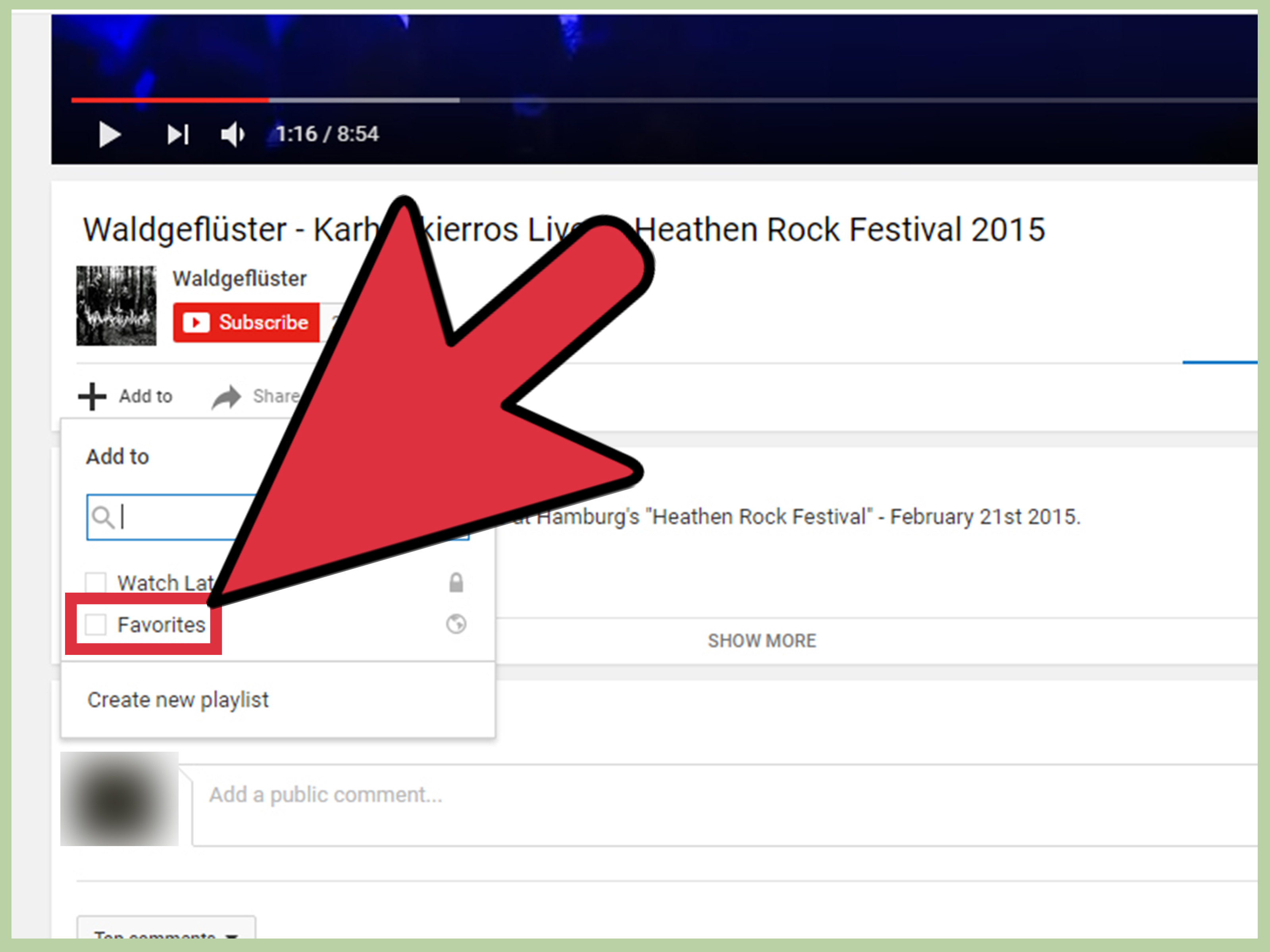
Sometimes a screenshot needs more than a polite little arrow. Sometimes it needs a giant circle, a bright yellow highlight, and an unmistakable “LOOK HERE” scribble before your audience accidentally studies the wrong button for six minutes.
That is where Epic Pen comes in. This desktop screen annotation tool lets you draw, write, highlight, and mark up whatever is currently on your display. Whether you are teaching a class, recording a software tutorial, presenting a dashboard, reviewing a design, or helping a family member find the mysterious Wi-Fi icon, Epic Pen turns your screen into a temporary digital whiteboard.
Unlike drawing tools built into a specific app, Epic Pen works as an overlay. In plain English: you can place ink over webpages, documents, videos, slides, maps, charts, and many other on-screen items without opening a separate editor or permanently changing the file underneath.
What Is Epic Pen?
Epic Pen is a screen annotation app for desktop users who need to draw or write over what is already visible on screen. Instead of editing a PowerPoint slide, PDF, browser tab, or image directly, you place an annotation layer over the top of it.
This distinction matters. A presentation might be locked, a website might not be editable, a live dashboard may update every few seconds, and a video call certainly will not pause while you hunt for the correct markup feature. Epic Pen gives you a quick visual way to point, circle, underline, label, or sketch without interrupting your workflow.
The software is available for Windows and macOS desktop environments. Its core approach is intentionally simple: launch the app, use the compact toolbar, select a drawing tool, and start marking the screen. There is no need to convert a file, import a slide deck, or negotiate with a stubborn PDF that believes it is the boss of your afternoon.
Why Screen Annotation Software Is So Useful
Visual communication is often faster than verbal communication. Saying “click the third icon near the upper-right corner, next to the little thing that sort of resembles a paperclip” is technically possible. It is also how people start questioning their career choices.
With a screen annotation tool, you can simply circle the icon. A good annotation removes ambiguity, directs attention, and gives viewers a visual anchor. This is especially useful when your audience is watching a live screen share, following a tutorial, reviewing a mockup, or learning a new process.
Modern collaboration platforms have recognized the value of in-meeting annotation. Zoom, Microsoft Teams, Google Meet, Webex, Google Slides, and PowerPoint all include some form of drawing or markup capability in certain workflows. Epic Pen fills a different role: it can sit above many desktop apps, making it useful when you want one consistent annotation tool rather than relying on a separate feature set in every program.
Epic Pen Features That Make Screen Markup Easier
Pen and Highlighter Tools
The classic pen tool is the heart of Epic Pen. You can draw freehand lines, circles, arrows, rough diagrams, and the occasional emergency smiley face when a meeting becomes too serious.
The highlighter tool is better for emphasizing content without completely hiding it. It is useful for underlining a number in a report, marking a sentence in a document, tracing a row in a spreadsheet, or pointing out a key feature during a software demonstration.
Eraser and Clear Screen Controls
Good annotation tools need a graceful escape hatch. Epic Pen includes erasing options so you can remove a single stroke or clear the screen entirely. That sounds obvious until you accidentally draw a large neon circle around the wrong chart and discover that your carefully prepared presentation now resembles a sports telestrator replay.
Fast cleanup is important because screen annotations are supposed to support your message, not become a permanent crime scene of hurried doodles.
Screenshot Capture
Epic Pen can capture screenshots after you have added your markings. This is useful for turning a live explanation into a reusable asset. A teacher can save an annotated diagram, a support specialist can capture a marked-up interface, and a product manager can preserve feedback from a design review.
Saving screenshots also prevents a common collaboration problem: someone remembers that “there was a red circle somewhere,” but nobody remembers what the red circle was actually trying to say.
Hotkeys for Faster Presentations
When you are presenting live, stopping to hunt through menus can drain momentum. Epic Pen supports customizable hotkeys so you can switch tools, clear ink, or activate functions without turning every annotation into a miniature software expedition.
A useful setup might assign one shortcut to the pen, another to the highlighter, and a third to clear the screen. The goal is not to become a keyboard wizard with a cape. The goal is to stay focused on your audience instead of your toolbar.
Stylus, Touchscreen, and Pressure Sensitivity Support
Epic Pen can be used with a mouse, touch display, graphics tablet, or compatible stylus device. For people who regularly teach, design, tutor, or explain technical material, a stylus can make screen drawing feel more natural than dragging a mouse around like a shopping cart with one bad wheel.
Supported pen devices can also take advantage of pressure sensitivity, which can make handwriting and freehand sketches feel more fluid. Multi-touch support can be useful on compatible touchscreen hardware as well.
What Epic Pen Pro Adds
The basic version handles common screen annotation needs, but Epic Pen Pro adds tools for users who want more structure and control. These features are particularly useful for trainers, educators, presenters, streamers, and teams that use screen markup as part of their regular workflow.
Text, Shapes, Lines, and Arrows
Freehand ink is excellent for spontaneous explanations, but it is not always the most polished option. Pro tools can add typed text, rectangles, ellipses, lines, and arrows. That means you can label a button, draw a clean process flow, point to a chart trend, or frame a critical section of a webpage without relying on your handwriting to behave itself.
Whiteboard and Blackboard Modes
Whiteboard and blackboard modes reduce background distractions by replacing the visible screen with a clean surface for drawing. This can be helpful during a quick brainstorming session, an impromptu lesson, or a remote explanation where the original app is no longer relevant.
It is a handy option for those moments when the conversation suddenly turns into “Let me draw this,” which is often either the beginning of a brilliant explanation or the beginning of a diagram with seventeen arrows and no obvious starting point.
Fading Ink and Cursor Highlighting
Fading ink is designed for temporary emphasis. Marks disappear after a selected period, helping you direct attention without leaving the screen cluttered. This can be useful in live demonstrations, streaming sessions, and walkthrough videos where the annotation should guide the viewer but not remain forever.
A highlighted cursor can also make presentations easier to follow. Rather than asking viewers to track a tiny pointer across a busy spreadsheet or dashboard, you can give the cursor a more visible halo.
Who Should Use Epic Pen?
Teachers, Tutors, and Online Educators
Teachers can use Epic Pen to annotate graphs, solve equations, highlight reading passages, label diagrams, and guide students through online materials. It is particularly useful when the teaching material is not a standard slide deck, such as a browser-based simulation, a digital textbook, a map, or a shared worksheet.
For example, a science teacher discussing climate data can circle trends on a chart, underline unusual spikes, and draw simple arrows showing cause-and-effect relationships. The lesson becomes more conversational because the explanation develops visibly in real time.
Business Presenters and Sales Teams
Sales demonstrations often involve live software, dashboards, websites, and reports. Epic Pen can help presenters guide the audience toward the value of a product instead of hoping everyone notices the correct tab by telepathy.
During a live demo, you might circle a reporting widget, highlight a time-saving automation, and draw an arrow from a problem area to the feature that solves it. These small visual cues can make a product story easier to follow, especially when the screen contains lots of menus, metrics, and buttons with names that sound like they were created during a brainstorming contest.
Content Creators and Tutorial Makers
Screen-recording creators often need to make a viewer notice one precise setting, tool, menu item, or button. Epic Pen can add real-time visual emphasis while recording tutorials, software walkthroughs, livestreams, and how-to videos.
That said, test your recording setup first. When using screen-sharing or recording software, annotations may not appear if you capture only one application window. Sharing or recording the entire display is often the safer choice when you need the overlay ink to be visible.
Remote Support and Customer Success Teams
Remote support becomes easier when you can visually direct someone instead of describing every click. A support representative can circle a setting, underline an error message, or show the exact place where a customer should enter information.
For internal support, Epic Pen can also be useful during onboarding. Instead of giving a new employee a 14-step written instruction list that looks like it escaped from a furniture manual, a trainer can demonstrate the workflow on screen and annotate the important moments.
Designers, Reviewers, and Project Managers
Design feedback is clearer when comments are anchored visually. During a live review, a project manager can circle a spacing issue, highlight a missing call-to-action, or draw an arrow toward a component that needs attention.
For formal design review records, you may still want to use a dedicated design collaboration platform or PDF markup tool afterward. Epic Pen is ideal for fast live feedback; structured review software is better when comments need to be tracked, assigned, and preserved as part of a longer approval process.
How to Use Epic Pen Effectively
1. Start With a Small Tool Set
Do not begin with every color and feature available. Choose one pen color, one highlighter color, and a clear-screen shortcut. A simple setup is easier to remember when you are presenting live.
2. Use Color With a Purpose
Assign meaning to colors. For example, use yellow for important information, red for errors or risks, green for completed steps, and blue for general notes. Random rainbow markup may look energetic, but it can also make your screen resemble a birthday party hosted inside a spreadsheet.
3. Keep Annotations Brief
Circle, underline, point, and label. Avoid covering the entire screen with ink. The best annotations guide attention quickly, then get out of the way.
4. Practice Before a Live Meeting
Test the app with your video platform, display configuration, and recording software before an important presentation. Check whether your audience can see the annotations, whether your hotkeys conflict with another app, and whether your chosen colors remain visible against light and dark backgrounds.
5. Share the Entire Screen When Needed
Because Epic Pen runs as an overlay, some meeting or recording tools may not capture its ink when you share only a single application window. If the annotations matter, share or record the full screen and verify the result with a quick test call.
6. Save Important Markups
Capture screenshots of useful annotations when the discussion ends. This gives you a visual follow-up record and can reduce confusion later. A screenshot with a clear circle and note often communicates more than a follow-up message that says, “You know, that part near the top.”
7. Clear the Screen Before Switching Topics
Reset your canvas between sections of a presentation. Old highlights can distract viewers or accidentally suggest that yesterday’s note still applies to today’s slide.
Epic Pen vs. Built-In Annotation Tools
Many popular apps already offer some drawing or markup features. PowerPoint allows presenters to draw on slides, Google Slides includes presentation annotations, and meeting platforms such as Zoom, Microsoft Teams, Google Meet, and Webex offer collaboration-oriented markup tools in supported scenarios.
Built-in tools are useful when you are working inside a single platform and want annotations tied directly to that file or meeting. For instance, PowerPoint can preserve ink on slides in some desktop workflows, while PDF tools can save comments and markups directly into a document.
Epic Pen is most appealing when you need a cross-application screen overlay. You can annotate a website, an analytics dashboard, a streaming video, a desktop app, or a live chart without depending on each individual program to include its own drawing feature.
The practical choice depends on your goal. Use a built-in tool when you need permanent, file-based comments. Use Epic Pen when you need live, flexible, on-screen visual guidance across different apps.
Limitations to Know Before You Rely on Epic Pen
Epic Pen is designed for desktop use, not mobile or tablet-only workflows. It is also an overlay, which means compatibility can vary with full-screen applications, games, recording tools, multiple displays, and operating-system permissions.
For example, some full-screen apps can render above annotation overlays. Windowed or borderless-window modes may work more reliably in those situations. On macOS, hotkeys may require accessibility permissions to work properly outside the active app.
There is also a difference between live annotation and permanent document editing. Drawing over a screen is fast, but it does not automatically modify the source file underneath. When you need legally significant comments, formal document revision history, or editable design feedback, use a dedicated platform alongside your screen annotation workflow.
Practical Experiences With Epic Pen: What Screen Annotation Feels Like in Real Work
The first time most people use a screen annotation tool, they tend to overdo it. Every sentence gets highlighted. Every button gets circled. Arrows begin appearing in directions that do not exist on a standard compass. It is understandable. Having a digital pen floating over your desktop feels a little like discovering a marker in a meeting room: suddenly, every surface looks like it could use a diagram.
After the novelty wears off, Epic Pen becomes most useful in small, specific moments. Picture a trainer walking a new employee through a complex dashboard. The dashboard has filters, tabs, status chips, charts, a notification bell, and at least one menu labeled “Advanced” that nobody wants to touch without adult supervision. Instead of narrating a maze of directions, the trainer circles the report filter, draws a line to the export button, and highlights the metric that matters. The lesson immediately feels calmer because the viewer knows exactly where to look.
A similar experience happens in remote support. A customer might say, “I cannot find the setting,” while the setting is technically visible but hidden among eighteen other settings that look equally capable of causing trouble. A quick circle and arrow can end a five-minute explanation in ten seconds. The value is not fancy artwork. The value is removing friction.
For educators, the experience is more interactive. A teacher can open a geography website, trace a route across a map, underline a key fact, and circle a border without leaving the browser. In a math lesson, a tutor can mark the step where an equation changes and ask the student why. The screen becomes less like a static page and more like a shared notebook.
Content creators often discover a different benefit: annotations improve pacing. When a tutorial reaches a crucial step, a short highlight or arrow gives the viewer a visual reset. Instead of rewinding the video to figure out which checkbox was clicked, the viewer sees the answer immediately. The important trick is restraint. Fading ink and cursor highlighting can be especially helpful because they direct attention without permanently cluttering the recording.
There are also mildly chaotic moments. A presenter may forget to clear a bright red circle before moving to the next topic. Someone may accidentally draw while trying to click a menu. A stylus may turn a neat arrow into something that resembles a startled noodle. These are not disasters. They are reminders that screen annotation works best when the presenter keeps the tool simple and practices a few shortcuts.
Over time, users tend to develop a personal visual language. One color means “pay attention.” Another means “this is optional.” A box means “this is the setting.” An arrow means “go here next.” Once your audience understands the pattern, explanations become quicker and more consistent. That is the real experience of using Epic Pen well: less screen clutter, fewer confused questions, and a clearer path from “Where am I supposed to click?” to “Oh, got it.”
Final Thoughts: Is Epic Pen Worth Using?
Epic Pen is a practical screen annotation tool for people who need to explain things visually without stopping their workflow. Its value is not that it turns every desktop into a masterpiece. Its value is that it lets you point, highlight, sketch, and clarify at the exact moment your audience needs help.
For teachers, presenters, support teams, tutorial creators, reviewers, and anyone who regularly says “look right here,” Epic Pen can make live screen communication clearer and faster. Start with the pen, highlighter, eraser, screenshot tool, and a few sensible hotkeys. Add Pro features such as text, shapes, fading ink, and whiteboard modes when your work needs more structure.
The best screen annotations are not the loudest ones. They are the ones that help someone understand the point before they have time to ask where they should be looking.