
Editorial note: This guide is written as an original, publication-ready synthesis of current Mac gaming hardware, software, accessories, setup tips, and real-world experience.
For years, “gaming on a Mac” sounded like ordering a steak at a smoothie bar: technically possible, but you could feel the room judging you. That old joke is finally wearing out. Modern Apple silicon Macs are fast, efficient, quiet, and surprisingly capable gaming machines when you know what to install, what to buy, what to avoid, and when to accept that some Windows-only games are still hiding behind a compatibility dragon.
The good news is that Mac gaming no longer means choosing between chess, indie platformers, and pretending your spreadsheet has a boss fight. Today, you can play native Mac games, Apple Arcade titles, cloud games, console streams, Steam releases, and many Windows games through compatibility tools. The trick is building the right setup. You need the right Mac, enough memory, a sensible controller, a fast connection, and expectations that are ambitious but not delusional.
This guide covers everything you need to game on a Mac, from hardware and controllers to cloud gaming, Steam, Apple Arcade, Windows game workarounds, performance settings, storage, and comfort upgrades. Think of it as a loadout screen, but for your desk.
Why Mac Gaming Is Better Than It Used to Be
The biggest reason Mac gaming has improved is Apple silicon. M-series chips combine CPU, GPU, media engines, and unified memory in one efficient system. That design helps Macs deliver strong performance while staying cool and quiet compared with many traditional gaming laptops that sound like they are preparing for airport takeoff.
Apple has also pushed gaming technologies such as Metal, MetalFX upscaling, Game Mode, and the Game Porting Toolkit. Metal gives developers direct access to Apple GPU performance, while MetalFX can help games render at a lower internal resolution and upscale the image for smoother frame rates. Game Mode, available on Apple silicon Macs running newer macOS versions, prioritizes the game and reduces latency for wireless controllers and AirPods when a supported game runs full screen.
At the same time, more major titles have reached Mac, including games such as Resident Evil 4, Resident Evil Village, Death Stranding Director’s Cut, No Man’s Sky, Baldur’s Gate 3, Stray, Frostpunk 2, and Cyberpunk 2077: Ultimate Edition. The Mac still does not match Windows for game library size, but it has moved from “cute side quest” to “legitimate option.” That is progress, and we should give the little Finder icon a medal.
Choose the Right Mac for Gaming
You can play games on many Macs, but not all Macs are equally happy about it. A thin MacBook Air can handle casual games, Apple Arcade, indie titles, cloud gaming, and some optimized modern releases. For longer gaming sessions and demanding 3D games, a MacBook Pro, Mac mini, Mac Studio, or any Mac with a Pro, Max, or Ultra chip is a better fit because of stronger graphics and better sustained cooling.
Minimum Practical Specs
If you are buying a Mac with gaming in mind, aim for an Apple silicon model, at least 16GB of unified memory, and 512GB or more of storage. An 8GB Mac can still play many games, but modern AAA titles, browsers, Discord, launchers, and macOS itself can make 8GB feel like trying to host a dinner party in a broom closet.
Storage matters more than people expect. Many modern games can take 50GB, 100GB, or more. A 256GB Mac fills up fast once you install a few games, screenshots, updates, and one mysterious folder called “Final_Final_ActuallyFinal.” For serious gaming, 1TB internal storage or a fast external SSD is much more comfortable.
MacBook Air vs. MacBook Pro
A MacBook Air is great for lightweight gaming, travel, Apple Arcade, cloud gaming, and optimized titles at modest settings. Its fanless design is silent, which feels luxurious, but it can reduce performance during long heavy sessions. A MacBook Pro has active cooling, brighter display options, better speakers, and stronger chip choices. If you want to play demanding games for hours, the Pro is the safer bet.
Desktop Macs Are Underrated Gaming Machines
A Mac mini connected to a good monitor, keyboard, mouse, and controller can become a clean and capable living-room or desk gaming setup. A Mac Studio is overkill for casual players but excellent for people who also do video editing, 3D work, music production, or creative work by day and digital dragon removal by night.
Keep macOS Updated
Before buying accessories or downloading half the internet, update macOS. Newer macOS versions bring graphics improvements, controller support, security fixes, and compatibility updates. Game Mode requires Apple silicon and macOS Sonoma or later, and many newer games list recent macOS versions as a requirement.
Updating also helps with launchers like Steam, Epic Games Store, and cloud gaming apps. Steam has ended support for older macOS versions such as Big Sur, so staying current is not just a nice idea; it is how you avoid becoming the person in the group chat asking why nothing opens.
Install the Essential Game Stores and Services
Mac gaming is not controlled by one storefront. You will get the best results by using several libraries and choosing the version of a game that has the best Mac support.
Mac App Store
The Mac App Store is the simplest place to start. Many Apple-optimized games live there, and installation is painless. The downside is that pricing, updates, and cross-platform ownership can vary. Before buying, check whether the game supports your exact Mac chip, macOS version, controller preferences, and cloud saves.
Steam
Steam is essential for Mac gaming because it has a large catalog, sales, cloud saves, community reviews, controller support, and clear system requirements. Use the macOS filter, but read carefully. Some games are Intel-only, some run through Rosetta, and some are native Apple silicon. Curator lists focused on native Apple silicon games can save time and prevent accidental disappointment.
Epic Games Store, GOG, and Other Launchers
Epic and GOG can be useful depending on the game. Some Mac releases appear on multiple stores, while others are locked to one. If a game supports cross-progression, that may affect where you buy it. For example, a player who also owns a Windows PC or Steam Deck may prefer the store that best supports shared saves.
Apple Arcade
Apple Arcade is excellent for families, casual players, and anyone tired of mobile games asking for money every twelve seconds. It offers a large library of ad-free games without in-app purchases and works across Mac, iPhone, iPad, Apple TV, and Apple Vision Pro. It is not a replacement for AAA gaming, but it is one of the easiest ways to make a Mac feel instantly game-ready.
Get a Good Controller
A keyboard and mouse are perfect for strategy games, shooters, simulations, and many PC-style titles. But for platformers, racing games, action adventures, sports games, and couch gaming, a controller makes the Mac feel much more natural.
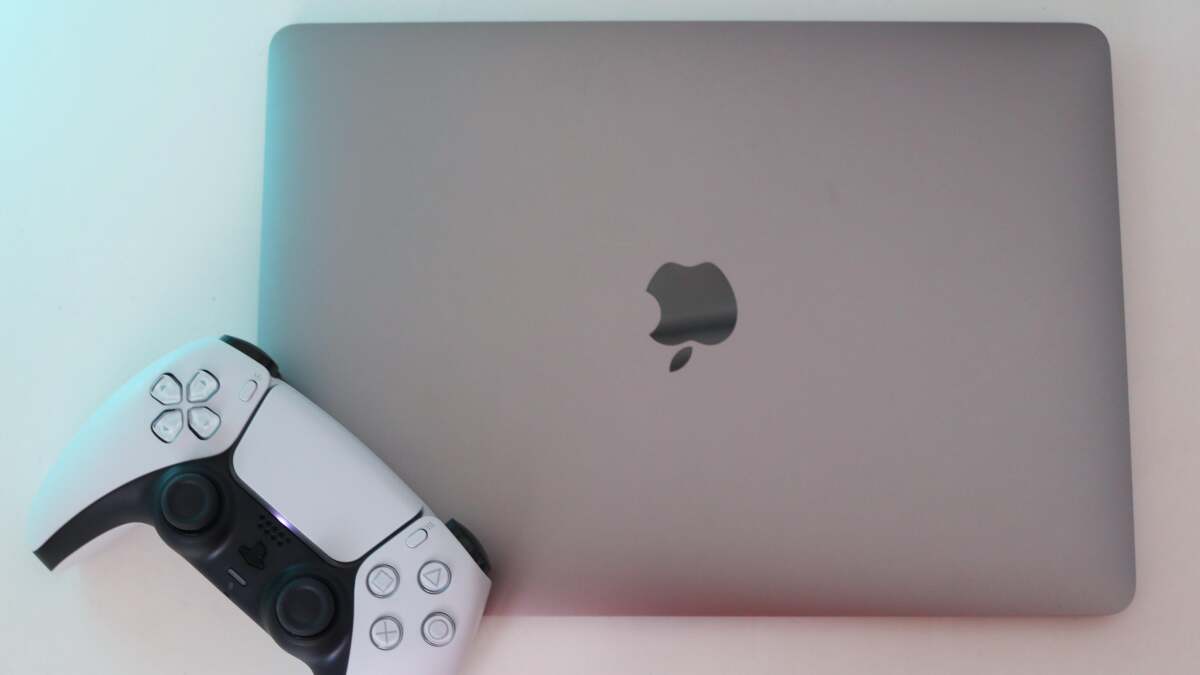
Modern macOS supports popular Bluetooth controllers, including Xbox Wireless Controllers and PlayStation DualSense or DualShock controllers. Pairing is usually simple: put the controller in pairing mode, open Bluetooth settings on the Mac, and select it. Some games also let you remap controls or switch button layouts.
If you want the easiest all-around pick, choose an Xbox Wireless Controller. It has broad support and familiar button prompts in many games. If you already own a PS5, the DualSense works well too, though advanced haptics and adaptive trigger features may not work in every Mac game. For competitive games, a wired connection can reduce latency and battery drama. Nothing ruins a boss fight like a controller dying with the boss at 2% health. That is not gaming; that is emotional damage.
Upgrade Your Network for Cloud and Remote Gaming
Cloud gaming is one of the best ways to play on a Mac, especially when a game is not available natively. Services like GeForce NOW let you stream games from powerful cloud hardware to your Mac. Xbox Cloud Gaming works through supported browsers and gives Game Pass Ultimate members access to a large streaming library. PlayStation Remote Play lets you stream from your PS5 or PS4 to your Mac, while Steam Remote Play can stream games from another computer on your network.
For cloud gaming, your internet connection matters more than your Mac’s GPU. Use Ethernet whenever possible. If you must use Wi-Fi, choose a strong 5GHz or Wi-Fi 6 connection and sit close to the router. A fast plan is useful, but latency and stability are just as important as download speed. Cloud gaming does not care that your internet can download a movie quickly if your connection jitters like a squirrel on espresso.
Cloud Gaming Setup Checklist
Use a modern browser, update your controller firmware if needed, close bandwidth-heavy apps, and avoid playing while someone else is uploading 4K vacation footage. For the best experience, plug in your MacBook, enable full screen, and use headphones or low-latency audio. A wired controller or high-quality Bluetooth controller can also help.
Understand Windows Game Options on Mac
The largest weakness of Mac gaming is still Windows-only games. Many PC games are built for DirectX, Windows launchers, and anti-cheat systems that do not always cooperate with macOS. Fortunately, there are several ways to try them.
CrossOver and Wine-Based Tools
CrossOver from CodeWeavers is a paid compatibility tool based on Wine. It lets many Windows apps and games run on macOS without installing a full copy of Windows. It is easier than raw Wine and often works better for non-technical users. Free tools such as Whisky have also helped Mac users run Windows games by combining Wine-based workflows with Apple’s Game Porting Toolkit technology.
The key word is “many,” not “all.” Some games work beautifully, some need tweaks, and some refuse to cooperate like a cat near bathwater. Always check recent compatibility reports before buying a Windows-only game specifically for Mac use.
Parallels Desktop
Parallels Desktop can run Windows 11 on Apple silicon Macs through virtualization. It is excellent for productivity apps and can run some games, especially older or less demanding titles. However, virtualization adds overhead, and graphics API limits mean it is not the best choice for every modern game. If a game requires DirectX 12, kernel-level anti-cheat, or very high GPU performance, Parallels may not be the answer.
Boot Camp
Boot Camp is only for Intel-based Macs. It lets older Intel Macs boot directly into Windows, which can be useful for Windows games. Apple silicon Macs do not support Boot Camp, so newer Mac owners should look at native Mac versions, CrossOver, cloud gaming, remote play, or a separate gaming PC or console.
Optimize Game Settings for Better Performance
Mac gaming gets much better when you stop chasing maximum settings and start chasing smooth settings. In most games, begin at 1080p or 1440p, use medium settings, enable MetalFX or other upscaling when available, and cap frame rate if the game fluctuates heavily. A stable 45 or 60 frames per second often feels better than a game bouncing wildly between 35 and 90.
Turn off expensive visual features first: ray tracing, ultra shadows, high reflections, and excessive ambient occlusion. Texture quality depends heavily on memory, so if your Mac has 8GB or 16GB unified memory, avoid blindly choosing “Ultra” because the menu made it sound fancy. Ultra settings are often designed to sell graphics cards, not happiness.
Use Full Screen for Game Mode
When supported, run games in macOS full-screen mode to trigger Game Mode. Close heavy background apps such as video editors, browser windows with 47 tabs, and cloud backup tools. Plug in MacBooks for demanding games, since battery-saving behavior can affect performance.
Do Not Forget Storage
A fast external SSD is one of the smartest Mac gaming accessories. Many Mac games and libraries can live on external storage, freeing internal space for macOS and essential apps. Choose a reputable USB-C or Thunderbolt SSD with strong read speeds. Avoid old spinning hard drives unless you enjoy loading screens long enough to reflect on your life choices.
Keep at least 15% to 20% of your internal drive free if possible. macOS needs breathing room for updates, caches, swap files, and general performance. A nearly full drive can make everything feel slower, including games.
Recommended Mac Gaming Accessories
Gaming Mouse
A good mouse makes strategy games, shooters, MOBAs, and simulation titles much more comfortable. Look for adjustable DPI, comfortable shape, reliable wireless or wired performance, and extra buttons if you play complex games.
Mechanical or Low-Profile Keyboard
Mac keyboards are excellent for typing, but some players prefer a mechanical keyboard for gaming. Choose one with Mac keycaps or easy remapping. Low-profile mechanical boards are a nice middle ground for people who want tactile feedback without sounding like they are typing inside a popcorn machine.
Headset or Quality Headphones
A gaming headset helps with multiplayer chat and positional audio. If you use AirPods, Game Mode can reduce latency in supported situations, but wired headphones are still the safest choice for rhythm games, competitive shooters, and players who notice audio delay.
External Monitor
An external monitor can turn a MacBook into a more serious gaming station. For most Mac gamers, a 27-inch display at 1440p is a sweet spot. High-refresh monitors are useful, but remember that not every Mac game will reach 120Hz or 144Hz. Resolution, color quality, and response time matter too.
Cooling Stand or Laptop Riser
A stand improves airflow and ergonomics. It will not magically turn a MacBook Air into a liquid-cooled monster, but it can make long sessions more comfortable and help the machine breathe.
Best Types of Games to Play on a Mac
Macs are especially good for indie games, strategy titles, RPGs, puzzle games, narrative adventures, Apple Arcade games, and optimized Apple silicon releases. Games like Baldur’s Gate 3, Stardew Valley, Hades, Disco Elysium, Civilization VI, No Man’s Sky, and Resident Evil ports show how broad the Mac library can be when developers support the platform well.
The weakest categories are competitive shooters and multiplayer games that rely heavily on Windows-only anti-cheat systems. Some of the biggest esports titles either lack Mac support or dropped it. Before buying any multiplayer game for Mac, check recent user reports, official system requirements, and whether the Mac version supports cross-play.
Common Mac Gaming Mistakes
The first mistake is assuming every Steam game works on Mac. Always check the operating system icons, system requirements, and recent reviews. The second mistake is buying a base storage Mac and trying to build a giant game library on it. The third mistake is expecting compatibility tools to work like magic. CrossOver, Whisky, Wine, and Parallels are powerful, but they are not fairy dust with a download button.
The fourth mistake is playing on battery while expecting maximum performance. Plug in for demanding games. The fifth mistake is ignoring heat. If your Mac is sitting on a blanket, congratulations, you have built a tiny oven. Use a hard surface or stand.
Real-World Experience: What Gaming on a Mac Actually Feels Like
The best way to describe modern Mac gaming is this: when a game is properly optimized, the experience feels almost suspiciously smooth. You open the MacBook, connect a controller, launch the game, and suddenly the same laptop you used for work emails is handling detailed worlds, moody lighting, and orchestral drama. It feels like discovering your accountant is secretly a black belt.
Native Apple silicon games are where the Mac shines. They launch cleanly, use the hardware efficiently, and often run quietly compared with traditional gaming laptops. The speakers on MacBook Pros are good enough that single-player games feel surprisingly cinematic without external audio. The trackpad is still not ideal for most games, but for management sims or slower titles, it works in a pinch. For everything else, a controller or mouse is the difference between “this is playable” and “why am I fighting the camera like it owes me money?”
Cloud gaming can feel excellent too, especially on a strong connection. A MacBook Air paired with GeForce NOW or Xbox Cloud Gaming becomes a lightweight portal to games it could never run locally at high settings. The experience is best when using Ethernet or strong Wi-Fi, and it is most impressive with slower-paced games, RPGs, racing games, and single-player adventures. Fast shooters can work, but latency-sensitive players may notice the difference. Cloud gaming is not perfect, but it is incredibly useful for Mac owners who do not want to buy a separate gaming PC.
Windows compatibility tools are more of a tinkerer’s playground. When CrossOver or Whisky works, it feels like cheating the universe. You install a Windows game, adjust a few settings, and suddenly it runs on macOS. But when it fails, it can fail in wonderfully confusing ways: black screens, missing launchers, broken videos, strange controller behavior, or anti-cheat systems blocking the party before it starts. The best approach is to research each game first and treat compatibility as a bonus, not a guarantee.
Battery life is another pleasant surprise. Lightweight games and Apple Arcade titles can run for a long time on a MacBook compared with many gaming laptops. Demanding 3D games still drain battery quickly, but the machine often remains quieter and cooler than expected. That makes the Mac great for casual evening sessions, travel gaming, and quick breaks. It is less ideal if you want all-night competitive gaming at maximum frame rates.
The biggest emotional adjustment is accepting that Mac gaming is selective. You are not getting the entire Windows library. You are getting a cleaner, quieter, more flexible setup that works beautifully with the right games and services. For many players, that is enough. For others, the best setup is a hybrid: Mac for work, creative apps, native games, Apple Arcade, and cloud gaming; console or Windows PC for everything else. Once you stop forcing the Mac to be a Windows gaming tower in a prettier outfit, it becomes much easier to enjoy what it does well.
Conclusion: Yes, You Can Game on a Mac
Gaming on a Mac is no longer a punchline. It is a practical option if you build the right setup and understand the platform’s strengths. Start with an Apple silicon Mac, preferably with 16GB or more unified memory and enough storage. Keep macOS updated, use Game Mode when available, install Steam and the Mac App Store, try Apple Arcade, connect a proper controller, and consider cloud gaming for titles that are not native.
If you want maximum game compatibility, Windows still wins. But if you want a quiet, elegant computer that can handle work, creativity, entertainment, and a growing library of great games, the Mac is far more capable than its old reputation suggests. The secret is not buying every accessory or chasing every workaround. It is choosing the right games, the right settings, and the right expectations.
With the right setup, your Mac can be a gaming machine, a creative studio, a streaming box, and a productivity tool in one. That is a pretty good deal for a computer that still has the audacity to look classy while fighting zombies.













