Note: This publishing-ready guide reflects current Google Calendar features across desktop and mobile. Some labels may vary slightly depending on your device, Google Workspace settings, or app version.
Introduction: Put Your Plans Where Your Brain Can Actually Find Them
Learning how to add an event to Google Calendar sounds simple until you are juggling a dentist appointment, a Zoom meeting, your kid’s soccer practice, and that one birthday you remember every year exactly one day too late. Google Calendar is built to prevent that tiny personal disaster. It lets you create events, invite guests, add locations, include Google Meet links, set reminders, repeat schedules, and sync everything across your phone, tablet, and computer.
The best part? You do not need to be a productivity wizard wearing a headset and color-coded socks. Whether you are scheduling a work meeting, planning a family dinner, blocking focus time, or adding a reminder for your annual “please renew this before it expires” panic, Google Calendar makes the process surprisingly easy once you know where each setting lives.
This guide walks you through 9 easy steps to create a Google Calendar event, plus practical tips for avoiding common mistakes like wrong time zones, forgotten guests, missing reminders, and mysterious “where did my meeting go?” moments. By the end, you will be able to create clean, useful, and reliable calendar events like someone who has definitely never double-booked themselves. We will keep that between us.
Why Google Calendar Is So Useful for Everyday Scheduling
Google Calendar is more than a digital wall calendar. It works as a personal planner, meeting scheduler, reminder system, and collaboration tool. You can add an event on your laptop and see it on your phone seconds later, as long as you are signed in to the same Google account. You can also create events from Gmail, add video conferencing, invite people by email, create recurring meetings, and manage multiple calendars for work, school, personal plans, family activities, or side projects.
For businesses, students, freelancers, teachers, parents, and anyone with more than three things to remember, Google Calendar reduces mental clutter. Instead of relying on sticky notes, screenshots, or the brave but risky phrase “I’ll remember,” you can put the plan in a place that reminds you automatically.
How to Add an Event to Google Calendar: 9 Easy Steps
Step 1: Open Google Calendar
On a computer, go to Google Calendar in your browser and sign in with the Google account where you want the event to appear. On mobile, open the Google Calendar app on Android or iPhone. If you manage more than one Google account, check that you are using the correct one before creating the event. This matters because an event added to your personal calendar will not magically appear on your work calendar, no matter how sincerely you glare at the screen.
If you are using Google Calendar for work or school, your organization may control some settings, such as default video conferencing, shared calendar permissions, or guest invitation behavior. Personal Gmail users still get the core event tools, including titles, dates, times, locations, guests, reminders, and repeating events.
Step 2: Click or Tap Create
On desktop, click the Create button near the top left of the calendar. You can also click directly on an empty time slot in your calendar grid. If you already know the date and time, clicking the blank space is the quickest route. For longer events, you can drag across the calendar grid to block the time range.
On mobile, tap the colorful plus button, usually found near the bottom right corner, then choose Event. Depending on your app version, you may also see options such as Task, Reminder, or Appointment schedule. Choose Event when you want something placed on the calendar with a start time, end time, details, and optional guests.
Step 3: Add a Clear Event Title
The title is the first thing you will see later, so make it useful. Instead of writing “Meeting,” try “Marketing Budget Review” or “Call with Jordan About Website Launch.” Instead of “Doctor,” use “Annual Checkup – Dr. Smith.” Future you will be grateful. Future you is already dealing with enough.
A strong Google Calendar event title should answer one question quickly: What is this? Short and specific is better than cute and mysterious. “Coffee” might be fine for a casual hangout, but “Coffee with Maya at Blue Bottle” is easier to recognize when your day gets crowded.
Step 4: Set the Date, Start Time, and End Time
Next, choose the correct date and time. Google Calendar lets you set a start and end time for standard events, or mark an event as All day for birthdays, holidays, travel days, conferences, deadlines, or anything that does not belong to a specific hour.
For meetings, give yourself realistic time. If a client call is scheduled for 30 minutes but usually becomes 45, consider blocking 45 minutes. If you need preparation or travel time, add it as a separate event or extend the event window. A calendar should reflect your real life, not the fantasy version where traffic disappears and every meeting ends early.
Step 5: Choose the Right Calendar
If you use multiple calendars, choose where the event should live. You might have separate calendars for work, personal plans, family, school, content deadlines, fitness, or project management. In the event editor, look for the calendar name and select the correct one from the dropdown menu.
This is especially important if you share calendars with other people. For example, a family dinner belongs on the family calendar, while a confidential performance review belongs on your private work calendar. Choosing the right calendar also helps with color coding, notifications, and visibility.
Step 6: Add Guests and Manage Invitations
To invite people, enter their email addresses in the Add guests field. Google Calendar can send invitations, track responses, and show whether guests accepted, declined, or marked themselves as maybe. For work or school accounts, you may also be able to use Find a time to compare availability when guests have shared calendar access.
Before sending the invitation, review guest permissions. You may be able to let guests modify the event, invite others, or see the guest list. For casual events, broad permissions may be fine. For formal meetings, interviews, client calls, or webinars, keep permissions tighter so the event does not turn into a scheduling potluck.
If guests are outside your organization or have never interacted with you before, remind them to RSVP from the email invitation. Some calendar systems may not add the event fully until they respond. A quick follow-up message can save everyone from the classic “I never saw the invite” shuffle.
Step 7: Add a Location or Google Meet Link
For in-person events, add the physical address or venue name in the location field. This helps Google Calendar show maps and travel context, especially on mobile. Instead of writing “restaurant,” add the exact restaurant name and address. Your future self should not have to solve a geography puzzle five minutes before dinner.
For online meetings, click Add Google Meet video conferencing if you want a Meet link. Some work or school accounts may add Google Meet automatically when guests are invited. You can also paste a Zoom, Microsoft Teams, webinar, or custom meeting link in the location or description field. Just make sure the link is easy to find. Nobody enjoys opening a calendar event and playing “Where’s the video link?” at 8:59 a.m.
Step 8: Add Description, Attachments, Time Zone, and Repeat Settings
The description field is where your event becomes genuinely helpful. Add an agenda, parking instructions, call notes, preparation steps, links, phone numbers, or documents. For a team meeting, include bullet points. For a doctor appointment, include insurance notes or fasting instructions. For a travel event, include confirmation numbers and terminal details.
If your event involves people in different regions, check the time zone. Google Calendar lets you set a specific time zone for an event, and on desktop you can use separate start and end time zones when needed. This is useful for flights, international meetings, virtual classes, and remote teams. Time zones are sneaky little gremlins; checking them once can prevent a meeting from landing at 3 a.m. for someone.
If the event happens regularly, use the repeat option. You can create recurring events daily, weekly, monthly, annually, or with custom rules. Use this for weekly staff meetings, monthly reports, exercise classes, rent reminders, birthdays, and subscription renewals. Always set an end date for temporary recurring events, such as a six-week class or short-term project meeting, so your calendar does not keep haunting you forever.
Step 9: Set Notifications and Save the Event
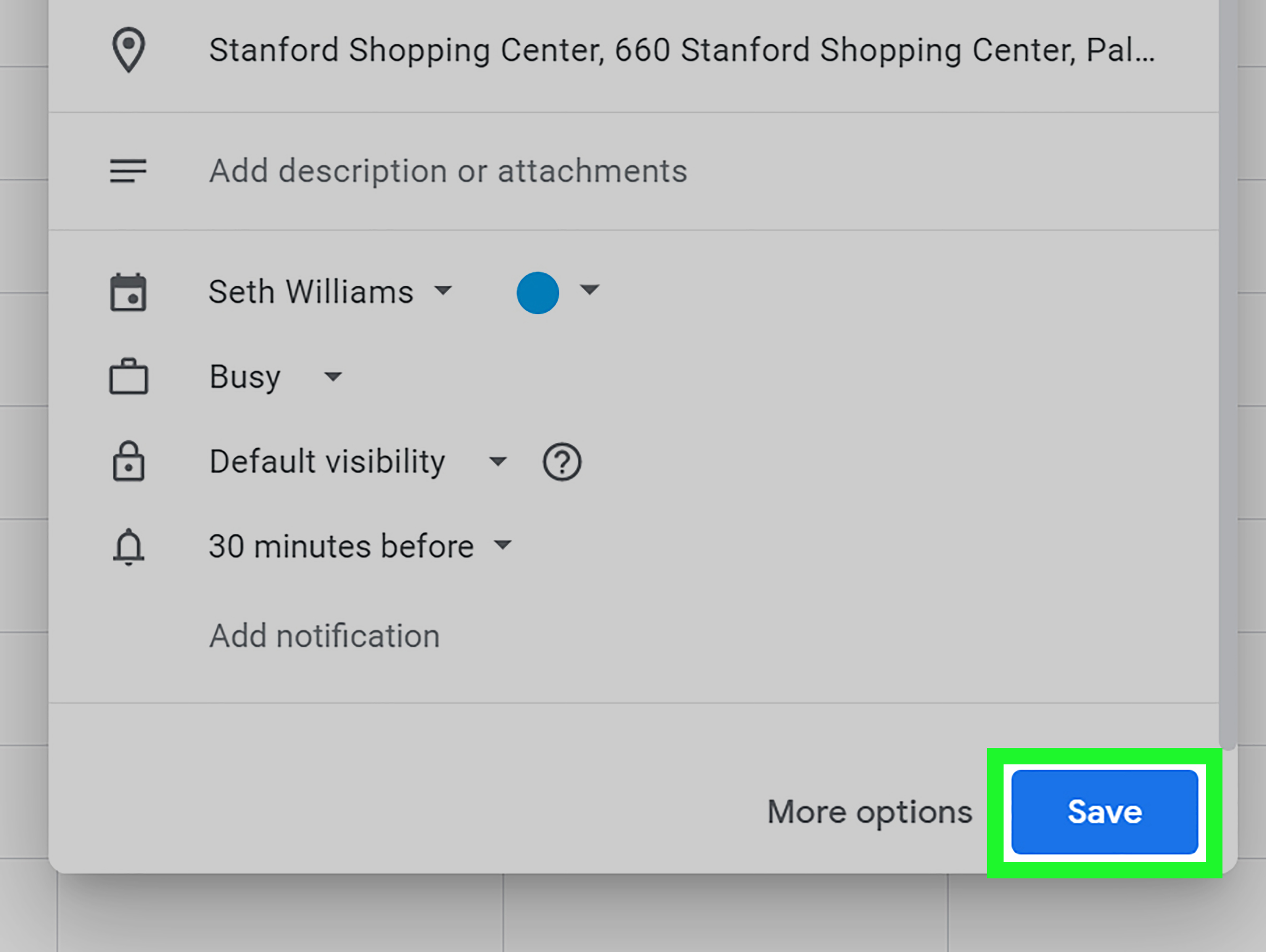
Before you click Save, add notifications. Google Calendar can remind you through browser alerts, mobile notifications, and email, depending on your settings. A common setup is one reminder 30 minutes before a meeting and another one day before important appointments. For travel, medical visits, interviews, or deadlines, earlier reminders are often better.
When everything looks right, click or tap Save. If you added guests, Google Calendar may ask whether you want to send invitation emails. In most cases, say yes. If you are only making a personal note or quietly editing a minor detail, you may choose not to notify guests, but use that option carefully. A calendar update that nobody receives is basically a secret diary entry with a start time.
Quick Example: Creating a Work Meeting in Google Calendar
Let’s say you need to schedule a project kickoff meeting for Thursday at 10:00 a.m. Open Google Calendar, click Create, and title it “Project Kickoff – Website Redesign.” Set the date and time from 10:00 a.m. to 10:45 a.m. Choose your work calendar, add the client and team members as guests, and click Add Google Meet video conferencing. In the description, include the agenda: goals, timeline, roles, deliverables, and next steps. Add a notification 30 minutes before and another one day before. Click Save and send the invitation.
That event now does more than sit on a calendar. It tells people what the meeting is, when it happens, where to join, what to prepare, and how to respond. That is the difference between a calendar event and a tiny scheduling masterpiece.
Tips to Make Google Calendar Events More Useful
Use Specific Titles
A vague title forces you to open the event later. A specific title tells you what is happening at a glance. Use names, topics, or locations whenever possible.
Add Buffer Time
If an event requires travel, setup, preparation, or recovery time, block it. Back-to-back meetings may look efficient, but so does a house of cards until someone sneezes.
Use Colors Thoughtfully
Color coding helps you scan your day quickly. You might use one color for work meetings, another for personal appointments, another for deadlines, and another for family events.
Review Guests Before Saving
Double-check email addresses, especially when people have similar names. Accidentally inviting the wrong Alex to a budget meeting is a memorable way to create office folklore.
Keep Descriptions Practical
A useful event description answers: What should I bring? What should I prepare? Where do I go? What link do I click? Who is involved? If the description answers those questions, it is doing its job.
Common Problems When Adding Events to Google Calendar
The Event Is on the Wrong Calendar
Open the event, click edit, and change the calendar if the option is available. If not, duplicate or recreate it on the correct calendar. For shared calendars, make sure you have permission to add or change events.
Guests Did Not Receive the Invitation
Check the guest email addresses, confirm that you chose to send invitations, and ask guests to check spam or promotions folders. For external guests, a separate message can help confirm they saw the invite.
The Time Looks Wrong
Check the event time zone and your calendar’s primary time zone. This matters most for travel, remote work, virtual events, and meetings with people in other countries.
Notifications Are Not Working
Review both event-level notifications and calendar-level notification settings. On mobile, also check device notification permissions. If your phone is in Do Not Disturb mode, Calendar may be doing its best while your phone politely ignores it.
Adding Events from Gmail and Other Tools
Google Calendar can work with Gmail to make scheduling faster. Certain travel, restaurant, hotel, ticket, and appointment emails may appear as calendar events automatically when the feature is enabled. Google has also expanded AI-powered calendar help in Gmail for some users, allowing calendar-related information in emails to become easier to add as events.
You can also connect Google Calendar with automation tools to create events from forms, spreadsheets, project management apps, booking systems, and customer relationship management tools. This is especially useful for businesses, coaches, consultants, teachers, and service providers who schedule appointments frequently. Manual event creation is perfect for everyday use; automation is better when the same kind of event keeps happening again and again.
Experience Section: What Real Use Teaches You About Adding Events to Google Calendar
After using Google Calendar for work, school, errands, appointments, travel, and the occasional “buy paper towels before civilization collapses” reminder, one lesson becomes obvious: the quality of your calendar depends on the quality of the event you create. A calendar is not just a storage place for dates. It is a communication tool with your future self.
The most helpful habit is creating events immediately. When someone says, “Let’s meet next Tuesday,” do not wait until later. Later is where plans go to wear invisibility cloaks. Open Google Calendar on your phone, tap Create, add the title, choose the date and time, and save it before the conversation ends. Even if you only add a rough title at first, you can improve the details later.
Another experience-based tip is to write descriptions like you are helping a tired person, because eventually you will be that tired person. If the event is a meeting, include the agenda. If it is an appointment, include the address, confirmation number, and anything you need to bring. If it is a deadline, include the link to the document or task. A calendar event that says “Submit report” is okay. One that says “Submit Q3 sales report – final PDF due in client portal by 4 p.m.” is much better.
Reminders are also personal. Some people need one notification ten minutes before everything. Others need a one-day warning, a two-hour warning, and a final nudge that says, spiritually, “Please stop pretending you still have time.” For important events, use multiple reminders. For casual events, keep reminders lighter so your calendar does not become a tiny notification thunderstorm.
Color coding sounds cosmetic until your calendar fills up. Then it becomes visual oxygen. Work meetings, personal appointments, deadlines, health events, and family plans can each have their own color. At a glance, you can see whether your week is overloaded with meetings, whether you forgot personal time, or whether Friday has become a scheduling obstacle course.
The biggest mistake many people make is treating Google Calendar as a list of obligations instead of a map of available energy. Add breaks. Add travel time. Add lunch. Add preparation time before important calls. A day with six meetings and no buffer is not productive; it is a slow-motion circus. Your calendar should protect your time, not just spend it.
Finally, review tomorrow’s calendar before the day ends. This small habit catches wrong times, missing links, forgotten prep work, and double bookings. It takes two minutes and can save an entire morning. Google Calendar is powerful, but it works best when you treat each event as a small plan, not just a box with a title. Create the event well, and your future self may not send a thank-you card, but it will definitely show up on time more often.
Conclusion: A Better Calendar Starts with Better Events
Knowing how to add an event to Google Calendar is one of those small digital skills that pays off every day. The basic process is easy: open Calendar, create an event, add a title, set the time, choose the calendar, invite guests, add location or video details, include descriptions and repeat settings, set notifications, and save. The real magic is in the details.
A well-made Google Calendar event tells you what is happening, when it happens, where it happens, who is involved, and what needs to be done before it starts. It helps guests show up prepared, keeps your schedule visible across devices, and gives your brain permission to stop carrying every little appointment like a grocery bag with a hole in it.
Start with the 9 easy steps above, then build your own habits: specific titles, helpful descriptions, smart reminders, careful guest lists, correct time zones, and realistic buffer time. Your calendar will become cleaner, calmer, and much more useful. And yes, you may still forget where you put your keys, but at least you will know exactly when you were supposed to leave.