A digital photo frame is supposed to rescue your favorite pictures from the dark corners of your phonenot create another technology puzzle. Fortunately, adding photos is usually easy once you know which transfer method your frame supports.
Modern digital frames may accept pictures through a mobile app, email address, web uploader, cloud album, USB flash drive, memory card, or direct computer connection. Wi-Fi models emphasize remote sharing, while traditional frames often rely on removable storage. Current frame guides and reviews confirm that upload options vary significantly by manufacturer and model, so the best method is the one your specific frame was designed to use.
This guide explains seven practical ways to add photos to a digital photo frame, including step-by-step instructions, troubleshooting advice, privacy tips, and lessons from common real-world setups. No technical wizard robe is required.
Before You Start: Check What Your Frame Supports
Look at the frame’s ports, packaging, settings menu, or instruction manual before transferring anything. A Wi-Fi icon usually indicates app, email, or cloud support. A rectangular USB-A port accepts a flash drive, while a smaller USB-C or micro-USB port may be intended only for poweror it may support computer transfers as well.
You should also check these details:
- Supported image formats: JPEG or JPG is generally the safest choice. Some frames also accept PNG, GIF, BMP, WebP, or HEIC files.
- Storage limits: A frame may use built-in storage, cloud storage, removable storage, or a combination of all three.
- Network requirements: Wi-Fi frames must usually be online to receive new uploads, although previously downloaded pictures may remain viewable offline.
- Account requirements: Some systems require every contributor to create an account, while others allow relatives to send pictures by email.
- Orientation: Find out whether the frame automatically rotates portrait and landscape images.
For example, Frameo currently lists support for several formats across its app and frame-import tools, including JPEG, PNG, WebP, and HEIC in certain environments. Skylight also documents support for common formats such as JPEG, PNG, GIF, and BMP. Compatibility is model-specific, however, so converting unusual files to JPEG can prevent a slideshow rebellion.
Quick Comparison of the Seven Methods
| Method | Best For | Wi-Fi Needed? | Can Be Used Remotely? |
|---|---|---|---|
| Mobile app | Everyday phone photos | Usually | Yes |
| Simple family sharing | Yes | Yes | |
| Web uploader | Photos stored on a computer | Yes | Yes |
| Cloud album | Automatic, ongoing updates | Yes | Yes |
| USB flash drive | Large offline collections | No | No |
| SD or microSD card | Camera photos and offline frames | No | No |
| Direct computer connection | Copying files into internal storage | No | No |
Option 1: Add Photos With the Frame’s Mobile App
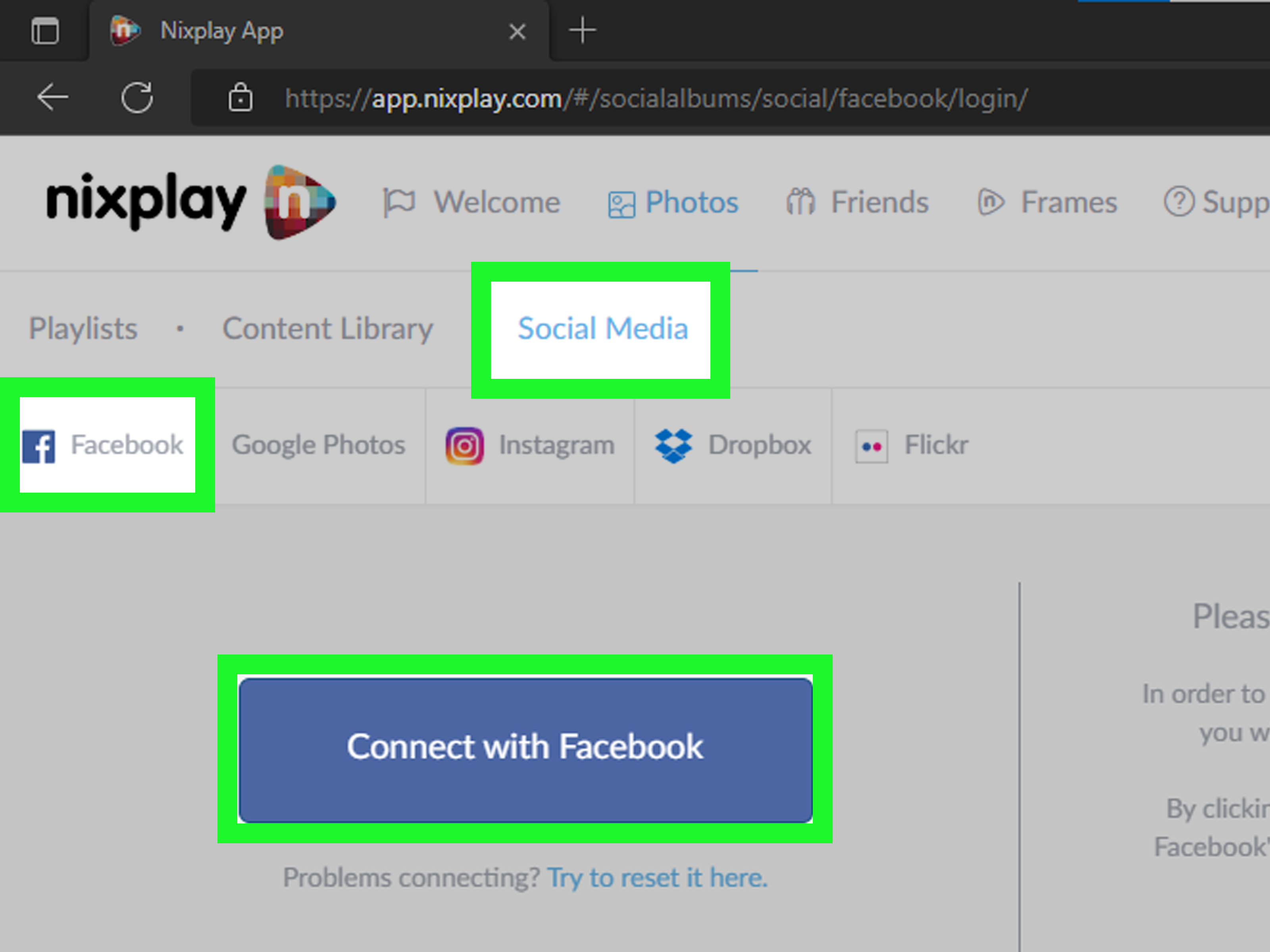
A companion app is usually the fastest and most convenient option for a Wi-Fi digital photo frame. Brands such as Aura, Nixplay, Frameo, and Skylight offer apps that connect a phone or tablet to one or more frames.
How to upload photos through an app
- Plug in the frame and connect it to Wi-Fi.
- Download the official app listed in the frame’s manual or on its setup screen.
- Create an account or sign in.
- Pair the frame using its code, serial number, QR code, or invitation link.
- Grant the app permission to access selected photos or your entire photo library.
- Tap a command such as Add Photos, Send Photos, or Upload.
- Select the pictures and choose the destination frame.
- Add a caption or adjust the crop when those tools are available.
- Tap Send and allow the frame time to download the files.
Aura’s current instructions direct users to choose a frame in the app and tap an Add Photos control. Nixplay allows users to add pictures from the camera or phone library to cloud albums, while Frameo lets users select a picture, choose a recipient frame, add a caption, and send it.
Best for: Frequent updates, vacation pictures, baby photos, pet pictures, and relatives who enjoy sending something new every week.
Helpful tip: Create a dedicated album on your phone before opening the frame app. Selecting 50 carefully chosen pictures is much easier than scrolling through 14,000 screenshots, grocery receipts, and accidental photographs of your thumb.
Option 2: Email Photos Directly to the Frame
Some Wi-Fi frames have a unique email address. Anyone who knows the address can attach a picture to an email and send it to the frame from a phone, tablet, or computer.
How to send photos by email
- Complete the frame’s initial Wi-Fi setup.
- Find or create the frame’s email address in its settings or online account.
- Add the address to your contacts using a recognizable name, such as “Grandma’s Photo Frame.”
- Start a new email and attach one or more pictures.
- Enter the frame’s email address as the recipient.
- Add a subject or message only if the system supports captions.
- Send the email and wait for the pictures to appear.
Skylight is built around this approach: users select a unique frame email address, and relatives can send pictures without handling the physical device. Aura also offers an email-to-frame feature that can be enabled through the frame’s settings.
Best for: Grandparents, group contributions, long-distance relatives, and anyone who understands email better than companion apps.
Helpful tip: Avoid publishing the frame address publicly. Treat it like a private family inbox unless you want the slideshow interrupted by mystery attachments and an exciting offer involving cryptocurrency.
Option 3: Use a Web Uploader or Online Dashboard
A web uploader lets you transfer photos from a desktop or laptop without installing a mobile app. This is especially useful for scanned family photographs, professionally edited images, or organized folders stored on a computer.
How to use a web uploader
- Visit the official account portal for your frame brand.
- Sign in with the account connected to the frame.
- Select the correct frame or album.
- Click Upload, Add Photos, or a similar command.
- Choose image files from your computer.
- Review your selection and start the upload.
- Keep the frame connected to Wi-Fi while it downloads the new content.
Aura provides a web uploader for owners and invited contributors who want to add computer-based photos. Skylight’s cloud portal similarly allows users to choose a frame and upload pictures through a browser, although access to particular portal features may depend on the product or subscription.
Best for: Scanned photographs, wedding collections, edited DSLR images, and large folders that are easier to organize with a mouse and full-size screen.
Helpful tip: Upload in smaller batches. If one file is incompatible, identifying the troublemaker is much easier in a group of 20 than in a digital stampede of 2,000.
Option 4: Sync a Cloud Photo Album
Cloud syncing connects the digital frame to an online album, such as a supported Google Photos or iCloud collection. Instead of manually uploading every picture, you update the cloud album and let the frame retrieve the changes.
How to connect a cloud album
- Open the frame app or online dashboard.
- Look for Cloud Services, Link Account, Google Photos, or iCloud.
- Sign in to the photo service.
- Review the requested permissions carefully.
- Select one or more albums to display.
- Save the connection and allow the first synchronization to finish.
Aura currently supports connecting selected Google Photos albums through its app. Google Photos shared albums can also allow chosen people to contribute, while Apple Shared Albums offer collaborative sharing across Apple devices and iCloud.com. Whether a particular frame can directly display those services depends on its manufacturer.
Best for: Growing family albums, ongoing travel collections, children’s yearly albums, and users who already organize pictures in the cloud.
Helpful tip: Connect a curated album rather than your complete library. Nobody needs the living-room frame displaying a blurry parking-space reminder between two wedding portraits.
Option 5: Transfer Photos With a USB Flash Drive
A USB flash drive is one of the most reliable offline methods. It works well with traditional digital frames and many newer models that include a full-size USB port.
How to use a USB flash drive
- Insert the flash drive into your computer.
- Create a folder for the frame pictures.
- Copy or drag the selected images onto the drive.
- Properly eject the drive from the computer.
- Insert it into the frame’s USB port.
- Choose USB as the media source if the frame does not detect it automatically.
- Select whether to play the pictures from the drive or copy them into internal storage.
Aluratek sells frames that can access images from USB storage, and its product documentation shows that support may be combined with internal memory and microSD expansion. Lifewire’s transfer guidance likewise describes copying photos to a flash drive, safely ejecting it, and inserting it into the frame.
Best for: Homes without dependable Wi-Fi, large photo batches, gifts that need to be prepared in advance, and users who prefer physical storage.
Helpful tip: Use a freshly formatted drive with a common file system accepted by the frame. Do not reformat a drive containing important files unless you have backed them up first.
Option 6: Insert an SD or microSD Memory Card
If your photos came from a digital camera, a memory card can provide the shortest route from camera to frame. Some frames can display files directly from the card, while others offer an import command that copies them to internal storage.
How to add pictures with a memory card
- Confirm which card type and capacity the frame supports.
- Copy the desired pictures onto the card using a camera or computer.
- Turn off the frame if its manual recommends doing so before insertion.
- Insert the card in the correct direction without forcing it.
- Select SD card, microSD, TF card, or removable storage from the menu.
- Start the slideshow or import the files.
Many traditional frames support SD cards, while newer products may use microSD cards. Aluratek documentation includes models with USB and memory-card access, and general transfer guidance recommends confirming that the card type matches the frame before insertion.
Best for: Camera users, photographers, offline slideshows, and frames with little internal memory.
Helpful tip: A microSD-to-SD adapter changes the card’s physical size, not its capacity or file system. The frame still must support the card itself.
Option 7: Connect the Frame Directly to a Computer
Some digital frames can appear on a computer as an external drive when connected with a compatible data cable. You can then copy pictures directly into the frame’s internal storage.
How to transfer through a USB cable
- Check the manual to confirm that the USB port supports data transfer.
- Turn on the frame unless the instructions say otherwise.
- Connect the frame to the computer with the correct cable.
- Open File Explorer on Windows or Finder on a Mac.
- Locate the frame under drives, devices, or locations.
- Open the Pictures, Photos, Images, or media folder.
- Copy the desired files into that folder.
- Wait until the transfer is complete.
- Safely eject the frame before unplugging the cable.
Several traditional frame manuals describe connecting the device to a computer and treating its storage as an external drive. Lifewire also recommends copying files to the frame’s folder and using the operating system’s eject function before disconnecting it.
Best for: Frames with internal storage, users who do not want cloud accounts, and one-time setup before giving the frame as a gift.
Important: A charging cable is not always a data cable. Two cables may look identical while only one can transfer filesa tiny example of technology choosing chaos.
How to Prepare Photos for the Best Display
Use JPEG when compatibility is uncertain
JPEG files offer broad compatibility and reasonable file sizes. If a PNG, HEIC, TIFF, or RAW image does not appear, export a JPEG copy and try again. Keep your original file separately so you do not lose quality.
Match the screen’s shape
Check the frame’s aspect ratio before cropping. Common screens include 4:3, 16:10, and 16:9. A portrait photo on a landscape-only frame may display with side bars or aggressive automatic cropping.
Avoid excessively large files
A frame does not need a 40-megapixel image to fill a modest screen. Huge files take longer to upload and may exceed the frame’s processing limits. Resize copies to a practical resolution while preserving the originals elsewhere.
Correct rotation before transferring
Some frames read orientation metadata correctly; others do not. Rotate and save the picture in an editor before uploading if it repeatedly appears sideways.
Organize pictures into meaningful albums
Create collections such as Family, Vacations, Grandchildren, Pets, or Old Photographs. Smaller themed albums make it easier to update the slideshow without deleting everything and beginning again.
What to Do When New Photos Do Not Appear
Confirm that the frame is online
Wi-Fi frames normally need an internet connection to receive new content. Skylight, for example, states that existing photos can remain available offline, but Wi-Fi is required to receive additional uploads.
Check the destination frame
Households with multiple frames can accidentally send pictures to the wrong device. Verify the frame name, album, email address, or pairing code.
Try one ordinary JPEG
Send a small, standard JPEG as a test. If it works, the original batch may contain an unsupported format, oversized file, damaged image, or unusual color profile.
Restart without immediately resetting
Turn the frame off, unplug it briefly, and restart it. Avoid performing a factory reset until you have checked the manual because resetting may remove pairings, settings, or locally stored pictures.
Review available storage
Delete duplicates or unwanted files when internal storage is full. For USB drives and memory cards, confirm that the media is properly inserted and readable on another device.
Update the app and frame software
Older app versions may have trouble communicating with newer frame software. Update both sides, reconnect to Wi-Fi, and repeat the upload.
Privacy and Family-Sharing Tips
Digital frames often store or transmit personal family photographs, so treat access controls seriously. Invite only people you trust, remove old contributors, and review cloud-album permissions periodically. Google Photos allows album owners to control access and disable link sharing, while frame manufacturers describe different approaches to storing and transmitting uploaded content.
- Use a strong, unique account password.
- Enable two-step verification when the service offers it.
- Do not share pairing codes or frame addresses on public social networks.
- Avoid uploading sensitive documents, identification cards, or private screenshots.
- Remove a contributor’s access when it is no longer needed.
- Review whether uploaded photos retain location metadata.
Practical Experiences and Lessons From Real-World Frame Setups
The biggest lesson from setting up a digital photo frame is that the easiest method depends less on technical sophistication and more on who will maintain the frame. A companion app may be perfect for a smartphone user, while email can be dramatically simpler for an extended family. An SD card may seem old-fashioned, but it can outperform every cloud feature in a house with unreliable Wi-Fi.
Consider a frame being prepared for a grandparent. The smoothest setup is usually completed before the gift is delivered. Connect the frame to Wi-Fi, install any updates, create the account, adjust the slideshow speed, and preload a balanced collection. Include recent family pictures, older scanned photographs, and a few images that provide context rather than 300 nearly identical photos from one afternoon. A frame that opens with familiar faces feels like a gift. A frame that opens with a setup wizard feels like homework wearing wrapping paper.
Remote contributions also work better when one person acts as the organizer. Without light curation, several relatives may upload the same birthday picture, screenshots may slip into the album, and a portrait can appear six times because everyone thought they were the first to send it. A shared album labeled “Frame Favorites” gives contributors a clear destination and makes duplicates easier to remove.
Another common experience involves automatic cropping. The frame may zoom into a landscape photograph to fill the screen, quietly removing the person standing near the edge. Before uploading an important group picture, leave extra space around faces or create a copy cropped to the frame’s aspect ratio. Test a few portrait and landscape images before transferring the complete collection. Five minutes of testing can prevent Uncle Robert from spending the entire slideshow represented by half an ear.
Users transferring old family archives should work in stages. First, scan and organize the photographs on a computer. Correct rotation, remove obvious duplicates, and rename folders by year or event. Then upload a small collection to check brightness and cropping on the actual screen. Digital frames are often brighter than printed albums, so faded scans may benefit from modest contrast and color correction. Keep the untouched master scans backed up separately; the copies prepared for the frame should never be your only archive.
For vacation homes, workshops, and locations with weak internet service, removable storage remains impressively practical. A USB drive or memory card can hold a carefully arranged slideshow without accounts, invitations, or cloud synchronization. The trade-off is that someone must physically update it. Wi-Fi sharing wins for immediacy; removable media wins for independence.
Finally, the most enjoyable frames are updated regularly but selectively. Add ten excellent pictures from a new event instead of uploading every camera burst. Remove images that no longer feel meaningful. Adjust the display schedule so the screen turns off at night, and clean fingerprints from the panel occasionally. The goal is not to prove how many photographs your family has accumulated. It is to make the best memories visible often enough that people stop walking past them unnoticed.
Final takeaway: Start with the official app when you have a modern Wi-Fi frame. Use email when simplicity and family participation matter most. Choose a web uploader or cloud album for organized computer collections, and rely on USB, SD cards, or a direct cable when you need dependable offline control. Once the correct method is matched to the frame, adding photos should take minutesnot an emergency meeting with the family’s unofficial technology department.
Note: Menu names, upload limits, supported file formats, subscriptions, and connection methods differ by manufacturer and model. Consult the current manual or official support page for your exact frame before formatting storage devices, resetting the frame, or deleting original photos.