
Browsing files on Android should feel simple, but let’s be honest: the first time you go looking for a downloaded PDF, a voice memo, or that one screenshot you swear you saved, your phone can feel like a tiny digital attic. There are folders, categories, app-specific storage areas, cloud backups, SD cards, USB drives, and sometimes a mystery folder named something like com.random.app.cache that looks like it was created by a robot having a bad day.
The good news is that Android file browsing is much easier once you know where to look. Most modern Android phones include a built-in file manager, often called Files, Files by Google, My Files, or File Manager, depending on the brand. These apps let you view downloads, photos, videos, documents, audio files, archives, folders, storage devices, and sometimes cloud accounts from one tidy place.
This guide explains how to browse files on Android in 11 practical steps. You’ll learn how to find downloads, search by file name, open internal storage, move or copy files, use an SD card or USB drive, share files, protect private documents, and troubleshoot common problems. No tech wizard robe required.
Why Android File Browsing Matters
Your Android phone is not just a phone. It is a camera, scanner, music player, notebook, payment tool, work device, recipe saver, meme vault, and emergency storage box for every “I’ll organize this later” file. Knowing how to browse files on Android helps you stay in control of all that digital stuff.
When you understand Android file management, you can quickly find downloaded tax forms, move photos to a folder, delete duplicate videos, upload documents to Google Drive, transfer files to a PC, and free up storage before your phone starts begging for mercy. File browsing also helps protect your privacy because you can see what is stored locally, what is in the cloud, and what should probably be deleted before anyone borrows your phone “for just a second.”
Before You Start: Know Which File App You Have
Most Android devices include a file-browsing app, but the name varies. Google Pixel phones commonly use Files or Files by Google. Samsung Galaxy phones use My Files. Motorola, OnePlus, Xiaomi, and other brands may include their own file manager or offer Files by Google as the default option.
If you do not see a file manager on your home screen, swipe up to open the app drawer and search for “Files,” “My Files,” “Downloads,” or “File Manager.” If your phone does not include one, you can install Files by Google from the Google Play Store. It is a clean, beginner-friendly choice because it organizes files by category, supports search, shows storage usage, offers cleanup suggestions, and works with Quick Share.
How to Browse Files on Android: 11 Steps
1. Open the Files App
Start by opening your Android file manager. On many phones, the app is called Files. On Samsung Galaxy devices, look for My Files, usually inside the Samsung folder or in the app drawer. If you use Files by Google, open the app and follow any setup prompts, such as allowing access to files and media.
Once the app opens, you will usually see sections such as Recents, Images, Videos, Audio, Documents, Downloads, Apps, Internal storage, and sometimes SD card or USB storage. Think of this page as the lobby of your phone’s file hotel. Every folder has a room key; you just need to choose the right hallway.
2. Check Recents First
If you are looking for something you downloaded, edited, received, or saved recently, start with Recents. This section is often the fastest way to find new files because it shows recently added, modified, or downloaded items without making you dig through folders.
For example, if you downloaded a restaurant menu as a PDF five minutes ago, it may appear in Recents even before you remember the file name. Recents is especially useful for screenshots, documents from email attachments, images from messaging apps, and files you just moved from another device.
3. Browse by Category
Most Android file managers group files into categories. Tap Images to see pictures, Videos for video files, Audio for music and recordings, Documents for PDFs and office files, and Downloads for files saved from browsers, email, or apps.
Category browsing is great when you know the file type but not the folder. If you remember downloading a PDF but not its name, open Documents. If you saved a TikTok-style cooking clip, check Videos. If your friend sent you an audio note that now contains suspiciously important information, try Audio.
Some file apps let you switch between grid view and list view. Grid view is helpful for images and videos because thumbnails are easier to recognize. List view is better for documents because you can compare names, sizes, and dates more clearly.
4. Open the Downloads Folder
The Downloads folder is one of the most important places on Android. Files saved from Chrome, Gmail, browsers, messaging apps, and websites often land here. To find it, open your file manager and tap Downloads under Categories. If you are browsing manually, open Internal storage, then tap Download.
On Samsung phones, open My Files, then tap Downloads. You can also go through Internal storage and choose the Download folder. The folder name may appear as “Download,” not “Downloads,” so do not let that missing “s” trick you. Android likes to keep life spicy.
5. Use the Search Bar
If browsing feels slow, use search. Open Files by Google or your file manager and tap the search bar at the top. Type part of the file name, file extension, or keyword. For example, search “invoice,” “resume,” “jpg,” “pdf,” “tax,” “recipe,” or “presentation.”
Some Android file apps also let you filter by file type or date. This is useful when you remember downloading a document last week but cannot remember whether it was called “final-final-document.pdf” or “final-actually-final-v3.pdf.” Search is your friend, especially when your naming system has been emotionally unstable.
6. Browse Internal Storage Manually
For deeper file browsing, open Internal storage. This area shows the folder structure on your phone. Common folders include DCIM, Pictures, Movies, Music, Download, Documents, Notifications, Ringtones, and app-created folders.
The DCIM folder usually stores camera photos and videos. Pictures often contains screenshots, edited images, and app-saved pictures. Movies may store videos. Music contains audio files. Documents is a good place for PDFs, text files, and office documents.
A word of caution: if you see folders that clearly belong to apps, avoid deleting random files unless you know what they are. Some folders contain cache files that are safe to clear through app settings, but others may contain saved content, offline files, or data an app needs to function properly.
7. Sort Files by Name, Date, or Size
Sorting is a small feature that can save a surprising amount of time. In your file manager, open a folder or category, tap the three-dot menu, and look for Sort by. You may be able to sort files by name, date modified, file size, or type.
Sort by date when you want the newest files at the top. Sort by size when your storage is nearly full and you want to find the biggest space hogs. Sort by name when you are looking through a folder with many similar files. A 2.7 GB video you forgot existed can be easier to spot when files are sorted by size. Your phone may not judge you, but your storage meter definitely does.
8. Move, Copy, Rename, or Delete Files
To manage a file, press and hold it. You can usually select one file or multiple files. Then choose actions such as Move, Copy, Rename, Share, Delete, or More. Moving a file changes its location. Copying creates a duplicate in another location. Renaming makes files easier to recognize later.
For example, you might create a folder called “Work Documents” and move PDFs there. You might copy vacation photos to an SD card. You might rename “IMG_20260424_113002.jpg” to “passport-photo-backup.jpg” so future you does not have to play detective.
When deleting files, slow down. Deleted files may go to Trash in some apps, but not every file manager handles deletion the same way. If a file matters, back it up before removing it.
9. Browse an SD Card or USB Drive
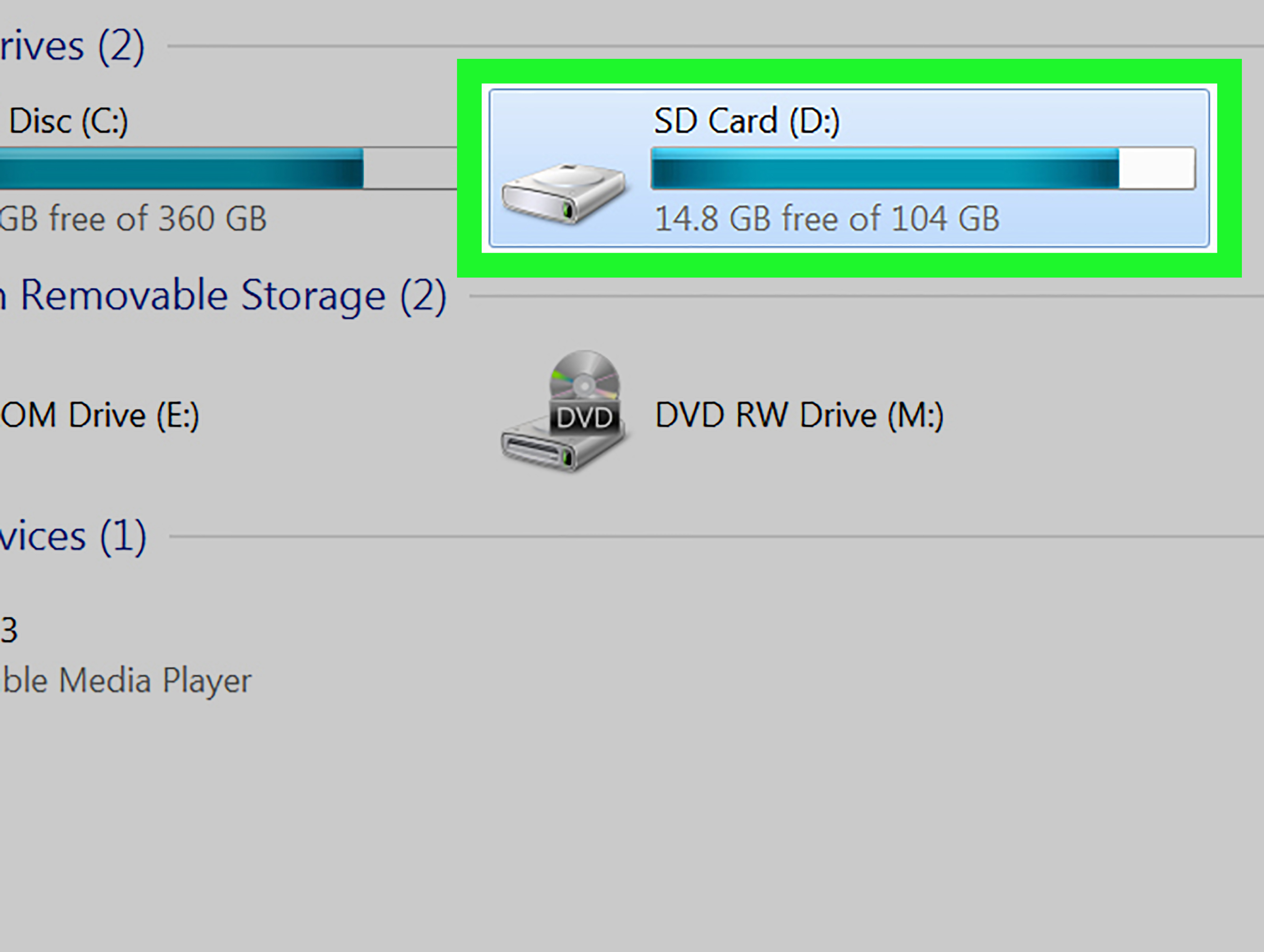
Some Android phones support microSD cards, and many support USB storage through a USB-C flash drive or USB On-The-Go adapter. If your device recognizes external storage, it should appear in the file manager under Storage devices, SD card, or USB storage.
Tap the storage device to browse its folders. You can open files, copy items to internal storage, or move files from your phone to the external device. This is useful for backing up photos, carrying large videos, or moving documents between devices without using the internet.
Not every Android phone supports microSD cards, and some external drives may require too much power. If your USB drive does not appear, try a different adapter, a different drive, or a powered hub. Also make sure the drive uses a file system your phone can read.
10. Share Files with Quick Share, Bluetooth, Email, or Cloud Storage
Android gives you several ways to share files. Select a file, tap Share, and choose the method you want. Quick Share is one of the easiest options for nearby Android devices, Chromebooks, and Windows PCs that support it. It works well for photos, videos, documents, and folders.
You can also share through Bluetooth, email, messaging apps, Google Drive, OneDrive, Dropbox, or another cloud service. For large files, cloud storage is often better than email because email attachments have size limits. Upload the file to Google Drive, then share a link or invite specific people.
If you use Windows 11, you may also be able to browse and manage Android files through File Explorer after pairing your phone with Link to Windows. This can make your phone feel more like a wireless drive on your PC.
11. Protect Private Files
If you have sensitive documents, IDs, financial files, private photos, or personal notes, do not leave them floating around in obvious folders. Files by Google includes a Safe folder feature that can protect selected files with a PIN or pattern. Samsung phones may offer similar privacy features through Secure Folder or My Files options, depending on the device.
To protect a file in Files by Google, open the app, find the file, press and hold it, tap the menu, and choose Move to Safe folder. You will need to set up or enter your PIN or pattern. Remember that lock. If you forget it, recovering protected files may be difficult or impossible depending on the app and setup.
Common Android File Locations
Photos and Videos
Camera photos and videos usually live in Internal storage > DCIM > Camera. Screenshots often appear under Pictures > Screenshots. Edited photos may land in folders named after the app that created them.
Downloads
Browser downloads, PDFs, forms, ZIP files, and saved attachments often go to Internal storage > Download. If you cannot find a file there, open the app you used to download it and check that app’s downloads or saved files section.
Messaging App Media
Images and videos from messaging apps may appear in Pictures, Movies, or app-specific folders. Some apps store media inside their own directories, while others only show attachments inside the app unless you manually save them.
Cloud Files
Files in Google Drive, OneDrive, Dropbox, or similar services may not be stored locally unless you download them for offline use. If you cannot find a cloud document in your file manager, open the cloud app directly and check its recent files, offline files, or downloads.
Troubleshooting: Why You Can’t Find a File
If a file seems missing, do not panic. It may simply be hiding in a different folder, saved inside an app, stored in the cloud, or named something unhelpful. Start by checking Recents and Downloads. Then search by keyword or extension. Try looking inside the app that created or downloaded the file.
If your file manager shows no files, check app permissions. Go to Settings > Apps > Files or Files by Google > Permissions, then make sure file or media access is allowed. If your phone is connected to a computer but nothing appears, unlock the phone, use a cable that supports data transfer, pull down the USB notification, and choose File Transfer instead of charging only.
Also remember that Android has stronger privacy rules than older versions. Some app data folders are restricted, especially folders related to app-specific storage. This is normal and helps protect user data. For everyday browsing, focus on visible folders such as Download, DCIM, Pictures, Documents, Movies, Music, and storage devices.
Best Practices for Android File Management
To keep your Android files under control, create simple folders with clear names. Use “Work,” “Receipts,” “Medical,” “School,” “Travel,” or “Family Photos” instead of vague folder names like “Stuff” or “New Folder 7.” Rename important files as soon as you save them. Delete duplicates regularly. Back up valuable photos, documents, and videos to a computer or cloud service.
Once a month, open your file manager and sort files by size. You may find old videos, duplicate downloads, or forgotten ZIP files taking up space. Clean carefully, not aggressively. The goal is to organize your phone, not accidentally delete the only copy of your cousin’s wedding video.
Real-World Experiences: What Browsing Files on Android Actually Feels Like
In real life, browsing files on Android is less about being technical and more about building habits. The first experience many users have is the classic “Where did my download go?” moment. You tap a link, the browser says the file is downloaded, and then it vanishes like a magician with commitment issues. The fix is usually simple: open Files, tap Downloads, and there it is. But until you know that path, it can feel like your phone swallowed the file whole.
Another common experience is cleaning storage before a trip. You are at the airport, trying to take one more photo of a suspiciously expensive sandwich, and Android announces that storage is full. This is when file browsing becomes heroic. Open the file manager, sort videos by size, delete old screen recordings, move important photos to Google Drive, and suddenly your phone has breathing room again. It is not glamorous, but neither is missing vacation photos because of a forgotten 4 GB concert video from two years ago.
People who use Android for work often discover the value of folders quickly. A freelancer might create folders for invoices, client photos, contracts, and project drafts. A student might organize lecture slides, PDFs, screenshots, and scanned notes. A small business owner might keep receipts, product images, tax documents, and shipping labels in separate folders. The file manager becomes a pocket-sized filing cabinetminus the squeaky drawer and the smell of old paper.
Samsung users often have a slightly different experience because My Files feels closer to a traditional desktop file explorer. It shows categories, internal storage, SD cards, cloud storage options, and connected devices in a familiar layout. Pixel users may prefer Files by Google because it feels cleaner and offers helpful cleanup suggestions. Neither approach is wrong. The best file app is the one you can open without sighing dramatically.
One lesson many Android users learn the hard way is that not every file shown in storage should be deleted. Random app folders may look unnecessary, but they can contain offline maps, downloaded playlists, game files, or documents saved inside an app. A smarter habit is to delete files you recognize, clear app cache through Settings when needed, and back up important items before big cleanups.
Another practical experience involves transferring files to a computer. The first attempt can be confusing because plugging in a USB cable may only charge the phone. The magic step is unlocking the phone and selecting File Transfer from the USB notification. Once that is done, Windows File Explorer can browse folders like DCIM, Download, Pictures, and Movies. For wireless workflows, Quick Share, Google Drive, and Link to Windows can feel much smoother.
Finally, browsing Android files teaches one quiet but valuable lesson: organization saves future frustration. A phone with clear folders, renamed documents, and regular backups is calmer to use. You spend less time hunting and more time doing. Your photos are easier to find, your documents are safer, and your downloads folder no longer looks like a digital junk drawer after a raccoon party.
Conclusion
Learning how to browse files on Android is one of those small skills that pays off constantly. Once you know where the Files app is, how Downloads works, how to search, how to browse internal storage, and how to move or share files, your phone becomes much easier to manage. You can find documents faster, clean storage more confidently, protect private files, and transfer content without turning every PDF into a personal mystery novel.
Start with the basics: open Files, check Recents, browse Categories, and use Search. Then move into deeper tools like Internal storage, SD cards, USB drives, Quick Share, cloud uploads, and Safe folder. With a few simple habits, Android file management stops feeling hidden and starts feeling refreshingly practical.
Note: This article is written for general Android users. Menu names and available features may vary by phone brand, Android version, file manager app, carrier software, and device storage options.













