Learning how to cast to a Fire Stick from any device sounds like it should be as easy as tossing popcorn into a bowl. Sometimes it is. Other times, your phone, laptop, Fire TV Stick, router, and streaming app seem to form a tiny committee whose only agenda is “not today.” The good news is that most casting problems are not mysterious. They usually come down to three things: your devices need to be on the same Wi-Fi network, your Fire Stick needs the right receiving mode or app, and your phone or computer needs to use the correct casting method.
This guide explains how to cast to Fire Stick from Android, iPhone, iPad, Windows PC, Mac, Chromebook, and app-based services like YouTube. We will also cover the difference between casting and screen mirroring, because those two terms get thrown around like they are identical twins. They are not. They are more like cousins who borrow each other’s chargers.
First, Understand Casting vs. Screen Mirroring
Before you start tapping random buttons, it helps to know what you are trying to do. Casting usually means sending a video, song, or photo from an app on your phone or computer to your Fire TV. Once the content starts playing, the Fire Stick handles the stream, while your phone works like a remote control. This is common with apps such as YouTube, Prime Video, Spotify, and other services that support a Cast or “Watch on TV” button.
Screen mirroring is different. Mirroring duplicates your entire device screen on the TV. If you open your photo gallery, your TV shows your photo gallery. If you receive a notification from your food delivery app saying your tacos are approaching, yes, your audience may see that too. Mirroring is great for presentations, vacation photos, quick demos, web pages, fitness apps, and anything that does not have a built-in cast button.
Before You Cast: The Fire Stick Setup Checklist
No matter which device you use, begin with these basics. They solve a surprising number of problems.
1. Use the Same Wi-Fi Network
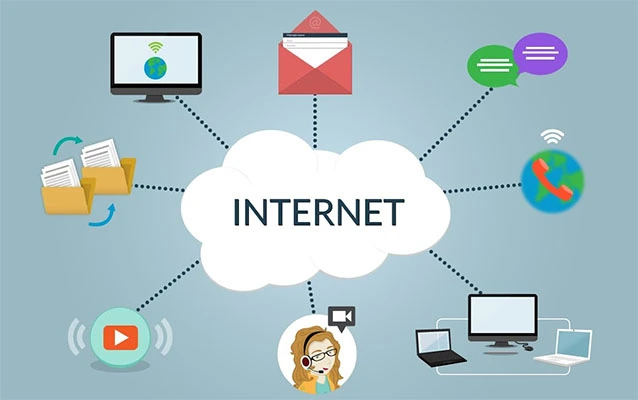
Your Fire Stick and the device you are casting from should usually be connected to the same Wi-Fi network. If your phone is on mobile data, your laptop is on the guest Wi-Fi, and your Fire Stick is connected to the main home network, they may not see each other. It is like trying to wave at someone in a different airport terminal.
2. Wake Up the Fire Stick
Turn on your TV, switch to the correct HDMI input, and make sure the Fire TV home screen is active. Some devices do not appear as available casting targets when they are asleep or sitting behind another input.
3. Update Your Apps and Fire TV Software
Go to Settings > My Fire TV > About > Check for Updates. Menu names can vary slightly by Fire TV model, but the idea is the same: keep the device fresh. Outdated software can make casting feel like teaching a cat to use email.
4. Enable Display Mirroring When Needed
For Android and Windows mirroring, go to Settings > Display & Sounds > Enable Display Mirroring. On some Fire TV interfaces, you can also hold the Home button on the Fire TV remote and choose Mirroring. Leave that screen open while connecting from your phone or computer.
How to Cast to a Fire Stick From Android
Android is often the easiest platform for Fire Stick mirroring because many Android phones support Miracast-style wireless display features. However, the exact button name depends on the brand. Samsung calls it Smart View. Other phones may call it Cast, Screen Cast, Wireless Display, Screen Share, or something equally determined to keep life interesting.
Steps for Most Android Phones
- Connect your Android phone and Fire Stick to the same Wi-Fi network.
- On the Fire Stick, open Settings > Display & Sounds > Enable Display Mirroring.
- On your Android phone, swipe down from the top of the screen to open Quick Settings.
- Tap Cast, Screen Cast, Smart View, or Wireless Display.
- Select your Fire Stick or Fire TV from the list.
- Accept any prompt on your phone or TV.
Once connected, your phone screen should appear on the TV. Rotate your phone sideways if you want landscape viewing. For best results, keep the phone close to the router and avoid running too many background apps.
Samsung Galaxy Tip
Samsung phones usually work well with Fire TV. Swipe down twice to open the full Quick Settings panel, tap Smart View, then choose your Fire Stick. If you do not see it, tap the three-dot menu inside Smart View and check whether additional display options are available.
Google Pixel and Some Android Phones
Some Android phones focus more heavily on Google Cast and may not show Fire TV as a native mirroring target. If your Fire Stick does not appear, use app-based casting, install a trusted receiver app on the Fire Stick, or use a cable-based workaround through a compatible adapter. Not every Android phone handles wireless display the same way, which is why one person’s phone connects in six seconds while another person’s phone behaves like it has joined a witness protection program.
How to Cast to a Fire Stick From iPhone or iPad
iPhone and iPad users need to think in terms of AirPlay. Some Fire TV smart TVs support AirPlay directly, but many Fire TV Stick models do not act as native AirPlay receivers by default. That means you may need an AirPlay receiver app from the Amazon Appstore, such as AirScreen or a similar reputable app, installed on your Fire Stick.
Method 1: Use AirPlay If Your Fire TV Supports It
- Make sure your iPhone or iPad and Fire TV are on the same Wi-Fi network.
- Open Settings on your Fire TV and look for an AirPlay or Apple AirPlay & HomeKit option if your model supports it.
- On your iPhone or iPad, open Control Center.
- Tap Screen Mirroring.
- Select your Fire TV from the list.
- Enter the AirPlay code if one appears on the TV.
Method 2: Use an AirPlay Receiver App
- On your Fire Stick, open the Amazon Appstore.
- Search for a trusted AirPlay receiver app.
- Install and open the app.
- Follow the app’s setup instructions until it is ready to receive AirPlay.
- On your iPhone or iPad, open Control Center and tap Screen Mirroring.
- Select the receiver name shown by the app.
This method is useful for mirroring photos, Safari pages, short videos, and presentations. For paid streaming apps, results may vary. Some services block screen mirroring because of licensing rules. So if a movie turns into a black screen while the audio plays, your Fire Stick is probably not broken. The app is simply protecting the video stream.
How to Cast to a Fire Stick From Windows PC
Windows is one of the most practical ways to mirror to a Fire Stick, especially for presentations, browser tabs, local videos, and Zoom-style group viewing. Windows uses wireless display technology that works with Miracast-compatible receivers.
Steps for Windows 11 or Windows 10
- Connect your Windows PC and Fire Stick to the same Wi-Fi network.
- On your Fire Stick, enable display mirroring from Settings > Display & Sounds > Enable Display Mirroring.
- On your PC, press Windows key + K.
- Choose your Fire Stick from the list of available wireless displays.
- Select a projection mode if prompted: Duplicate, Extend, or Second screen only.
If you are showing slides, use Duplicate so the TV shows exactly what is on your laptop. If you want to use the TV as an extra display, choose Extend. Just remember where your mouse went. Many people have lost a cursor on a second screen and briefly questioned their life choices.
Windows Troubleshooting
If your Fire Stick does not appear, check that Wi-Fi is enabled on your PC, update your graphics and wireless drivers, and make sure the Fire Stick is still sitting on the mirroring screen. If your office or school Wi-Fi blocks device discovery, try a personal hotspot or home network instead.
How to Cast to a Fire Stick From Mac
Mac computers use AirPlay, not Miracast. Since most Fire TV Sticks do not natively behave like Apple TV boxes, the common solution is to install an AirPlay receiver app on the Fire Stick.
Steps for Mac Mirroring
- Install and open a reputable AirPlay receiver app on your Fire Stick.
- Connect your Mac and Fire Stick to the same Wi-Fi network.
- On your Mac, open Control Center from the menu bar.
- Click Screen Mirroring.
- Select the receiver name shown by the Fire Stick app.
- Choose whether to mirror your display or use the TV as a separate display.
For best results, close unnecessary apps and keep the Mac awake. Mirroring a Mac to a Fire Stick is convenient for showing websites, Keynote slides, family photos, or a recipe on the big screen while you cook. Just do yourself a favor and close your 47 unrelated browser tabs first.
How to Cast YouTube to a Fire Stick
YouTube is one of the most reliable ways to cast because the YouTube app supports TV linking and app-based casting. This is not full screen mirroring. Instead, your phone or computer becomes a controller for the YouTube app on your Fire TV.
Steps for YouTube Casting
- Install and open the YouTube app on your Fire Stick.
- Open YouTube on your phone, tablet, or computer.
- Make sure both devices are on the same Wi-Fi network.
- Tap or click the Cast icon.
- Select your Fire TV or linked YouTube TV app.
- Choose a video and start watching.
If your devices are not on the same Wi-Fi network, YouTube also offers a TV code linking method. Open YouTube on the Fire Stick, go to settings inside the YouTube app, find the TV code option, then enter that code in the YouTube app on your phone. This is handy in hotels, dorms, or confusing Wi-Fi situations where your devices refuse to discover each other automatically.
How to Cast From Streaming Apps
Many streaming apps let you send content directly to a Fire TV device if the Fire TV version of the app is installed and the service supports casting or linking. Look for icons labeled Cast, Watch on TV, Connect to a device, or a small screen symbol. Prime Video, YouTube, Spotify, and several media apps are often friendly to this method.
However, not every app supports casting to Fire TV in the same way. Some apps prefer that you open the app directly on the Fire Stick and use the remote. Others support casting only to certain device ecosystems. When in doubt, install the same streaming app on your Fire Stick, sign in, and check whether your phone app can detect it.
How to Cast Photos and Local Videos
For photos, Android screen mirroring is usually the fastest option. Open your gallery after mirroring and swipe through your pictures. On iPhone, use AirPlay if your Fire TV supports it or use an AirPlay receiver app. For Windows and Mac, mirror your display and open the photo or video file on your computer.
Local video files can be trickier because high-resolution videos may lag over wireless mirroring. If you have a large 4K file, consider using a media server app, a USB-compatible setup if your Fire TV hardware supports it, or a home media app like Plex. Wireless mirroring is convenient, but it is not always the smoothest option for giant video files.
Best Settings for Smooth Fire Stick Casting
A smooth casting experience depends on your network as much as your device. If your video stutters, freezes, or looks like a slideshow from 2004, try these fixes:
- Move closer to the router: Weak Wi-Fi is the enemy of casting.
- Use 5 GHz Wi-Fi: If your router supports it, 5 GHz often gives better speed for nearby devices.
- Restart everything: Restart the Fire Stick, phone or computer, and router. It sounds basic because it works.
- Close background apps: Free up memory and processing power.
- Lower the video quality: If mirroring lags, try 720p instead of 1080p or 4K.
- Avoid crowded Wi-Fi: Casting during peak household internet chaos can cause buffering.
Common Problems and Quick Fixes
Fire Stick Does Not Show Up
Check that both devices are on the same Wi-Fi network. Then enable display mirroring on the Fire Stick and keep that screen open. Restart the Fire Stick if needed. Also check whether your phone actually supports the protocol your Fire Stick expects.
Sound Plays on the Wrong Device
Disconnect and reconnect. On Windows, check audio output settings after connecting. On Mac, open Control Center or Sound settings and choose the TV or receiver as the audio output if available.
Video Shows a Black Screen
Some streaming apps block mirroring for copyright protection. Try using the official app on Fire TV instead of mirroring from your phone. For example, open the streaming app directly on the Fire Stick and use your phone only as a remote when supported.
Lag Makes Everything Painful
Lag is common with wireless mirroring. Move devices closer to the router, reduce video quality, use 5 GHz Wi-Fi, and stop downloads or cloud backups. If you are gaming, mirroring to a Fire Stick is usually not ideal because even small delays can make fast games feel weird.
Privacy Tips Before You Mirror
Screen mirroring shows your screen, not just the content you intended to share. Turn on Do Not Disturb, close private tabs, hide sensitive documents, and avoid opening messages while mirrored. This is especially important in meetings, classrooms, and family gatherings where one unexpected notification can become the evening’s main event.
Which Method Should You Use?
If you are watching YouTube, use the YouTube Cast button. If you are sharing an Android phone screen, use Smart View or Cast. If you are presenting from Windows, use Windows + K. If you are using iPhone, iPad, or Mac, use AirPlay if supported or install a receiver app on the Fire Stick. If a streaming service blocks mirroring, open that service directly on the Fire Stick.
The best method is the one that matches the content. Casting is cleaner for videos from supported apps. Mirroring is better for showing your screen, photos, web pages, and presentations. Receiver apps are useful when your device and Fire Stick speak different wireless languages.
Real-World Experience: What Casting to a Fire Stick Is Actually Like
In real life, casting to a Fire Stick is less about one perfect button and more about choosing the right route for the device in your hand. The smoothest experience usually comes from app-based casting. For example, casting YouTube from a phone to a Fire Stick feels natural: tap the Cast icon, pick the TV, and suddenly your phone becomes a remote. You can queue videos, pause playback, and still use your phone for other things. That is the “best case scenario” version of casting, the one that makes you feel like technology deserves a small round of applause.
Android mirroring is also generally practical, especially on Samsung phones. Smart View tends to find Fire TV devices quickly when the Fire Stick is in mirroring mode. It is great for sharing photos after a vacation, opening a browser page on the TV, or showing a fitness app when you do not want to squint at a small screen. The biggest downside is that everything on your phone is visible. Before mirroring, I always recommend turning on Do Not Disturb. It takes two seconds and prevents your TV from becoming a public billboard for private notifications.
Windows casting is useful but slightly more “computer-ish.” Pressing Windows + K is easy, but the quality depends heavily on Wi-Fi strength and driver compatibility. When it works, it is excellent for slide decks, documents, web demos, and casual video playback. When it struggles, it tends to lag, disconnect, or refuse to find the Fire Stick until you restart something. The most reliable Windows habit is to enable Fire Stick mirroring first, wait on that screen, and then connect from the PC. Doing it in the opposite order can make the Fire Stick invisible.
Apple devices require the most planning. AirPlay is elegant when the receiving device supports it, but many Fire TV Stick users need an AirPlay receiver app. Once the app is installed and running, iPhone and Mac mirroring can work nicely for photos, browser pages, and presentations. Still, do not be surprised if certain paid video apps show a black screen. That is usually a content protection issue, not user error. The better solution is often to install the streaming service directly on Fire TV and watch from there.
The biggest lesson is this: casting is not one universal feature. It is a family of methods. Your Fire Stick can receive content in several ways, but your phone, tablet, laptop, and app all have to agree on the method. Start with the simplest option: use the Cast button inside the app. If that is unavailable, try screen mirroring. If Apple is involved, check AirPlay support or use a receiver app. If nothing appears, restart the devices and verify the Wi-Fi network. It is not glamorous advice, but neither is looking behind the couch for the remote, and we all know how often that works.
Conclusion
Casting to a Fire Stick from any device is completely manageable once you stop treating every device the same. Android and Windows often use display mirroring. iPhone, iPad, and Mac lean on AirPlay or receiver apps. YouTube and other supported apps may cast directly without mirroring the whole screen. Most problems come from mismatched networks, unsupported protocols, outdated apps, or streaming services that block mirrored playback.
For the best experience, keep your Fire Stick updated, use the same Wi-Fi network, choose app-based casting when possible, and use mirroring when you need to show the whole screen. Do that, and your Fire Stick becomes more than a streaming stick. It becomes a flexible big-screen receiver for phones, tablets, laptops, photos, presentations, and the occasional “look at this hilarious video” emergency.