Changing margins in Google Docs sounds like one of those tiny formatting chores that should take three secondsuntil your resume spills onto page two, your teacher asks for “one-inch margins,” or your carefully crafted proposal looks like it is wearing pants two sizes too tight. The good news: learning how to change margins on Google Docs is simple once you know where the controls live.
Google Docs gives you two quick and easy methods for adjusting margins. You can use Page setup when you want precise measurements for the whole document, or you can use the ruler when you want to drag margins visually and see the layout change in real time. Both methods are beginner-friendly, and neither requires a secret keyboard shortcut known only to spreadsheet wizards.
In this guide, you will learn exactly how to edit Google Docs margins, when to use each method, how margins differ from indents, how to handle section margins, and what to do if the option seems missing. Whether you are formatting an academic paper, business letter, ebook draft, resume, or printable worksheet, these steps will help your document look clean, balanced, and ready to share.
What Are Margins in Google Docs?
Margins are the blank spaces around the edges of your document. They sit between your content and the edge of the page. In a standard Google Docs document, margins appear at the top, bottom, left, and right sides of each page.
Think of margins as the quiet bodyguards of your text. They keep your words from bumping into the page edge, make printed documents easier to read, and create room for binding, grading notes, comments, or plain old breathing space. Without margins, your document would look like it was sprinting away from the paper.
Common Google Docs Margin Sizes
Most general documents use 1-inch margins on all sides. This is common for school assignments, business documents, and many professional reports. However, different projects may need different spacing:
- 1 inch: Standard for essays, reports, letters, and many academic formats.
- 0.5 inch: Useful when you need to fit more text on a page, such as a one-page resume.
- 1.25 to 1.5 inches: Helpful for manuscripts, print layouts, or documents that need extra white space.
- 2 inches: Sometimes used for drafts that require handwritten feedback or binding space.
The best margin size depends on your goal. If the document will be printed, keep readability and trimming in mind. If it will be submitted for school, follow the required style guide. If it is going to your boss, maybe do not use margins so narrow that the page looks like it skipped lunch.
Before You Start: Make Sure Your Document Is in Pages Format
Google Docs has two layout modes: Pages and Pageless. Margins are a page-based feature, so they work properly when your document is in Pages format. If your document is in Pageless format, page edges and traditional page margins are not the focus, which means margin controls may not behave the way you expect.
To check or change this setting on a computer, open your document, click File, choose Page setup, and select Pages at the top of the dialog box. Once your document is in Pages format, you can adjust the top, bottom, left, and right margins.
Method 1: Change Margins Using Page Setup
The Page setup method is the best choice when you need exact numbers. If your instructor says “use 1-inch margins,” your client requests “0.75-inch margins,” or your company template requires a specific layout, this is the method to use.
Step-by-Step: How to Change Margins with Page Setup
- Open your document in Google Docs on a computer.
- Click File in the top menu.
- Select Page setup.
- Make sure Pages is selected if you see a Pages/Pageless option.
- Find the Margins fields.
- Enter your preferred values for Top, Bottom, Left, and Right.
- Click OK to apply the changes.
For example, if you want standard margins, enter 1 for all four sides. If you want more room for text on a resume, you might use 0.5 or 0.75 on each side. If you are creating a printable workbook and need space for hole punching or binding, you might make the left margin larger than the right.
How to Set Default Margins in Google Docs
If you use the same margin settings often, Page setup can save you time. After entering your preferred margins, look for the Set as default option in the Page setup window. Selecting this makes the new settings apply to future documents you create.
This is especially useful for students, freelancers, administrative professionals, and anyone who regularly creates documents with the same formatting rules. It is the digital equivalent of telling Google Docs, “Please remember how I like my paper dressed.”
When Page Setup Is the Better Method
Use Page setup when precision matters. It is ideal for academic formatting, formal letters, contracts, manuscripts, printable PDFs, and documents that must match a required layout. It also allows you to adjust all four margins, not just the left and right sides.
Another advantage is consistency. If your document is twenty pages long, Page setup applies cleanly across the selected area or entire document, depending on your settings. That makes it safer than dragging when you need exact alignment.
Method 2: Change Margins Using the Ruler
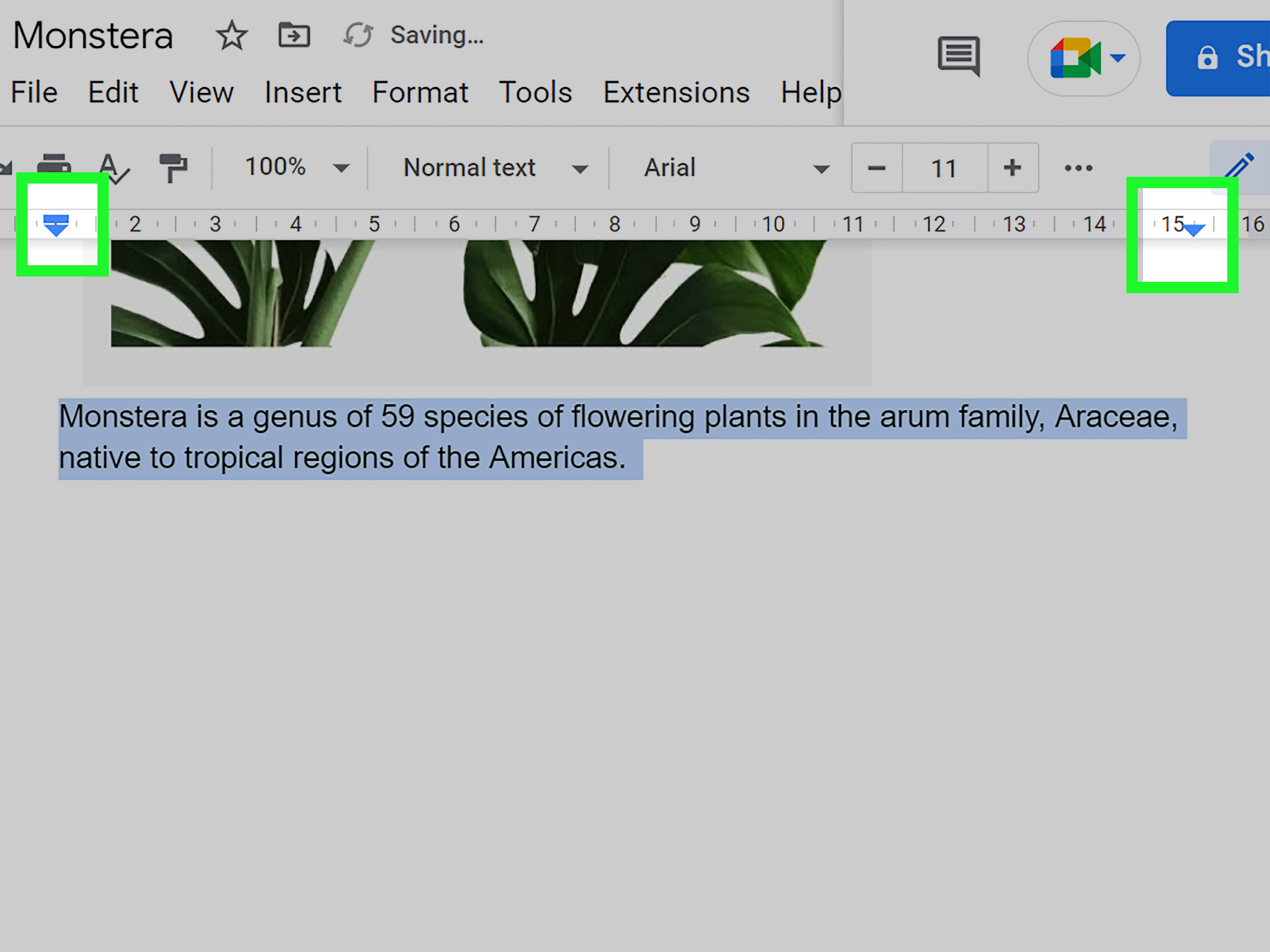
The ruler method is faster and more visual. Instead of typing measurements into a dialog box, you drag margin markers directly on the ruler. This is great when you are trying to make a paragraph fit, adjust a specific section, or quickly test how your layout looks.
Step-by-Step: How to Change Margins with the Ruler
- Open your Google Docs document on a computer.
- Click View in the top menu.
- Make sure Show ruler is checked.
- Look at the horizontal ruler above your document.
- Drag the margin marker on the left or right side to adjust the page width.
- Release the marker when the text lines up the way you want.
The ruler is useful because it gives you immediate visual feedback. If the text suddenly looks too cramped, drag the marker back. If your final line is awkwardly hanging on a new page like an unwanted guest, adjust the margin slightly and see whether the layout improves.
Do Not Confuse Margins with Indents
This is where many people accidentally wrestle with Google Docs. On the ruler, you may see a small rectangle and triangle near the left side. The rectangle usually controls the first-line indent, while the triangle controls paragraph indentation. Margins and indents are related to spacing, but they are not the same thing.
A margin controls the blank space between the page edge and the main text area. An indent controls how far a paragraph begins inside that text area. If only one paragraph moves while the rest of the page stays put, you probably adjusted an indent, not the document margin.
When the Ruler Is the Better Method
Use the ruler when speed matters more than exact measurement. It is great for quick layout fixes, visual editing, and small adjustments. Writers, teachers, students, and office workers often use it when they are polishing a document and want to make the page look better without opening menus.
The ruler can also help with section-based layouts. If your document contains section breaks, you may be able to adjust margins for a selected section instead of the whole document. This is handy for reports that include wide tables, images, charts, or special pages.
How to Change Margins for Only Part of a Google Doc
Sometimes you do not want the entire document to change. Maybe one page has a large table, or one section needs extra room for a graphic. In that case, section breaks are your friend.
To create a section break, place your cursor where the new section should begin, click Insert, choose Break, and select a section break option. After that, you can use Page setup or the ruler to adjust margins for the section you are working in.
This feature is helpful for complex documents. For example, a business report might use standard 1-inch margins for most pages but wider left and right margins for a chart-heavy section. A teacher might create a worksheet with one section for instructions and another with narrower margins for student response boxes.
Can You Change Margins in the Google Docs Mobile App?
Margin controls are easiest and most complete on the desktop version of Google Docs. On mobile devices, page setup options may be more limited. The Android app, for example, commonly provides page setup settings such as orientation, paper size, and page color, but not the full desktop margin controls.
If you need reliable margin editing, use Google Docs in a desktop browser. This is the safest approach when formatting must be exact. Mobile apps are convenient for quick edits, comments, and small content changes, but detailed page layout work is usually smoother on a computer.
Why Your Google Docs Margins May Not Change
If your margins are not changing, do not panic. Your document is not haunted. Most margin problems come from one of a few common causes.
1. You Are in Pageless Format
Margins depend on page boundaries. If your document is in Pageless format, switch back to Pages format through File > Page setup. Once Pages is selected, margin controls should make more sense.
2. You Are Moving an Indent Instead of a Margin
If only one paragraph changes, you are probably dragging an indent marker. Try using Page setup for exact margin changes, or carefully drag the page margin area on the ruler.
3. You Do Not Have Editing Permission
If someone shared the document with you as a viewer or commenter, you cannot change margins. Ask the owner for editor access, or make a copy if copying is allowed.
4. The Ruler Is Hidden
If you cannot see the ruler, click View and select Show ruler. Once it appears, you can use it for quick left and right margin adjustments.
Best Margin Settings for Common Documents
Different document types benefit from different margin settings. Here are practical examples you can use as a starting point:
School Essays
Use 1-inch margins on all sides unless your instructor says otherwise. This is the safest choice for MLA, APA-style assignments, and most general academic papers.
Resumes
Use 0.5-inch to 0.75-inch margins if you need to fit more information on one page. Keep the layout readable. A resume should not look like a legal disclaimer printed on a cereal box.
Business Letters
Use 1-inch margins for a clean and professional appearance. If the letter is short, slightly wider margins can make the page look more balanced.
Manuscripts and Drafts
Use 1-inch to 1.5-inch margins, depending on submission guidelines. Wider margins give editors and reviewers more room for comments.
Printable Worksheets
Use 0.5-inch to 1-inch margins, depending on the printer and design. Always preview before printing, because some printers cannot print close to the page edge.
Margins vs. Page Size vs. Orientation
Margins are only one part of document layout. Page size controls the size of the paper, such as Letter or A4. Orientation controls whether the page is vertical or horizontal. Margins control the blank space inside those page edges.
If your document still does not look right after changing margins, check the page size and orientation. A wide table may work better in landscape orientation. A document created for international use may need A4 instead of U.S. Letter. Small layout differences can make a big impact when printing or exporting to PDF.
How Margins Affect SEO Content and Online Publishing
If you are drafting blog posts in Google Docs before publishing them online, margins may seem less important because website content does not use paper margins. However, clean margins still improve the writing and review process. A well-spaced Google Doc is easier for editors, clients, and collaborators to read.
For SEO content, readability matters. When the document feels comfortable to review, editors can focus on headings, keyword placement, internal linking ideas, structure, and clarity instead of fighting a cramped layout. Margins will not directly boost your rankings, but they can help your content workflow run more smoothly. And in SEO, smooth workflow is the unsung hero wearing comfortable shoes.
Practical Tips for Better Google Docs Formatting
- Use Page setup for exact margin values.
- Use the ruler for quick visual adjustments.
- Keep standard documents at 1-inch margins unless you have a reason to change them.
- Use section breaks for layout changes in only part of the document.
- Preview before printing or exporting as a PDF.
- Do not use tiny margins just to force too much text onto one page.
- Check whether you are adjusting margins or indents before blaming Google Docs.
of Real-World Experience: What Changing Margins in Google Docs Feels Like in Practice
In real use, changing margins in Google Docs is one of those skills that becomes more valuable the moment you stop thinking of it as “just formatting.” It is really a layout decision. The first time many people notice margins is when something goes wrong: a resume becomes two pages, a teacher marks down formatting, a PDF prints oddly, or a business proposal looks slightly unprofessional even though the writing is strong.
One common experience is the resume panic. You have one excellent line leftmaybe a certification, award, or skill sectionand it drops onto page two like it has booked its own hotel room. In that situation, changing margins from 1 inch to 0.75 inch can save the layout without making the document look crowded. The trick is moderation. Go too narrow, and the resume begins to feel desperate. A little adjustment says, “I am efficient.” Too much says, “I have trapped my career history in a shoebox.”
Another practical example is academic writing. Many students change font size or spacing when they should simply check margins first. If an essay looks too short or too long, margins can quietly reveal the problem. Standard 1-inch margins create a familiar page density that teachers and professors expect. When margins are accidentally set too wide, a paper may look underdeveloped. When they are too narrow, it may look like the writer is trying to smuggle extra words through customs.
For workplace documents, margins affect first impressions. A proposal with balanced margins feels polished before anyone reads the first sentence. Reports with enough white space are easier to scan, especially when they include headings, bullet points, charts, and tables. Narrow margins can be useful for data-heavy pages, but they should be used intentionally. The best professional documents look organized, not squeezed.
The ruler method is especially useful during editing sessions. When working with images, tables, or short sections, dragging the ruler gives instant feedback. You can see whether a paragraph wraps better, whether a table fits, or whether a heading stays with the content below it. It feels more like adjusting a picture frame than filling out a form.
Page setup, on the other hand, is the dependable method for final formatting. Before exporting a Google Doc as a PDF, Page setup is where you go to confirm the exact top, bottom, left, and right margins. This is especially important for printable documents, client work, and anything submitted through an online portal. A final margin check can prevent awkward page breaks and printing surprises.
The biggest lesson from experience is simple: margins are small, but they influence how serious a document feels. Good margins make writing easier to read, easier to print, and easier to trust. They are not glamorous, but neither are door hingesand you definitely notice when those are wrong.
Conclusion
Learning how to change margins on Google Docs takes only a minute, but it can make your document look dramatically better. Use File > Page setup when you need accurate top, bottom, left, and right margin values. Use the ruler when you want fast visual control over the layout. For most documents, 1-inch margins are the safest choice, but resumes, worksheets, manuscripts, and reports may need different spacing.
The key is to match your margin settings to your purpose. A school essay needs consistency. A resume needs space efficiency. A printed workbook needs practical room around the edges. A business proposal needs a clean, confident layout. Once you understand the two main methods, Google Docs margins stop being a formatting mystery and become a simple tool for making your work look sharper.
Note: For the most reliable margin controls, use Google Docs on a computer in Pages format. If you are using a mobile app or Pageless format, some margin options may be limited or unavailable.