Changing your Yahoo sign-in settings may not sound as thrilling as finding twenty dollars in an old jacket, but it can save your email, contacts, photos, subscriptions, and sanity from unwanted access. Your Yahoo account is often more than a mailbox. It may be the recovery email for shopping accounts, banking alerts, social media profiles, cloud services, and that newsletter you swear you will unsubscribe from “one day.” In other words, protecting your Yahoo sign-in settings is not just tech housekeeping. It is digital door-lock maintenance.
The good news is that Yahoo gives you several practical ways to manage how you sign in. You can change your password, update recovery methods, turn on two-step verification, use a passkey when available, manage Yahoo Account Key if you already have it, review current sign-ins, and remove app passwords or unfamiliar devices. That sounds like a buffet of buttons, but do not panic. We are going to organize the process into three simple ways so you can make your account safer without needing a cybersecurity cape.
This guide explains how to change your Yahoo sign-in settings in clear American English, with real-world examples, safety tips, and a few jokes because account security is already serious enough. Whether you want to stop suspicious access, improve Yahoo Mail security, update an old phone number, or simply make your sign-in experience smoother, the steps below will help you take control.
Why Yahoo Sign-in Settings Matter
Your sign-in settings decide how Yahoo confirms that you are really you. A password is one piece of the puzzle, but modern account security works best when you add extra layers. If someone guesses, steals, or buys your password from a data breach, two-step verification, passkeys, recovery methods, and device management can help block them from walking into your inbox like they own the place.
Yahoo may also ask for extra verification when it notices unusual sign-in activity, such as a new device, unfamiliar location, or suspicious behavior. That extra check may feel annoying when you are just trying to read an email about a pizza coupon, but it exists to protect your account from unauthorized access.
Before changing anything, make sure you are using the official Yahoo website or Yahoo Mail app. Avoid clicking sign-in links from random emails or text messages. Scammers love fake login pages because people type passwords into them faster than they type “Is this legit?” into Google. When in doubt, open Yahoo directly in your browser or app.
Simple Way #1: Change Your Yahoo Password and Update Recovery Methods
The first and most familiar way to change your Yahoo sign-in settings is to update your password and recovery information. This is the digital equivalent of changing the locks and making sure you still know where the spare key is.
How to Change Your Yahoo Password on a Browser
To change your Yahoo password from a desktop or mobile browser, sign in to your Yahoo Account Security page. Under “Ways of signing in,” choose “Password.” Enter a new password, then select “Continue.” Once the change is complete, use the new password the next time you sign in.
A strong Yahoo password should be unique, long, and difficult to guess. Do not reuse the same password from another website. Reusing passwords is like using one house key for your apartment, car, office, gym locker, and secret snack cabinet. Convenient? Yes. Wise? Absolutely not.
A good password may look like a phrase with numbers and symbols mixed in, but it should still be something you can store safely. Better yet, use a reputable password manager to generate and save a unique password for your Yahoo account. Password managers reduce the temptation to reuse old passwords, and they are much better at remembering complicated strings than humans who cannot remember where they put their sunglasses five minutes ago.
How to Change Your Yahoo Password in the Mobile App
If you are using the Yahoo Mail app or another Yahoo mobile app, tap your profile icon. In Yahoo Mail, tap “Manage Accounts,” then choose “Account” or “Account Info.” Go to “Security,” scroll down, and choose “Change password.” Enter your new password and continue through the prompts.
If the app does not show the option, use your mobile web browser instead. Also note that if Yahoo Account Key is enabled, you may need to disable Account Key before setting a traditional password again. This can surprise people who are looking for the password button and find nothing but confusion and mild betrayal.
Update Your Recovery Phone Number and Email
Your recovery methods are just as important as your password. Yahoo uses recovery email addresses and phone numbers to help you regain access, verify your identity, and receive important security notifications. If your recovery phone number belongs to a phone you lost three years ago, or your recovery email is an old account you no longer open, update it now.
From a browser, go to the Yahoo Account Security page. Under “Ways of signing in,” select “Add email” or “Add phone number.” If you already have recovery information saved, open “Phone numbers” or “Additional emails,” then add a new one. Yahoo will ask you to verify the new recovery method, so make sure you can access that phone or email inbox.
To remove outdated recovery information, open “Phone numbers” or “Additional emails,” find the old method, and use the delete or trash option. Confirm the removal only after adding and verifying a current recovery method. Never leave your account with weak or missing recovery options. That is how people end up locked out and bargaining with the login screen like it is a stubborn vending machine.
Simple Way #2: Turn On Two-Step Verification, Passkeys, or a Security Key
The second way to change Yahoo sign-in settings is to improve how Yahoo verifies your identity. Passwords are useful, but two-step verification and passkeys add stronger protection. Think of your password as the front door and two-step verification as the guard dog who also checks ID.
Enable Yahoo Two-Step Verification
Yahoo supports two-step verification through an authenticator app. To enable it, sign in to your Yahoo Account Security page. Under “Ways of signing in,” choose “2-step verification.” Select “Authenticator app” as your method, then continue. Yahoo will show a QR code. Open your authenticator app, scan the code, and enter the code shown in the app to finish setup.
Authenticator apps generate short-lived codes that refresh regularly. They are generally safer than relying only on a password because a thief needs both your password and the current code. If your password gets exposed in a breach, two-step verification can still help keep attackers out.
Yahoo may require at least two recovery methods before showing some two-step verification options. That is not Yahoo being dramatic. It is a practical backup plan. If you lose access to your authenticator app, recovery information helps you prove your identity and return to your account.
Use a Security Key When Available
Yahoo also supports security keys for two-step verification. A security key is a physical device, such as a USB, NFC, or Bluetooth key, that helps verify sign-ins. To set one up, go to the Yahoo Account Security page, open “2-step verification,” choose “Security key,” and follow the on-screen prompts.
Security keys can be especially helpful for people who want strong protection against phishing. Even if a scammer tricks you into visiting a fake site, a proper security key is designed to work only with the legitimate service. For users who manage sensitive business email, client messages, financial records, or high-value accounts, this extra layer can be worth the small hardware cost.
Create a Yahoo Passkey If the Option Appears
Passkeys are a newer sign-in option that can replace or reduce reliance on passwords. A passkey lets you sign in using your device’s screen lock, fingerprint, face scan, or similar secure method. Yahoo says users can create a passkey from the Yahoo Security page when the option is available. If “Create passkey” does not appear, your account, browser, or device may not support it yet.
To create a Yahoo passkey, go to your Yahoo Security page, select “Create passkey,” choose the available option, follow your browser or device prompts, and finish setup. Once created, the passkey may help you sign in faster and more securely on supported devices.
The main advantage of passkeys is that they are designed to resist common password attacks. There is no ordinary password to type into a fake login page, reuse on another site, or accidentally save in a spreadsheet named “passwords_final_REAL.xlsx.” Passkeys are not magic, but they are a major step toward safer sign-ins.
Simple Way #3: Manage Account Key, App Passwords, Devices, and Current Sign-ins
The third way to change Yahoo sign-in settings is to clean up what already has access. This includes Yahoo Account Key, third-party app passwords, current sign-ins, and devices. It is the account security version of checking who has keys to your house and discovering your old roommate still has one.
Manage or Turn Off Yahoo Account Key
Yahoo Account Key lets some users sign in by approving access from a mobile phone instead of typing a password. However, Yahoo notes that Account Key can no longer be set up for all accounts. If you already have it enabled, you can continue managing it or turn it off.
To disable Account Key from a browser, go to the Yahoo Account Security page, select “Turn off Account Key,” then confirm the choice. From a Yahoo mobile app, open the Account Key-enabled app, tap the menu or profile icon, choose “Account Key,” tap “Manage Account Key,” and select “Disable Account Key.” You may also be able to choose which device receives Account Key notifications.
One important detail: Yahoo Account Key cannot be used together with two-step verification. If you want to return to password-based sign-in and enable two-step verification, turn off Account Key first, then set a strong password and configure two-step verification.
Create or Delete App Passwords for Third-Party Email Apps
If you use Yahoo Mail in a third-party app such as Outlook, Apple Mail, or another mail client, you may need an app password. An app password is a special password generated for one app or device. This helps Yahoo keep your main password more protected while allowing older or external mail apps to connect.
To create one, sign in to your Yahoo Account Security page. Under “External connections,” choose “Create app password” or open “App passwords.” Enter the app name, generate the password, and copy it into the mail app where your normal Yahoo password would usually go.
If you stop using an app, delete its app password. Go to “External connections,” open “App passwords,” locate the app, and delete the password. This removes that app’s access without forcing you to change your main Yahoo password. It is tidy, efficient, and much less stressful than wondering why a tablet from 2016 still has access to your inbox.
Review Current Sign-ins and Remove Unknown Devices
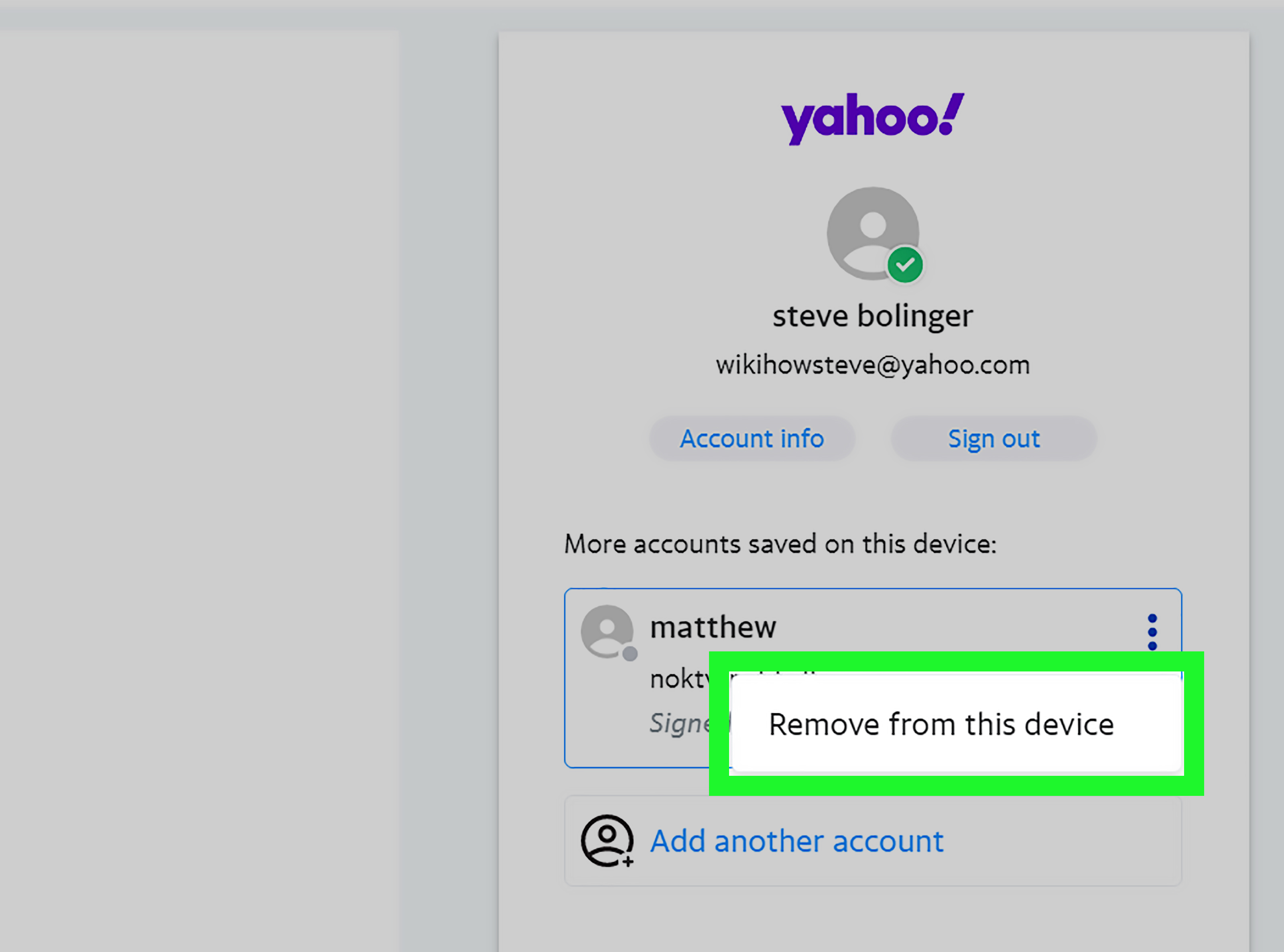
Yahoo lists devices signed into your account in the “Current sign-ins” section of the Account Security page. Review this list carefully. If you see a device, browser, or location you do not recognize, click it and choose “Sign out.” This removes that device’s access.
After signing out unfamiliar devices, change your password and review your recovery methods. If you suspect someone entered your account, also check Yahoo Mail settings such as forwarding rules, filters, blocked addresses, reply-to addresses, and connected mailboxes. Attackers sometimes change mail settings to hide their tracks or quietly forward your messages. Sneaky? Yes. Original? Sadly, no.
Best Practices Before and After Changing Yahoo Sign-in Settings
Changing your Yahoo sign-in settings is not a one-time chore. It is more like brushing your teeth: not glamorous, but very helpful if you do it regularly. Start by making your Yahoo password unique. If the same password is used anywhere else, change it there too. A breach on one website can put every reused password at risk.
Next, use two-step verification, a security key, or a passkey when possible. Security experts consistently recommend multi-factor authentication because it adds protection beyond a password. For most everyday users, an authenticator app is a strong and practical choice. For users at higher risk, such as business owners, journalists, public figures, or anyone with valuable accounts, a hardware security key may be a smart upgrade.
Keep your recovery email and phone number current. If you change phone numbers, update Yahoo immediately. If you lose access to your recovery email, replace it before there is a crisis. Recovery settings are boring until you need them; then they become the most exciting thing on Earth.
Finally, beware of phishing. Yahoo will never need you to type your password into a strange page you reached from a suspicious message. Do not approve sign-in prompts you did not initiate. Do not share verification codes. Do not click urgent “your account will close today” links without checking the sender and destination. Cybercriminals love panic because panic makes people skip common sense.
Troubleshooting Common Yahoo Sign-in Setting Problems
You Do Not See the Password Change Option
If you cannot find the password change option, Yahoo Account Key may be enabled. Disable Account Key first, then return to the Yahoo Account Security page and look under “Ways of signing in” for the password option. If the app interface is not cooperating, use a mobile or desktop browser.
You Are Not Receiving Verification Codes
If Yahoo verification codes are not arriving, check whether your recovery phone number or email address is correct. Make sure your phone can receive SMS messages, your inbox is not filtering Yahoo messages into spam, and your mobile plan is active. Also confirm that you did not enter a landline where an SMS-capable mobile number is required.
Your Third-Party Mail App Stopped Working
If Outlook, Apple Mail, or another email client stops connecting after you enable two-step verification or Account Key, create a Yahoo app password. Remove the old Yahoo account from the mail app if necessary, add it again, and use the generated app password when the app asks for a password.
You See a Device You Do Not Recognize
Sign out the unfamiliar device immediately from the Account Security page. Then change your password, confirm your recovery methods, delete suspicious app passwords, and review Yahoo Mail settings. If you notice missing emails, strange sent messages, or forwarding rules you did not create, treat it as a possible compromise and secure the account fully.
Real-World Experience: What Changing Yahoo Sign-in Settings Feels Like
The first time I helped someone change their Yahoo sign-in settings, the process felt a little like opening a drawer you have ignored for ten years. There were useful things inside, but also a few surprises. The account had an old recovery phone number, a recovery email nobody remembered, and a third-party mail app connection from a laptop that had probably retired before streaming services started asking, “Are you still watching?”
The most useful part was not changing the password, although that helped. The real improvement came from cleaning up the whole sign-in environment. We updated the recovery email first because account recovery is the safety net. Then we changed the password to a long, unique one and saved it in a password manager. After that, we turned on two-step verification using an authenticator app. The account immediately felt less fragile, like replacing a wobbly screen door with an actual deadbolt.
One small challenge was explaining the difference between a regular password, an app password, and two-step verification. The easiest comparison was this: your regular password is your main house key, two-step verification is the alarm code, and an app password is a temporary key for one specific person doing one specific job. If that person no longer needs access, you take back that key without changing every lock in the house. Once that clicked, app passwords stopped sounding mysterious.
Another useful lesson was to slow down during security changes. People often rush because they are worried about being locked out. But rushing can cause mistakes, like deleting the only working recovery method before adding a new one. The better order is simple: add and verify the new recovery method, then remove the old one. Turn on stronger security only after confirming you have access to your recovery options. This sequence avoids unnecessary panic and dramatic sighing at the screen.
Reviewing current sign-ins was also eye-opening. Some devices were easy to recognize, such as a current phone and home laptop. Others were vague, with browser names or locations that required a moment of detective work. When a device looked unfamiliar, signing it out was the safest move. Afterward, changing the password and checking app passwords helped close the loop.
The best experience-related advice is to treat Yahoo sign-in settings like regular digital maintenance. You do not need to check them every morning with your coffee, unless your hobby is extremely cautious clicking. But reviewing them every few months, after getting a new phone, after traveling, or after hearing about a data breach is smart. Keep recovery information current, use a unique password, enable two-step verification or a passkey, and remove old devices. It is not glamorous, but neither is locking your front door, and most of us still do that before leaving home.
In the end, changing Yahoo sign-in settings is less about memorizing technical terms and more about making good choices in the right order. Secure the password. Verify recovery methods. Add stronger authentication. Remove old access. Do those four things and your Yahoo account becomes much harder to break into. Your inbox may still contain promotional emails from 2018, but at least it will be your inbox.
Conclusion
Changing your Yahoo sign-in settings is one of the simplest ways to protect your email account and the many online services connected to it. Start by changing your Yahoo password and updating recovery methods. Then strengthen your account with two-step verification, a security key, or a passkey when available. Finally, review Account Key, app passwords, current sign-ins, and connected devices so old or suspicious access does not linger.
The process may take a little focus, but it is not complicated. Think of it as a quick security tune-up. Your Yahoo account stores messages, personal details, sign-in alerts, receipts, subscriptions, and probably at least one email you meant to reply to in 2019. Protecting it is worth the effort.