
At some point, every Android user has the same glamorous tech moment: you need a case, a charger, a repair quote, or a software update, and suddenly you realize you have no idea what phone you actually own. You know it’s black. You know it has a camera. You know it judges you at 2 a.m. when you open six food delivery apps in a row. But the exact make and model? Total mystery.
The good news is that figuring out what kind of Android phone you have is usually fast and painless. In most cases, you can identify your phone in under a minute. You do not need to be a tech wizard, and you definitely do not need to perform an archaeological dig through old receipts unless all else fails.
In this guide, you’ll learn two simple ways to check what kind of Android phone you have, plus how to tell the difference between your device name, model name, model number, and IMEI. Those terms get tossed around like everybody was born knowing them. Most people were not.
Why Knowing Your Android Phone Model Actually Matters
Before we jump into the two methods, let’s answer the obvious question: why should you care?
Knowing your Android phone model helps when you need to:
- buy the correct case, screen protector, or charger
- download the right user manual or support files
- check whether your phone still gets Android updates
- trade in, sell, or insure your device
- verify compatibility with a carrier or eSIM
- troubleshoot issues with repairs, apps, or accessories
For example, “Samsung Galaxy” is not enough information. That could describe a budget Galaxy A-series phone, a Galaxy S flagship, or a foldable that costs more than your refrigerator. You need the exact model, not just the brand.
Way 1: Check Your Phone in Settings
This is the easiest and most reliable method. If your phone turns on and the screen works, start here.
How to Find Your Android Phone Model in Settings
On most Android phones, the path looks something like this:
- Open Settings.
- Scroll down and tap About phone, About device, or sometimes System and then About phone.
- Look for entries like Model, Model name, Device name, Hardware information, or Model number.
That section usually gives you the details you need. Depending on the brand, you may also see:
- manufacturer name
- Android version
- build number
- serial number
- IMEI or IMEI2
If you only see a nickname like “Mom’s Phone” or “My Device,” keep scrolling. That is often a customizable device name, not the official product name. What you want is the model name or model number.
What the Different Labels Mean
This is where people get tripped up, so let’s make it painless.
Device name: This is often a user-editable name. It may say something cute, dramatic, or not helpful at all.
Model name: This is the consumer-friendly name, such as Samsung Galaxy S24, Google Pixel 8a, or Motorola Edge.
Model number: This is the more specific identifier, often a mix of letters and numbers. It matters when shopping for parts, comparing variants, or checking compatibility.
IMEI: This is a unique identifier for your phone hardware. It is great for carrier checks, warranty help, and stolen-phone reports, but it is not usually the same thing as the model name.
Build number: This tells you about the software build, not the product model. Useful for troubleshooting, not for buying a case.
Brand-by-Brand Examples
Android is one big family reunion where everybody wears different name tags. The route is similar, but not always identical.
Samsung: Open Settings > About phone. You will usually see the model name and model number right there.
Google Pixel: Open Settings > About phone. You may also tap deeper into the phone information section for model and serial details.
Motorola: The model may be under About phone, Device details, or Hardware information, depending on the version.
Other Android brands: If your phone uses a customized version of Android, look for About phone, About device, or use the search bar inside Settings and type “model” or “about.” That shortcut saves a lot of scrolling and mild irritation.
When Settings Gives You Part of the Answer
Sometimes the Settings screen gives you a model number but not a very friendly model name. That is still useful. Copy the model number exactly as shown and use it on the manufacturer’s support site or your carrier account. A code like SM-S921U or a similar SKU-style number can identify the exact phone variant much more precisely than a generic name can.
This matters because many Android phones come in multiple regional, carrier, or storage variants. Two devices can look nearly identical and still have slightly different model numbers. If you are buying accessories, requesting repairs, or checking network compatibility, that tiny code matters more than you might think.
Way 2: Check the Phone Itself, the Box, or Your Carrier Info
If your phone will not turn on, the screen is broken, or the Settings menu is playing hard to get, use the backup method. This second way is really a bundle of physical and account-based clues.
Check the Back of the Phone
Some Android phones have identifying text printed on the back near the bottom. Remove your case first. Plenty of people swear their phone has no markings, then discover the answer was hiding under a crumb, a smudge, and a three-year-old rubber case.
You might see:
- the brand name
- the model name
- a model code
- an IMEI or serial-related marking
Not every phone has this information printed clearly, especially newer designs that prefer a clean back panel over helpful labeling. Still, it is worth checking because it takes all of ten seconds.
Check Under the Battery on Older Phones
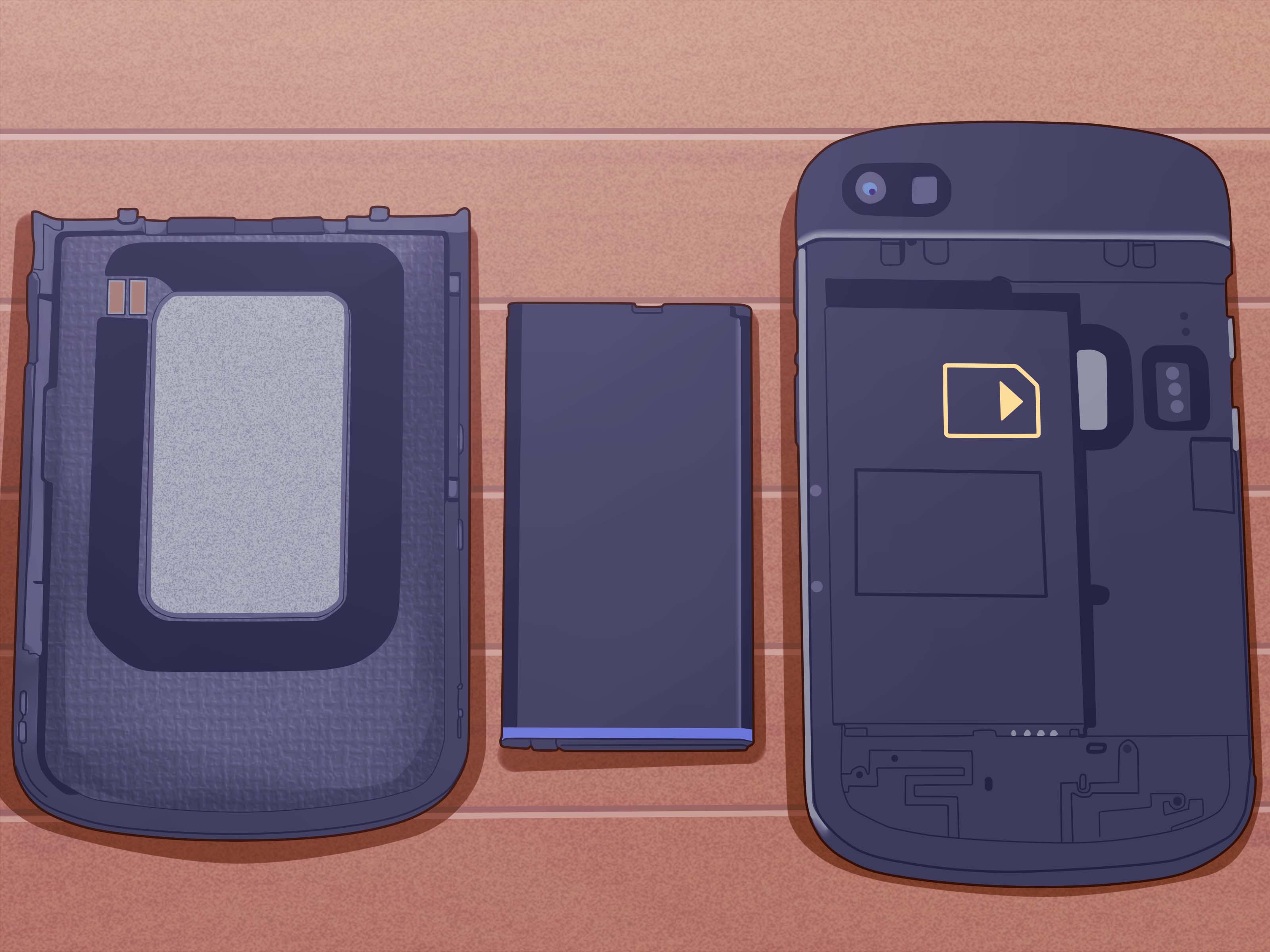
If you have an older Android device with a removable battery, the sticker under the battery may include the model number, serial number, and IMEI. It feels delightfully retro, like finding a hidden map inside a cereal box, but it still works.
Check the Original Box
If you still have the box, congratulations: you are the kind of organized person the rest of us whisper about with equal parts admiration and jealousy.
The original packaging often lists:
- the full model name
- the model number
- the IMEI
- the serial number
- storage or color variant
This is one of the best ways to identify a phone that will not power on. The label is usually on the outside or bottom of the box.
Dial *#06# for the IMEI
If the phone still works well enough to open the dialer, type *#06#. On many Android phones, this instantly displays the IMEI number. That number is not your model name, but it is still powerful. You can use it with your carrier, warranty lookup tools, or trade-in portals to confirm what phone you have.
If your phone supports dual SIM, you may see IMEI 1 and IMEI 2. That is normal, not evidence that your phone is secretly living a double life.
Check Your Carrier Account
If you use Verizon, AT&T, T-Mobile, Visible, Xfinity Mobile, UScellular, or another carrier, your online account may list your active device. Log in and look for the section related to your line, devices, phone details, or account equipment.
This method is especially handy when:
- your phone screen is damaged
- you bought the phone through the carrier
- you need the make, model, and IMEI in one place
- you are checking whether the phone is unlocked or compatible with another network
Carrier pages often show the make and model clearly, and some also display device ID details tied to your line.
Which Method Is Better?
If your phone works normally, Way 1 in Settings is the fastest and most accurate option.
If the phone is damaged, won’t boot, or you need a backup check, Way 2 is the best fallback.
In real life, the smartest move is to use both. Check the model in Settings, then confirm it with the box, carrier account, or IMEI if you are about to buy expensive accessories or sell the phone. A few extra seconds can save you from ordering the world’s most useless phone case.
Common Mistakes People Make
Confusing the Brand With the Model
Saying “I have a Samsung” is like saying “I drive a car.” Helpful in the broadest possible sense, but not enough to buy parts.
Using the Device Nickname
The device name can be changed by the user. If it says “Dad’s New Phone,” that does not help anybody at the electronics store.
Mixing Up Model Number and IMEI
The IMEI identifies your physical device, while the model number identifies the type or variant of phone. Both are useful, but they serve different purposes.
Assuming All Cases Fit the Same Series
A Galaxy A phone case will not magically fit a Galaxy S Ultra because both say “Samsung.” Phone accessories are picky, and they have every right to be.
Quick FAQ
Can I check what Android phone I have without turning it on?
Yes. Check the back of the device, the box, the label under a removable battery, or your carrier account.
What if my phone only shows a model number?
That is still enough. Search the exact model number on the manufacturer’s support page or your carrier site to match it to the full product name.
Can I use the IMEI to identify my phone?
Yes. It is often used for support, warranty, trade-in, compatibility, and lost-device tasks. Just remember that the IMEI is not the same as the friendly retail model name.
Where do I find my Android version?
Usually under Settings > About phone > Android version. That tells you the software version, not necessarily the exact phone model.
Final Thoughts
If you are wondering how to check what kind of Android phone you have, the answer is delightfully simple: start with Settings > About phone, and if that fails, check the phone itself, the box, the IMEI, or your carrier account.
That’s it. Two main ways. No secret handshake. No computer science degree. No candlelit ritual involving USB cables.
Once you know your exact Android phone model, everything else gets easier: shopping for accessories, checking updates, getting repairs, trading the phone in, or figuring out whether your “mystery Android” is still a modern device or a brave little veteran from several software eras ago.
And next time someone asks what phone you have, you can answer with confidence instead of saying, “Uh… the blue one?”
Extra Experiences: Real-World Moments That Make This Surprisingly Important
People usually do not look up their Android phone model for fun. Nobody wakes up on a Saturday and says, “Today feels like a great day to inspect serial identifiers.” Usually, the question comes up because something practical is happening.
One common experience is shopping for accessories online. A person searches for a “Samsung charger” or “Pixel case,” sees a thousand options, and then realizes all those options are tied to specific models. That is often the moment panic enters the chat. The phone looks like a Galaxy. The seller says the case fits a Galaxy A14, A15, S24, and something called FE. Suddenly the buyer is staring at the Settings menu like it contains the secrets of the universe. Once they find the exact model name, the confusion disappears instantly.
Another very real situation happens during repairs. Maybe the screen is cracked, the battery is fading, or the charging port has decided it no longer believes in teamwork. A repair shop will almost always ask for the exact model. Not “Motorola.” Not “an Android from a few years ago.” The exact model. This is where checking About phone can save time, money, and a deeply embarrassing back-and-forth conversation that ends with, “Can you maybe text me a picture of it?”
Then there is the carrier-switch experience. Somebody wants to move to a new network, try eSIM, or see whether a used Android phone is compatible. The carrier asks for the IMEI or model number. If the person already knows how to find that information, great. If not, they start poking around the dialer, the box, old emails, and maybe a drawer full of mystery cables. It becomes a scavenger hunt nobody asked for. Learning the two basic ways in this article makes that process much smoother.
There is also the family tech support scenario, a classic of modern life. A parent, grandparent, sibling, or cousin says, “My phone is acting weird.” You ask what kind of phone it is. They answer, “Android.” That narrows it down to roughly a small planet’s worth of devices. If they know how to open Settings and check the model, troubleshooting becomes much easier. If not, you get a vague description like “It has three cameras and a glittery case.” Charming, but not diagnostic.
Used-phone buyers know this struggle too. Listings often say things like “Samsung phone, works great” or “Motorola, unlocked, good condition,” with photos taken in the lighting style of a ghost documentary. In that case, asking for the exact model number or IMEI-based identification protects the buyer from guessing wrong. It can also reveal whether the phone is the exact version they need for their carrier, storage preference, or repair plans.
Even software questions can lead back to the same issue. Someone wants to know whether their phone still gets Android updates, whether it supports a specific app, or why a feature on YouTube does not match what a friend has. The answer often depends on the device model and Android version. Once those two facts are confirmed, the rest of the research becomes far easier and far less frustrating.
So yes, checking what kind of Android phone you have sounds like a tiny task. But in real life, it solves a surprising number of problems. It is one of those small tech skills that pays off over and over again. Learn it once, and your future self will thank you the next time you need a case, a repair, a trade-in, or an answer that starts with, “First, let’s confirm which phone you actually have.”
Note: This article is formatted for web publishing, and source links are intentionally omitted.














