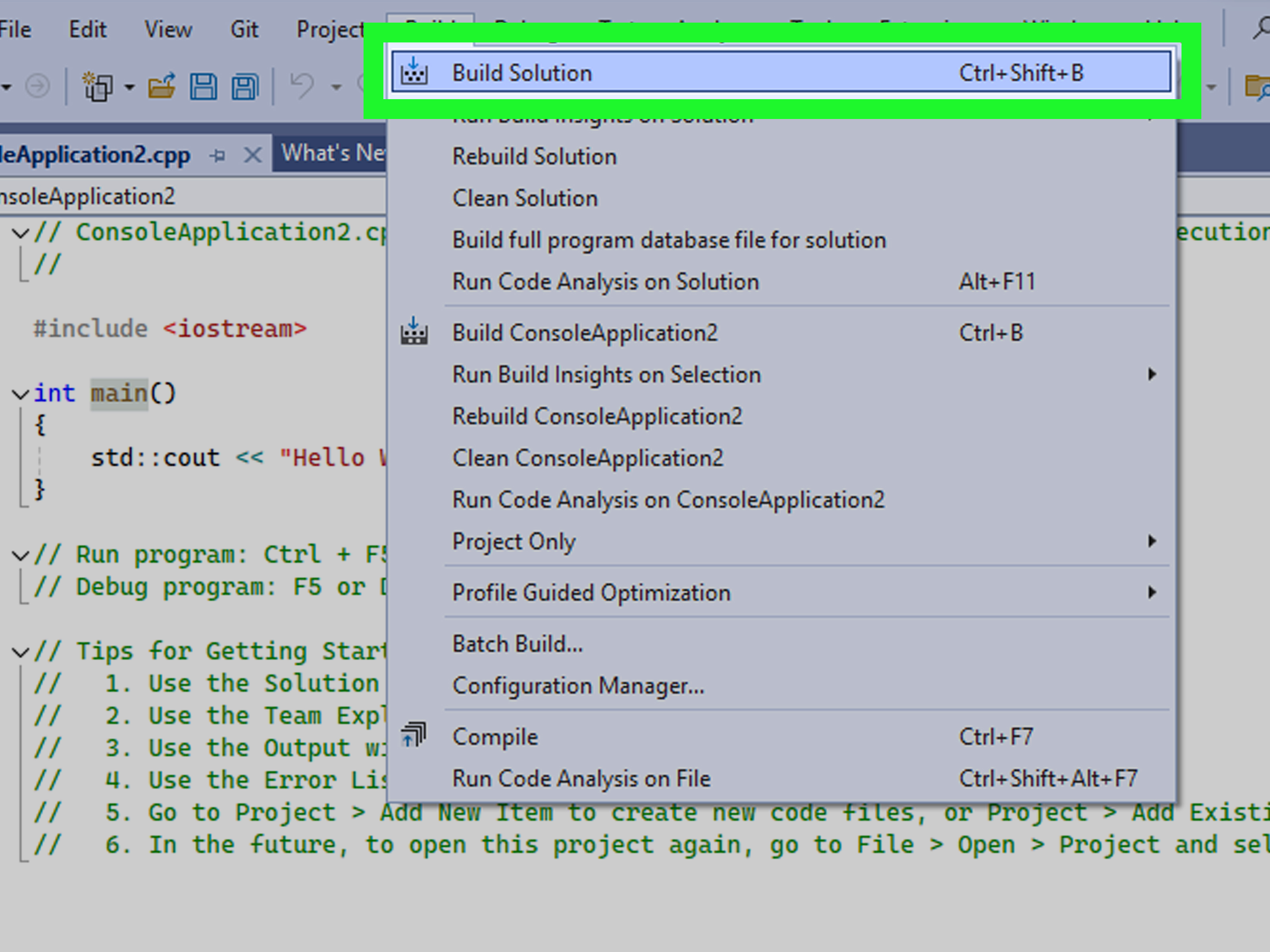
If you are new to C++, turning a humble .cpp file into a shiny .exe on Windows can feel like wizardry performed by people who wear black hoodies and speak only in terminal commands. The good news is that it is much simpler than it looks. At its core, you are taking source code, compiling it into object code, and then linking everything into an executable file Windows can run.
This guide walks through two practical tools for the job: Microsoft C++ Build Tools (MSVC) and Code::Blocks with a GCC/MinGW toolchain. One is great if you want the official Microsoft route and rock-solid Windows compatibility. The other is friendly, visual, and popular with students, beginners, and anyone who prefers clicking a few menus before coffee fully kicks in.
By the end, you will know how to compile a CPP file to an EXE on Windows, how to name your output file, how to fix common errors, and how to choose the best tool for your workflow without sacrificing your afternoon to mysterious build messages.
What It Really Means to Compile a CPP File to an EXE
Before jumping into commands, it helps to know what is happening behind the curtain. When you compile a C++ file, the compiler translates human-readable C++ code into machine-readable instructions. But that usually is not the end of the story. After compilation, a linker combines object files and required libraries into one runnable program, which becomes your .exe.
In plain English: compilation turns your code into parts, and linking snaps those parts together into something Windows can open with a double-click. Think of it like assembling furniture, except the missing screw is usually a semicolon and not the one that rolled under the couch.
If your project has one file, the process feels quick. If it has several .cpp files and headers, the same idea still applies. You just hand the compiler more input files, and it builds one program from them.
Tool 1: Microsoft C++ Build Tools (MSVC)
Why Use MSVC?
MSVC is the Microsoft C++ compiler toolchain that comes with Visual Studio and the standalone Build Tools package. It is an excellent choice when you want native Windows development, strong compatibility with Microsoft libraries, and a toolchain widely used in professional Windows software development.
If you care about building Windows-first applications, using the same ecosystem as Visual Studio, or staying close to Microsoft’s official tooling, this is the cleanest route. It also feels wonderfully direct once it is set up: open the right command prompt, run one command, and your EXE appears.
What You Need
Install either Visual Studio with C++ support or the standalone Build Tools for Visual Studio. During setup, choose the C++ desktop development workload or equivalent C++ build components. The important part is that the Microsoft compiler, linker, headers, and libraries are installed.
After installation, do not use just any random Command Prompt window. Use the Developer Command Prompt or Developer PowerShell, because those shells load the environment variables that let Windows find cl.exe, the linker, and the C++ libraries.
Create a Simple CPP File
Make a file named hello.cpp and save this code inside it:
Compile It to an EXE
Open the Developer Command Prompt, go to the folder where hello.cpp lives, and run:
That command tells MSVC to compile your C++ file with standard C++ exception handling enabled. If everything works, the compiler creates an object file and then links it into hello.exe. To run it, type:
That is the basic workflow in one bite-sized serving.
How to Name the Output EXE
If you do not want the executable to use the same base name as your source file, you can rename the output during the build. For example:
This is handy when your source file is called something boring like test.cpp but you want the finished program to look a little more intentional.
How to Compile Multiple CPP Files
Real projects often use more than one source file. MSVC can handle that just fine:
Here is what is happening:
/W4enables a strong warning level./EHscenables standard C++ exception handling.- The three source files are compiled and linked together.
/link /out:calculator.exenames the final executable.
That one command is often enough for small utilities, school assignments, and simple desktop console apps.
Common MSVC Problems and Fixes
Problem 1: “cl is not recognized as an internal or external command.”
This almost always means you opened the wrong terminal. Switch to Developer Command Prompt or run the Visual Studio developer shell script first.
Problem 2: The file compiles, but you cannot find the EXE.
Look in the same folder where you ran the command unless you used a different output path. The executable usually lands right there.
Problem 3: Linker errors.
These usually happen when you forgot to include all required source files, declared a function without defining it, or referenced a library that was never linked.
Problem 4: You used /c and expected an EXE.
The /c option compiles without linking. That produces an object file, not a runnable program. It is useful in advanced workflows, but not when your goal is a finished EXE.
Tool 2: Code::Blocks with a GCC/MinGW Toolchain
Why Use Code::Blocks?
Code::Blocks is a free IDE that gives you a graphical interface for writing, building, and running C++ programs. It is a great pick if you want something lighter than full Visual Studio and easier to approach than a pure command-line setup.
One important detail: Code::Blocks is an IDE, not the compiler itself. It works with a compiler toolchain such as GCC through MinGW. Some Windows downloads bundle Code::Blocks with a MinGW-based compiler, which makes setup easier for beginners.
Set It Up
Install a Code::Blocks package that includes a compiler bundle, or connect Code::Blocks to an existing GCC/MinGW installation. In the IDE, verify that the compiler settings point to the correct MinGW toolchain folder. If that path is wrong, Code::Blocks behaves like a very polite shell of an IDE that smiles and compiles absolutely nothing.
If you prefer a more current standalone toolchain, some developers also use MinGW-w64 via MSYS2 and then point Code::Blocks to that compiler. For modern Windows setups, UCRT-based environments are generally the better direction than older non-UCRT paths.
Create a Project and Build It
The easiest beginner-friendly route is to create a Console Application project in Code::Blocks:
- Open Code::Blocks.
- Choose File > New > Project.
- Select Console Application.
- Choose C++.
- Finish the wizard and open the generated
main.cpp. - Replace the starter code with your own program.
- Press F9 for Build and Run.
If the build succeeds, Code::Blocks creates an executable in a build output folder, commonly under something like bin\Debug or bin\Release depending on the selected target.
Compile the Same CPP File from the GCC Side
Even if you use Code::Blocks as your IDE, it helps to know the underlying compiler command. With GCC for C++, use g++ rather than gcc. That matters because g++ automatically links the C++ standard library.
From a terminal where the toolchain is available, run:
That command compiles hello.cpp and places the output in hello.exe. If you have multiple files, you can do this:
This is simple, readable, and excellent for small projects. It is also a good way to understand what Code::Blocks is doing for you behind the scenes.
Common Code::Blocks and GCC Problems
Problem 1: Code::Blocks opens, but build fails immediately.
The compiler path is probably wrong. Go into compiler settings and confirm that the MinGW toolchain executables are correctly mapped.
Problem 2: You used gcc instead of g++.
For C++ programs, this can cause linking issues, especially when your code uses standard library features such as iostream, string, or vector.
Problem 3: The build works, but you cannot find the EXE.
In an IDE workflow, the output often lands in a project folder like bin\Debug or bin\Release, not beside the original source file.
Problem 4: The terminal says a header or library cannot be found.
That usually means the toolchain is incomplete, the compiler path is not in your environment, or the project is looking in the wrong include or library directories.
MSVC vs. Code::Blocks: Which One Should You Choose?
If you are deciding between these two tools, here is the practical answer:
- Choose MSVC if you want the official Microsoft Windows toolchain, strong native compatibility, and a command-line workflow that scales nicely into professional Windows development.
- Choose Code::Blocks if you want a lightweight IDE, a gentler learning curve, and a visual build environment that still teaches you the basics of compilation.
MSVC feels more “Windows native.” Code::Blocks feels more “let me just build this C++ homework, side project, or toy engine before dinner.” Neither choice is wrong. The best tool is the one that gets your code compiled today and still makes sense next month.
Best Practices for Compiling CPP Files on Windows
1. Use Clear File Names
Calling everything test.cpp and newtest.cpp seems funny until your folder starts looking like a confused time capsule. Name files after what they do.
2. Turn On Warnings
Warnings are your early-warning radar. In MSVC, use something like /W4. In GCC, use -Wall and add stricter warnings as you grow more comfortable.
3. Keep Debug and Release Builds Separate
When using an IDE, avoid mixing build outputs. Debug builds and release builds often belong in different folders for a reason.
4. Learn One Terminal Command Even If You Love IDEs
Knowing the basic compiler command makes you more confident, more flexible, and far less likely to panic when an IDE hides the real error under twelve tabs and a cheerful icon.
5. Start Simple, Then Scale Up
For one-file projects, a single compile command is enough. For larger projects, move toward project files, make systems, or CMake instead of stuffing your whole codebase into one heroic command line.
Real-World Experience: What Compiling CPP to EXE on Windows Usually Feels Like
The first time most people compile a C++ file on Windows, the experience falls into one of two categories. In the first category, everything works on the first try, and the developer instantly feels like a genius. In the second category, Windows politely informs them that cl does not exist, the IDE cannot find the compiler, or the EXE has vanished into a folder structure apparently designed by raccoons.
A very common beginner experience with MSVC is opening the regular Command Prompt, typing cl hello.cpp, and getting smacked with the classic “not recognized” message. That is not a sign that C++ hates you personally. It usually just means the environment was not initialized. The funny part is that once you open the correct Developer Command Prompt, the exact same command often works perfectly. So a lot of early frustration with C++ on Windows is less about coding and more about launching the right shell.
With Code::Blocks, the usual first-time story is different. The IDE looks welcoming, the menus are friendly, and the whole thing feels manageable right up until build time. Then you hit Build and Run, and nothing useful happens because the compiler path is missing or pointing to the wrong folder. That moment teaches a valuable lesson: an IDE is not magic. It is a helpful front end, but somewhere underneath it still needs a real compiler that knows where its own tools live.
Another frequent experience is confusion over where the finished EXE actually ended up. People expect it to appear beside the source file like a loyal pet. Sometimes it does. Sometimes it lives in bin\Debug, bin\Release, or a custom output folder you forgot you set ten minutes earlier. Hunting for the EXE becomes a short adventure in modern archaeology.
There is also the famous gcc versus g++ moment. A beginner writes a perfectly valid C++ program using std::cout, runs a build with gcc, and is rewarded with linker complaints dramatic enough to sound like the compiler has suffered a personal betrayal. Then they switch to g++, and suddenly the build works. That one tiny character can feel like a prank the programming universe plays on everyone exactly once.
Over time, though, compiling C++ on Windows gets easier fast. You begin to recognize patterns. “Compiler not found” means environment issue. “Undefined reference” or unresolved external symbol usually means something was declared but never linked properly. Missing EXE means wrong output folder. Weird runtime behavior often means debug versus release confusion. The errors stop feeling random and start feeling like road signs.
That is why learning to compile a CPP file to an EXE manually is so useful. It teaches you what your tools are actually doing. Once you understand the basic flow, IDEs become more helpful, command-line builds become less scary, and debugging build issues becomes a lot less theatrical. In other words, the process goes from “Why is my computer yelling at me?” to “Ah, yes, I see what broke.” That is progress. Very nerdy progress, but progress all the same.
Conclusion
If your goal is simply to compile a CPP file to an EXE on Windows, you do not need a giant toolchain saga. You need one solid method that fits your style. MSVC is excellent for a clean, official Windows command-line workflow. Code::Blocks with GCC/MinGW is great for a friendly IDE experience with plenty of flexibility.
Both tools can get the job done. The smartest move is to pick one, compile a tiny program today, and learn the handful of commands and settings that matter. Once you can turn hello.cpp into hello.exe without blinking, bigger C++ projects become much less intimidating.
Note: This article focuses on native Windows console-style builds for simple C++ programs. For larger projects, cross-platform setups, or dependency-heavy applications, tools such as CMake and full IDE project systems are the natural next step.